Turn on your Android flashlight without unlocking your phone
Android devices offer multiple quick shortcuts and customizable settings to activate your flashlight from the lock screen in case of emergency.
 Radwan AbdulhadiEditor and technology writer
Accessing the Flashlight via Quick Settings
According to reporting by [Engadget](https://www.engadget.com/2300305/how-to-turn-on-andoird-phone-flashlight-without-unlocking/), you don't need to unlock your Android device to switch on your flashlight when you need it quickly. Both Samsung Galaxy and Google Pixel devices feature customizable pull-down menus from the lock screen containing a variety of useful tools.
On Google Pixel phones, the flashlight button can be found by swiping down from the top of the screen to bring up the Quick Settings menu. Tapping the flashlight icon switches it on, and tapping it again turns it off. If the icon is not immediately visible among the top options, users can edit the icons on the first page by tapping the pencil at the bottom of the Quick Settings menu and pressing the plus button on the flashlight icon or moving it to the top of the menu.
Using Google Pixel Gestures and Lock Screen Shortcuts
While you cannot shake a Pixel to switch the flashlight on—which remains an [old Motorola feature](https://support.google.com/pixelphone/thread/156858557?hl=en&msgid=156863216)—users can configure the Quick Tap gesture. By navigating to Settings > System > Gestures > Quick Tap to start actions and enabling Toggle Flashlight, users can double-tap the back of their phone to activate the light. Additionally, third-party apps can provide the ability to enable the flashlight by shaking the device.
Pixel lock screen buttons can also be modified for direct access. Users can long-press on their lock screen, tap the Customize button at the bottom, scroll down to the Shortcuts option, and select the flashlight icon to place it at the bottom of the lock screen.
Managing Flashlight Settings on Samsung Galaxy Devices
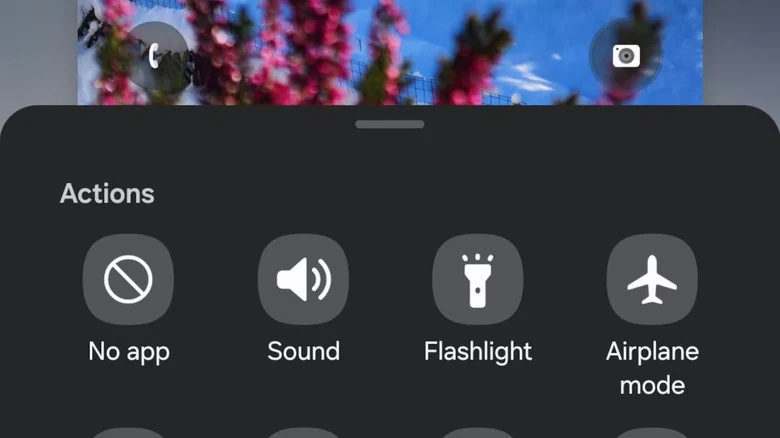
On Samsung Galaxy phones, the flashlight is accessible through the Quick Panel, which appears when swiping down from either corner of the top of the screen. If the icon is missing or users want to reorder the panel, tapping the kebab or pencil icon while the panel is open allows for editing and rearranging.
Samsung device owners can also change the two buttons located at the bottom corners of the lock screen. Typically set to the Phone and Camera icons, one of these can be replaced by long-pressing anywhere on the lock screen, choosing one of the slots, and selecting the flashlight. If customization fails, users can check Settings > Lock Screen & AOD > Enable Touch and Hold to Edit.
Hands-Free Voice Activation with AI Assistants
For users who prefer a hands-free approach, AI assistants on both Samsung Galaxy and Google Pixel devices can toggle the flashlight upon request. Without unlocking the phone, users can say 'Hey, Google' followed by the command 'Turn on the flashlight' to activate it immediately.
Sources
- EngadgetHow to turn on the flashlight on your Android phone without unlocking it
Continue chronologically

Related entity coverage
Related stories
What to Look For When Buying a Cheap Android Phone
Discover the essential non-negotiable features you need to look for when shopping for a budget Android phone priced at $300 or less.
How to Check If Your Android Phone Still Gets Security Updates
Learn how to check your Android phone's security update status, find manufacturer end-of-life dates, and secure an unsupported device.
Google Updates Android Distribution Numbers for 17 and 16
Google has refreshed its Android distribution numbers, showing that Android 17 sits at 1% adoption while Android 16 claims over 25%.
How to Block and Unblock Numbers on Your Android Phone
Tired of spam? Learn how to effectively manage your block list on Android phones, including specific steps for Samsung and Google Pixel devices.