
How to Block and Unblock Numbers on Your Android Phone
Unwanted calls and persistent spam texts are a common nuisance for modern smartphone users. Fortunately, the Android ecosystem provides built-in tools to help you reclaim your peace of mind.
 Radwan AbdulhadiEditor and technology writer
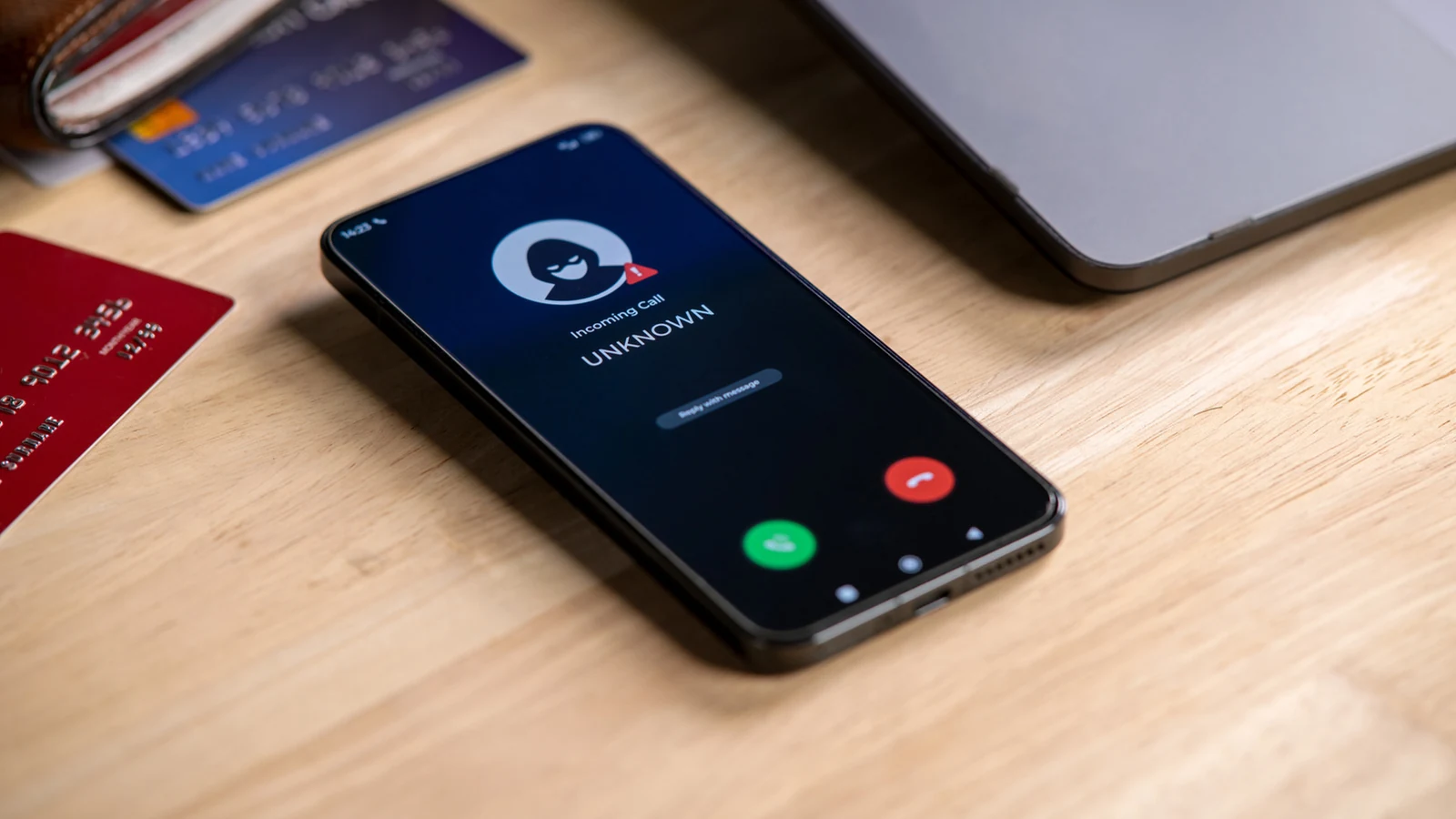
Managing Unwanted Contact
The modern smartphone is an essential tool, but it also serves as an open door for spammers and persistent callers. Dealing with these interruptions is a part of modern-day life, but users are not powerless. For the majority of [Android phones](https://www.engadget.com/mobile/smartphones/best-android-phone-130030805.html), the Phone or Contacts app acts as the primary gateway for filtering out unwanted communications. By utilizing these native features, users can effectively manage the barrage of [scam texts](https://www.engadget.com/mobile/smartphones/the-latest-android-update-includes-live-scam-message-detection-170040545.html) and calls that often plague daily routines.
Blocking Procedures on Samsung Devices
If you are using a [Samsung phone](https://www.engadget.com/mobile/smartphones/samsung-galaxy-s26-ultra-review-the-stealth-upgrade-140000629.html), the manufacturer offers specific, refined methods for managing blocked numbers. Users can block contacts directly through the Contacts app or by utilizing the Phone app for numbers that have not been saved to the address book.
To block a recently received call, users can navigate to the 'Recents' section within the Phone app. From there, locate the offending number, tap 'Details,' then 'More Options,' and finally select 'Block number.' For manual entry, the settings menu allows you to select 'Add phone number' to type or paste the specific digits you wish to restrict.
Blocking on Pixel and Stock Android
The process for a [Pixel phone](https://www.engadget.com/2240038/google-pixel-11-pro-review-gemini-ai-camera-samples/) or devices running stock Android is designed for simplicity. Much like the Samsung approach, these devices provide an interface to prevent calls and messages from reaching you. Once a number is blocked, the device automatically declines calls before the phone rings, and messages are typically diverted to a spam or blocked folder.
It is important to remember that these restrictions are device-level implementations rather than network-level blocks. Because the blocking is handled by the handset itself, moving your SIM card to a new device will generally require you to re-establish your blocked list on the new hardware.
Reversing the Block
Users may occasionally need to unblock a number they previously restricted. The unblocking process is as intuitive as the initial block. For Samsung users, navigating to the blocked list within the Contacts app allows for the removal of numbers by tapping the minus symbol (-) beside the specific contact.
For those using a Google Pixel or other stock Android interfaces, the unblocking process involves finding the restricted number in the settings and tapping the 'Clear (x)' icon next to the entry. Once unblocked, the contact will regain the ability to call or message the device as normal. Note that any communication attempts made while the number was on the block list are not retrieved or added to the call logs; those records remain lost permanently.
Sources
- EngadgetHow to block and unblock a number on your Android phone