How to Reduce Mobile Data Usage on Your iPhone
A few simple tweaks to your iPhone's settings and applications can significantly stretch your cellular data allowance.
 Radwan AbdulhadiEditor and technology writer
Using Low Data Mode and Cellular Adjustments
While unlimited internet plans are common, you might opt to save money with an MVNO or find yourself needing to monitor your usage during international travel or hotspot sessions. To minimize data consumption globally on your iPhone, you can navigate to Settings, tap Cellular, select your preferred SIM, and switch your Data Mode from Standard to Low Data Mode. Further details are available from Engadget in the original source material.
Enabling Low Data Mode prompts your iPhone to stream media and video calls in lower quality, turn off automatic updates and backups, and restrict how frequently feeds refresh. For a more tailored approach, you can disable mobile data access entirely for specific apps by scrolling down in the Cellular settings and toggling off individual apps.
Managing Background Refresh and Connectivity Assist
Background processes can quietly drain your cellular allowance even when you are not actively using your device. You can turn off Background App Refresh for apps that do not need to fetch new information while inactive by visiting your general device settings.
Another hidden feature to watch is Connectivity Assist located under your Wi-Fi settings. When active, your iPhone uses mobile data alongside Wi-Fi if the wireless network is weak or busy. If you prefer to keep your device strictly off cellular data during poor Wi-Fi connections, you can disable this feature or turn it off for specific networks.
Optimizing Individual App Settings and Downloads
Beyond system-level changes, individual applications offer built-in options to curb data consumption. In video and social media apps, you can disable autoplay and lower default streaming resolutions to conserve gigabytes.
Similarly, streaming platforms like Apple Music feature separate quality controls, while many podcast apps let you disable downloads over cellular networks. Downloading media such as offline maps, movies, shows, and playlists ahead of time over Wi-Fi is another effective strategy if your phone has sufficient storage.
App Store and iCloud Configurations
System updates and cloud synchronization can consume large amounts of data unexpectedly. To prevent this, you can visit the App Store settings and turn off automatic downloads under cellular data, as well as adjust app download limits to ask before downloading files over 200 MB.
Additionally, navigating to your iCloud settings allows you to turn off backups over cellular networks, ensuring your device waits for a Wi-Fi connection before uploading large backup files.
Leveraging Public Wi-Fi and Plan Strategies
Maximizing your reliance on Wi-Fi remains a straightforward tactic for reducing mobile data use. Subscribers can look for public hotspots provided by telecommunication networks and Internet Service Providers when away from home to handle heavier data needs.
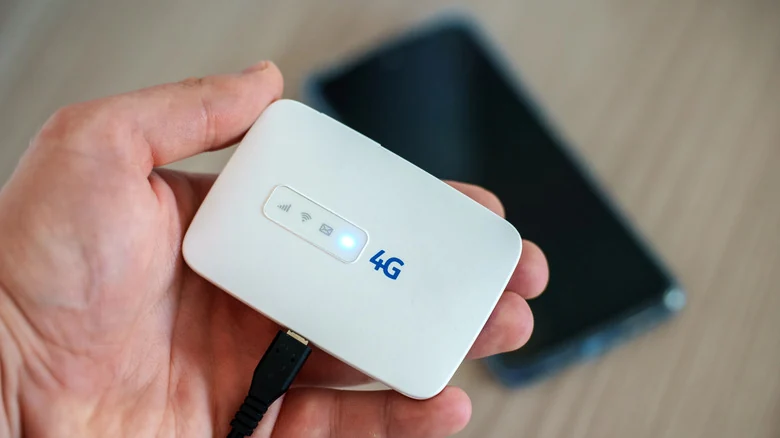
Depending on household needs, consolidating data plans by using a dedicated physical mobile hotspot or opting for an unlimited hotspot plan on a single family member's phone can also provide a smoother, more cost-effective alternative to constantly micromanaging individual device settings.
Sources
- EngadgetHow to reduce mobile data usage on your iPhone
Continue chronologically
Related entity coverage
Related stories
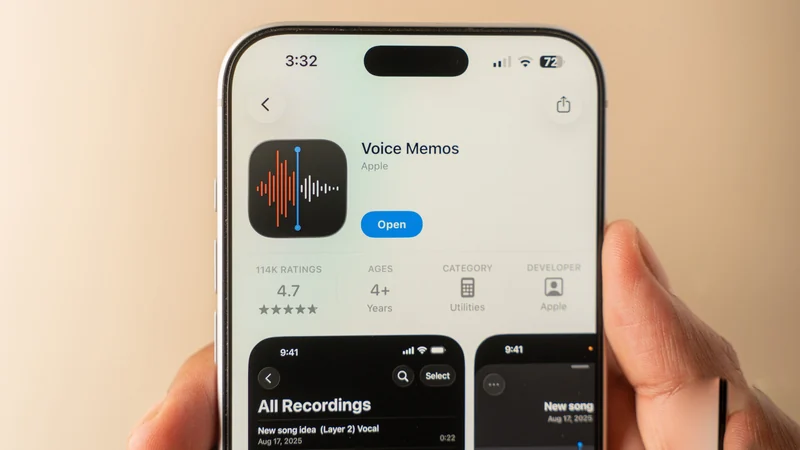
How to Use the iPhone Voice Memos App for Audio Recording
Learn how to capture high-quality audio on your iPhone using the built-in Voice Memos app, featuring tips on transcription, editing, and multitrack recording.
No Man’s Sky lands on iPhone and iPad October 28
Hello Games is bringing the full No Man’s Sky experience to iPhone and iPad on October 28, with a free trial and a $19.99 purchase price.

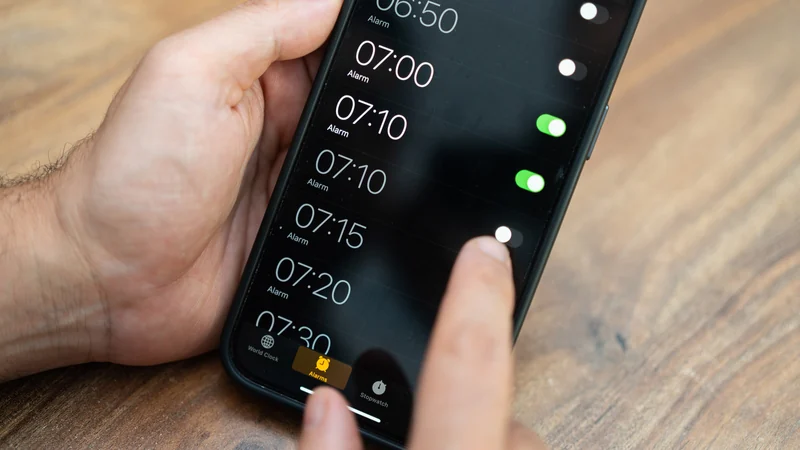
iPhone Clock App Alarm Scrolling Limit Discovered at 4:39
Discover the hidden limit in the iPhone Clock app alarm settings, along with other lesser-known visual details and features in Apple's default app.
How to Improve Your iPhone Call Quality and Fix Issues
Discover actionable steps to improve your iPhone call quality, from utilizing Voice Isolation and toggling Airplane Mode to checking your hardware.