
How to Use the iPhone Voice Memos App for Audio Recording
Apple’s native Voice Memos app provides a robust suite of tools for capturing meetings, lectures, and personal notes without requiring third-party software.
 Radwan AbdulhadiEditor and technology writer
Getting Started with Voice Memos
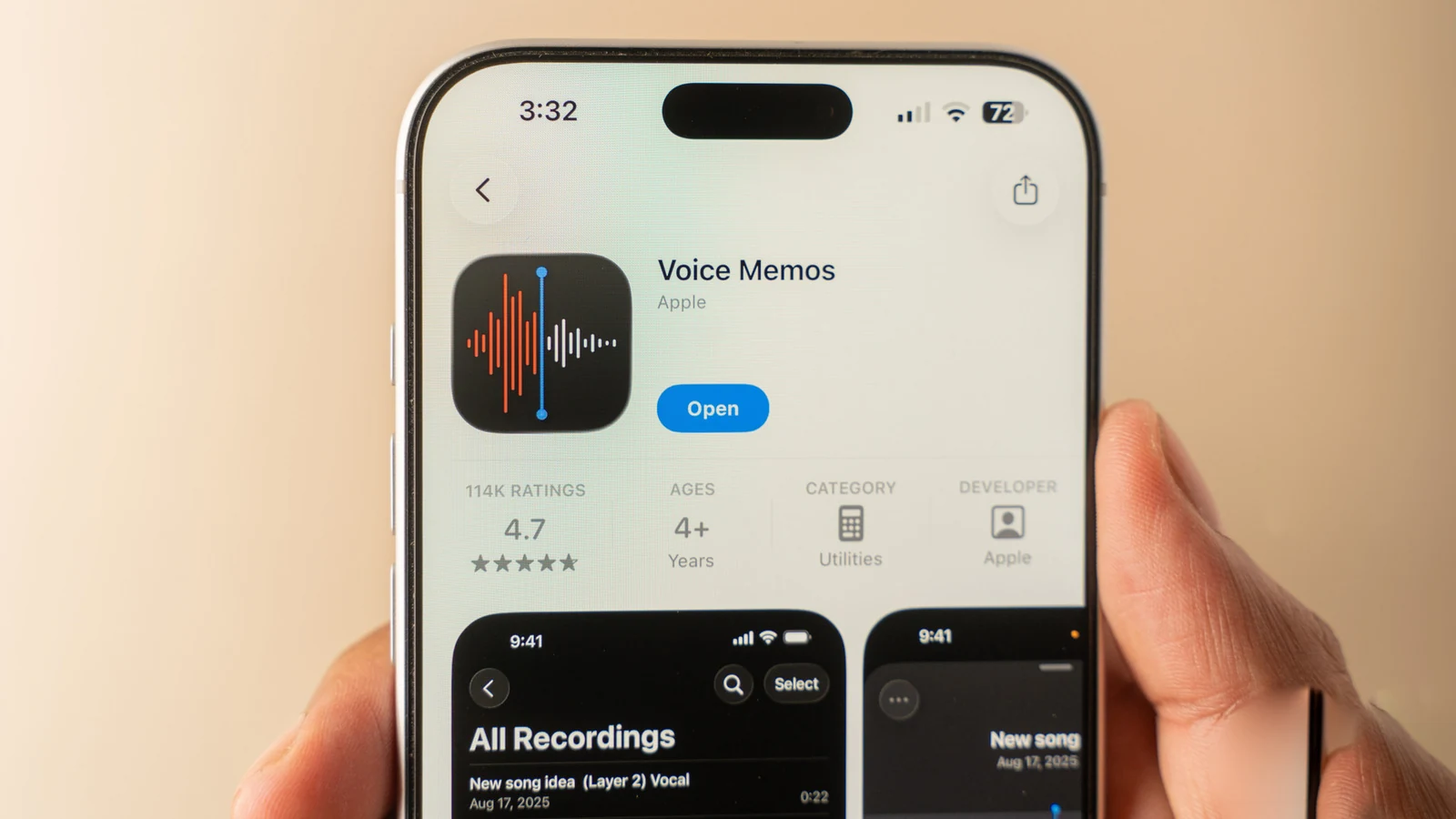
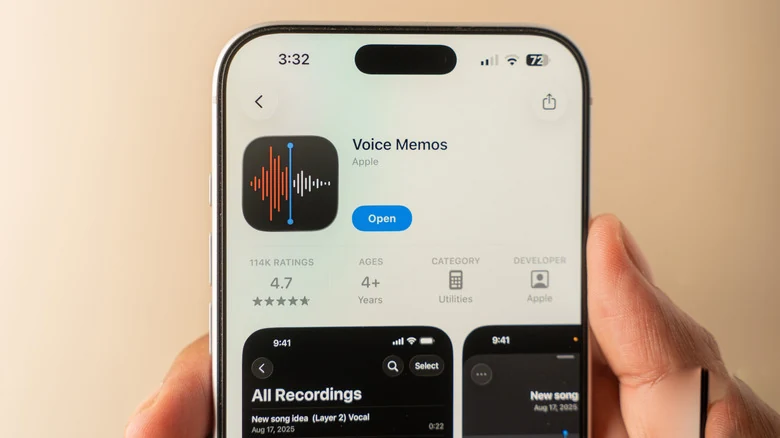
For many users, the quality of iPhone cameras is well-documented, yet the device serves as an equally powerful tool for capturing audio. Whether you are interviewing a subject, attending a lecture, or organizing brainstorming sessions, there is no need to download additional software. The Apple [Voice Memos app](https://apps.apple.com/us/app/voice-memos/id1069512134) comes pre-installed on all modern iOS devices. If the application is not visible on your Home Screen, you can quickly locate it using the system-wide Search function or reinstall it for free via the App Store.
Initiating a recording is as simple as launching the app—identified by its black icon featuring sound waves—and tapping the red record button. Tapping that same button again terminates the recording and saves the file instantly to your device.
Hidden Features and Advanced Controls
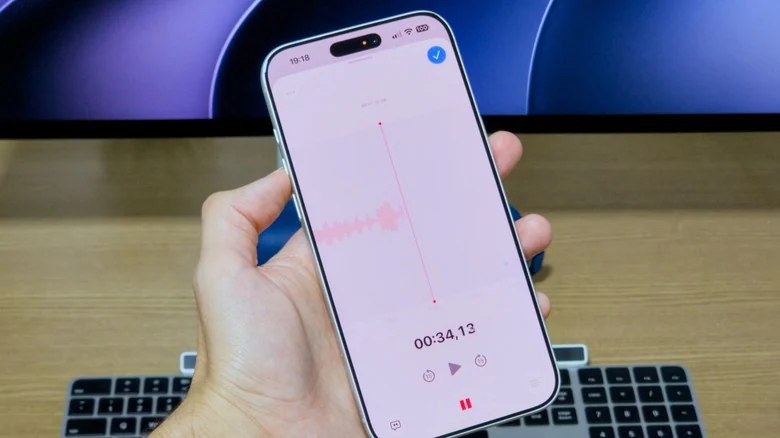
Beyond the basic interface, the app offers several advanced controls accessible by swiping up from the recording card. This action reveals a full-screen interface featuring buttons to pause or rewind. The rewind feature is particularly useful for correcting mistakes; if you misspeak or encounter background noise, you can re-record specific segments without having to restart the entire session.
For professional-grade requirements, [Multitrack audio recording is also available](https://www.engadget.com/mobile/smartphones/apples-voice-memos-app-is-getting-simple-multitrack-recording-184721503.html) by selecting the Plus button. However, it is important to note that [this requires an iPhone 16 Pro or newer](https://www.engadget.com/mobile/smartphones/i-dont-get-why-apples-multitrack-voice-memos-require-an-iphone-16-pro-175134621.html) to function, limiting its accessibility to the latest hardware.
Customizing Recording Modes
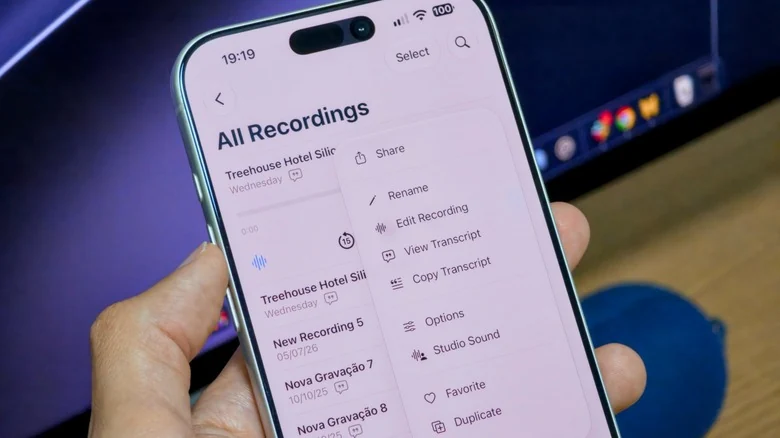
Before starting a project, users should navigate to Settings > Apps > Voice Memos to optimize their recording mode. Options typically include Mono, Stereo, and Spatial, with Spatial providing a 3D audio experience on supported devices. Once a recording is active, a three-dot menu allows users to copy transcripts for use in other apps, while the Trim tool enables the removal of unwanted sections.
Transcription and Audio Enhancement
The app significantly aids productivity with real-time transcription. By tapping the speech bubble icon, users can view a transcript that scrolls automatically with the audio. Tapping any specific word in the transcript jumps the audio playback to that exact moment. Furthermore, the playback menu allows for adjustments to speed and toggling features like 'Enhance Recording' to mitigate echo and background noise. For Spatial recordings, users have access to 'Studio Sound,' which can be adjusted via an intensity slider to give a more polished, professional tone to the speaker's voice.
Management and Syncing
All voice memos are automatically organized by the date of recording, with the most recent entries appearing at the top. The Search feature is capable of scanning the text within your transcripts to find specific clips. For those who frequently switch between devices, Apple ensures these files are kept consistent; [iOS has a native feature for recording your calls](https://www.engadget.com/mobile/smartphones/how-to-record-a-phone-call-on-an-iphone-120058707.html) that integrates with these workflows. Users can enable iCloud synchronization by navigating to Settings > [Your Name] > iCloud and verifying that Voice Memos is active, ensuring your library is accessible across your entire Apple ecosystem.
Sources
- EngadgetHow to record audio on your iPhone