iPhone Clock App Alarm Scrolling Limit Discovered at 4:39
While setting an alarm on an iPhone appears to offer endless scrolling, a hidden endpoint stops the selection at 4:39.
 Radwan AbdulhadiEditor and technology writer
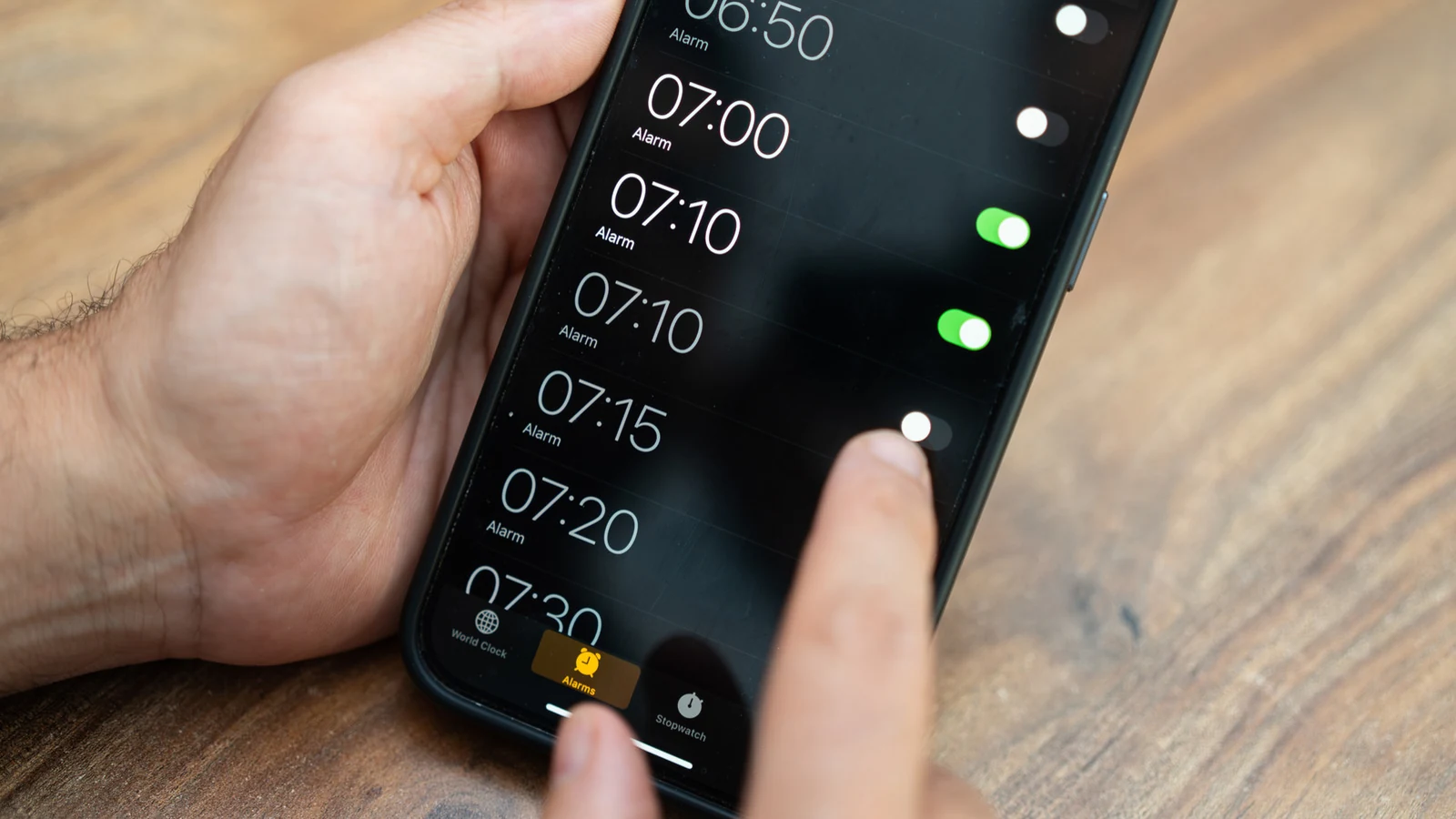
The Hidden Alarm Scrolling Limit
The iPhone Clock app has been a standard feature since the original iPhone launched 19 years ago, operating primarily as a straightforward default tool. However, a small curiosity within the alarm settings went viral in mid-2025, revealing that the alarm hour and minute scrolls are not truly infinite. Rapidly scrolling through the options eventually leads to a dead end at 4:39, or 16:39 for users who prefer military time.
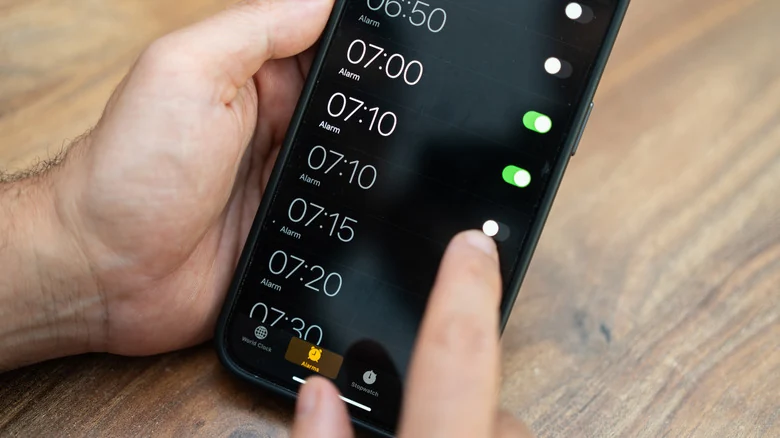
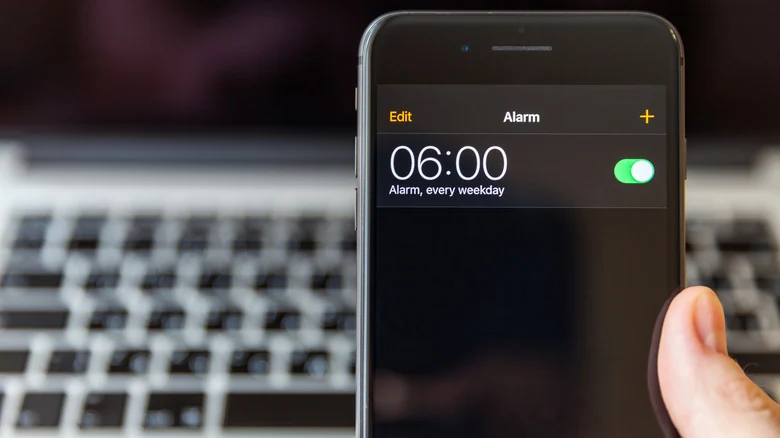
To test the feature, users can open the Clock app, select Alarms, tap the plus button, and rapidly scroll through the hours and minutes. Because it takes several fast swipes to reach the end, most users never notice the restriction during everyday use. Despite this endpoint, it does not actually limit the user's ability to set standard alarms.
Theories Behind the Endpoint
The choice of 4:39 as a stopping point appears random, and Apple has not weighed in on why the limit exists. Online discussions and reports have offered differing explanations, including one user on X suggesting that a component called Tableview might be involved. Without official clarification, the limitation remains an interesting idiosyncrasy rather than an intentional feature tied to a 23-hour limit or a larger conspiracy.
Dynamic Icon and Low Power Mode Quirks
Beyond the alarm scroll limit, the Clock app icon features a moving second hand introduced by Apple in iOS 7. The second hand typically moves in a continuous sweeping motion around the clock face. However, on iOS 26.1 devices and later, engaging Low Power Mode alters the motion to a once-per-second tick reminiscent of a traditional quartz clock.
This modification is purely visual and introduces no audible ticking noise, providing a subtle shift in how the time is displayed while conserving device energy. Users looking to explore more about optimizing their devices can reference guides on the best iPhones available on the market.
Hidden Stopwatch and Display Options
The iPhone Clock app also includes a documented feature within the Stopwatch section. By opening the Stopwatch and swiping across the display, users can switch between digital and analog stopwatch faces without downloading a third-party application.
For users interested in transforming how the app and time are presented outside of standard usage, connecting an iPhone to a charger and placing it on its side activates StandBy mode. This mode displays widgets, photos, or a traditional clock face, which can be cycled through by swiping horizontally.
Night Mode and Always-On Display
StandBy mode adapts to low-light bedroom environments by enabling Night Mode, applying a heavy red tint to the screen to minimize visual disruption during nighttime hours. To maintain this display continuously, users must ensure that the Always-On Display setting is active.
Pairing the device with a MagSafe charger equipped with a kickstand provides an optimal setup for utilizing the phone as a bedside alarm clock. Older iPhone models that lack an Always-On Display require a gentle screen tap or a query to Siri to illuminate the interface.
Sources
- EngadgetThe iPhone clock app has an oddity not many people know about
Continue chronologically
Related entity coverage
Related stories
No Man’s Sky lands on iPhone and iPad October 28
Hello Games is bringing the full No Man’s Sky experience to iPhone and iPad on October 28, with a free trial and a $19.99 purchase price.

How to Reduce Mobile Data Usage on Your iPhone
Discover effective ways to lower your iPhone's mobile data usage, from enabling Low Data Mode and managing app settings to adjusting App Store rules.
How to Use the iPhone Voice Memos App for Audio Recording
Learn how to capture high-quality audio on your iPhone using the built-in Voice Memos app, featuring tips on transcription, editing, and multitrack recording.
How to Improve Your iPhone Call Quality and Fix Issues
Discover actionable steps to improve your iPhone call quality, from utilizing Voice Isolation and toggling Airplane Mode to checking your hardware.