
How to Run Samsung DeX on Your Galaxy Z Fold 8 Inner Screen
A new third-party application allows users to bypass external hardware requirements, bringing Samsung's desktop environment directly to the Z Fold 8's expansive screen.
 Radwan AbdulhadiEditor and technology writer
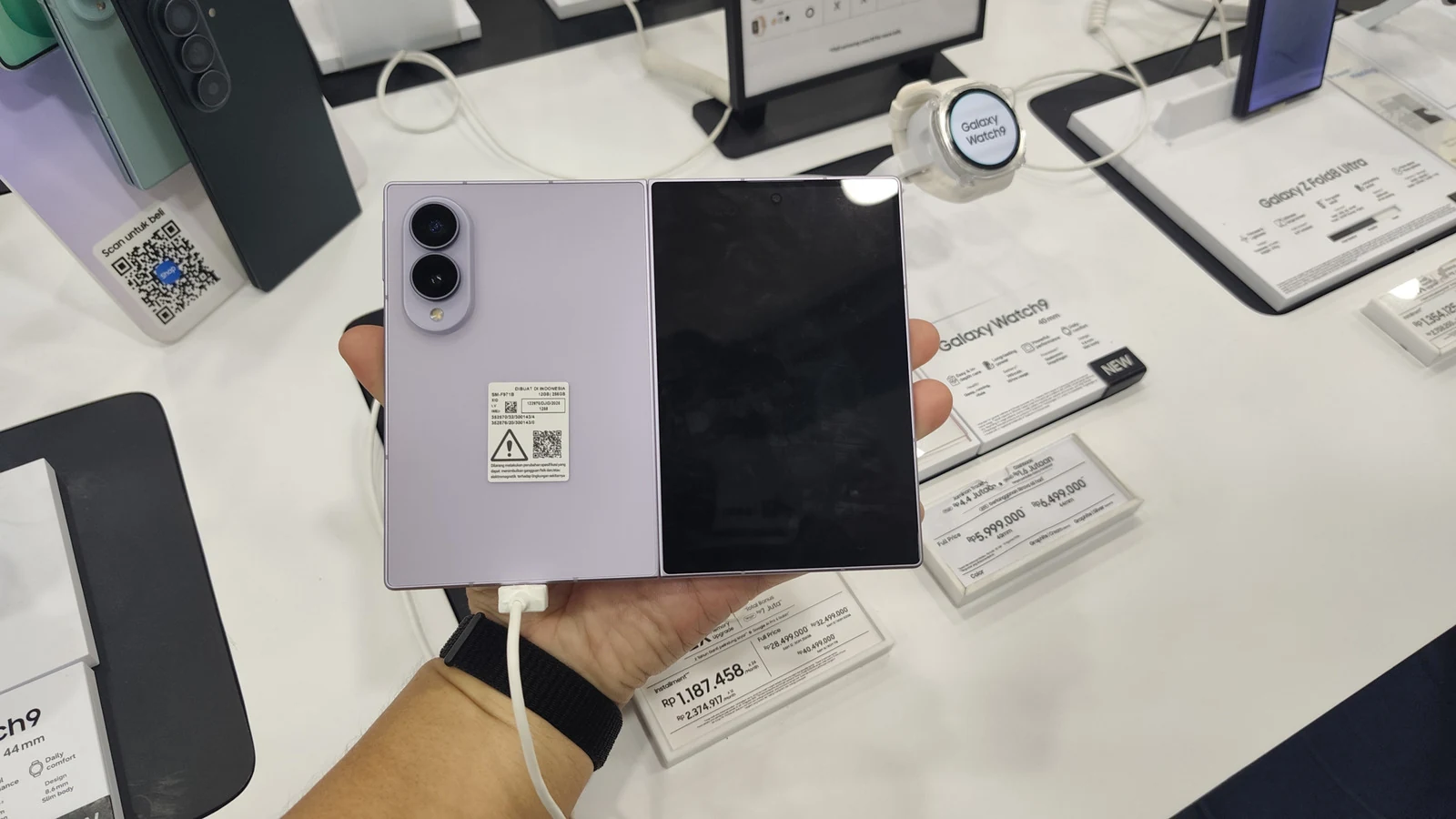
Bringing Desktop Power to Your Pocket
Samsung DeX has long been a staple for power users looking to extend their mobile productivity. Since its inception in 2017, the feature has enabled users to connect their flagship [Samsung](https://www.engadget.com/category/samsung/) devices to an external [monitor](https://www.engadget.com/computing/accessories/best-monitor-130006843.html) or television, effectively turning a smartphone into a functional PC. While traditionally requiring a wired or wireless connection to a secondary display, a new solution allows this interface to run directly on the handheld device.
This capability is particularly beneficial for the [Z Fold 8](https://www.engadget.com/2225231/samsung-galaxy-z-fold-8-review/), which features a spacious 7.6-inch inner screen. By utilizing an [app called Gadesk](https://play.google.com/store/apps/details?id=tech.nobutec.gadesk.free), owners can now experience a desktop-style layout without the need for additional peripherals or complex [sideloading](https://www.engadget.com/apps/android-will-hide-app-sideloading-behind-a-new-one-time-security-process-184651171.html) procedures.
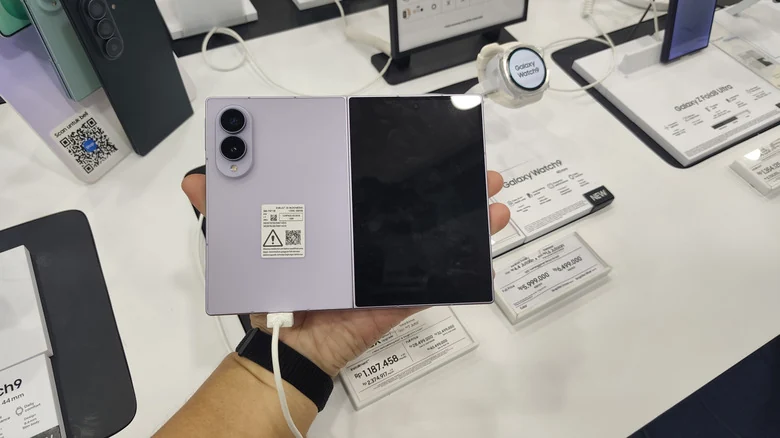
Configuring the Device for Desktop Access
To get started, users must prepare their device settings. The process requires navigating to Security and privacy and toggling off Auto Blocker, as this feature can interfere with the connection steps. Once disabled, users must enable Developer options by tapping the Build number seven times within the Software information menu. From there, users must enable Wireless debugging and ensure the device is connected to a stable Wi-Fi network.
The Gadesk application functions by tricking the system into identifying an external display. By pairing the device using a specific code found within the Wireless debugging menu, the app establishes a communication link. Once the "DeXprobe" status appears in the menu, users can proceed to grant accessibility permissions, allowing the software to overlay the DeX output directly onto the device's primary display.
Optimizing the Multitasking Interface
Once the application is active, users can refine their desktop experience through a variety of in-app settings. While the default orientation is set to landscape, users may prefer switching to portrait mode, which often better aligns with the Z Fold 8's aspect ratio for mobile multitasking. The application also provides granular control over gesture actions, allowing users to map two-finger and three-finger taps to specific functions such as Home and Back.
For those who require a mouse-like interface, Gadesk includes a virtual trackpad. This overlay features adjustable opacity and supports essential commands like copying, pasting, and zooming. These customization options provide a tailored workflow that fits individual productivity needs while utilizing the device's foldable screen real estate.
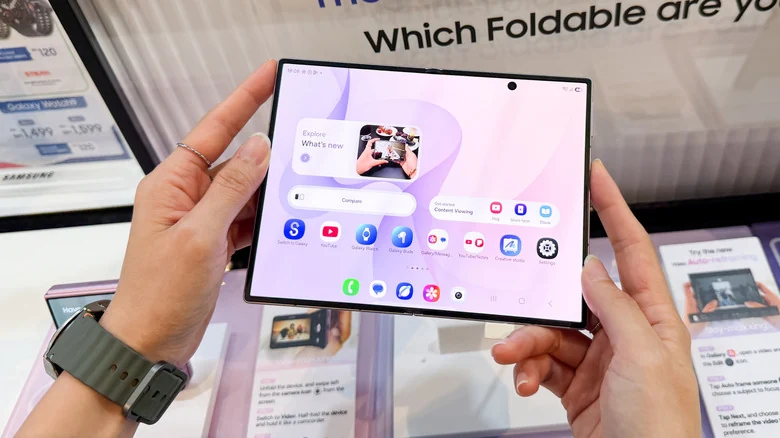
Availability and Pricing Structure
As reported by [Isaac Egbon](https://www.engadget.com/author/isaacegbon/), the Gadesk experience is currently available through the Play Store. It is important to note that the app operates on a freemium model. The free version imposes a 15-minute time limit per session and includes advertisements. Users can remove these restrictions and access a more permanent desktop environment by opting for a one-time purchase of $20. Alternatively, the app allows users to extend their usage time by interacting with promotional content.
Although the tool is particularly optimized for the Z Fold 8, Gadesk also offers support for other Galaxy handsets running One UI 8 or newer, as well as Google Pixel devices that support native Android desktop modes. This broad compatibility makes it a flexible option for users across the ecosystem looking to leverage desktop productivity tools on mobile hardware.
Sources
- EngadgetYou can use DeX on the Galaxy Z Fold 8's inner screen with this trick