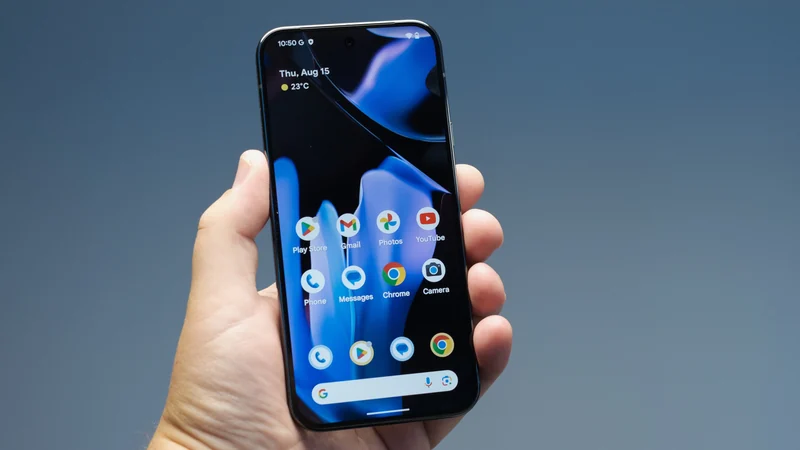
How to lock apps on your Samsung Galaxy phone
Samsung Galaxy phones offer two primary tools to keep your sensitive apps and files private or restrict device use to a single application.
 Radwan AbdulhadiEditor and technology writer

Understanding Samsung's Approach to App Locking
Handing your phone to someone for a few minutes should not mean they end up navigating deep into your private emails, text messages, or banking apps. While other platforms offer a simple toggle to lock individual applications with a biometric scan, Samsung Galaxy phones take a different approach. According to details shared in coverage by [Engadget](https://www.engadget.com/2280136/how-to-lock-app-samsung-galaxy-phone/), Samsung splits the responsibility between two distinct tools: Secure Folder and app pinning.
Neither tool is a direct copy of features found on competing mobile operating systems, but together they cover a wide range of use cases. Whether you want to keep prying eyes away from confidential files or prevent a child from making unwanted purchases, these features help maintain privacy during everyday device sharing and [customizing your Samsung Galaxy phone](https://www.engadget.com/2273796/samsung-galaxy-one-ui-9-customization-updates/).

Protecting Data with Secure Folder
Samsung phased out basic app locking options in favor of Secure Folder, a more robust system built on the company's security platform, Samsung Knox. Instead of simply placing a password gate in front of an existing app, Secure Folder creates an entirely separate and encrypted space on the device.
Applications placed inside this vault run as isolated copies, maintaining their own data and sign-in credentials completely separate from the rest of the phone. While this setup process takes a few extra steps compared to simpler locking mechanisms, it provides much stronger protection against nosy relatives, thieves, and curious children.
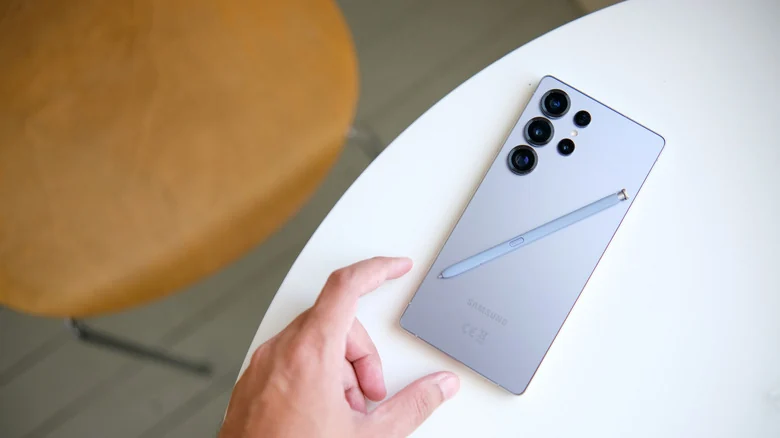
Step-by-Step Guide to Setting Up Secure Folder
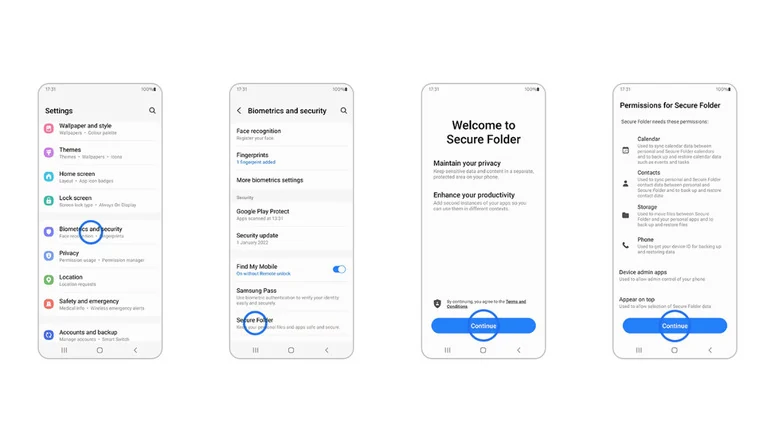
To secure your most sensitive information—such as banking utilities, messaging tools, and private photographs—you can configure Secure Folder by following a specific sequence within your device settings. First, open Settings, navigate to Security and privacy, select More security settings, and tap on Secure Folder.
Next, choose your preferred lock type, which can be a PIN, password, pattern, or biometric scan. You will also need to choose whether the applications inside can continue running in the background when the folder is closed. Finally, tap the plus icon inside Secure Folder to select and add the specific apps you want to protect.
Once configured, moved apps remain inaccessible until you unlock the vault using your chosen authentication method. Users can even hide the folder icon from the home screen for added discretion by turning off the Secure Folder app from the quick panel. Keep in mind that hidden apps will not run in the background or generate notifications until unhidden.
Using App Pinning for Quick Restrictions
For situations where full encryption is unnecessary—such as letting a child play a single game without wandering into other menus—app pinning provides a faster alternative. This makeshift screen-lock tool restricts device access to only one active application at a time.
Because pinning does not encrypt data or lock files behind deep authentication, it is not suitable for financial or private applications. However, it functions effectively as a temporary lockdown method when you hand your device over for brief periods of low-stakes use.
How to Enable and Activate App Pinning
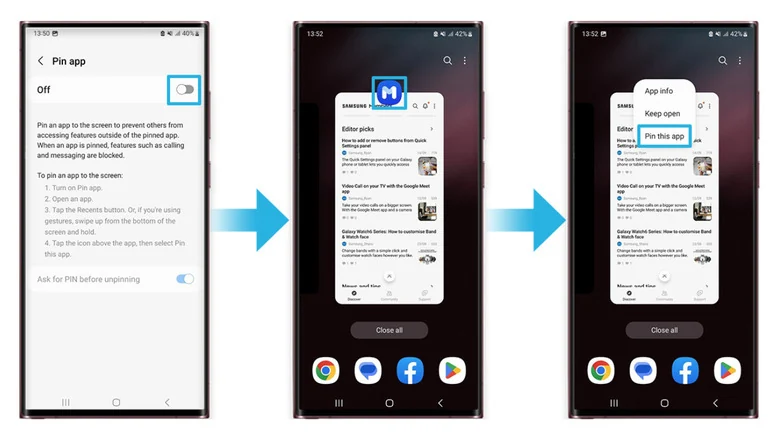
To use this feature, you must first enable it within your system menus. Go to Settings, open Security and privacy, navigate to More security settings, and turn on the toggle for Allow apps to be pinned.
Once enabled, open the app you want to restrict. Tap on the Recents button represented by the three vertical bars at the bottom of the screen, or swipe up and hold if you utilize swipe gestures. Tap the icon located above the app and select Pin this app or Pin to screen.
To eventually exit the pinned state and unpin the application, you must hold down both the Recents and Back buttons simultaneously. This ensures that unauthorized users cannot easily break out of the designated application without physical coordination.
Sources
- EngadgetHow to lock apps on your Samsung Galaxy phone
Continue chronologically

Related stories
What Does the Shield Icon Mean on Your Samsung Galaxy?
Discover why the shield icon appears next to your Samsung Galaxy battery indicator, and learn how Battery Protection manages smartphone battery degradation.

Samsung Releases One UI 9 With Advanced Galaxy Customization
Samsung rolls out One UI 9, introducing new customization features for the Quick Panel, Edge Panel, and Good Lock suite on Galaxy devices.
Fixing App Scaling Issues on Samsung Galaxy Z Fold 8
Learn how to easily fix scaling and app size issues on your Samsung Galaxy Z Fold 8 by adjusting individual aspect ratios.

What to Look For When Buying a Cheap Android Phone
Discover the essential non-negotiable features you need to look for when shopping for a budget Android phone priced at $300 or less.