How to Enable Live Activities on iPhone and CarPlay
Live Activities keep you updated on real-time information from various apps without requiring you to constantly open them.
 Radwan AbdulhadiEditor and technology writer
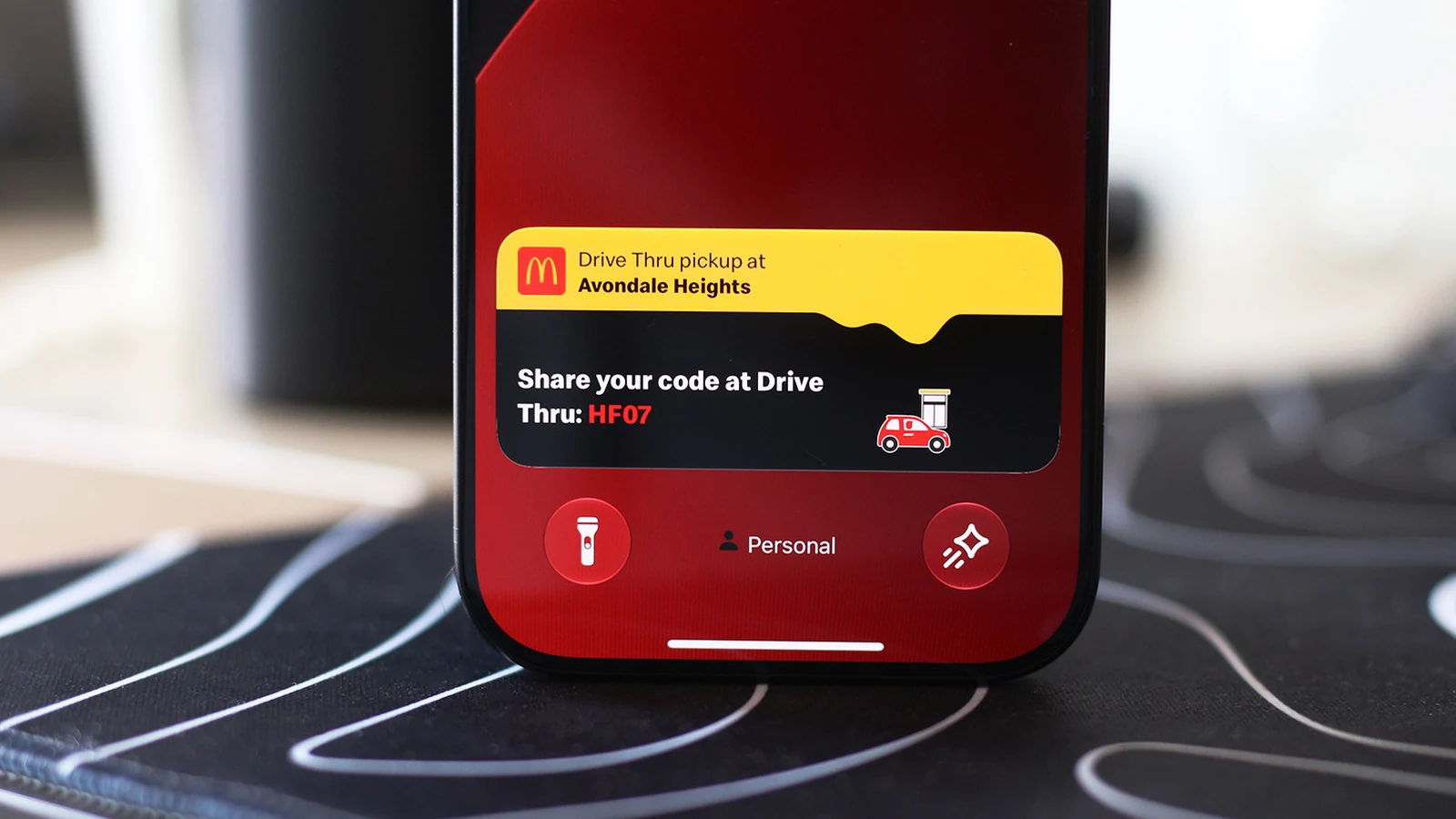
Understanding Live Activities and the Dynamic Island
Live Activities put the most important real-time information from apps in a place where it's easy to keep an eye on, eliminating the need to open apps every two minutes. Apple originally introduced a pill-shaped cutout with the iPhone 14 Pro, which housed sensors required for Face ID and evolved into what is widely known as the Dynamic Island. Apple has continued to refine this hardware feature, even making it smaller for the iPhone 18 Pro series.
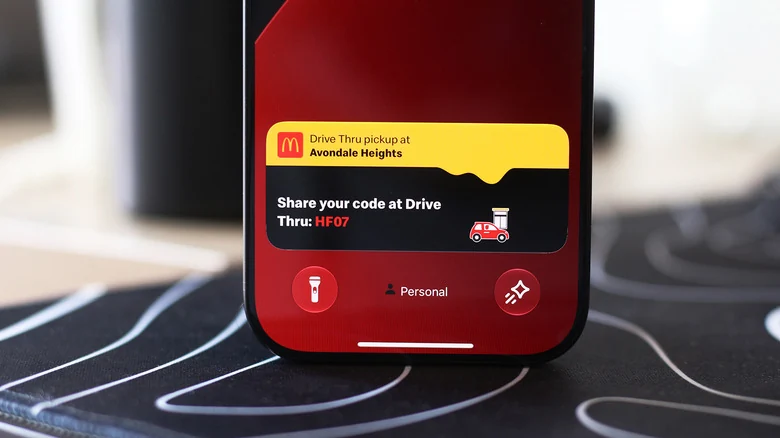
By surrounding the camera cutout with functional software elements, Apple turned an awkward design constraint into a useful part of the iOS experience. Your iPhone's Live Activities show up prominently on the Dynamic Island when using your phone, displaying information like navigation directions, music playback, timers, and sports scores. Many third-party applications, including food delivery and flight tracking services, have also adapted to utilize the feature.
Enabling Live Activities on Your iPhone
Although Live Activities should be enabled by default across compatible devices, users can verify their settings if updates fail to appear for certain apps. To check app-specific configurations, navigate to Settings > Apps on your iPhone, select the application experiencing issues, and ensure that the Live Activities slider is actively turned on. Even though Live Activities operate independently from standard notifications, turning on regular notifications for the app can also help ensure you receive expected updates.
In addition to appearing on the interface during active use, these activities also show up on your Lock screen when the device is locked. To verify this capability, visit Settings > Face ID & Passcode, confirm your passcode, scroll down to the Allow Access When Locked section, and make certain that the Live Activities option is turned on.
Integrating Live Activities With CarPlay
CarPlay makes it easy to access vital information from your iPhone without creating major distractions while driving. As part of this vehicular integration, the system can display Live Activities, allowing drivers and passengers to track the status of food deliveries or upcoming flight updates seamlessly on the vehicle's display.
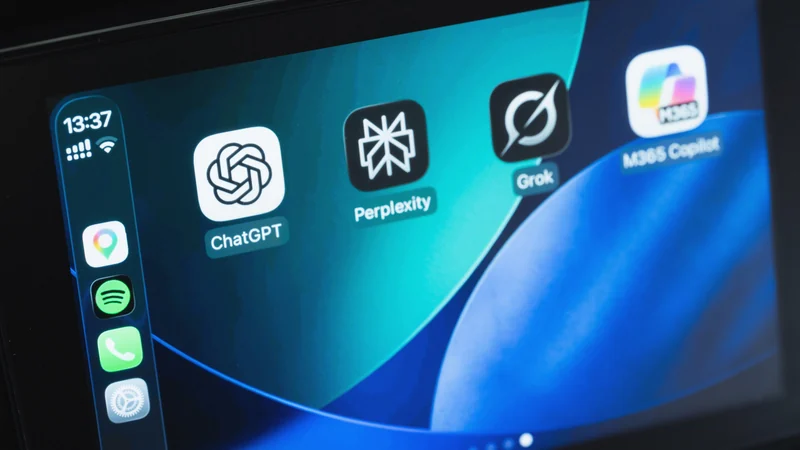
Live Activities from your iPhone are automatically displayed on the CarPlay Dashboard, which is the split-screen view located to the left of your app list. If you are currently using an application that covers the entire screen, Live Activities will still appear as notifications situated neatly at the bottom of the display. Should the alerts become overly distracting, users can easily turn the feature off or disable Live Activities for specific noisy apps through the settings menu.
Troubleshooting and Customizing CarPlay Settings
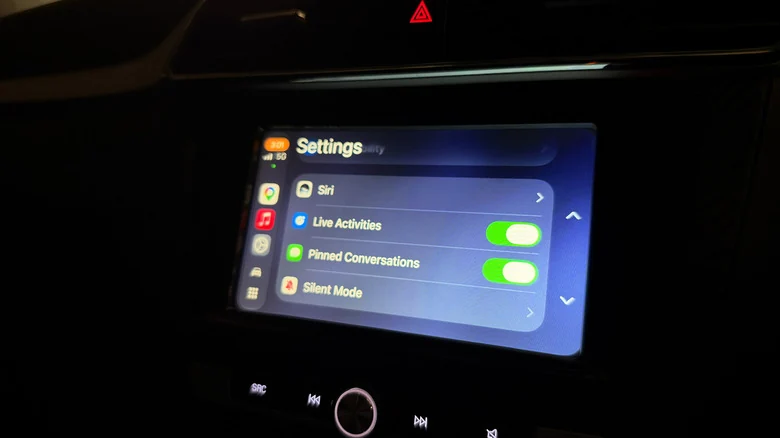
If Live Activities do not appear on your car display, open the Settings app directly within CarPlay, scroll down, and make sure the Live Activities toggle is enabled. Users should also confirm that the Suggestions in CarPlay option, sometimes referenced as Suggestions in Dashboard, is turned on. If the elements still fail to show up, attempting to turn off Driving Focus if it is currently running may resolve the issue.
Beyond tracking real-time updates, users can further enhance their vehicle interface by choosing to add widgets to CarPlay for quick controls and direct information from applications without needing to open them manually. These widgets reside in the leftmost section of the CarPlay Dashboard, and spending a little extra time exploring the Settings app reveals additional ways to customize how CarPlay looks on your car's display.
Sources
- EngadgetHow to enable Live Activities on iPhone and CarPlay
Continue chronologically


Related entity coverage
Related stories
What the CarPlay bell icon means and how to manage it
Discover what the bell icon on your Apple CarPlay screen means, how it relates to Siri notifications, and ways to manage alerts while driving.

iOS 27 CarPlay Features: Which iPhones Support Them?
Apple's iOS 27 brings major CarPlay updates like video streaming and Siri AI, but hardware limitations restrict full support to newer iPhone models.
Major AI Chatbot Apps Now Compatible with Apple CarPlay
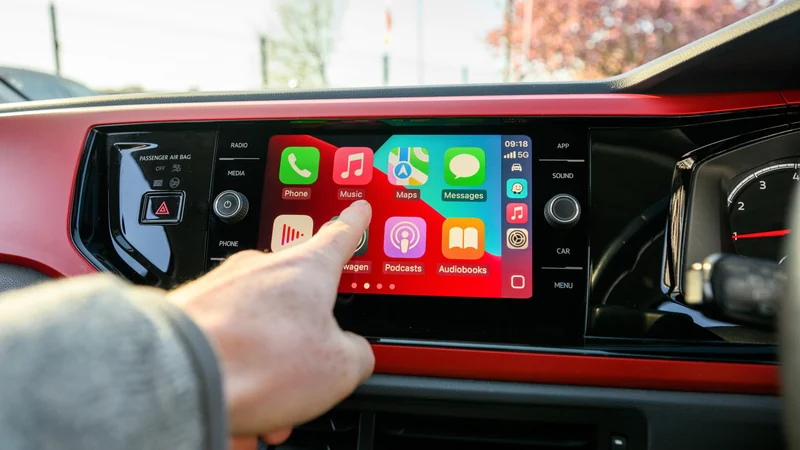
Drivers can now use AI chatbots like ChatGPT, Claude, and more directly through Apple CarPlay following a recent iOS update.
No Man’s Sky lands on iPhone and iPad October 28
Hello Games is bringing the full No Man’s Sky experience to iPhone and iPad on October 28, with a free trial and a $19.99 purchase price.