How Using Your MacBook While Charging Affects Battery Life
Thanks to smart lithium batteries and integrated software, keeping your MacBook plugged in while in use is generally safe, though certain factors like heat still require attention.
 Radwan AbdulhadiEditor and technology writer
Understanding MacBook Battery Management
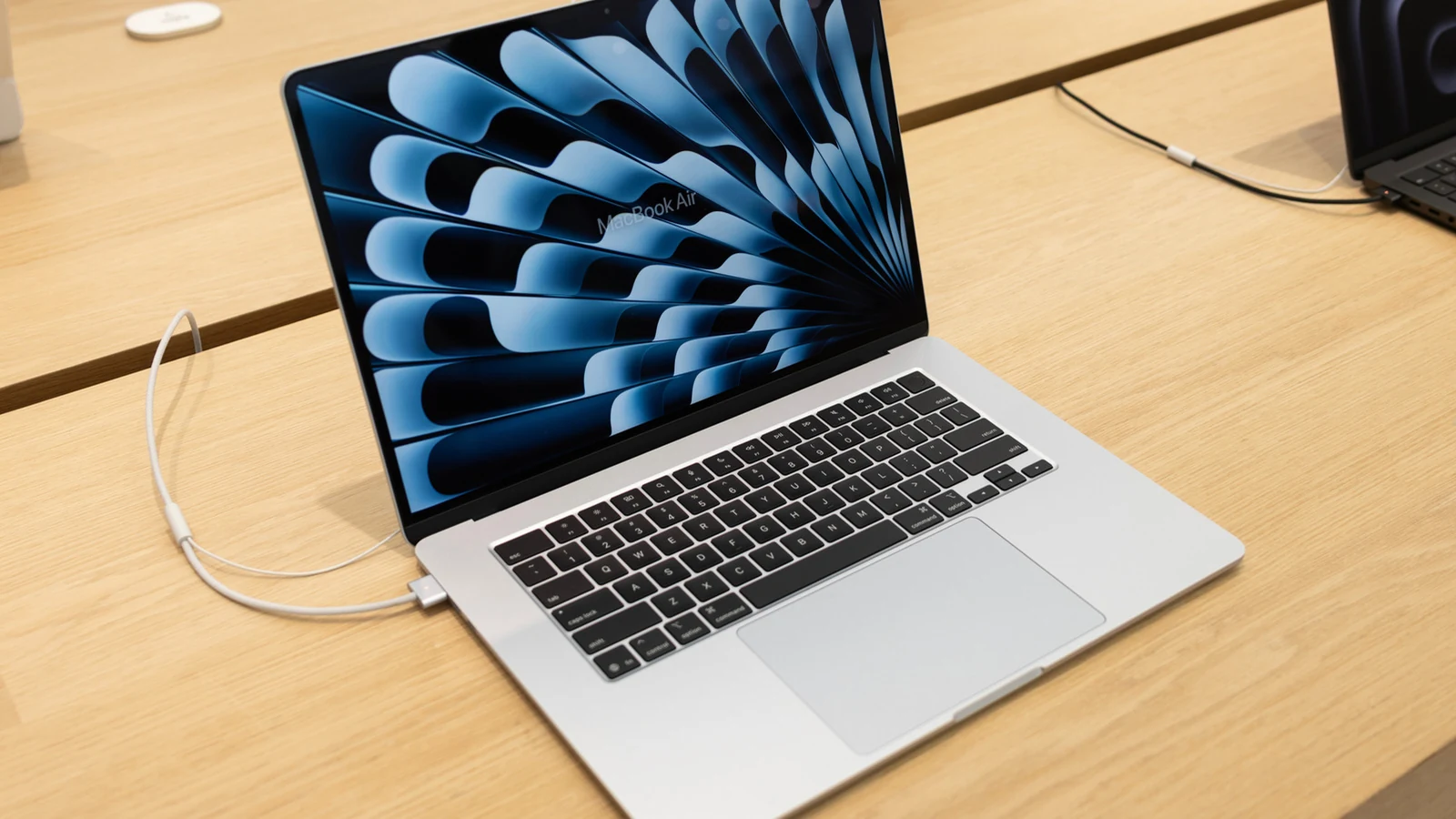
When you are deep in the zone and typing away on your MacBook, the last thing you want is for its battery to die in the middle of a work session. A widely held conception suggests that keeping a device plugged in nonstop may fry the battery or reduce its effectiveness. However, according to insights shared by <a href="https://www.engadget.com/2280083/how-using-macbook-while-charging-affect-battery-life/">Engadget</a>, it is generally fine to keep your laptop plugged in at all times thanks to modern lithium batteries and smart software.
Mac computers monitor battery life and adjust to user habits and device power fluctuations using <a href="https://support.apple.com/en-us/102588">default software</a>. These tools track temperature history and charging patterns to modify charging behavior dynamically.
Lithium batteries typically <a href="https://support.apple.com/en-us/102888">have a high number</a> of charge cycles. Integrated software uses charging data to calculate when to reduce the maximum charge, which minimizes wear and grants the battery more overall longevity.
Is It Better to Use a MacBook on Battery or Plugged In?
The short answer is that it typically does not make a difference whether you use your MacBook on battery power or keep it plugged in. While past best practices advised against letting a battery charge to 100 percent and staying there, modern systems simply pause the charging cycle at optimized times.
The battery health management feature comes activated by default on Mac laptops running operating systems Catalina 10.15.5, which was released in 2019, or later. Users who have turned it off can reactivate it by navigating to the Apple menu, opening System Settings, locating Battery in the sidebar, clicking on Battery Health, and selecting manage battery longevity.
Checking and Protecting Your Battery Health
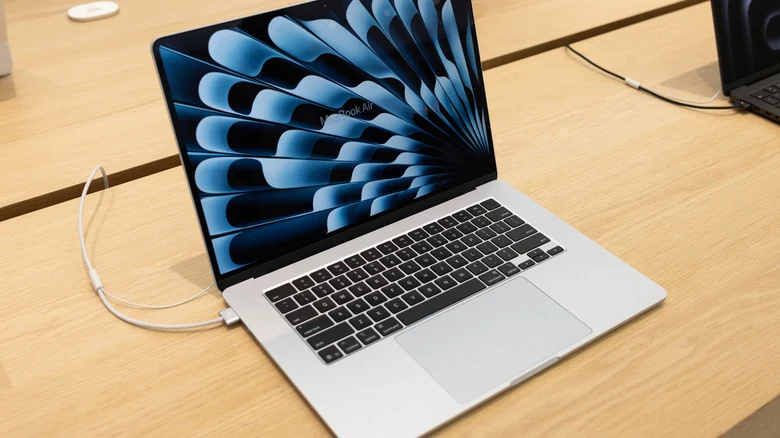
If you are concerned about your MacBook's battery health, you can easily check its status directly within your device settings. By opening System Settings, clicking Battery on the left sidebar, and looking at Battery Health, you will typically see a status that reads normal or service recommended.
Some fluctuation in capacity is expected over time as you use the computer. However, Apple does not recommend replacing the battery until its capacity drops below 80 percent.
Managing Long-Term Storage and Environmental Heat
Battery levels require careful monitoring when storing your device for a long period. Apple notes that the best way to preserve battery health during extended periods of non-use is to charge the device to around 50 percent.
According to Apple's guide, storing a laptop fully charged for an extended duration can cause the battery to lose capacity and result in shorter battery life.
The single biggest issue affecting battery health is heat. Working outside at a cafe on a warm day can raise temperatures significantly, and operating a computer while it heats up and charges at the same time can negatively impact battery health.
Apple lists the operating temperature ranges for the MacBook Air as 50 to 95 degrees Fahrenheit. In addition to warm outdoor environments, certain cases or laptop stands can cause a device to overheat while charging. Keeping devices cool and ensuring that internal fans remain unblocked are among the simplest ways to help laptop batteries last longer.
Sources
- EngadgetHow does using your MacBook while charging affect its battery life?
Continue chronologically


Related entity coverage
Related stories
Why You Should Avoid Using a Screen Protector on Your MacBook
Discover why putting a screen protector on your MacBook can do more harm than good, risking your display, coating, and overall device health.

MacBook Privacy Settings to Change for Ultimate Security
Discover essential MacBook privacy and security settings to lock down your device, manage location permissions, and protect personal data.
Can a MacBook handle heavy games? What you should know
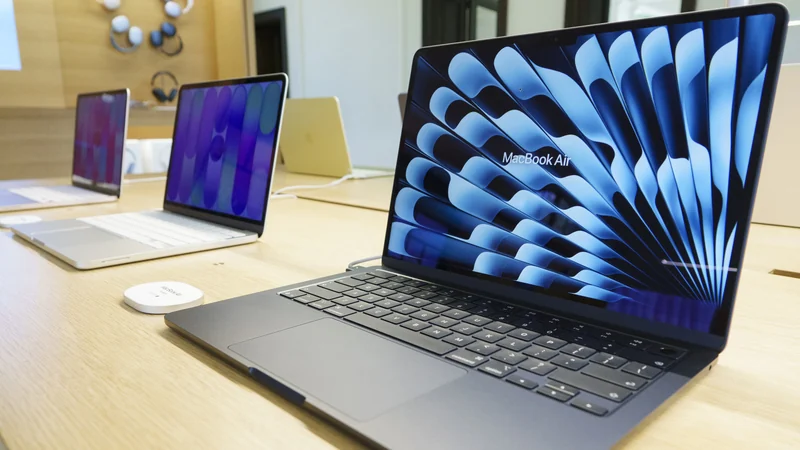
Explore whether MacBooks can handle graphically demanding heavy games, looking at Apple silicon, compatibility tools, and Windows PC comparisons.

What to Know Before Buying a Wireless CarPlay Adapter
Discover what to look for when buying a wireless CarPlay adapter, including vehicle compatibility, Bluetooth standards, iOS updates, and auto-reconnect features.