How to Drop, Save, and Share a Pin on Google Maps
Google Maps allows users to easily save, label, and share locations that lack official addresses or business names.
 Radwan AbdulhadiEditor and technology writer
Why Drop a Pin on Google Maps?
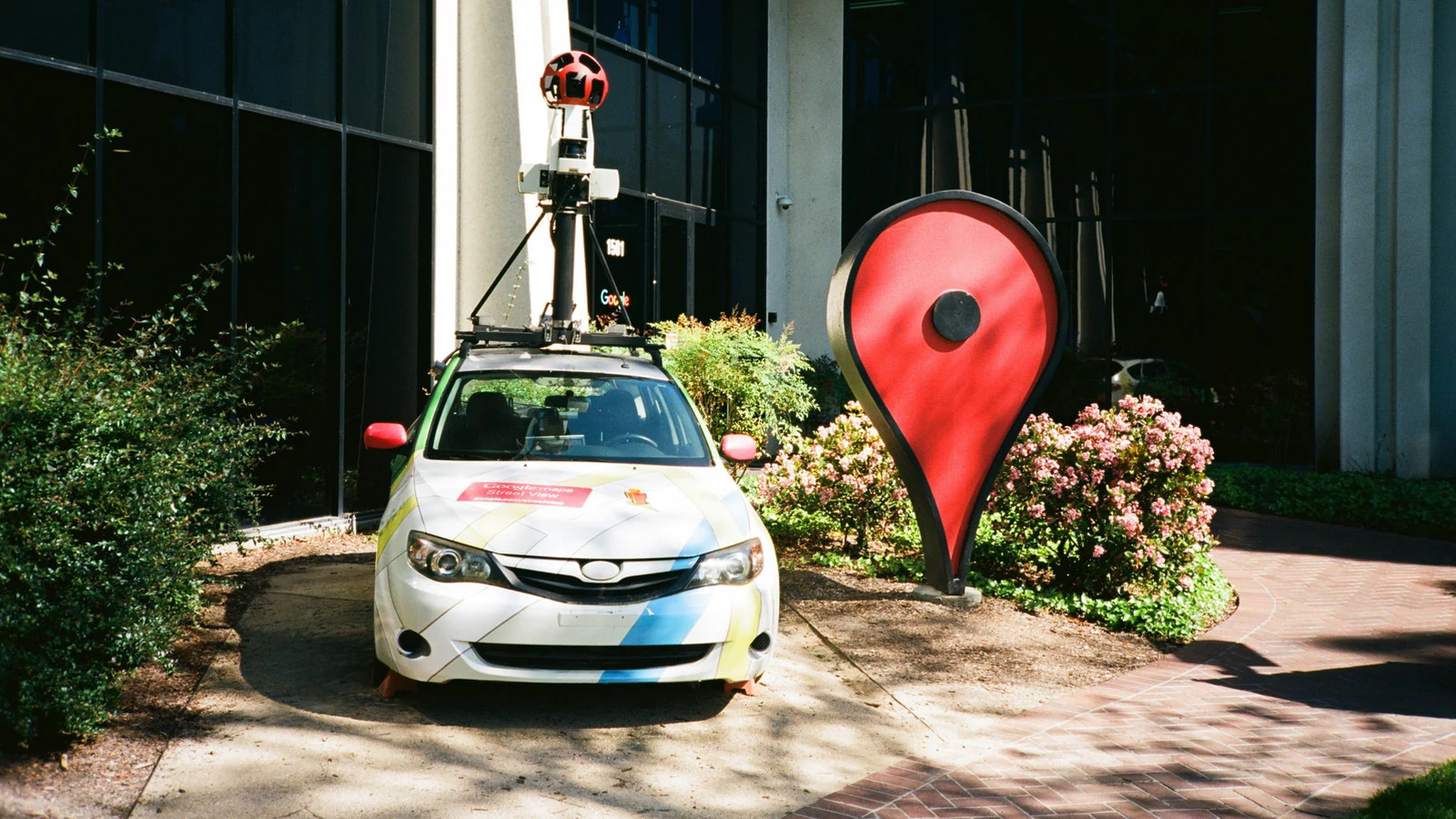
Since Google Maps first came online in 2005, the little red pin has been its defining symbol. Even if where you are isn't a specific business or address, you can easily drop a pin within the app to save a location.
Whether you are trying to meet up with friends in a park, mark a scenic viewpoint for a future visit, or remember where you left your bike, dropping a pin can be incredibly useful. While Google has introduced advanced capabilities over the years like 3D mapping and telling you how busy a business is, simple utility features remain essential for navigating areas that are not officially on the map.
How to Drop and Save a Pin on Mobile
To drop a pin on a mobile device, find the location you wish to pin and then press and hold on the spot. Once the pin appears, you can manage it using the bottom panel options.
If desired, add a label by scrolling across the options next to Directions and hitting Add label. This action sets a custom name for the place instead of relying on its GPS coordinates, and it automatically adds the spot to the Labeled section of your Saved tab.
To save the pin for yourself, tap Save in the same list. From there, you can choose a specific list and add a note about the spot if needed. To share the location with others, simply scroll through the list and tap Share, then choose your preferred sharing method.
Dropping and Sharing Pins on a Computer
On a computer via the Google Maps website, there is an extra quick step to access and share the exact coordinates that accompany a pin. Click the area that you wish to share, and a gray dot will appear on the map alongside a small box at the bottom of the screen showing the GPS coordinates.
Click those GPS coordinates to open the standard Google Maps info panel for that spot. From there, you can use the same steps available on mobile to Save, Add a label, or Share the place.
Alternatively, you can right-click any spot on the map to bring up a list of options. Clicking the GPS coordinates lets you copy them, while selecting Share this location completes the task faster. You can also utilize Directions from here and Directions to here if you do not need to save the pin permanently.
Live-Sharing Your Location
In lieu of sharing a static pin to direct people to a location, you can also live-share your own real-time location for a set period. To do this, tap your profile picture in the upper-right corner and select Location sharing.
Next, select Share location or New share, and then choose the exact amount of time you want to share your location. If you prefer, you can choose Until you turn this off to share your location indefinitely.
Finally, select a contact's Google account to share directly to their Maps app, or choose More options to send the information through another communication method.
Creating Custom Maps with My Maps
For an even more customized experience, you can create an entire map by using the My Maps feature. This tool allows you to add multiple layers for different location types, such as parks, restaurants, and tourist attractions.
My Maps is ideal for organizing a vacation itinerary all in one place or keeping a detailed map of business clients for quick navigation. Each custom map can handle up to 10,000 lines, shapes, or places, enabling you to denote custom geographic areas alongside precise addresses.
Please note that these custom maps can only be created on a desktop computer, but they remain fully viewable within the mobile application.
Sources
- EngadgetHow to drop a pin on Google Maps
Continue chronologically

Related entity coverage
Related stories
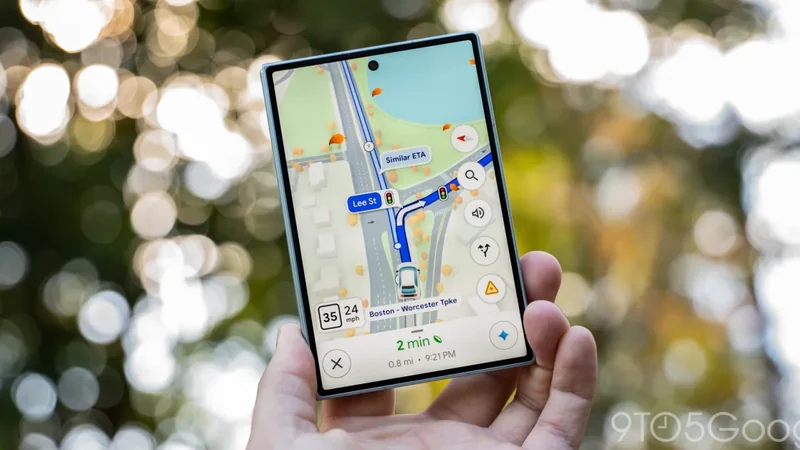
Google Maps Update Shows Fall Foliage Along Your Route
Google Maps is rolling out a seasonal update that displays Fall foliage colors along active navigation routes in select US metropolitan areas.
How to Change Your Home Address on Google Maps
Learn how to update, change, or secure your home address on Google Maps using the web browser or mobile app for Android and iPhone.
How to Improve Location Accuracy on Your Android Phone
Learn how to troubleshoot and improve location accuracy on your Android phone using built-in settings, calibration, and network signals.
Why Are Some Locations Blurred Out on Google Maps?
Explore why Google Maps blurs certain locations on Street View for security and privacy, and learn how you can request blurring for your home.