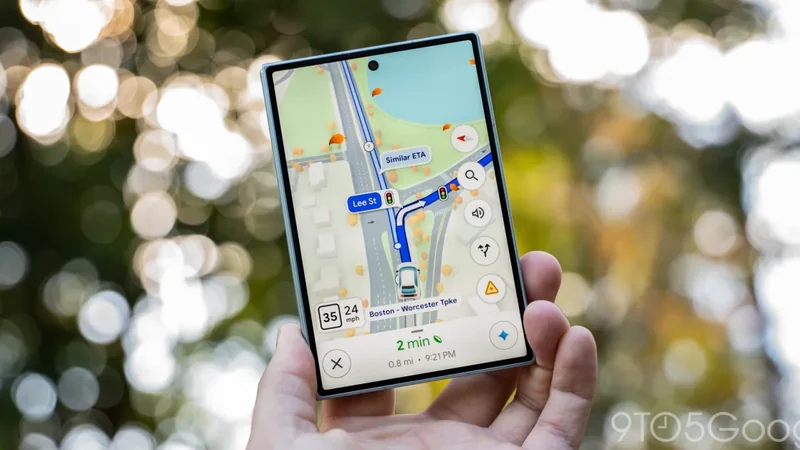
How to Change Your Home Address on Google Maps
Google Maps provides quick shortcuts for your home and other frequently visited locations to cut down on wasted travel time. Whether you have recently moved or need to update your details, configuring your information is straightforward across web and mobile platforms.
 Radwan AbdulhadiEditor and technology writer
Security Implications and Privacy Considerations
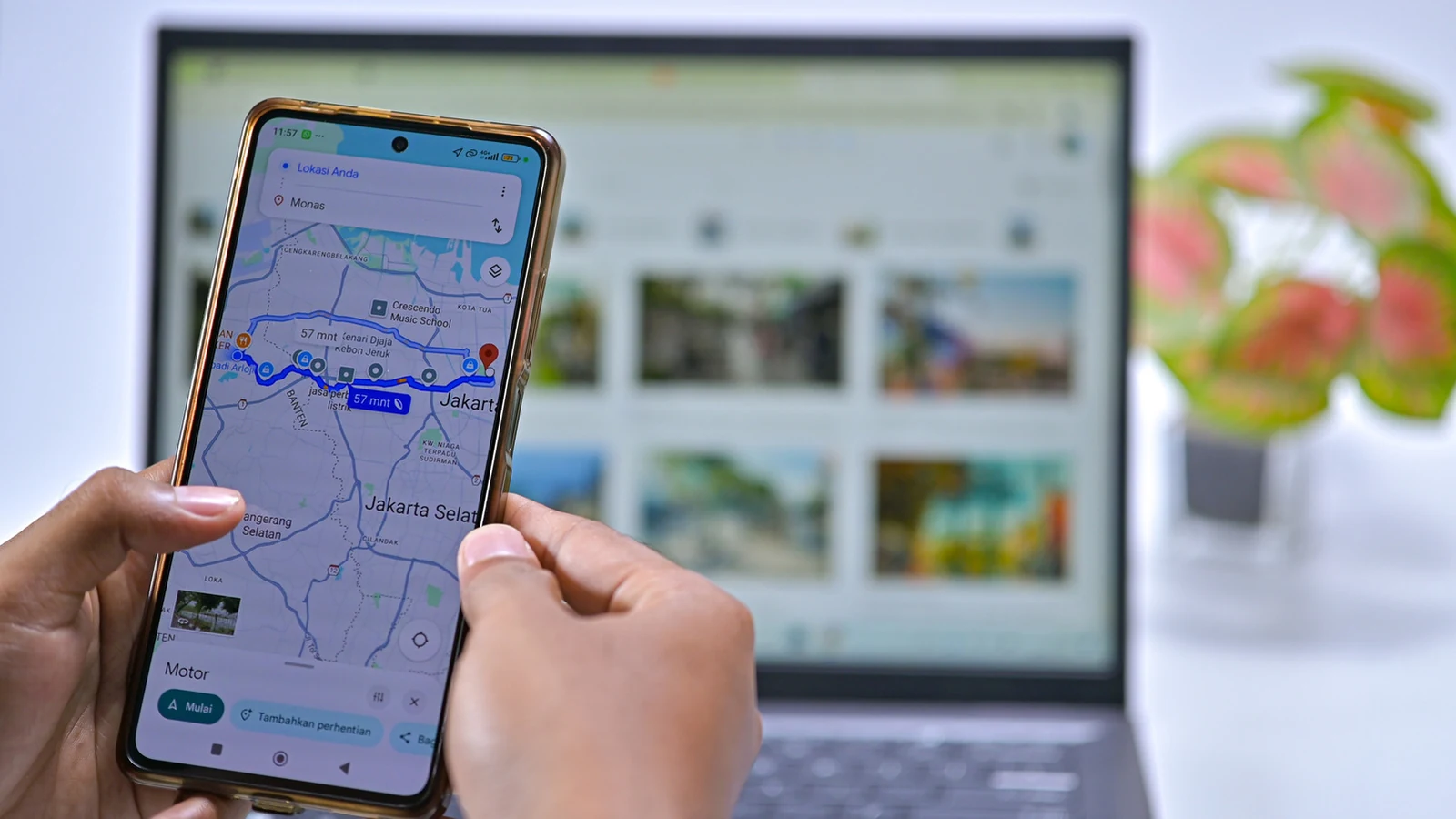
Before you configure your details in Google Maps, it is important to consider the security implications of having your home address stored directly on your phone. If your device is stolen or someone manages to snoop around for even a minute, they can easily check your exact address by opening applications where this information is saved.
To enjoy the conveniences that this feature provides without potentially exposing your full address, you can choose to save your home location as a nearby public place instead. Setting a local restaurant, grocery store, or similar landmark ensures navigation remains close enough that you will easily know how to get home from that point.
Setting Your Home Address on the Web
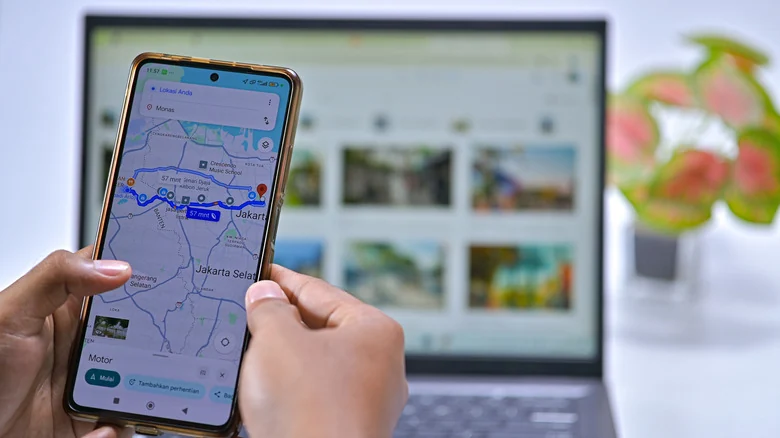
If you prefer using a browser, you can easily configure your destination by opening Google Maps and ensuring you are signed into your account. When you click inside the search box, you should see home and work entries at the top where you can select edit to change them.
Alternatively, you can click your profile icon at the top-right and choose to manage your Google account. On the resulting page, select personal info on the left sidebar, scroll down to find your home address, and enter your details while utilizing autocomplete suggestions.
The address line two button is available if needed, or you can choose on the map if pinpointing your desired destination is preferable to typing. This method is especially helpful for finding a nearby public place to save instead of your actual home address. While updating these fields, you may also want to enter or update your work address to keep it accessible and maintain commute estimates.
Updating Your Address Using the Mobile App
In the mobile app on Android or iPhone, tap the you icon on the bottom bar to begin updating your information. On the page that appears, choose the list called labeled, or tap the more arrow if you do not immediately see it.
Within the labeled list, you will find your home and work entries. To modify either location, tap the three-dot button next to it and select edit home or edit work. Enter your new address using the bar at the top, which populates automatically as you type.
If your home location does not map cleanly to an address or you prefer manual placement, use the choose on map action to drag a pin around. You can also explore the change icon action to customize your special addresses with options like a treehouse, barn, or submarine, and choose remove if you wish to clear the address entirely.
Utilizing Custom Labels and Contacts
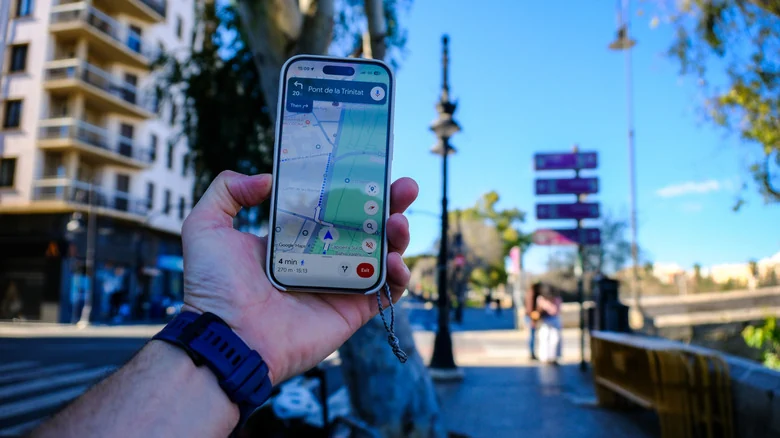
Labels allow you to assign custom names to any spot, which you can easily search for or use via voice commands for a better Android Auto experience. These custom names are exceptionally useful for frequently visited locations like a local gym, eliminating the need to spell out full street names every time.
You can even label places that do not have a traditional address, such as specific GPS coordinates for a campsite inside a park. To label a place from your computer, click on the location to open its panel, scroll down, and select add a label. On mobile devices, scroll left on the row of small icons below the basic information and choose more followed by add label.
Additionally, remember that Google Maps displays addresses saved for your contacts, allowing you to search for people by name. If this feature does not function correctly, verify that your Google contacts are properly synced with your device and that the navigation application has been granted permission to access your contacts.
Sources
- EngadgetHow to change your home address on Google Maps
Continue chronologically
Related entity coverage
Related stories
Google Still Says Android Auto Video Apps Are Coming Soon
Google provided a brief update at its latest developer conference, noting that video and browser apps for Android Auto remain coming soon as a year-end deadline nears.
Google Brings Personal Intelligence to Gemini in Cars
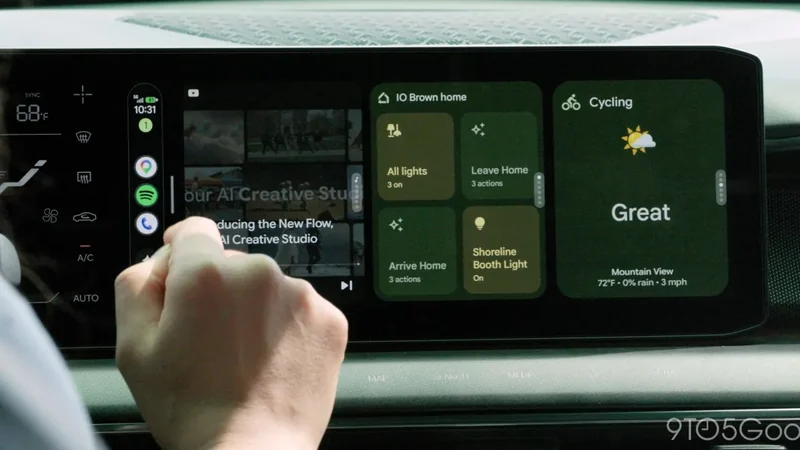
Google is bringing its Personal Intelligence feature to Gemini AI in Android Auto and cars with Google built-in, integrating personal app data.
Google Confirms Android Auto Updates and Fixes for Media Apps
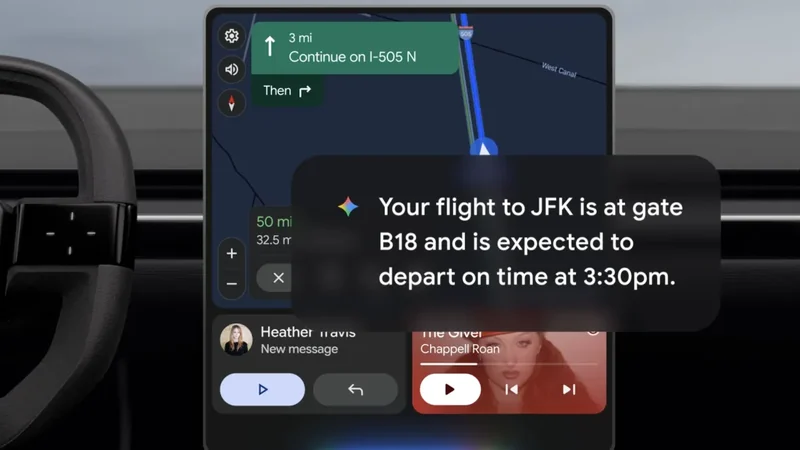
Google has recapped several recent Android Auto updates and fixes for media apps, confirming that the divisive squiggly line design is here to stay.
Google Maps Update Shows Fall Foliage Along Your Route
Google Maps is rolling out a seasonal update that displays Fall foliage colors along active navigation routes in select US metropolitan areas.