How to Improve Location Accuracy on Your Android Phone
Experiencing issues with map accuracy on your mobile device? A few quick settings tweaks can help you pinpoint your location.
 Radwan AbdulhadiEditor and technology writer
Understanding Android Location Accuracy
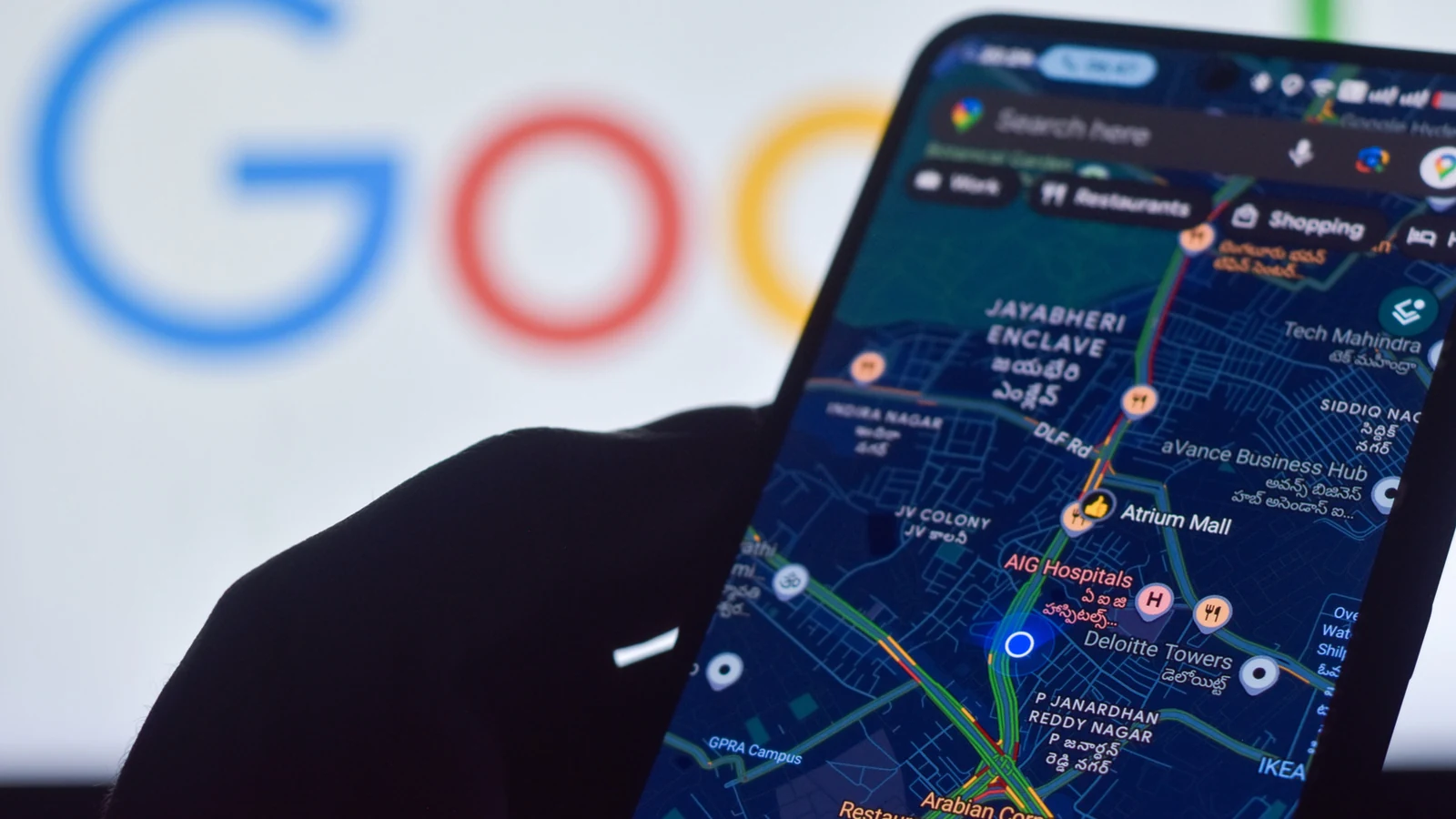
When using the <a href="https://www.engadget.com/mobile/smartphones/best-android-phone-130030805.html">best Android phones</a>, built-in GPS is essential for turn-by-turn navigation, sharing pins, marking parked cars, or ensuring safety when lost or injured. While precise location hinges largely on these physical GPS antennas, several software settings can be adjusted to <a href="https://www.engadget.com/snapdragon-qualcomm-location-accuracy-trimble-132442728.html">improve your location accuracy</a>.
Phones determine positioning and orientation using wireless signals, GPS, and internal device sensors. If a location is completely wrong, it often indicates a lack of a working signal, causing the device to default to its last known position rather than the current one.
Adjusting the Location Accuracy Service
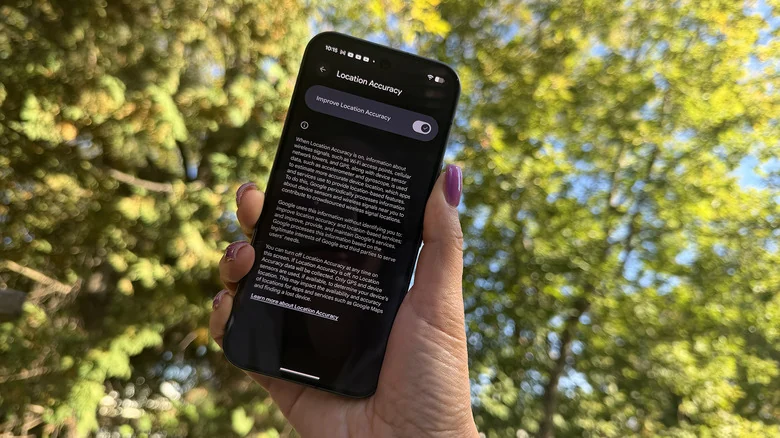
A key tool for improving positioning—especially indoors or in densely populated urban areas where clear GPS signals may be blocked—is the Location Accuracy Service, formerly known as Google Location Services.
Users can enable this feature through a simple settings adjustment. For most devices running Android 12 and above, the path is Settings > Location > Location Services > Location Accuracy. For Android 11 and below, users should navigate to Settings > Location > Advanced > Location Accuracy.
Enabling this setting allows the device to utilize available wireless signals including GPS, Wi-Fi, and cellular network towers, alongside device sensors like the accelerometer, barometer, and gyroscope. Without this enabled, the phone is restricted to using only GPS and basic sensors.
Crowdsourced Data and Use Cases
Google anonymously collects sensor and wireless signal data from devices to crowdsource estimated location data, improving overall accuracy. This mechanism functions similarly to how <a href="https://www.engadget.com/computing/accessories/best-bluetooth-tracker-140028377.html">the best item trackers</a> leverage Bluetooth on nearby devices to help locate lost items.
This crowdsourced enhancement becomes particularly valuable in environments where traditional GPS signals are obstructed, such as urban areas surrounded by tall buildings or entirely indoors where GPS is unavailable. Additionally, users must verify that app-specific permissions are enabled under Settings > Location > App location permissions.
Troubleshooting Google Maps and Calibration
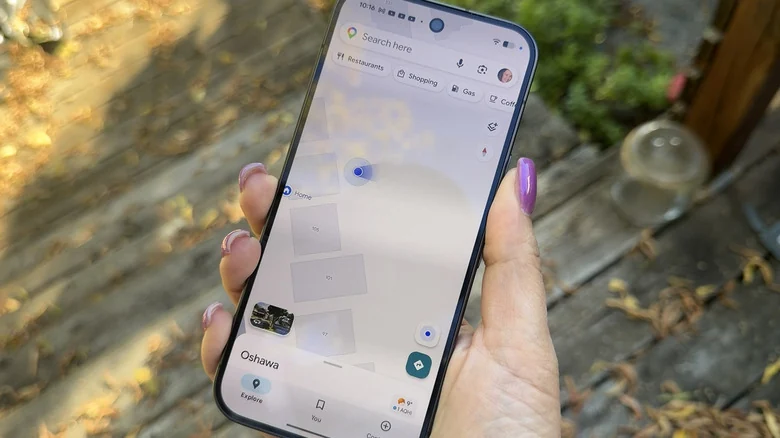
For applications like Google Maps—<a href="https://www.engadget.com/ai/google-maps-gemini-integration-will-make-hands-free-navigation-more-conversational-140009629.html">now enhanced with Gemini integration</a>—users experiencing a light blue circle around their position marker or a low accuracy label should first ensure general location services are active via Settings > Location and Use location.
If accuracy remains low, users can calibrate their location directly in Maps. One method involves using Lens in Maps by standing near a landmark, searching for the location, selecting View, and pointing the camera at the landmark. Alternatively, users can calibrate the phone's compass by moving the device in a figure-eight motion a few times.
If location issues persist, users can try shutting down the mapping application completely, moving to an area with a stronger signal, and checking that the device is connected to active mobile data or Wi-Fi while avoiding Airplane Mode.
Sources
- EngadgetHow to improve your Android phone's location accuracy
Continue chronologically


Related entity coverage
Related stories
Google's Googlebooks Aim to Bridge Android Phones and Laptops
Google's first Googlebooks go on pre-order October 4, promising deeper Android phone integration, AI tools, and a new Android-based foundation.
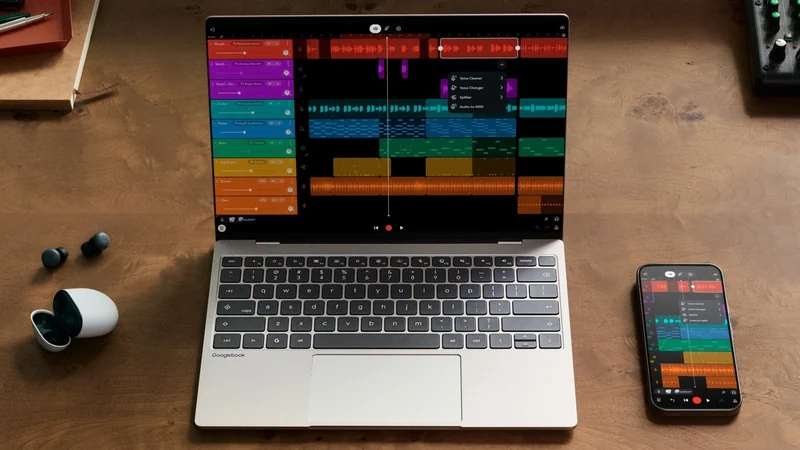
Google Launches Googlebook Laptops for Android Users
Google has officially unveiled Googlebooks, a new line of laptops designed to provide seamless connectivity and synergy with your Android smartphone.
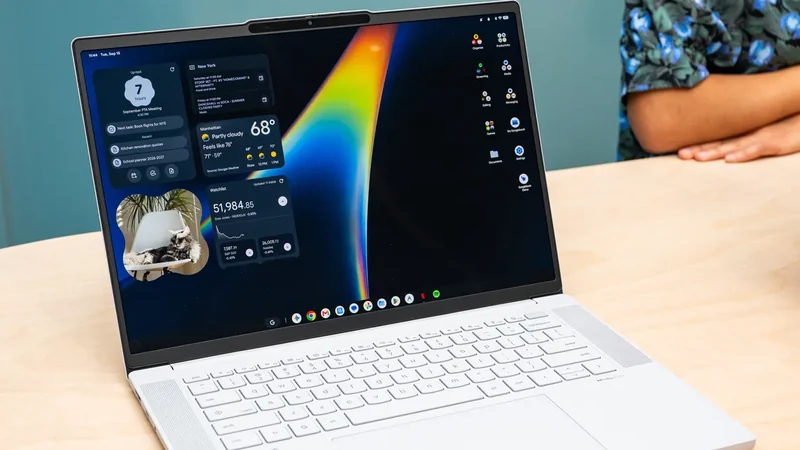
Gemini for Android Rolls Out Side Panel and Settings Redesign
The Gemini app for Android has rolled out fresh redesigns for both its side panel and settings menu following previous updates.
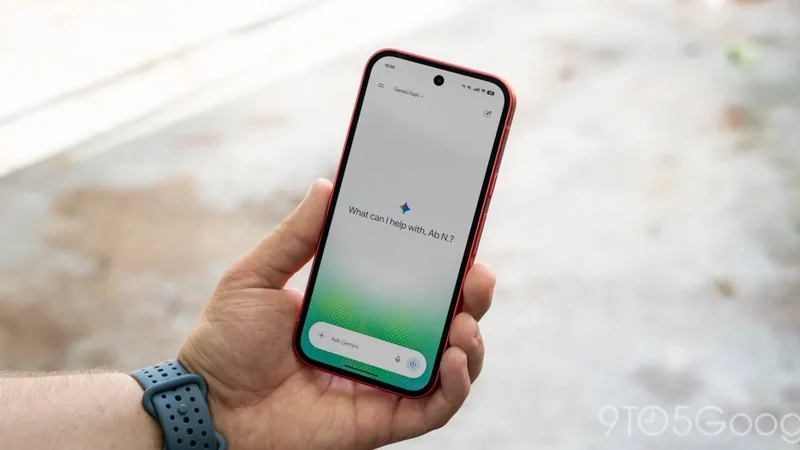
Google Rolls Out New AI Defenses on Android Against Scams
Google is rolling out new AI-powered defenses on Android to combat messaging scams, fake calls, and call-forwarding abuse on eligible devices.