MacBook Privacy Settings to Change for Ultimate Security
MacBooks feature a robust suite of built-in privacy tools, but taking the time to review and update your device settings can help keep your personal data secure.
 Radwan AbdulhadiEditor and technology writer
Securing Your MacBook Lock Screen
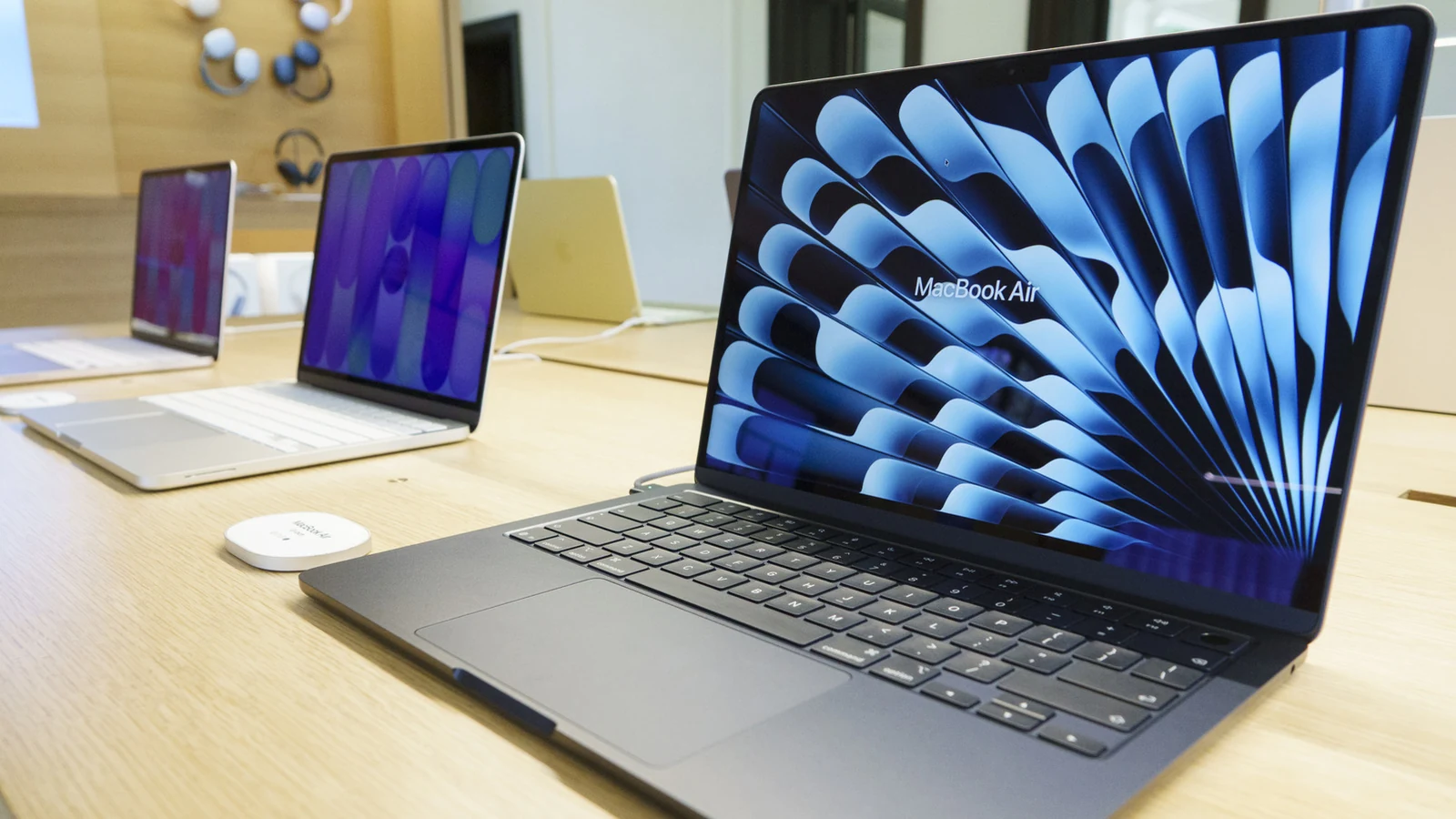
Your personal data security depends heavily on keeping your device locked when unattended. Using a strong passcode and setting up Touch ID is one of the first steps to secure a MacBook. This becomes especially important when you are away from your laptop or using it in public spaces. Users can configure options to require a password to wake your laptop from sleep mode or from the screensaver. You can also customize how long the computer must remain asleep before prompting for credentials by navigating to System Settings and selecting Lock Screen.
Managing Location, Camera, and Microphone Permissions
Location Services allow applications and websites to gather information about your physical whereabouts. While this is necessary for services like maps, many other apps do not require continuous location tracking. You can review these permissions under Settings and Privacy & Security, where you can completely disable Location Services or grant and revoke access for individual apps on your MacBook. Similarly, users can check individual settings under Privacy & Security to toggle camera and microphone access on or off for specific applications.
Protecting Your Connection on Public Networks
When browsing the web, your MacBook is frequently connected to a Wi-Fi network. You can control how your device joins these networks by going to Settings and selecting Wi-Fi. It is recommended to configure your computer so that it does not automatically join unsecured Wi-Fi networks, which can expose users to malware or data interception. Enabling a notification prompt before joining networks ensures you stay in control of your connections.
To exercise further control over incoming traffic, the built-in Firewall option on a MacBook remains turned off by default. The firewall helps block unwanted connections from the internet or other networks, providing an extra layer of protection when you are online. To activate this feature, users can navigate to System Settings, select Network, and open the Firewall menu.
Adjusting Ad Targeting and Personalized Advertising
Apple collects certain data to serve personalized ads in locations such as the App Store and Apple News. Users who wish to modify or stop this behavior can navigate to Settings, Privacy & Security, Apple Advertising, and View Ad Targeting Information to review what data is collected. Apple states that it does not track users across third-party websites or apps. Additionally, users can toggle off Personalized Ads to limit the system's ability to deliver targeted content, though this does not change the total number of ads displayed.
Controlling Analytics and Improvements Data
MacBook devices also collect anonymous analytics information intended to help developers improve system performance, hardware specifications, and software stability. According to Apple, this data may include crash reports, operating system details, and application usage patterns. With user permission, crash data can also be shared with third-party developers, and collected analytics are typically deleted after one month.
Because experts remain split on the potential risks of sharing diagnostic and telemetry data, users who prefer not to take any risks can easily opt out. By navigating to Settings, Privacy & Security, and Analytics Improvements, you can turn off choices such as Improve Siri & Dictation and Share with App Developers to maintain tighter control over your device's information sharing.
Sources
- EngadgetGet the ultimate security for your MacBook by changing these privacy settings
Continue chronologically


Related entity coverage
Related stories
How Using Your MacBook While Charging Affects Battery Life
Explore how modern MacBooks manage battery health while plugged in, along with tips to protect your device from overheating and wear over time.
Why You Should Avoid Using a Screen Protector on Your MacBook
Discover why putting a screen protector on your MacBook can do more harm than good, risking your display, coating, and overall device health.
Can a MacBook handle heavy games? What you should know
Explore whether MacBooks can handle graphically demanding heavy games, looking at Apple silicon, compatibility tools, and Windows PC comparisons.
Why Your Apple AirPods' Battery Drains So Fast
Discover why your Apple AirPods battery drains quickly, how to check for charging issues, and practical steps to make them last longer.