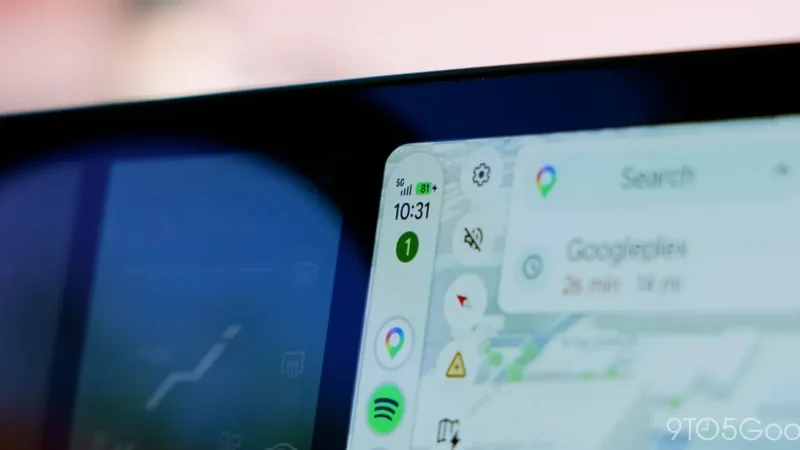
Android Auto Gaming Support Officially Launches for Cars
Android Auto has officially rolled out native gaming support, giving drivers a way to pass the time while parked.
 Radwan AbdulhadiEditor and technology writer
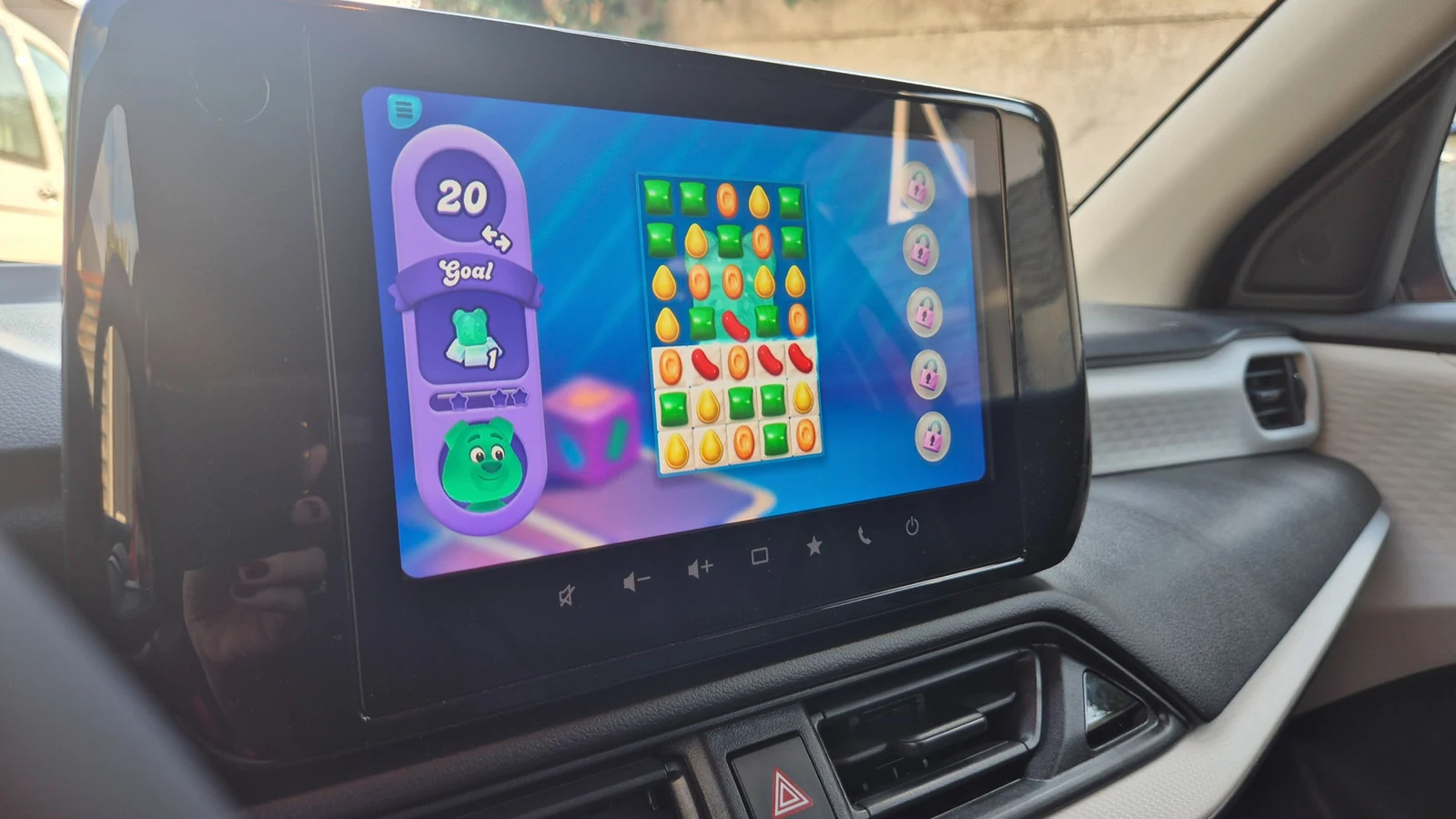
Android Auto Brings Gaming to the Dashboard
Waiting in the car during downtime just got more entertaining. According to an <a href="https://www.engadget.com/2294303/how-to-set-up-phone-games-play-on-android-auto-screen/">Engadget</a> report, gaming support on Android Auto officially exited beta in September 2026, opening the door for developers to implement car support for their titles. Google's stated goal is to provide drivers with fun activities during moments of downtime, such as while an electric vehicle is charging, waiting for kids, or resting on a long trip.
The feature expands the utility of your car's large display, transforming the dashboard into an entertainment hub while parked. With developers now able to build compatible versions, the variety of experiences accessible from the driver's seat is expected to grow steadily over time.
Available Titles and Safety Restrictions
At launch, there are just over 35 titles featuring Android Auto compatibility. Users can browse Google's collection of Android Auto-compatible game titles to find supported options. Many choices cater to young children with learning letters, basic math, and coloring, while other options appeal to a broader audience.
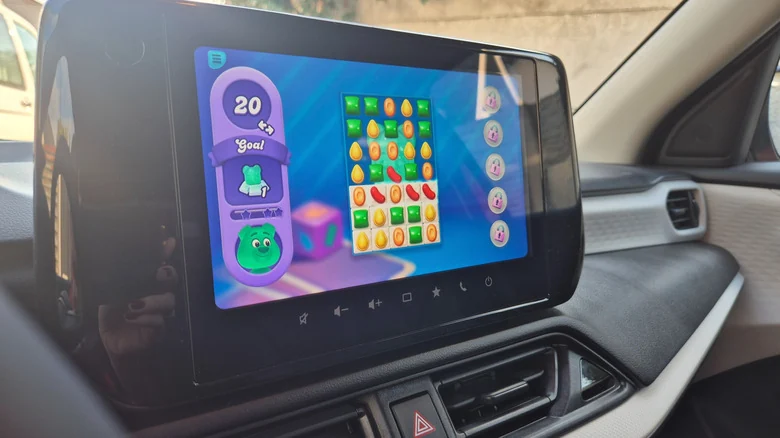
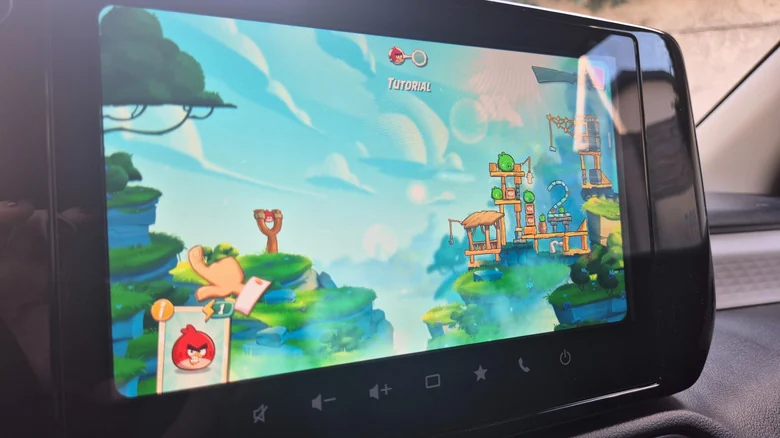
Popular games currently available include Angry Birds 2, Candy Crush Soda Saga, Beach Buggy Racing, and My Talking Tom Friends. More demanding titles like Hearthstone, Call of Duty, or Super Mario Run are not yet supported on the platform.
Safety is a strict priority for the platform. Games are engineered to recognize when a vehicle stops moving, meaning users cannot play at red lights or in crawling traffic. The second the car shifts into gear, the game vanishes from the screen, Android Auto returns to the home screen, and the game icon turns gray. Furthermore, full screen mirroring is unsupported to maintain proper sizing and enforce strict safety protocols, though supported games can integrate with physical controllers for a console-like feel.
How to Set Up and Launch Games in Your Vehicle
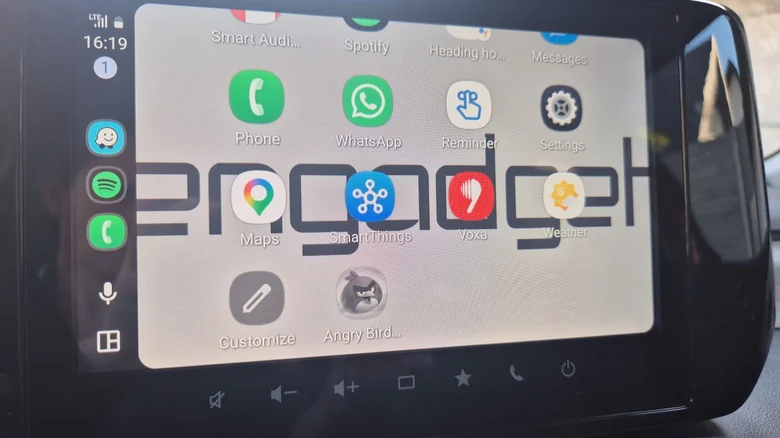
Getting games onto your car display requires a few straightforward steps. First, install your preferred compatible game from the Google Play Store by navigating to Apps, Categories, and Android Auto. Next, connect your phone to your car via a USB cable or a wireless connection, depending on your vehicle's capabilities.
Once connected, installed games should appear automatically on your dashboard screen. If they fail to populate immediately, you can navigate to Settings, Connected Devices, Android Auto, and Customize Launcher to ensure your chosen games are enabled in the app launcher. Users looking to optimize their setup can also consult guides on how to find and hide apps on Android Auto.
User Experience and Additional Options
Testing the initial lineup reveals varying degrees of usability. Angry Birds 2 benefits significantly from the larger dashboard screen, while Candy Crush Soda Saga delivers an entertaining and responsive experience. Conversely, titles like Beach Buggy Racing 2 can prove difficult to manage using touch controls alone because they require two-handed steering, though a connected controller easily resolves the issue.
For drivers who find the dedicated app selection unappealing, Android Auto continues to offer GameSnacks as a built-in alternative to combat boredom while parked. Ultimately, these new additions provide significantly more engagement than scrolling social media or staring blankly, serving as another helpful tool to improve your Android Auto experience.
Sources
- EngadgetHow to set up your phone games to play on an Android Auto screen
Continue chronologically

Related entity coverage
Related stories
Google Brings Personal Intelligence to Gemini in Cars
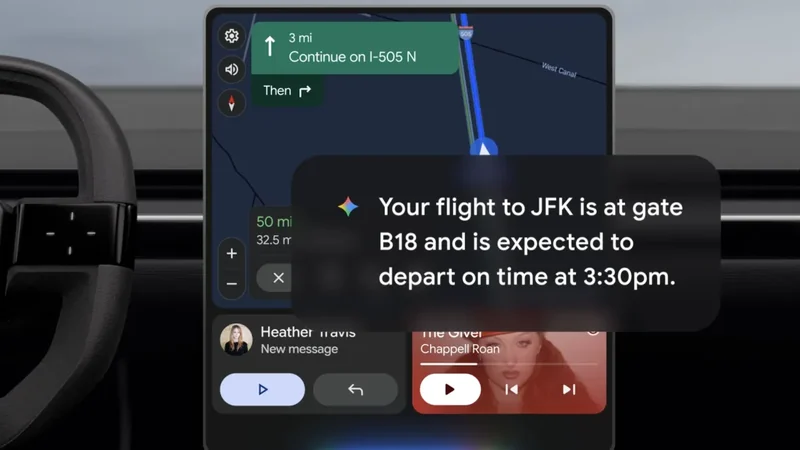
Google is bringing its Personal Intelligence feature to Gemini AI in Android Auto and cars with Google built-in, integrating personal app data.
Google Fixes Android Auto Issues on One UI 9 Galaxy Phones
Google confirms a fix has been rolled out for Android Auto connection and performance problems on Samsung Galaxy devices running the new One UI 9 update.
How to Run Android Auto Outside Your Car for Productivity
Discover how you can use a spare tablet and a third-party receiver app to run Android Auto outside of your vehicle for a low-distraction setup.
Google Confirms Rollout of Fix for Android Auto Signal Icon
Google has officially confirmed that a fix is rolling out to resolve the missing cellular signal icon issue on Android Auto displays.