How to Create iPhone Shortcuts Using Apple Intelligence
Apple Intelligence brings natural language prompt capabilities to the iPhone Shortcuts app, allowing users to build custom automations and leverage AI text generation models.
 Radwan AbdulhadiEditor and technology writer
Introduction to AI-Powered Shortcuts
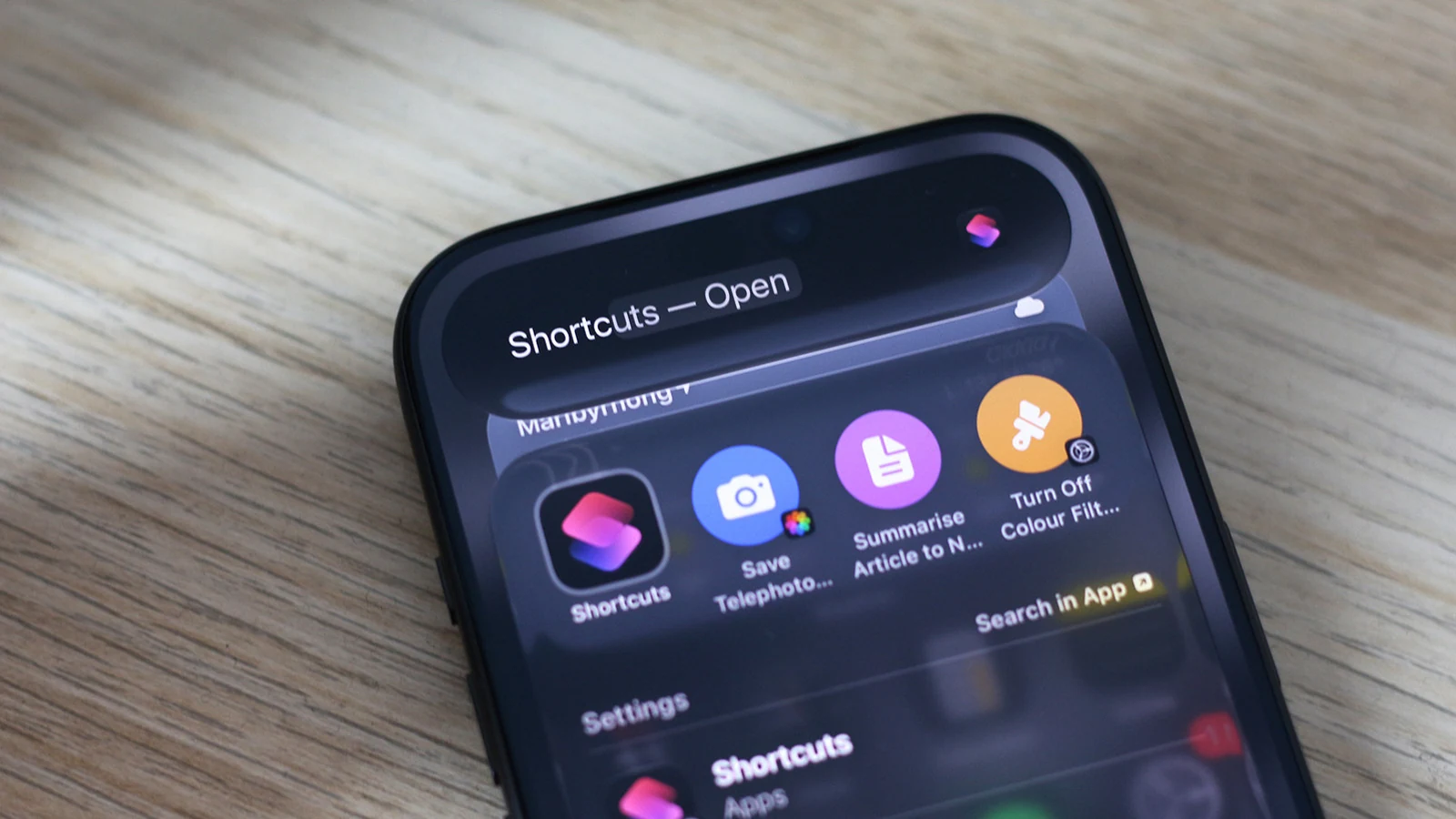
The Shortcuts app has been available since 2018, but recent updates have integrated Apple Intelligence to supercharge its automation capabilities. While custom shortcuts created by other users have long been accessible, the integration of AI now lets users create their own automations simply by using natural language prompts.
For users running iOS 27 on an iPhone that supports Apple Intelligence, the process involves describing a desired shortcut in plain English and letting the AI handle the construction process. To begin, users can launch the Shortcuts app, which typically comes preinstalled, or download it from the App Store if it was previously removed.
How to Build Shortcuts with Natural Language
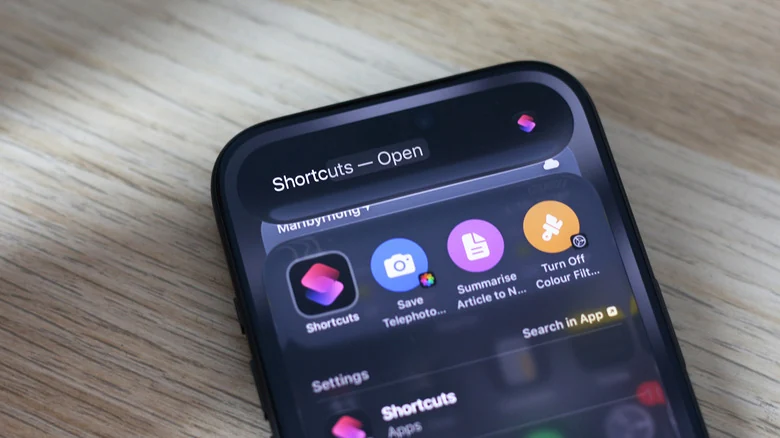
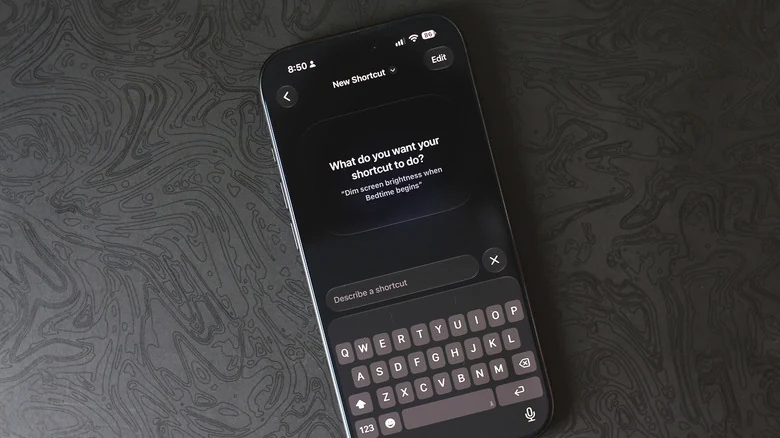
Creating a shortcut using natural language is designed to be straightforward. Users tap the large plus icon at the bottom of the Shortcuts app interface, which brings up a text box where they can describe the intended function in plain English. Once the shortcut is assembled, tapping the play button allows users to test out the newly created automation.
The theoretical scope of what Apple Intelligence can help build matches everything the Shortcuts app allows users to automate. However, practical execution does not always go smoothly and can require some trial and error or manual adjustments to ensure the shortcut operates exactly as intended.
Reliability and Troubleshooting AI Shortcuts
While testing the limits of Apple Intelligence within the app, observations indicate that the system rarely refuses to generate a shortcut outright. Instead, it frequently puts together a solution even if the resulting automation fails to perform the exact task requested.
For example, attempting to program a screen to switch to grayscale upon launching Instagram and revert to color upon exiting worked initially, but failed to disable color filters during the exit phase. Similarly, a prompt to turn off the iPhone when the battery dropped below 20 percent resulted in the screen simply locking rather than powering down the device entirely. When presented with impossible tasks, the app sometimes acknowledges that the request is not possible, but most of the time it strings together actions it deems sufficient.
Advanced Text Generation and AI Models
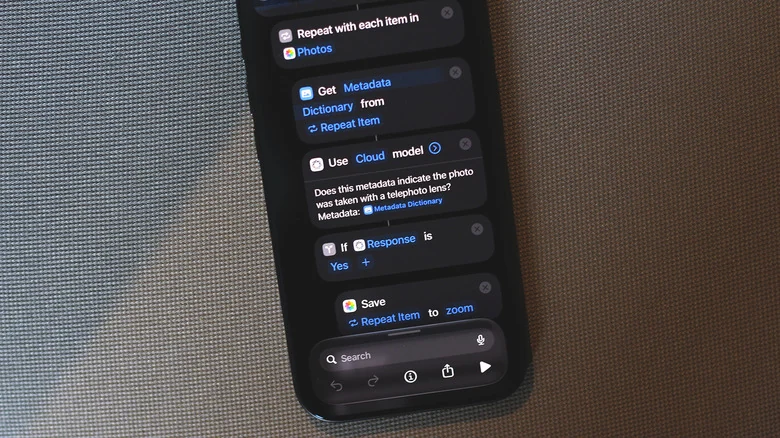
Beyond natural language creation, the update brings additional improvements to the Shortcuts app. Users can configure shortcuts to leverage AI models for generating text and making sense of data. When building a shortcut manually, selecting Apple Intelligence provides access to the Use Model action, which sends requests to an AI model, processes them, and generates a response that can be utilized in subsequent actions.
Users can select between Cloud, Cloud Pro, and On-Device AI models to manage their requests. Additionally, integration with ChatGPT allows users to take advantage of OpenAI's models for tasks like text generation and summarization.
Practical Uses and Best Practices
Apple Intelligence models handle text generation tasks effectively, such as fetching an article from a URL, summarizing its contents, and saving the output directly to the Notes app. Users can also configure these shortcuts to appear as actions when tapping the Share button anywhere by navigating to the shortcut info page and enabling the Share Sheet toggle.
Because results can be hit or miss depending on how accurately Apple Intelligence interprets the request, reviewing the generated logic is essential. Experts recommend tapping the Edit button after generation to double-check the assembled actions before relying on the shortcut for automated tasks.
Sources
- EngadgetHow to create iPhone Shortcuts with Apple Intelligence (and why you should)
Continue chronologically
Related entity coverage
Related stories
How to Easily Customize and Rearrange Your iPhone Messages Apps
Learn how to easily rearrange, add, or delete apps in your iPhone Messages dropdown menu to clean up your iMessage layout.

Apple Adds AI Chatbot to Pages, Keynote, and Numbers
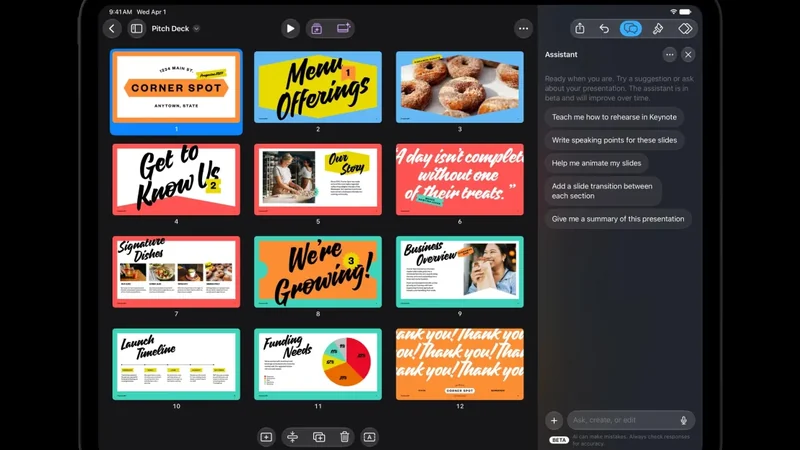
Apple is bringing an AI assistant built on Apple and OpenAI models to its productivity apps, including Keynote, Pages, and Numbers.
OpenAI claims ex-employee took product plans to Apple
OpenAI alleges a former employee stole more than 100 confidential files containing unreleased product plans and presented them to Apple leadership.

Google Expands SynthID Detector Globally with Apple Support
Google has rolled out its expanded SynthID AI content detector globally, introducing support for models from OpenAI, Nvidia, Kakao, and Apple.