How to Easily Customize and Rearrange Your iPhone Messages Apps
Apple's iMessage app offers numerous default features and applications, but they might not be sorted in your preferred order. Fortunately, the layout can be easily customized.
 Radwan AbdulhadiEditor and technology writer
Understanding iMessage App Layouts
Apple's iMessage has evolved significantly over the years, introducing everything from satellite messaging that can reach out to your emergency contact while in a remote location to aesthetic changes like customizable backgrounds. However, keeping abreast of these updates can be difficult, especially when Apple releases a new iOS update every year.
Despite these regular software updates, users often lament the inconvenience of their iMessage app arrangement. Applications that are rarely used often sit at the top of the dropdown menu, while more frequently utilized tools remain buried at the bottom. This layout issue usually occurs simply because users have not taken the time to customize their menu's layout.
Default Apps and Capabilities
Some of the most impactful changes have arrived through the introduction of iMessage apps. Since the release of iOS 18, several applications have been installed in the messaging app by default. As of the latest software update, 14 apps are included by default.
These popular applications bring features like sending your location, voice recordings, stickers, GIFs, music, photos, and polls. Additional third-party applications, such as ESPN and Venmo, further expand the core functionalities of your messaging app. Fortunately, users can keep all of these tools organized according to their individual preferences.
How to Rearrange Your Message Apps
Before customizing your app layout, make sure that you have downloaded the latest iOS. Once your device is updated, open your Messages app and either tap an existing conversation or hit the compose button, which resembles a pencil touching a white square located at the bottom right-hand corner of your screen.
Once a conversation is pulled up, tap the Plus (+) button beside your messages. Here, you will find a full list of your available iMessage apps. Next, hold down the app you want to move until the icon shrinks, drag it to its desired place on the dropdown menu, and let go.
Adding and Managing New Applications
You can also add more apps to your iMessages by opening the App Store for iMessage. Go to Messages, open a conversation, tap the Plus (+) symbol, and touch the circular blue App Store icon. Once open, you can browse Apple's list of popular applications or search for something specific.
To download a new app, simply tap the Get button next to its name. If an app requires a purchase, you will see the price rather than a Get button. To exit the app store, swipe down or tap the Close (X) icon.
Privacy, Purchases, and Deletion
Users may want to exercise caution regarding which applications they add. For instance, integration updates from external developers can sometimes cause a stir, such as when OpenAI added iMessage integration to its ChatGPT app for Mac, prompting both utility praise and privacy discussions.
Furthermore, if you are part of a Family Sharing plan, you can take advantage of iOS 27's enhanced parental control features by managing your family's in-app purchasing options, such as using the Ask To Buy feature.
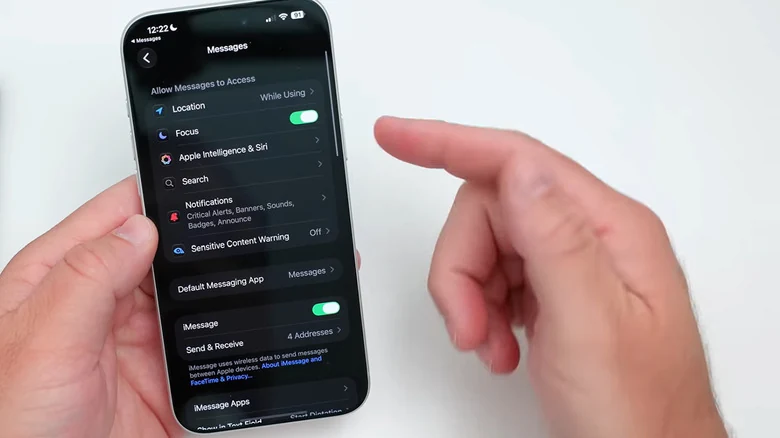
To delete individual apps you have added, or to manage their iMessage functionalities, visit your device settings. Tap Apps, then Messages, and select iMessage Apps. Alternatively, you can delete an app altogether by holding down its icon on your home screen and selecting the Remove App option.
Sources
- EngadgetOne annoying problem with the iPhone Messages app has an easy fix
Continue chronologically


Related entity coverage
Related stories
How to Create Custom Stickers for iMessage and WhatsApp with ChatGPT
Learn how to use OpenAI's new sticker-specific workflow in ChatGPT to design and export custom stickers directly to iMessage and WhatsApp.
Apple Store Architect Skeptical of AI-Driven Shopping Future
Ron Johnson, the pioneer behind Apple's retail success, argues that physical stores remain vital despite the industry's multi-billion dollar bet on AI.

How to Create iPhone Shortcuts Using Apple Intelligence
Learn how to use Apple Intelligence and natural language prompts to build custom iPhone Shortcuts on supported devices running iOS 27.
Major AI Chatbot Apps Now Compatible with Apple CarPlay
Drivers can now use AI chatbots like ChatGPT, Claude, and more directly through Apple CarPlay following a recent iOS update.