What Does V-Sync Do to Your PC's Frames Per Second?
Vertical synchronization aims to align graphics card frame rates with monitor refresh rates, but it introduces specific trade-offs for PC gaming performance.
 Radwan AbdulhadiEditor and technology writer
Understanding Vertical Synchronization
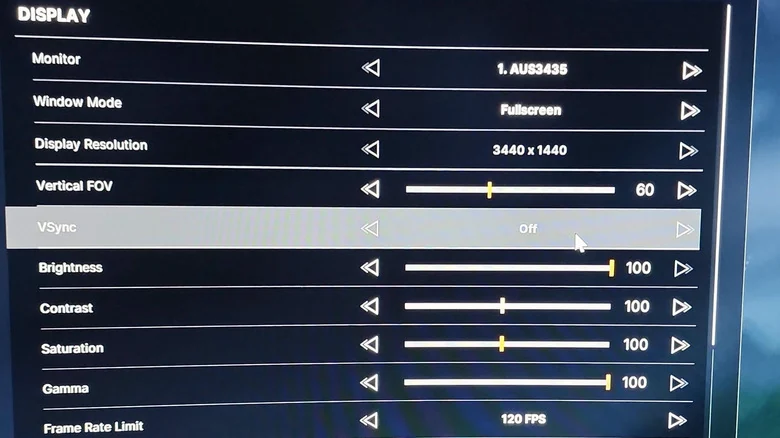
When fiddling with graphics settings in PC games, users often encounter V-Sync, short for vertical synchronization. According to reports from Engadget, it can help eliminate screen tearing, a visual artifact that occurs when a display shows pieces of two different frames at once. Further details are available from Engadget in the original source material.
A game's frame rate indicates how many frames the graphics processing unit renders each second, while a monitor's refresh rate dictates how many times per second it can display a new image. Ideally, these rates work together to create an efficient, responsive, and stable illusion of motion. However, practical discrepancies often arise when hardware components operate independently.
How V-Sync Addresses Screen Tearing
Discrepancies frequently occur when a graphics card renders a game at a higher rate than the monitor can display. For example, if a GPU renders a game at 100 frames per second but a monitor only refreshes at 60 Hz, users might experience horizontal splits where parts of the image appear misaligned.
To counter this, vertical synchronization makes the GPU wait for the monitor's refresh cycle before firing the next frame. On a 60Hz display, the game typically renders around 60 frames per second, while a 144Hz display limits it to 144 FPS. Even if the graphics card is capable of handling higher performance, VSync holds back the output until the display is ready. As an added benefit, this constraint means the GPU does not work as hard, which can successfully reduce power consumption and heat output during extended gaming sessions.
Potential Drawbacks and Performance Trade-Offs
While a best-case scenario delivers a clean, smooth flow of frames with fluid character movement, utilizing the setting involves distinct trade-offs. Eliminating screen tearing can result in unwanted side effects, particularly when a GPU's frames cannot keep up with the monitor's refresh rate.
In situations where hardware struggles to maintain pace, a game can suddenly feel closer to 30 FPS than 60 FPS. At worst, users may encounter stuttering that makes the original screen tearing issue seem minor by comparison. Furthermore, because frames follow a strict delivery schedule when the setting is active, a slight delay can develop between physical inputs and the resulting action on screen. While slow-paced adventure games might mask this delay, competitive shooters can quickly feel heavy and sluggish.
Exploring Adaptive Sync Alternatives
If users do not notice any screen tearing, keeping the setting turned off is generally recommended. Even when tearing is visible, hardware manufacturers provide alternative technologies that often serve as a better starting point for achieving a balanced gaming experience.
Hardware alternatives include FreeSync and G-Sync, which allow monitors to adjust their refresh rates dynamically to match the frames produced by the GPU instead of forcing a fixed schedule. If configured correctly, these adaptive options offer less tearing without introducing heavy stuttering or input lag.
For configurations utilizing Nvidia hardware, users can explore detailed implementations through guidelines on G-Sync, while AMD setups benefit from dedicated resources regarding FreeSync. The primary downside to these adaptive technologies is that monitors must support them out of the box, and G-Sync specifically requires a compatible Nvidia graphics card, whereas FreeSync provides broader flexibility across different hardware brands.
Configuration Recommendations
When hardware setups or specific games lack compatibility with variable refresh rate technologies, vertical synchronization remains a reliable fallback option. It functions most effectively when a computer maintains a steady frame rate at or above the monitor's maximum refresh rate.
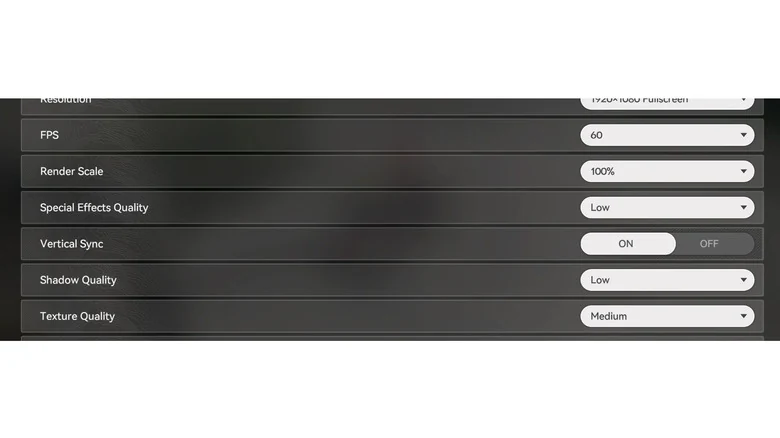
To utilize standard settings independently, users can toggle the option directly within game menus. If a particular game lacks proper support, forcing the feature through the graphics card's control panel serves as an effective workaround, though keeping it active in both locations simultaneously is generally unnecessary.
Sources
- EngadgetWhat does V-Sync actually do to your PC's frames per second?
Continue chronologically

Related entity coverage
Related stories
Understanding Screen Tearing and How to Fix It
Learn what causes screen tearing during PC and console gaming sessions, and discover how modern technologies like VRR and V-Sync can fix the problem.
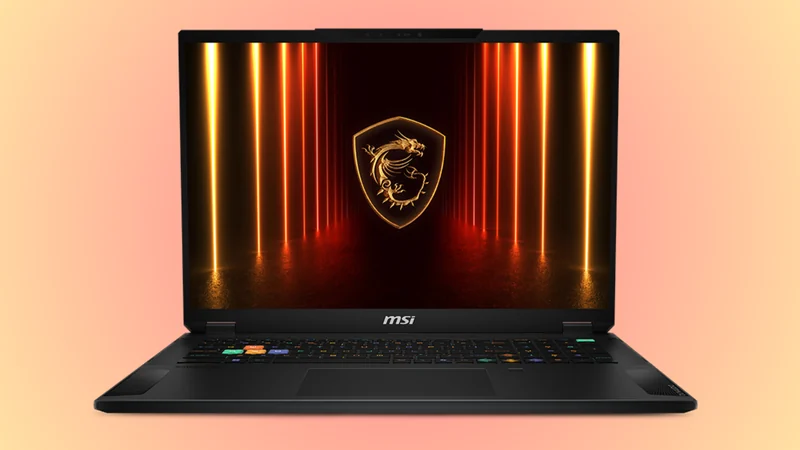
MSI Stealth A18 AI+ RTX 5090 Laptop Gets $520 Discount
Discover a major $520 discount on the MSI Stealth A18 AI+ gaming laptop featuring an RTX 5090 GPU, 64GB DDR5 RAM, and a 2TB SSD.
AMD Surpasses $1 Trillion Market Cap Milestone
AMD has officially joined the elite trillion-dollar market cap club, outpacing Intel following a significant surge in stock price fueled by data center demand.
Gears of War: E-Day PC Graphics Performance Tested
Tom's Hardware puts Gears of War: E-Day to the test across 43 GPUs, exploring Unreal Engine 5 MegaLights, Mega Geometry, and upscaling technologies.