How to Boost GPU Performance Without Buying New
PC gamers struggling to secure a new graphics card can optimize their current hardware using software tweaks, supersampling, and routine physical maintenance.
 Radwan AbdulhadiEditor and technology writer
Maximizing Frame Rates With Supersampling
For PC gamers unable to pick up a new graphics card amid challenging market conditions—where many panic-bought PCs to avoid RAMaggedon —squeezing extra performance out of existing hardware has become essential. With graphical advancements continually outpacing hardware evolution, technologies that boost frame rates are critical for maintaining stable performance at high resolutions.
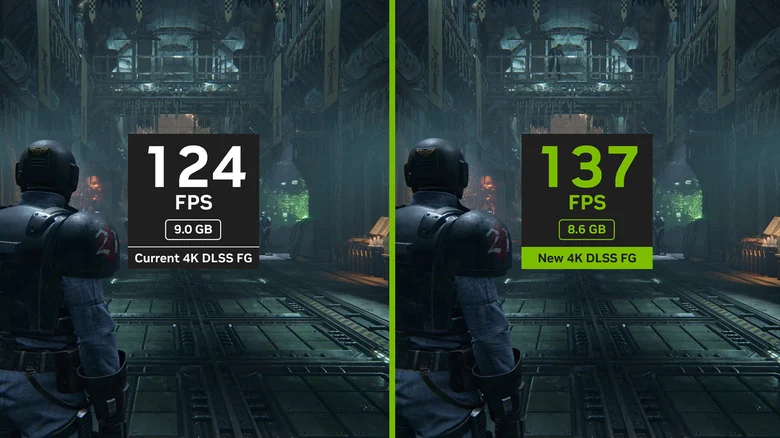
Gamers can rely on AI-driven supersampling features such as AMD FSR, Intel XeSS, or NVIDIA's DLSS 4.5 Multi Frame Generation tech to maintain smooth frame rates. These solutions render games at lower internal resolutions before utilizing deep learning techniques to upscale the final image.
While current iterations of NVIDIA DLSS 4.5 and AMD FSR 4 offer image quality comparable to native resolutions with minimal downsides, newer frame generation modifiers like multi-frame generation can introduce input latency or visual artifacts depending on the supported title. Experimenting with these settings allows users to find a balance that suits their specific gaming setup.
Adjusting In-Game Graphics Settings
When running demanding titles, lowering graphical settings is an immediate way to improve frame rates if a GPU begins to stutter. Only the fastest graphics cards can comfortably handle modern AAA titles on an Ultra preset, making it wise to switch settings to Balanced or Performance, particularly for hardware that is a couple of generations old.
Features like screen space reflections and ambient occlusion often demand heavy processing power without providing a drastically noticeable visual improvement for every player. Disabling settings that do not noticeably enhance the experience can help reclaim valuable frames.
Owners of budget GPUs should generally avoid enabling ray tracing. This advanced multi-bounce illumination technique creates realistic lighting effects but can severely impact performance, often lowering frame rates by 20 to 40 percent on cards that lack the necessary hardware power.
Physical Maintenance and Thermal Management
Hardware performance relies heavily on physical upkeep, making it important to understand how to clean and organize your PC properly . Dust accumulation inside a system can obstruct internal airflow and lead to thermal throttling, where a graphics card reaches its temperature limit and automatically reduces core clock speeds.
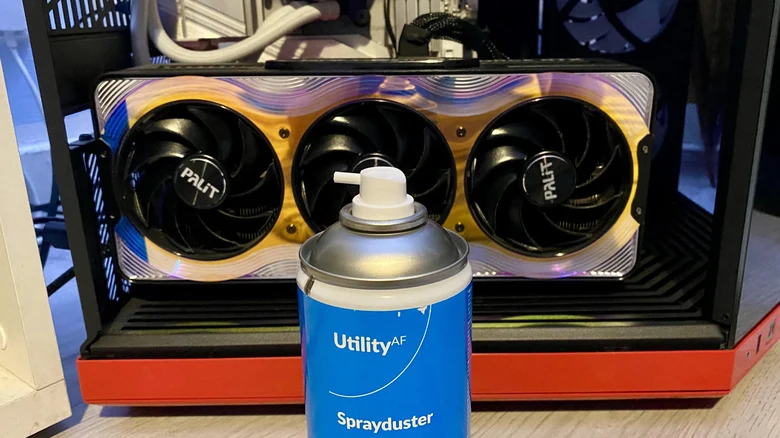
Safely cleaning a graphics card requires switching off and unplugging the PC, accessing the GPU, and using a can of compressed air with short spurts to clear debris from the fans. A soft microfiber cloth can then be used to gently wipe down the exterior of the card, helping maintain proper cooling capacity and preventing premature performance drops.

Software Optimization and Overclocking
Beyond physical maintenance, users should ensure their system software remains optimized. Keeping GPU drivers up to date and closing unneeded background applications ensures the system devotes its primary resources to running the active game rather than background tasks.
For advanced users looking to extract maximum capability from their current hardware, overclocking provides a pathway to exceed manufacturer-intended limits. Tools like MSI Afterburner can assist with the process, provided users thoroughly research safety guidelines before adjusting clock speeds and voltages.
Sources
- EngadgetHow to boost your GPU performance without buying a new one
Continue chronologically
Related entity coverage
Related stories
Intel's Gloomy PC Outlook Triggers $1 Trillion Chip Market Wipeout
Intel shares plunge 30% after a weak PC outlook, erasing $150 billion and sparking a wider semiconductor market bloodbath across the industry.
Modal Adopts Nvidia Vera CPUs After Internal Tests Show 2X Gains
AI startup Modal plans to deploy Nvidia Vera CPUs following internal tests that showed a 2x throughput advantage over current Intel and AMD processors.
AMD Surpasses $1 Trillion Market Cap Milestone
AMD has officially joined the elite trillion-dollar market cap club, outpacing Intel following a significant surge in stock price fueled by data center demand.
AMD Shares Gorgon Halo Benchmarks Ahead of RTX Spark
AMD showcases new Gorgon Halo AI benchmarks for the Ryzen AI Max+ Pro 495 ahead of the anticipated Nvidia RTX Spark launch.