Understanding Screen Tearing and How to Fix It
Screen tearing can ruin your gaming sessions, but a combination of modern technologies can effectively eliminate visual artifacts.
 Radwan AbdulhadiEditor and technology writer
What is Screen Tearing and Why Does it Happen?
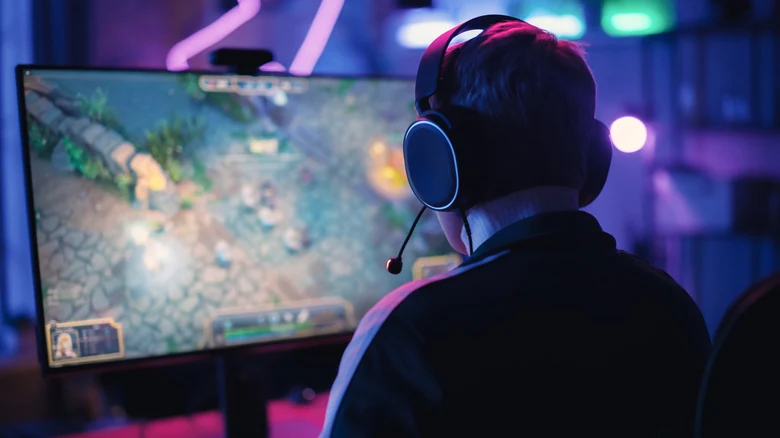
Most gamers have experienced the dreaded phenomenon of screen tearing. One moment, you are battling enemies in a fantasy world, and the next, you are looking at a jagged patchwork of imagery. Your in-game avatar's torso is separated from its legs and head, and the path in front of you is likewise torn asunder.
This visual artifact is primarily encountered with PC gaming, though it can sometimes be an issue for console gamers, too. According to reports, the issue is caused by a mismatch between the speed at which computer hardware renders video frames and the rate at which a display can show them.
The Mechanics Behind the Visual Mismatch
The cause of screen tearing is relatively simple: your GPU renders frames at a different rate than your monitor displays them. You can imagine the image rendering pipeline like a two-person assembly line where your GPU hands video frames to your monitor. Many GPUs are not tethered to the monitor's speed, sometimes outpacing the display by rendering hundreds more frames each second.
Basic monitors refresh 60 times each second, while gaming-focused monitors offer much higher refresh rates like 144Hz, 240Hz on mid-rangers, and even 1,000Hz monitors are now on the market. When a GPU renders a new frame into the buffer before the monitor has scanned the previous one, parts of both frames appear on the screen at once, resulting in a torn visual effect.
How Variable Refresh Rates Solve the Problem
Screen tearing is essentially a solved problem today thanks to variable refresh rate (VRR) technology, which allows monitors to sync their refresh rates with a graphics card's frame rate. The major names in this space are NVIDIA G-Sync and AMD FreeSync, both of which prevent the monitor from showing two frames at once.
Traditionally, G-Sync utilizes a hardware module inside officially supported monitors to tether the display's refresh rate to the GPU. Newer "G-Sync Compatible" monitors can achieve this without dedicated hardware, and the next generation of G-Sync will also address motion blur through a feature called Pulsar. Meanwhile, FreeSync accomplishes the same goal using the VESA Adaptive-Sync protocol without requiring a dedicated hardware module.
Combining V-Sync and VRR for Optimal Results
While VRR technologies help coordinate frame rates, they only work within a monitor's native refresh window. When a GPU exceeds the monitor's top refresh rate, visual tearing can still occur. To counter this, experts recommend using both V-Sync and VRR simultaneously.
V-Sync ensures that the GPU's frame rate output cannot exceed the monitor's capabilities by holding it within the VRR window. To maximize efficiency, users should turn on V-Sync through global NVIDIA or AMD graphics settings rather than in-game options, and set the in-game frame rate cap just slightly below the monitor's top refresh rate to stabilize your frame rates for smoother gaming.
Sources
- EngadgetWhat causes screen tearing and how can you fix it?
Continue chronologically
Related entity coverage
Related stories
What Does V-Sync Do to Your PC's Frames Per Second?
Explore how vertical synchronization affects PC gaming, frames per second, screen tearing, and input lag, along with alternatives like G-Sync and FreeSync.
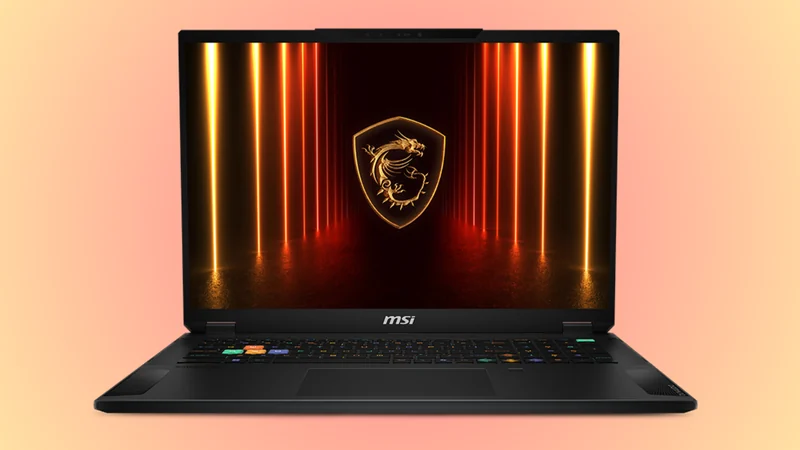
MSI Stealth A18 AI+ RTX 5090 Laptop Gets $520 Discount
Discover a major $520 discount on the MSI Stealth A18 AI+ gaming laptop featuring an RTX 5090 GPU, 64GB DDR5 RAM, and a 2TB SSD.
AMD Surpasses $1 Trillion Market Cap Milestone
AMD has officially joined the elite trillion-dollar market cap club, outpacing Intel following a significant surge in stock price fueled by data center demand.
Gears of War: E-Day PC Graphics Performance Tested
Tom's Hardware puts Gears of War: E-Day to the test across 43 GPUs, exploring Unreal Engine 5 MegaLights, Mega Geometry, and upscaling technologies.