
How to Securely Wipe Your Old Laptop Before Disposal
Before you discard, sell, or donate your aging computer, it is vital to protect your privacy by performing a thorough data cleanup. Failing to properly wipe your storage can expose sensitive personal information to new users.
 Radwan AbdulhadiEditor and technology writer

The Importance of Data Sanitization
Before you think about offloading your device, consider its future utility. Whether you are selling it, passing it to a relative, or taking it in for safe recycling, the security of your information remains paramount. As noted in a report by Engadget, simply handing off a machine without proper preparation can result in a significant leak of personal data.
Executing a Reliable Backup
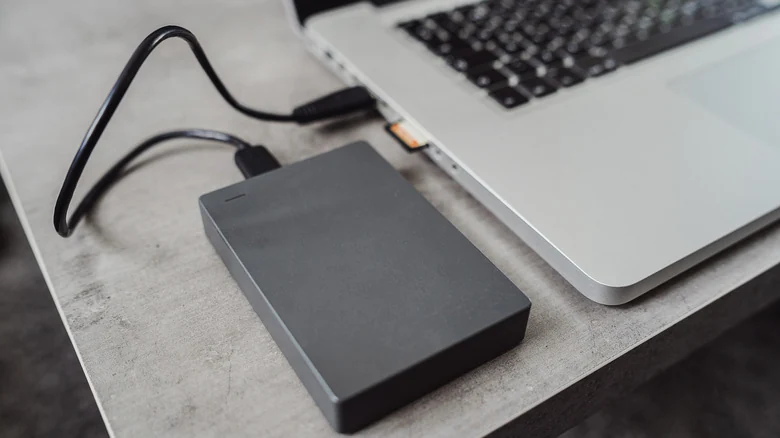
Before resetting your hardware, ensure you have migrated your essential files. Windows users can leverage the built-in Windows Backup utility, though users with large datasets might exceed the 5GB limit provided by free Microsoft accounts. A robust strategy involves a secondary, physical backup method, such as transferring critical documents to a portable HDD or SSD. For automation, software like EaseUS Todo Backup's free version can streamline the process of securing your data before the drive is cleared.
Apple users have a distinct advantage through the built-in macOS backup tool, known as Time Machine. This utility allows users to create a comprehensive copy of their drive on an external USB storage device. By navigating to System Settings and configuring the Time Machine settings, users can ensure that every bit of data is preserved for recovery on a new machine. Furthermore, users should double-check their browser sync settings and external hardware, such as forgotten SD cards or USB dongles, which are easily overlooked.
Managing Software Licenses and Accounts
A common mistake during the transition to a new device is failing to de-authorize software. Professional suites, such as those provided by Adobe, often limit installations to a specific number of machines. If you do not explicitly sign out or deactivate these licenses, you risk losing an activation slot on your new computer. If the de-authorization process is unclear, keep a record of your product keys so you can contact the software provider directly if issues arise once you have already wiped the old drive.
Wiping Windows Devices
Once your data is secured, the final step is the factory reset. For Windows 11 users, this is managed via the Settings menu under System, Recovery, and the 'Reset PC' option. Crucially, when selecting the 'Additional settings' menu, enable the 'Clean data' option; this ensures the system overwrites your existing data, making it essentially unrecoverable for the next owner. Older versions of Windows, such as Windows 10 and 8.1, follow a similar path through the Recovery settings, while Windows 7 users may need to rely on external bootable media or manufacturer-specific recovery partitions to achieve the same result.

Resetting macOS Systems
The process for modern Apple silicon and newer Intel Macs running macOS Monterey or later is highly streamlined. By selecting 'Erase All Contents and Settings' in the System Settings menu, the OS handles the de-authorization of iCloud and the secure wiping of the disk automatically. Older, Intel-based Mac models require a more manual approach. Users must first sign out of iCloud to remove the Activation Lock, enter Recovery Mode upon restart, and use the Disk Utility to erase the APFS volume group. Once the drive is cleared, selecting 'Reinstall macOS' will provide a clean slate for the future user.
Sources
- EngadgetBefore you throw out your old laptop, do this first