How to Adjust Audio Quality and Lossless Settings in Apple Music
Apple Music offers robust cross-platform support with features like lossless streaming and built-in equalizers, though users need to know where to find and activate them.
 Radwan AbdulhadiEditor and technology writer
Understanding Apple Music Audio Tiers
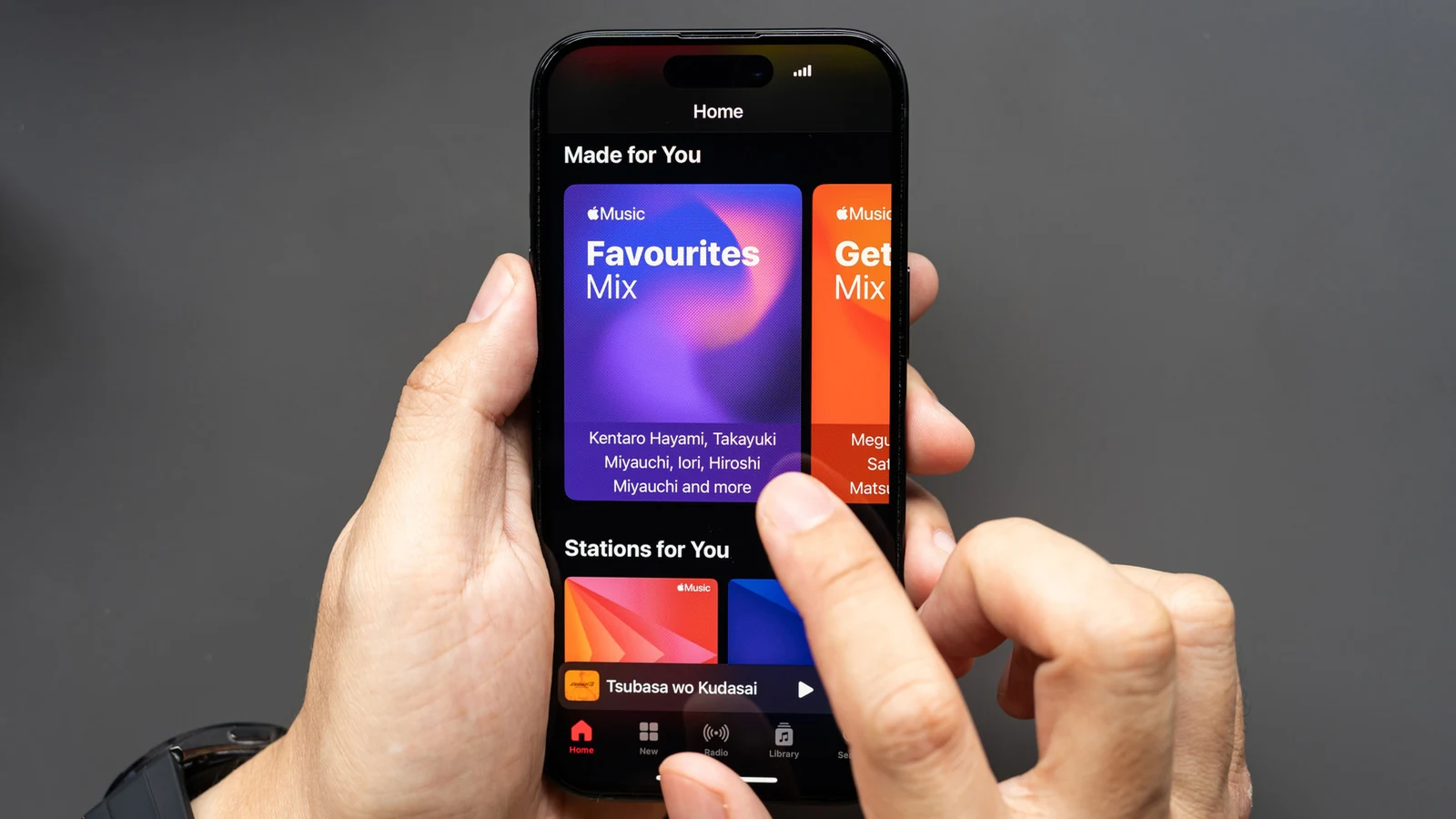
Apple Music features surprisingly robust cross-platform support for an Apple service, making it a great Spotify alternative for users who want high-quality audio options. The service offers both lossless streaming and equalizer features across its native applications, provided you know where to look.
The platform actually features two distinct lossless tiers. The basic lossless setting streams in CD quality at 24-bits and 48kHz, which represents the highest quality most consumer headphones or earbuds can deliver—especially when using Bluetooth. Users do not need to waste data with Apple Music by turning on the more extreme Hi-Res Lossless setting, which delivers audio at 24-bits of depth and 192kHz, unless they are using dedicated hi-fi equipment.
Because lossless audio uses considerably more data, it is not enabled by default. Users must manually enable lossless playback from the settings on each of their devices. The same process can also be used to turn lossless audio off if it eats into a data plan or if proper playback equipment is unavailable.
Adjusting Audio Quality on iOS and Android
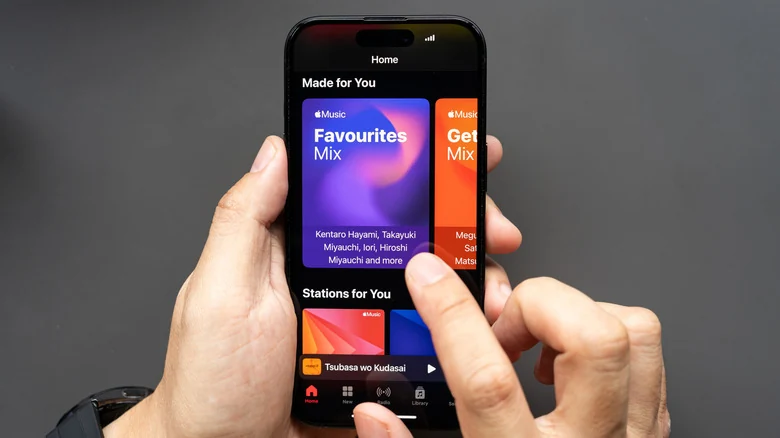
For users operating on mobile devices, Apple Music maintains a well-designed version for Android alongside its native iOS application. On iOS devices, users can open the Settings app, select Apps, and then choose Music. Under the Audio section, selecting Audio Quality allows users to enable the toggle alongside Lossless Audio to unlock high-resolution streaming and downloads.
On the same screen, users can choose the quality they want to hear while listening over Wi-Fi or cellular data, as well as when music is downloaded locally. To find the equalizer on iOS, users go to Settings, Apps, and Music, then tap EQ in the Audio section to select a preset.
On Android, users tap the vertical three-dot menu icon in the top right of the Apple Music home page and select Settings. They can then adjust streaming and download quality. If Hi-Res Lossless is enabled, a popup warns that dedicated hardware is required, and users must click OK to confirm. Notably, there is no in-app equalizer on Android; going to Settings and Equalizer redirects to the phone's system audio settings.
Hardware Limitations for Wireless Listening
A crucial caveat to keep in mind involves Bluetooth playback limitations. Unlike Android, iOS does not support high-resolution Bluetooth codecs. While Android users can take advantage of Apple Music's Lossless quality setting with certain wireless headphones or earbuds, iPhone users can experience it only with a wired playback device.
Unless users connect wired headphones or purchase a hi-res Bluetooth adapter dongle, they will not hear true 24-bit, 48kHz audio with the Lossless setting—let alone sound produced by the Hi-Res Lossless option—even if their specific wireless headphones advertise support for high-resolution playback.
Configuring Audio Quality on macOS and Windows 11
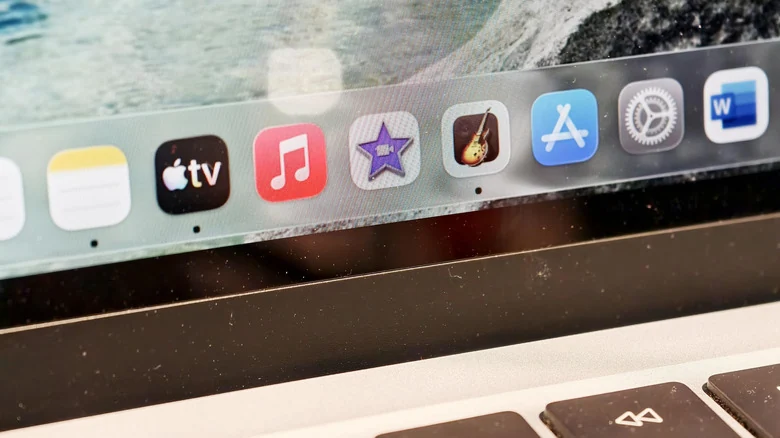
Desktop users have straightforward pathways to manage their listening experience. On macOS, users click Music from the left side of the menu bar at the top of the screen, select Settings, and click the Playback tab. From there, they can click the checkbox to enable lossless audio if it is not already active.
On Windows 11, users click the three horizontal dots parallel with the Apple Music logo in the top of the left-hand navigation menu and choose Settings from the dropdown menu. They can then select the desired audio quality level from the streaming and downloads section. The streaming option controls quality over an internet connection, while downloads manage offline storage quality. Confirmation may be required upon initial activation.
Accessing Desktop Equalizer Features
Apple Music's desktop apps also feature built-in equalizers to help fine-tune the sound further. On both macOS and Windows platforms, the equalizer is a ten-band system featuring a range of presets, a preamp, and the ability to save custom settings as new presets.
Windows users will find the equalizer tucked into the same three-dot settings menu, whereas Mac users can access the tool by navigating to Window and choosing Equalizer from the application menu.
Sources
- EngadgetHow to adjust the audio quality in Apple Music
Continue chronologically

Related entity coverage
Related stories
Signal Adds Encrypted Local Backup Support to iOS and Desktop Apps
Signal releases version 8.30, completing the rollout of its secure encrypted backup feature across iOS, Android, Linux, macOS, and Windows operating systems.

How to Securely Wipe Your Old Laptop Before Disposal
Don't leave your personal data behind when upgrading your hardware. Follow these essential steps to back up, de-authorize, and securely wipe your laptop.

Gmail Adds ‘Copy Code’ Shortcut for 2FA on Android & iOS
Gmail introduces a new 'Copy code' button for two-factor authentication on mobile, allowing users to quickly copy codes directly from their inbox.
Apple Launches State-of-the-Art Apple Music Hall in London
Apple has officially opened Apple Music Hall at London’s Battersea Power Station, a new live venue designed for immersive spatial audio and recording.