How to Fix Nintendo Switch 2 TV Connection Issues
Encountering a black screen or connection issues when plugging your Nintendo Switch 2 into a television? Here is a breakdown of what to check.
 Radwan AbdulhadiEditor and technology writer
Initial Power and Dock Troubleshooting
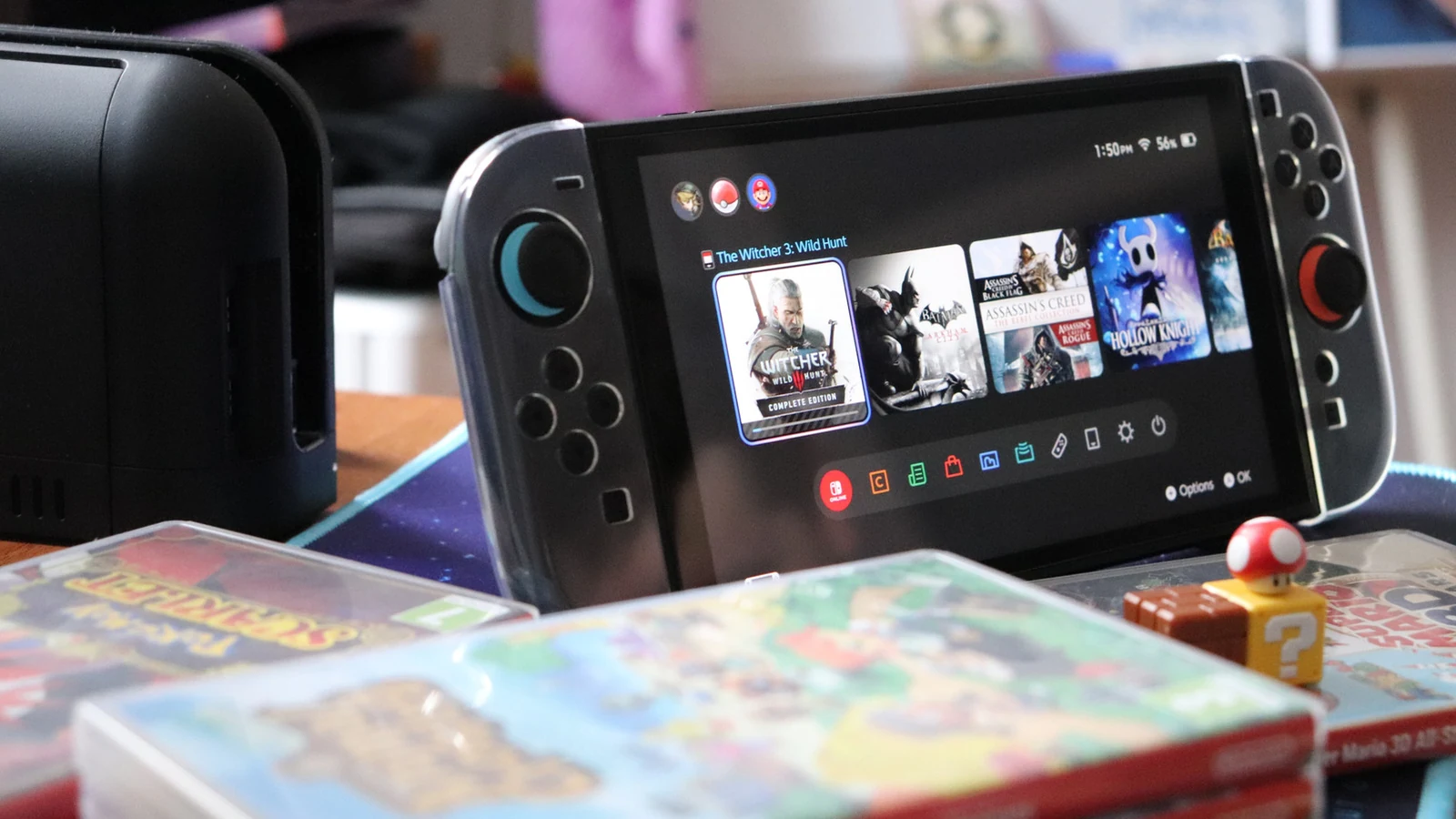
Getting the Nintendo Switch 2 to connect properly to a television can sometimes result in unexpected black screens or compatibility snags. Before reaching out to Nintendo support, players can run through several troubleshooting steps to diagnose the issue.
To begin, Nintendo recommends powering off your television and fully disconnecting all cables from the Switch 2 dock. This includes removing the AC adapter from both the wall outlet and the dock, taking the handheld console out of the dock, and leaving everything unplugged for approximately 30 seconds.
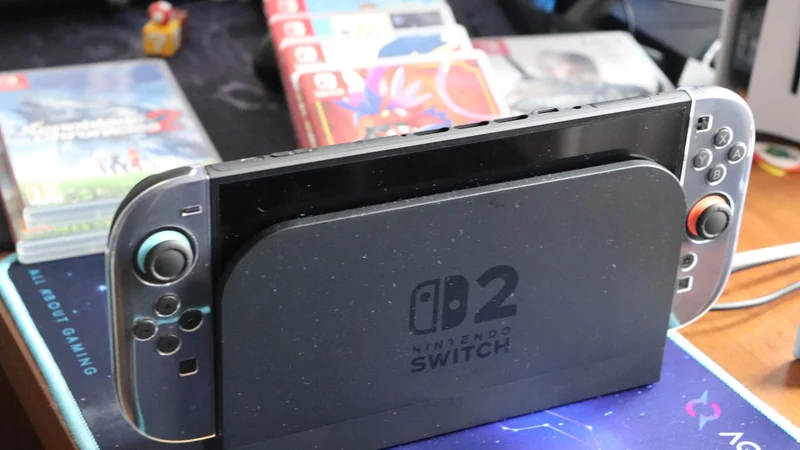
Next, inspect the back of the dock behind its removable panel. The top port is designated for AC power. Plug the AC adapter back into the dock securely, then plug the other end into a wall socket. Ensure the handheld screen faces the front of the dock and is slotted in fully.
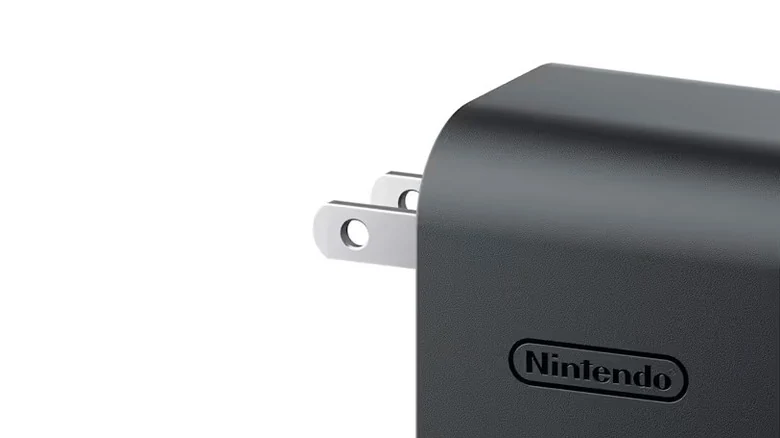
Check your cables for fraying or visible damage, as split cables can cause power delivery problems. Make sure the wall outlet itself is active by testing another device in the same socket. If you are using a replacement power supply instead of the official hardware, confirm that the third-party device meets the console's power needs.
The Switch 2 requires an adapter delivering a minimum of 54W to maintain a continuous TV connection, which is higher than the power requirement of the original console. If any components are broken or missing, replacements such as official power bricks are available as part of the ecosystem of Switch 2 accessories on Nintendo's official website.
Checking HDMI Cables and TV Ports
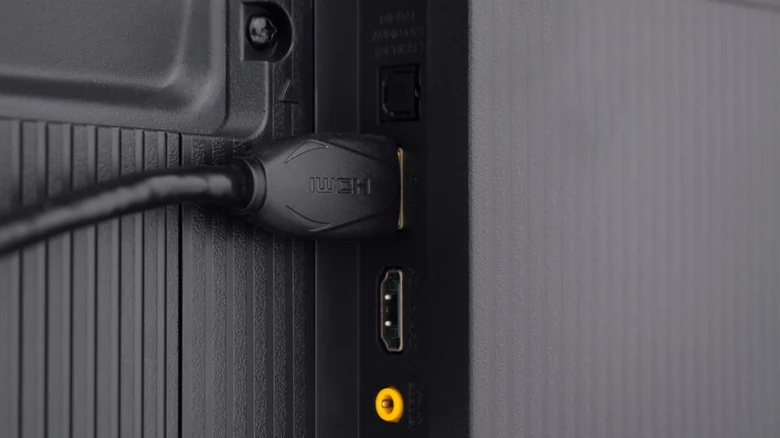
Once power delivery has been verified, inspect the video connection. Plug one end of an Ultra High Speed (UHS) dual-end HDMI cable into the HDMI-out port on the dock. The console ships with a UHS HDMI cable that supports 48Gbps bandwidth and HDMI 2.1 connections. Third-party cables will also work provided they support UHS.
First-generation Nintendo Switch HDMI cables or lower-speed alternatives will not function properly with the new hardware. Connect the other end of the UHS HDMI cable into an HDMI-in port on your television. Utilizing an HDMI 2.1 port is recommended because it enables up to 8K resolution at a 60Hz refresh rate or 4K at 120Hz.
While UHS cables are backward-compatible with older HDMI ports, older ports will limit the output quality. Consult your TV manufacturer if your specific model does not clearly label its port types. Many modern televisions feature multiple HDMI 2.1 ports capable of handling the 4K video output at 60Hz or 1080p at 120Hz transmitted by the Switch 2.
Adjusting TV Settings and Inputs
If the physical connections are secure but the display still fails to appear, examine your television's internal configuration using your regular remote control. Navigate through picture, advanced, or output settings to check for features like Auto Low Latency Mode (ALLM), dedicated gaming modes, HDMI Ultra HD Deep Color, or Input Signal Plus, and enable them for the specific port in use.
Make sure you have selected the correct video input channel matching the physical port where the cable is inserted. If the display does not activate automatically, try pressing the handheld screen's power button while the device remains docked. Additionally, verify that your controllers are adequately charged so they can re-establish a connection with the system.
Should problems persist, Nintendo recommends testing an alternate UHS HDMI cable, trying a different HDMI port on your television, or connecting the dock to a completely different television set to isolate the source of the fault.
Console Software and Display Settings
When external troubleshooting fails, the underlying issue might reside within the handheld console's software or configuration settings. Remove the handheld from the dock, turn it on independently, and verify that the system software is fully up to date by navigating to System Settings, then System, and selecting System Update.
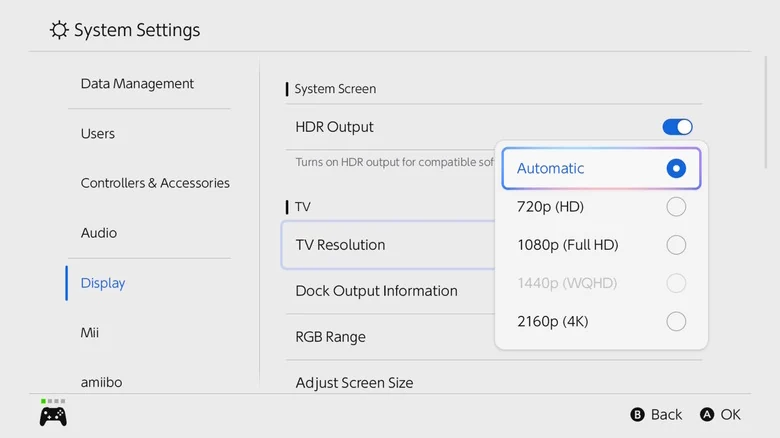
You can also adjust video output parameters directly through the handheld menu. Go to System Settings, select Display, and change TV Resolution to Automatic or manually select the resolution matching your display. Toggling on Match TV Power State within the same menu can also help by automatically waking up your television screen when the docked console is powered on, though older television models may not support this automated wake feature.
If you have thoroughly tested all power supplies, cables, ports, and software configurations without success, your final option is to contact Nintendo support for further assistance. Technicians may require you to mail in both the console and the dock for professional inspection.
Sources
- EngadgetWhat to check if your Nintendo Switch 2 isn't connecting to the TV
Continue chronologically
Related stories
Valve Launches Steam Frame VR Headset Starting at $1,059
Valve has officially released its Steam Frame VR headset. Discover the latest tech news including new RPG titles and compact digital cameras.
Why microSD Express cards matter for the Nintendo Switch 2
Discover why the Nintendo Switch 2 requires a microSD Express card for expandable storage and how to choose the right capacity for your game library.
Is the Original Nintendo Switch Still Worth Buying in 2026?
Nine years after launch, is the original Nintendo Switch worth the investment? We break down the value of used versus new consoles in the age of Switch 2.
Switch 2 security hit as hackers unlock homebrew
Switch 2 security takes a hit as a software-only partial jailbreak allows hackers to run homebrew, mod games, and access peripherals.