What Is the Star Button on Your Roku Remote?
While most buttons on a Roku remote have a self-evident purpose, the star button serves a variety of contextual functions depending on where you are on your device.
 Radwan AbdulhadiEditor and technology writer
Understanding the Roku Remote Star Button
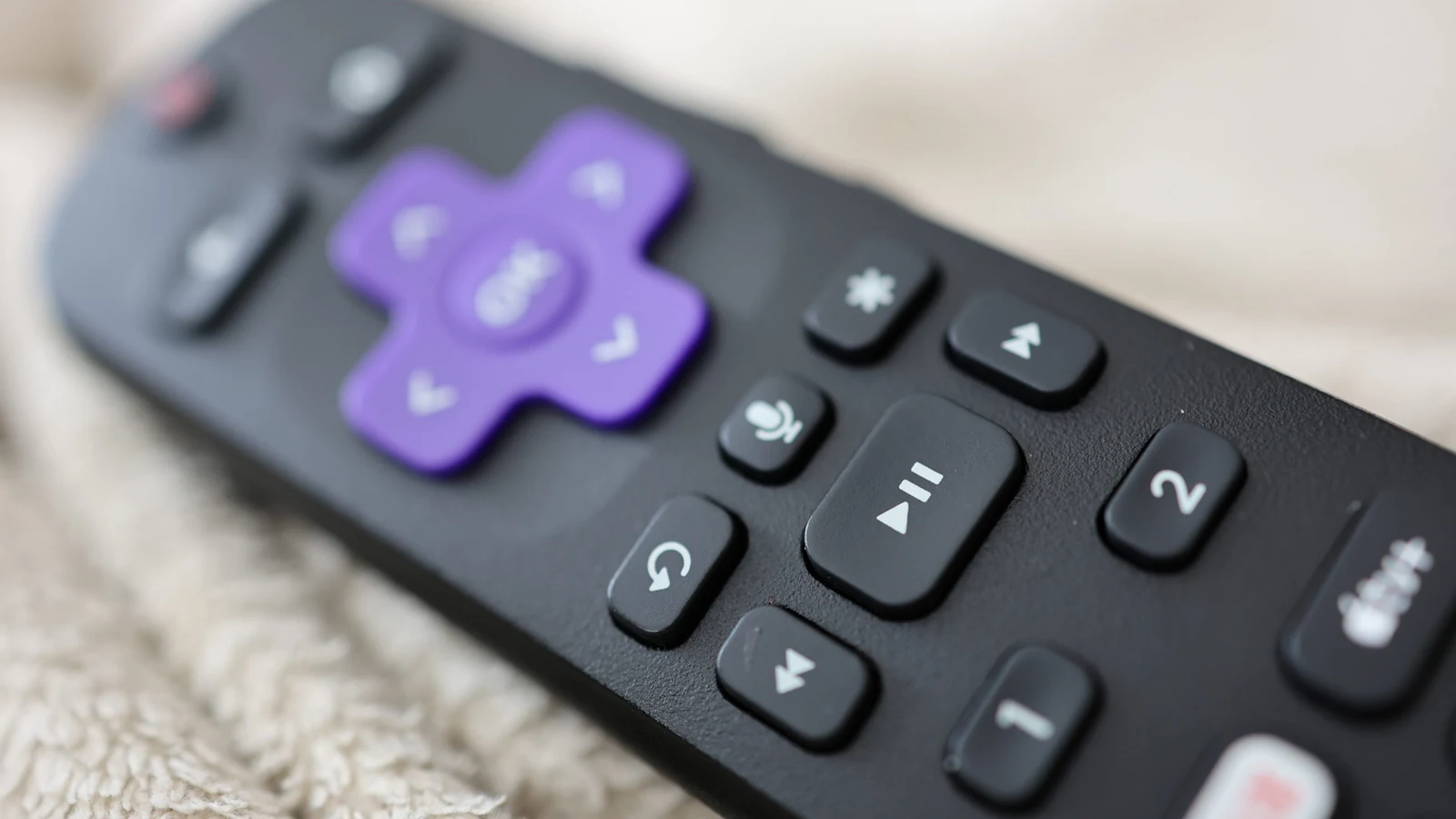
A Roku system's remote control is recognized as one of the most straightforward remote designs available on the market today. The function behind nearly every button is completely clear from its icon, except for one unique input: the mysterious star button that lurks right above the fast forward button.
Whether you are using the physical remote or the remote in the Roku mobile app , you are bound to encounter this button. Its purpose is not as cut and dry as dedicated buttons like the OK or Netflix keys, because its usage is entirely contextual depending on when and where you press it.
Contextual Functions on the Home Screen
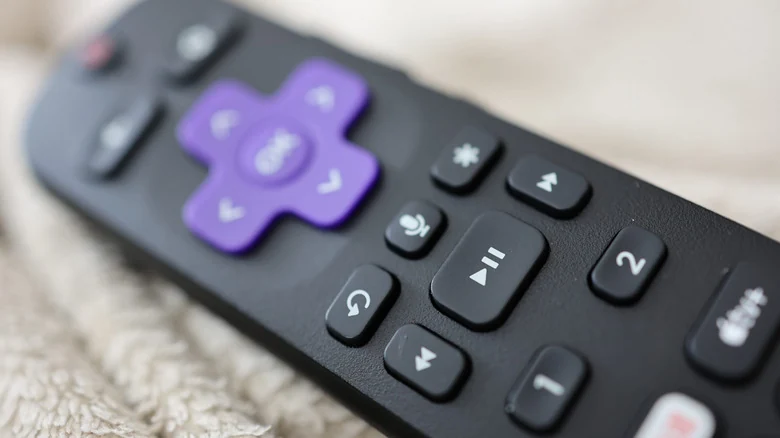
When you are navigating the Roku home screen, the star button's functionality depends directly on whether you are currently in the Quick Access section or the general application selection screen. If you are in Quick Access, hitting the star while an app is highlighted gives you the option to remove it from that specific section.
Conversely, when you have an app highlighted in the full applications list, pressing the star reveals several more administrative choices. These include viewing the app's version and build number, moving the channel's positioning, removing the application, rating the app, sending feedback, or checking for available app updates. Furthermore, on a Roku TV, highlighting an external device like a video game console gives you the option to rename it.
Enhancing Your Streaming and Viewing Experience
When you are actively streaming video content on a Roku TV, pressing the star button opens a comprehensive host of viewing options housed within a convenient sidebar menu. Utilizing this menu allows you to improve your Roku's image quality , set a sleep timer, turn on closed captioning, change the audio volume mode, and access much more.
The specific options available will vary slightly from application to application based on their individual software capabilities. In general, however, this sidebar serves as the primary location to precisely tailor your overall video viewing experience. Note that on a Roku streaming box rather than a smart TV, this sidebar menu will not hold quite as many extensive options.
Quick Accessibility Shortcut for Screen Readers
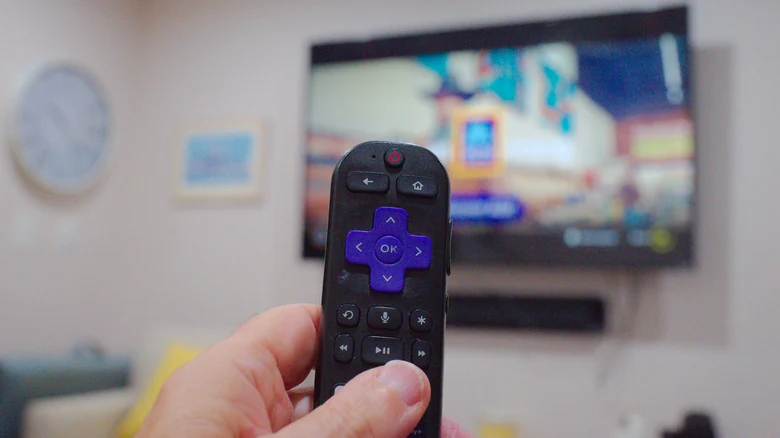
Beyond options and settings, the star button also doubles as a fast accessibility shortcut. Some Roku devices support a text-to-speech screen reader, which was formerly called the Audio Guide, designed as an accessibility feature to assist with smooth navigation.
While this helpful accessibility feature can be activated manually via the standard settings menu, users can also toggle it instantly by quickly pressing the star button four times in a row on their remote. For further control over settings like the precise speech rate and volume of the screen reader, users still need to venture into the Accessibility category of the main Settings page, but the star button offers an immediate toggle option without extra menu navigation.
Sources
- EngadgetWhat is the star button for on your Roku remote?
Continue chronologically

Related stories
How to Use Your Smartphone as a Smart TV Remote
Lost your remote? Learn how to turn your Android or iPhone into a functional smart TV controller using official apps, Wi-Fi, and infrared technology.
Why You Should Add a Streaming Device to Your Smart TV
While many televisions come with built-in apps, adding a standalone streaming device can improve performance, extend hardware life, and reduce ads.
Choosing the Best Roku Streaming Stick for Picture Quality
Discover how to choose the right Roku streaming device based on your picture quality needs, 4K support, Wi-Fi range, and audio preferences.
What Does the Yellow Light on Your Alexa Device Mean?
Learn what a flashing yellow light on your Amazon Echo means, how to clear your notifications, and how to customize your settings in the Alexa app.