
How to Use Your Smartphone as a Smart TV Remote
Smartphones offer a convenient alternative to physical TV remotes, providing easier text input and universal control capabilities. Whether via Wi-Fi or specialized hardware, you can manage your home entertainment setup directly from your mobile device.
 Radwan AbdulhadiEditor and technology writer
The Evolution of TV Control
Smart TVs have significantly evolved, integrating advanced features like voice control, smart hub functionality, and AirPlay support. Despite these innovations, the remote remains central to the user experience. While much of the modern landscape relies on Bluetooth for sending commands, [infrared tech](https://www.engadget.com/2213636/why-infrared-still-used-tvs/) persists as a reliable standard. Because most users keep their phones nearby at all times, transitioning to a smartphone-based remote is a logical step when the physical controller goes missing or is simply cumbersome to use.
Utilizing IR Blasters and Official Apps
For users with specific Android devices that feature built-in IR blasters, turning a phone into a remote is straightforward. These phones often come with a universal remote app preinstalled. By selecting your TV manufacturer and testing the provided commands, you can manage basic functions like volume, channel navigation, and even turning the TV on or off. However, because this hardware is becoming increasingly rare among mainstream manufacturers, most users will need to rely on Wi-Fi-based alternatives.
For those using dedicated streaming hardware, official manufacturer applications are often the most stable choice. The [Roku mobile app](https://www.engadget.com/2244167/use-phone-as-roku-remote-free-app/) provides a seamless experience for Roku TVs and streaming sticks, mirroring the interface of a physical remote while adding the benefit of a QWERTY keyboard for quick text entry.
Navigating Ecosystem-Specific Solutions
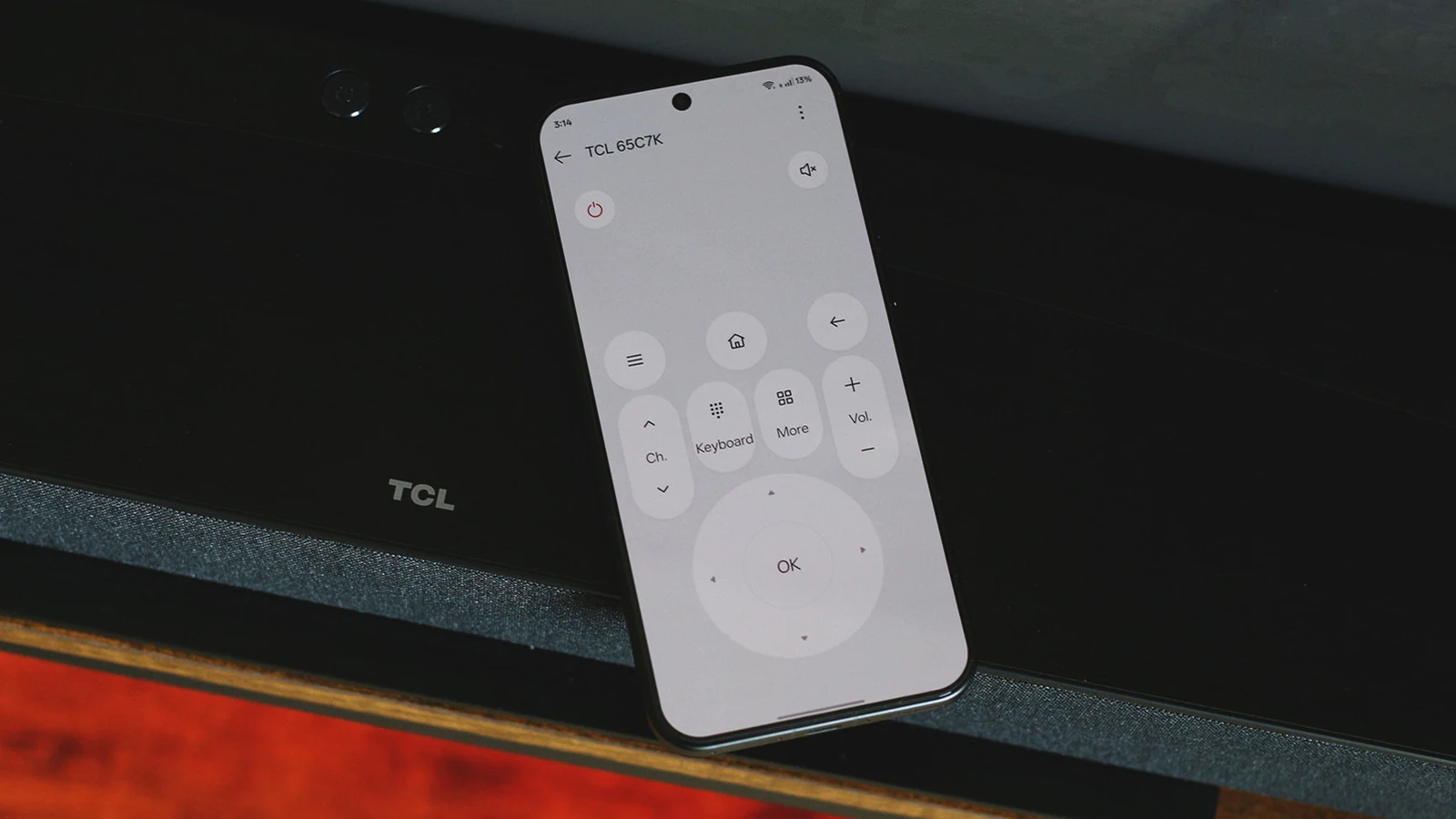
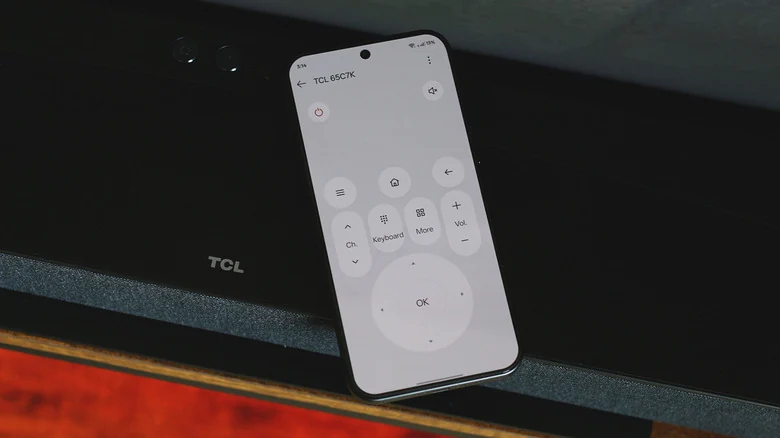
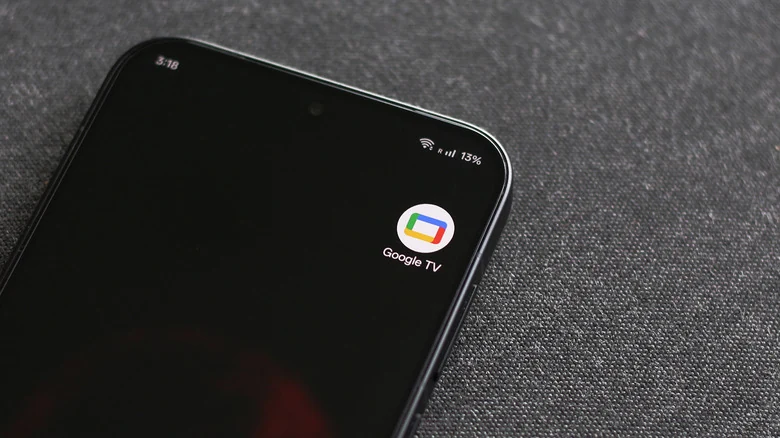
Smart TV platforms like Android TV and Google TV rely on the Google TV app to bridge the connection between phone and screen. To set this up, ensure both your smartphone and television are connected to the same Wi-Fi network with Bluetooth enabled. Once launched, the app allows you to select your television from a list, providing an intuitive interface that includes D-pad controls, volume adjustments, and content curation features.
Apple users with an [Apple TV](https://www.engadget.com/2212812/is-apple-tv-4k-worth-after-price-hike/) benefit from native integration. The remote functionality is built directly into the iOS Control Center. If the icon is not immediately visible, it can be added via the settings menu. This functionality is exclusive to iOS, but for users on other platforms, third-party options like the [TV (Apple) Remote Control](https://play.google.com/store/apps/details?id=ir.remote.control.appletv) application provide similar control capabilities through Wi-Fi or infrared.
Advanced Configuration and Troubleshooting
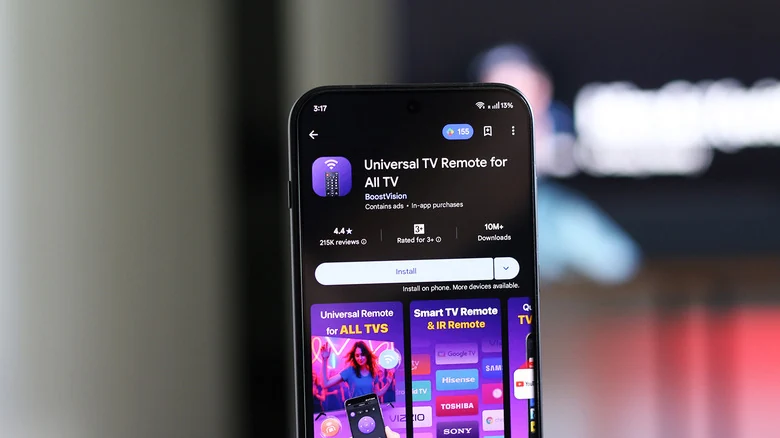
Beyond basic navigation, many remote apps serve as a secondary hub for content discovery. Users can create watchlists, launch installed streaming apps directly, and manage accounts. However, most of these features require a signed-in account to pair properly with your hardware.
If you wish to wake your TV from standby mode using your phone, you should verify if your television supports Wake-on-LAN. This can typically be found in the network settings. If that option is missing, checking the power or energy settings for an 'Increased' or 'Optimized' mode may also facilitate this convenience. Regardless of the brand or model, these digital alternatives ensure that you are never left without a way to control your home viewing experience.
Sources
- EngadgetHow to use your phone as a remote for any smart TV