Understanding Apple Watch AssistiveTouch and Hand Gestures
AssistiveTouch serves as an accessibility feature and a practical tool for controlling an Apple Watch without touching the screen.
 Radwan AbdulhadiEditor and technology writer
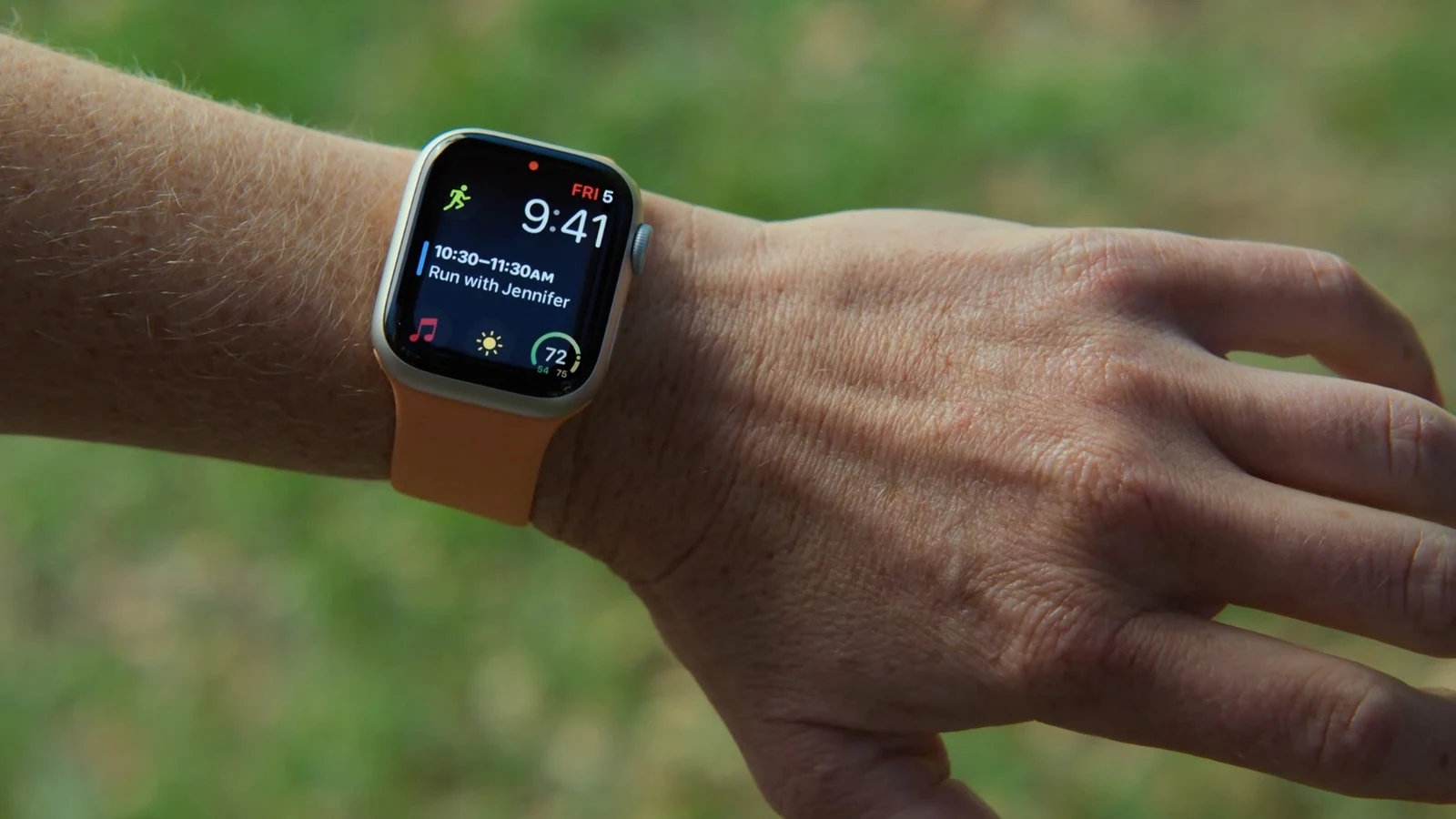
What is AssistiveTouch on Apple Watch?
The Apple Watch features an interface that is very easy to understand, primarily involving tapping the screen and rotating the Digital Crown. However, there is another way to control the system without touching the screen, thanks to AssistiveTouch. According to information detailed by [Engadget](https://www.engadget.com/2302464/what-is-assistivetouch-apple-watch-when-use-it/), although it is designed as an accessibility feature to help people with motor disabilities navigate the interface, it also unlocks useful capabilities for everyone.
With this function enabled, users can control the system simply by moving their fingers and hands without requiring special hardware. If an Apple Watch runs the latest version of watchOS, the feature is built in and ready to use.
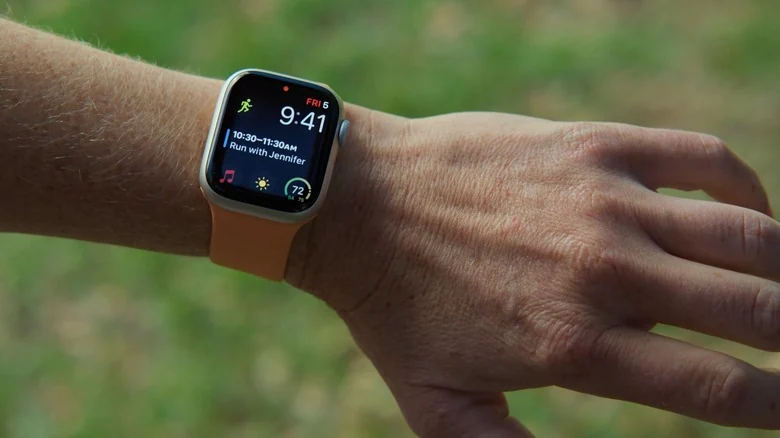
How Built-in Sensors Power the Feature
While the Apple Watch already comes with some finger gestures enabled by default—such as pinching your fingers twice to interact with the screen—AssistiveTouch takes functionality to another level. The feature combines data from multiple built-in sensors, including the gyroscope, accelerometer, and optical heart rate sensor.
By synthesizing data from these components, the device can detect even the subtlest movements made with an arm, hand, and fingers. Once enabled, users can tap buttons, scroll through screens, and even use Apple Pay without directly touching the display.
How to Turn On and Customize AssistiveTouch
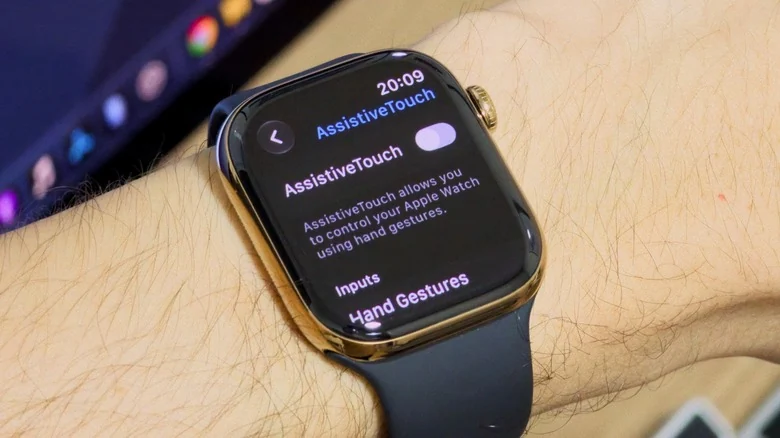
Enabling AssistiveTouch is a simple process that can be completed directly on the device. Users can open the Settings app, navigate to Accessibility, and then select AssistiveTouch. Flipping the toggle on and turning on Hand Gestures allows navigation without touching the screen.
Users can also customize the action assigned to each gesture, such as setting a single tap with fingers to touch the screen and a double tap to open the Notification Center. The feature is highly customizable, and exploring the available actions helps users choose options that fit their personal preferences.
Inside the Hand Gestures settings, a blue "Try it out" text option lets users learn more about how to use the gestures in a guided environment, complete with animations showing how to execute each movement. Furthermore, the tool is noted as one of the [underrated Apple Watch features you can set up in minutes](https://www.engadget.com/2195465/underrated-apple-watch-features/).
When You Should Use AssistiveTouch
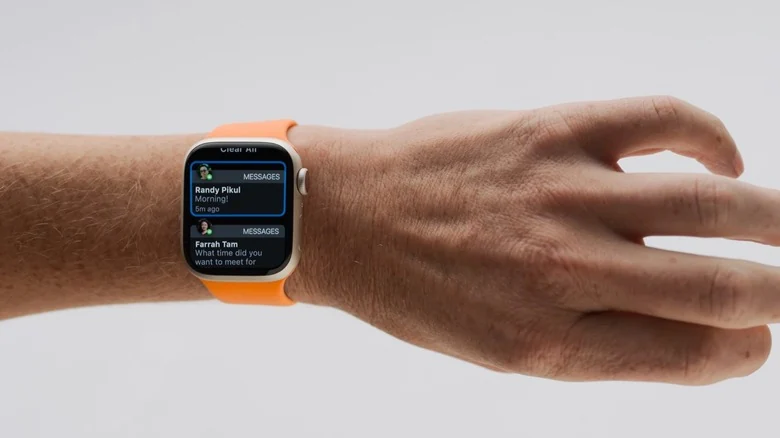
The most prominent use case for AssistiveTouch remains accessibility. Individuals who cannot comfortably move their fingers to tap the screen may find interacting with the device significantly easier using these hand gestures.
Beyond accessibility, the feature proves useful in everyday situations where physical interaction is inconvenient—such as when hands are full or when wearing gloves. It is important to note, however, that enabling AssistiveTouch turns off Apple's universal double tap gesture normally used for answering calls or scrolling through widgets.
Other Accessibility Settings Worth Exploring
For users exploring device customization, additional accessibility settings are available beyond AssistiveTouch. Options include enabling Auto-Answer Calls, showing audio transcriptions for HomePod announcements or Workout Buddy, turning on Reduce Transparency to increase contrast, and adjusting text size.
Additionally, Apple Watch Ultra users can look into [how to set different actions for the Action Button](https://www.engadget.com/2289282/apple-watch-ultra-4-action-button-uses-explained/) to further optimize their hardware experience.
Sources
- EngadgetWhat is AssistiveTouch on your Apple Watch and when should you use it?
Continue chronologically

Related entity coverage
Related stories
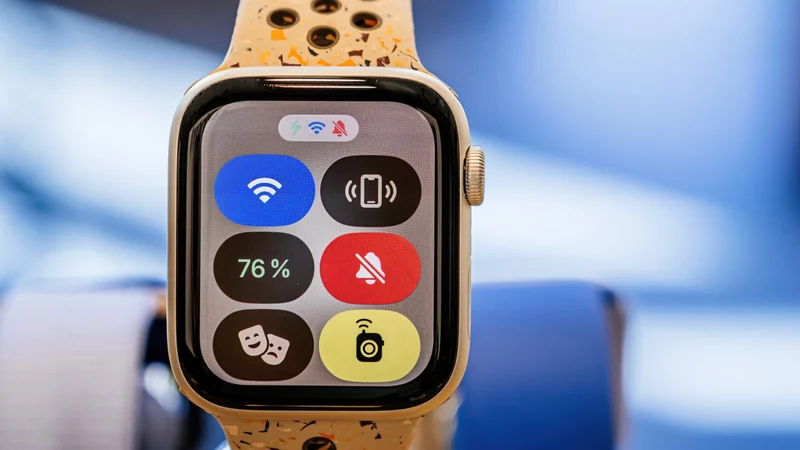
Understanding Theater Mode on Your Apple Watch
Discover how Theater Mode on your Apple Watch silences alerts, dims the display, saves battery life, and keeps notifications subtle during movies and meetings.
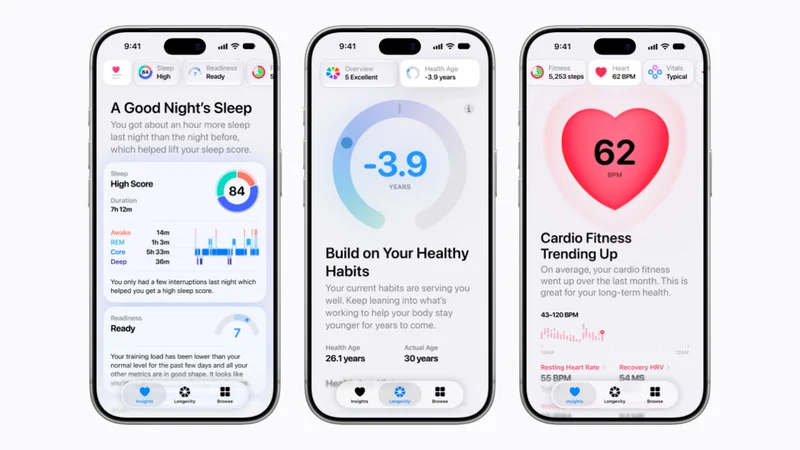
Apple Announces Expanded Language Support for Redesigned Health App
Apple has announced expanded language support for its redesigned Health app, bringing personalized insights and features to users worldwide.
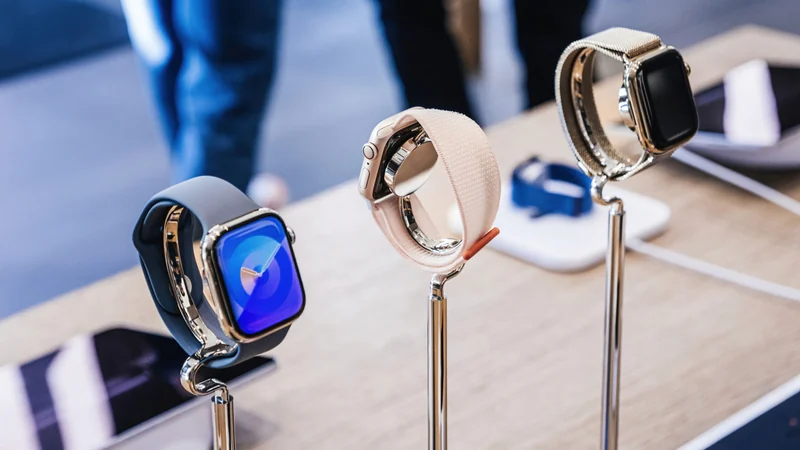
Ceramic vs. Titanium Apple Watch: Durability Compared
Compare ceramic and titanium Apple Watch casing materials for durability, scratch resistance, weight, and overall strength to choose the best option.
What to Know Before Buying a Wireless CarPlay Adapter
Discover what to look for when buying a wireless CarPlay adapter, including vehicle compatibility, Bluetooth standards, iOS updates, and auto-reconnect features.