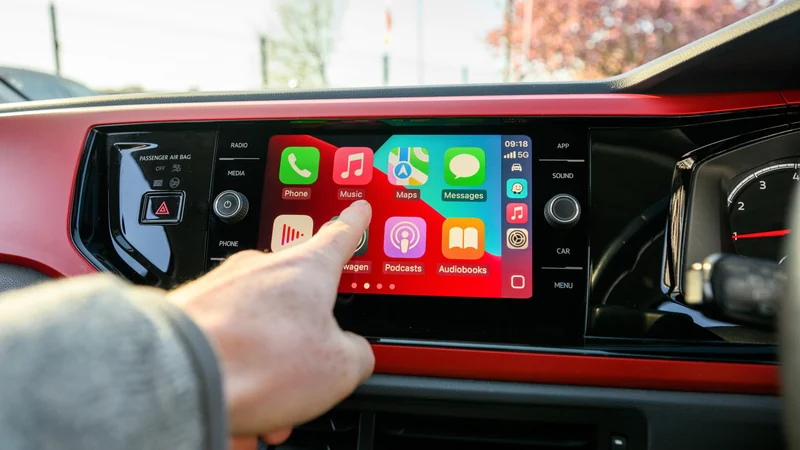
What the CarPlay bell icon means and how to manage it
Apple CarPlay features a simplified interface designed to minimize distractions, yet certain icons like the app switcher bell remain unexplained without a tutorial.
 Radwan AbdulhadiEditor and technology writer

Decoding the CarPlay Bell Icon
While software design frequently utilizes universally understood symbols like share and search, Apple's CarPlay includes less obvious visual elements. Because the interface is intentionally simplified to reduce driving distractions, users rarely receive tutorials explaining multitasking functions or addressing issues like troubleshooting CarPlay problems.
One minor interface mystery is the bell icon that occasionally appears on the app switcher panel. According to reports, Apple uses this icon to indicate that Siri is actively and automatically announcing incoming messages from both first- and third-party applications.
Pros and Cons of Automated Announcements
Automatic message announcements can be beneficial for staying updated on conversations without requiring manual queries to Siri or waiting until parking. However, the feature can quickly become frustrating during noisy group chats or instances when Siri repeatedly interrupts your music.
Additionally, if you are driving with passengers, they may not need visibility into your personal Messages or WhatsApp conversations. Reviewing and tailoring these notification behaviors can significantly reduce cabin distractions.
How to Adjust Message Announcements
To modify how incoming messages are handled, open your iPhone and go to Settings > Notifications > Announce Notifications > CarPlay. When the general Announce Messages toggle remains active, three additional configuration options become available below.
Remember Previous Setting serves as the default option, but drivers can also force CarPlay to consistently Announce or Silence incoming messages during active sessions. Users should also specify which individual applications are permitted to make announcements.
Limiting alerts to essential apps—such as direct communication rather than busy group chats or shopping applications—helps keep your mind focused entirely on the roadway.
Managing Alerts with a Driving Focus Mode
For many drivers, setting up a Focus mode provides a more comprehensive mechanism for managing incoming alerts while operating a vehicle. You can customize this mode on your iPhone by navigating to Settings > Focus and selecting Driving.
Once configured, the mode can permit calls and notifications exclusively from designated contacts. Users can additionally set up automatic replies to inform contacts that they are currently driving.
To automate the workflow without manual intervention, scroll down within the Driving Focus menu and tap While Driving to toggle Activate With CarPlay, ensuring the mode engages seamlessly whenever connected.
Sources
- EngadgetWhat does the bell icon mean on your CarPlay screen?
Continue chronologically

Related entity coverage
Related stories
How to Enable Live Activities on iPhone and CarPlay
Learn how to enable and manage Live Activities on your iPhone's Lock screen, Dynamic Island, and CarPlay display to track real-time app updates.
iOS 27.2 Brings Two Major CarPlay Features and Updates
Apple officially releases iOS 27.2, introducing two major CarPlay changes alongside updated Podcasts app tabs and expanded Siri AI capabilities.
Apple Releases 27.2 System Updates With New Siri AI Tools
Apple has rolled out its 27.2 software updates across all platforms, bringing new Siri AI conversation recall features and five new languages.
iOS 27 CarPlay Features: Which iPhones Support Them?
Apple's iOS 27 brings major CarPlay updates like video streaming and Siri AI, but hardware limitations restrict full support to newer iPhone models.