Is Your PlayStation 5 Plugged Into the Wrong HDMI Port?
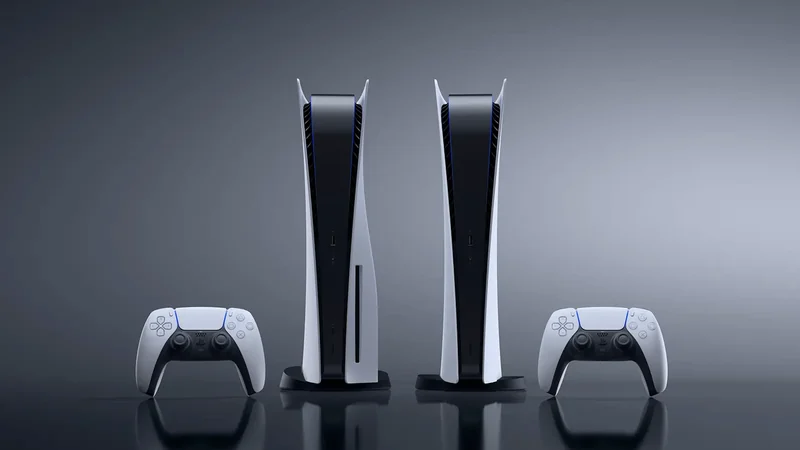
A PlayStation 5 can display a good picture even while connected to an HDMI port that limits its capabilities, making it a surprisingly easy mistake to make.
 Radwan AbdulhadiEditor and technology writer
Understanding HDMI Port Limitations on Modern Screens
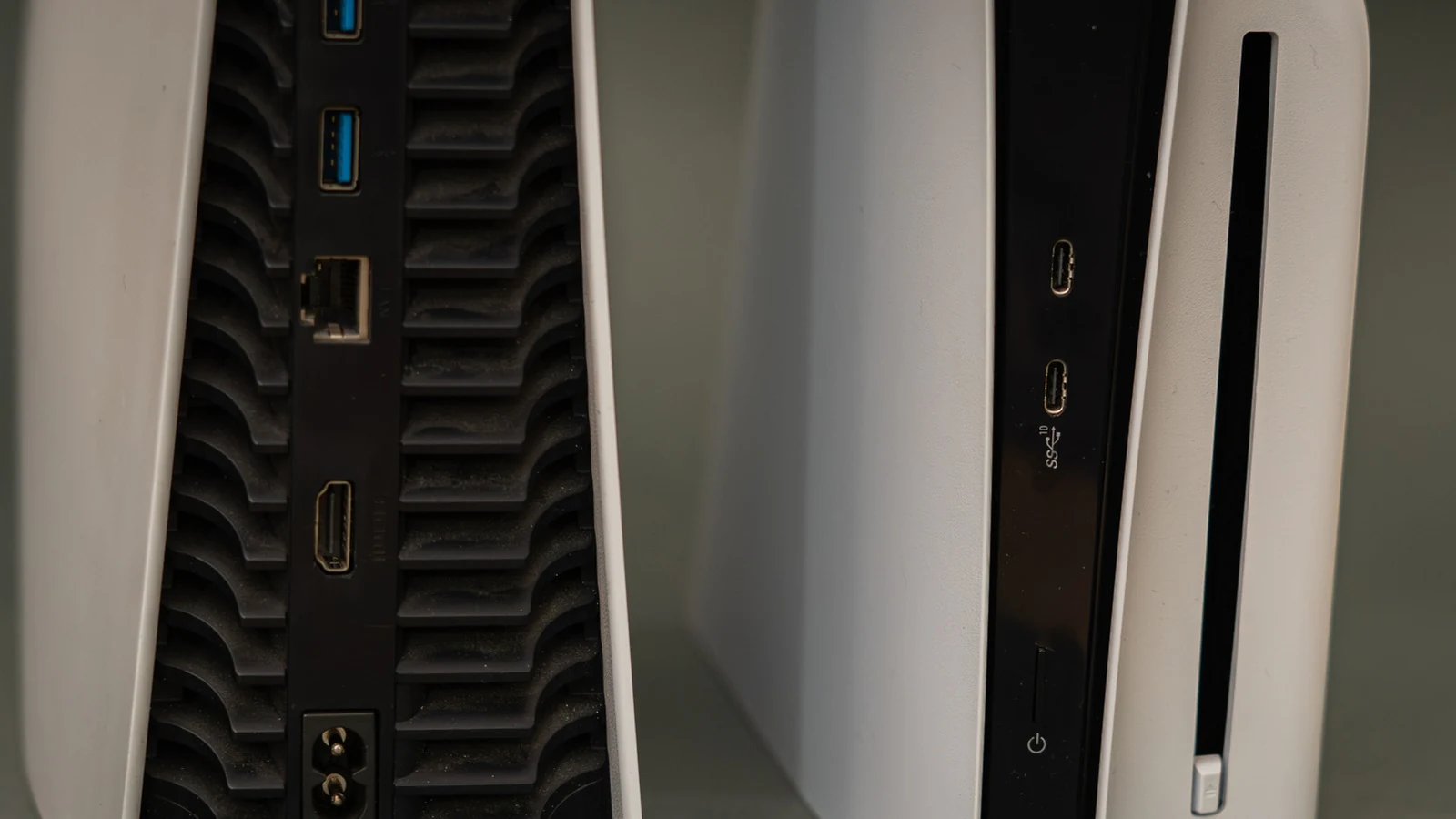
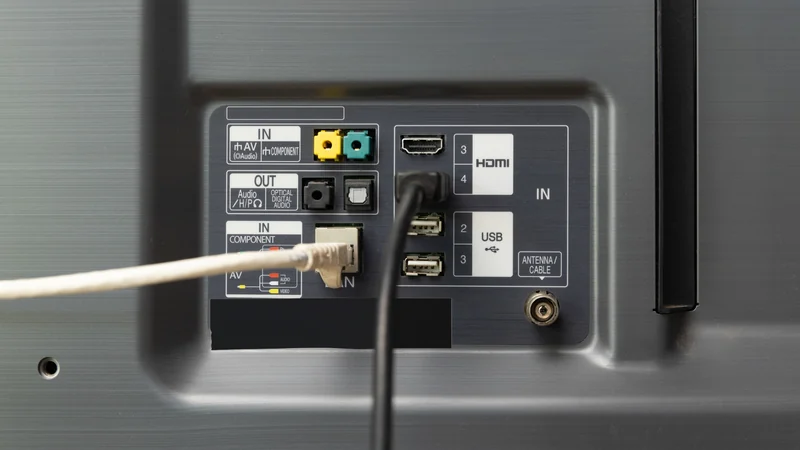
Many players may not realize that a PlayStation 5 can display a good picture even while connected to an HDMI port that is actively limiting its full capabilities. Most modern televisions and computer monitors come equipped with multiple HDMI ports, often accompanied by tiny labels that can be difficult to read or located out of clear sight. If labels are absent, users must look up the exact specifications for their specific brand and model. For example, <a href="https://www.engadget.com/2291739/chance-playstation-5-plugged-into-wrong-hdmi-port/">Engadget</a> notes that the console supports HDMI 2.1 for 4K output at 120Hz among other advanced gaming features, but unlocking these capabilities requires both a compatible screen and the correct output connection.
The situation becomes even more complicated for users who frequently move their hardware around the house and connect it to different displays. Because each television brand and model features different internal HDMI arrangements, users should never assume that identical port numbers mean identical specifications, even across TVs from the same manufacturer. To secure maximum benefits, players should check the exact technical specifications for their model and look for a designated HDMI 2.1 input capable of supporting 4K resolution at 120Hz. On a majority of televisions, though not all, these high-performance HDMI 2.1 ports are typically designated as the third or fourth input option.
The Importance of Cables and Direct Connections
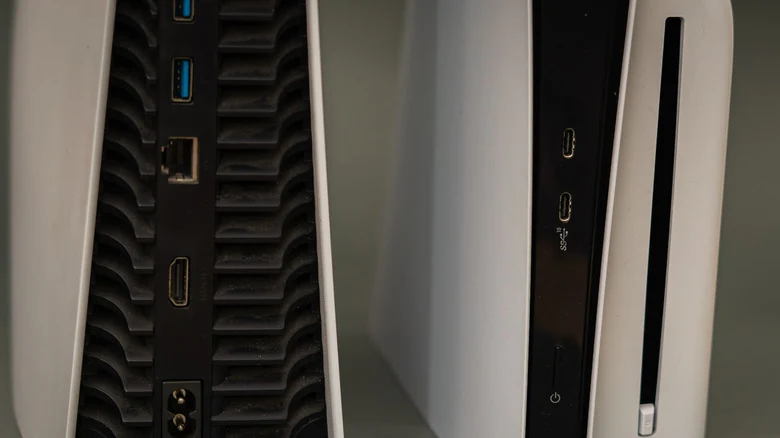
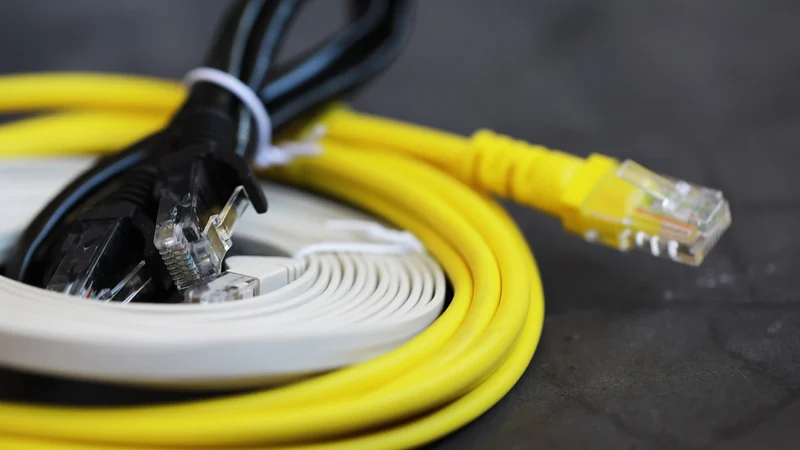
Beyond choosing the correct physical port on the television, the choice of connection cable plays a critical role in overall system performance. Sony explicitly recommends utilizing the original HDMI cable packaged with <a href="https://www.engadget.com/2280934/playstation-5-pro-shortage-gta-6-only-make-worse/">The PS5 console</a>, or alternatively, another high-quality Ultra High Speed cable adhering to the <a href="https://www.engadget.com/2200155/hdmi-2-0-vs-2-1-streaming-tv-upgrade/">HDMI 2.1 is the relevant option</a> standard. Experts advise plugging the cable directly from the system into the display screen without introducing external audio equipment like a soundbar in between, ensuring that intermediary devices do not interfere with the signal.
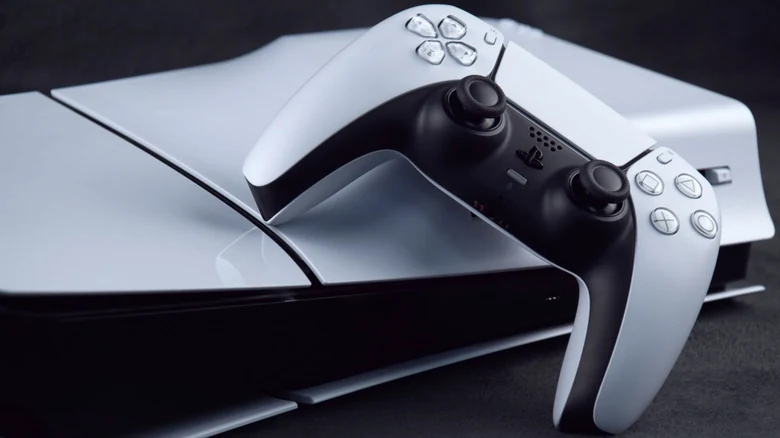
When hardware components such as ports, cables, or intermediary sound systems fail to match the required specifications, neither the hardware nor the display can provide peak signal support. Similar considerations apply when utilizing compact revisions of <a href="https://www.engadget.com/gaming/playstation-5-slim-review-131542271.html">the PS5 console</a> alongside high refresh rate computer monitors, where users must carefully verify which specific resolutions and refresh rates are supported over standard HDMI versus alternative inputs like DisplayPort.
Unlocking High Frame Rates and Advanced Display Features
Gaining access to the full breadth of output features supported by the system offers distinct visual and performance advantages. A 120Hz display refreshes its visual image 120 times every second, allowing compatible games to render much smoother motion than standard 60Hz setups. However, individual games must also support 120 frames per second output natively, and this setting is frequently disabled by default. Players must navigate into a game's internal video settings to manually activate options like 120Hz output or high frame rate modes.
While 120Hz gaming can function at lower resolutions such as 1080p or 1440p through older HDMI 2.0 connections on compatible displays, HDMI 2.1 remains essential for full 4K 120Hz output. Additionally, gamers should note that only a select few software titles run natively at 4K resolution combined with 120Hz, with most high frame rate modes reducing rendering resolution to compensate. Beyond frame rates, other crucial HDMI 2.1 capabilities include Variable Refresh Rate, which synchronizes screen refresh rates with system output to eliminate visual tearing, and Auto Low Latency Mode, which automatically forces the display into a dedicated game mode to minimize input lag.
Configuring TV Settings and System Menus for Maximum Output
Consumers must remember that generic labels like HDMI 1 and HDMI 2 are simply layout designators rather than version numbers. Simply plugging a cable into a port marked as HDMI 2.1 does not automatically guarantee that 4K at 120Hz will function right away. Once physical connections are established, users need to check the display's input settings menus, as high-end features are often disabled by default and hidden under manufacturer-specific names like enhanced features.
Finally, appropriate settings must also be configured directly within the hardware software. By accessing the main menu and navigating to Settings, followed by Screen and Video and then Video Output, users can set their resolution, video transfer rate, and 120Hz output options to automatic for optimal results. Checking the information panel for connected HDMI devices allows owners to verify screen resolution, HDR support, and variable refresh rate status before assuming their hardware requires troubleshooting or repair.
Sources
- EngadgetThere's a chance your PlayStation 5 is plugged into the wrong HDMI port
Continue chronologically
Related stories
How to Clean Your PlayStation 5 Without Causing Damage
Learn how to safely clean your PlayStation 5 to remove dust, improve airflow, and keep your console running at its best without voiding your warranty.
Understanding the PlayStation 5 Game Library Padlock Symbol
Discover why a padlock icon appears on your PlayStation 5 game library and learn step-by-step methods to restore game access and licenses.
Jailbroken PS5s Can Now Run Steam PC Games Locally
Jailbroken PlayStation 5 consoles can now run Steam PC games using a newly adapted launcher that creates individual home screen tiles.
PlayStation Plus Cost From 2010 to 2026: Price and Tier Changes
Explore how PlayStation Plus pricing and features have evolved from its single-tier 2010 debut to the current Essential, Extra, and Premium tiers.