Simple Tweaks to Improve Your 4K TV's Picture Quality
Even if your TV looks great straight out of the box, adjusting specific picture modes, sliders, and room lighting can dramatically enhance your viewing experience.
 Radwan AbdulhadiEditor and technology writer
Moving Beyond Default Settings
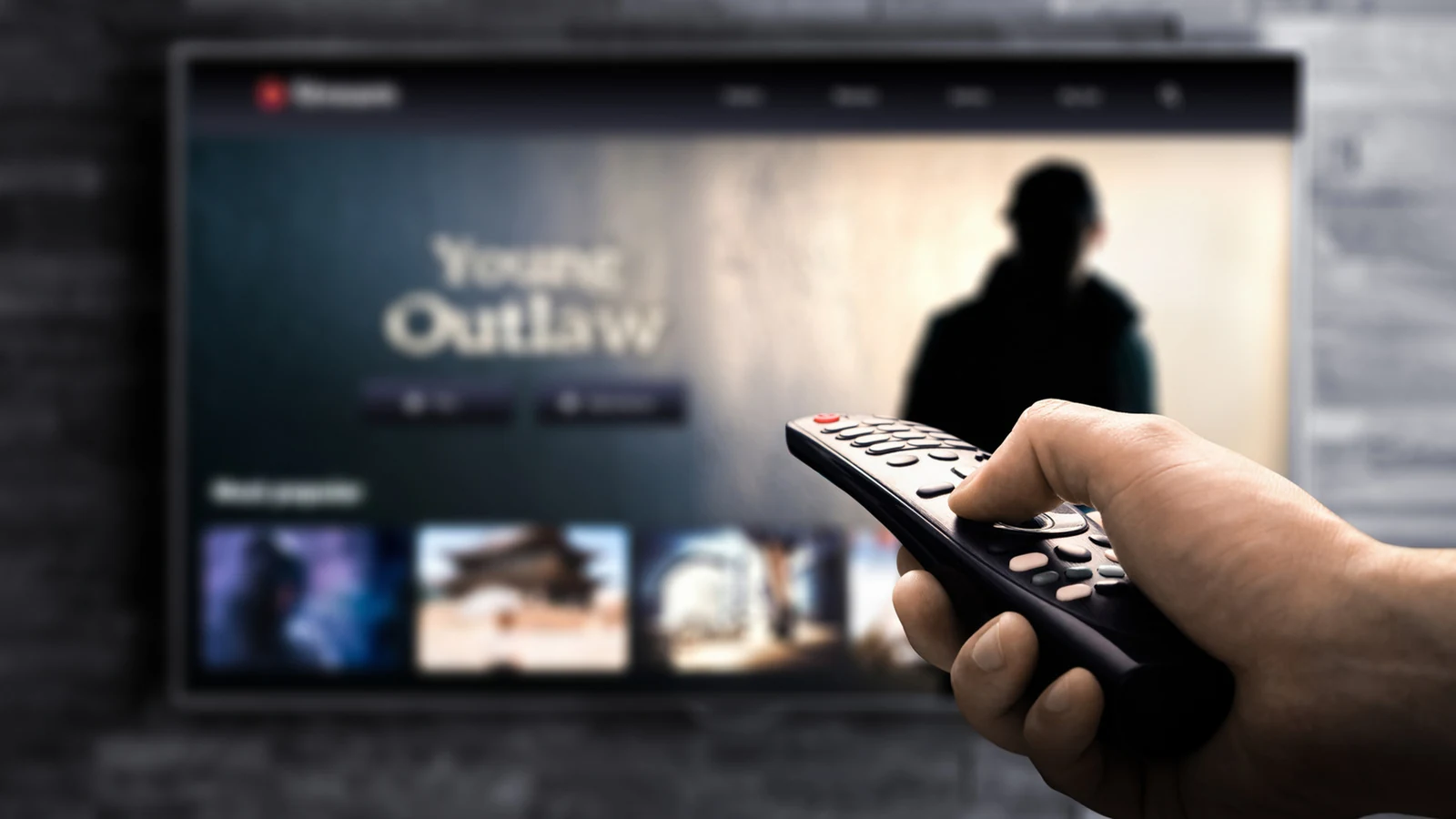
Your 4K TV might look great right out of the box, but you usually will not get the best picture quality without a few adjustments. Modern displays are frequently optimized to catch attention on a showroom floor rather than fit a living room environment, often relying on features that distort picture quality and cause unnecessary eye strain.
Fortunately, spending just a few minutes calibrating your display delivers major improvements to overall image quality without requiring professional calibration tools. Many modern displays support advanced enhancements, and making sure these modes activate properly during supported content can elevate the entire experience.
Switching Picture Modes and Disabling Motion Smoothing
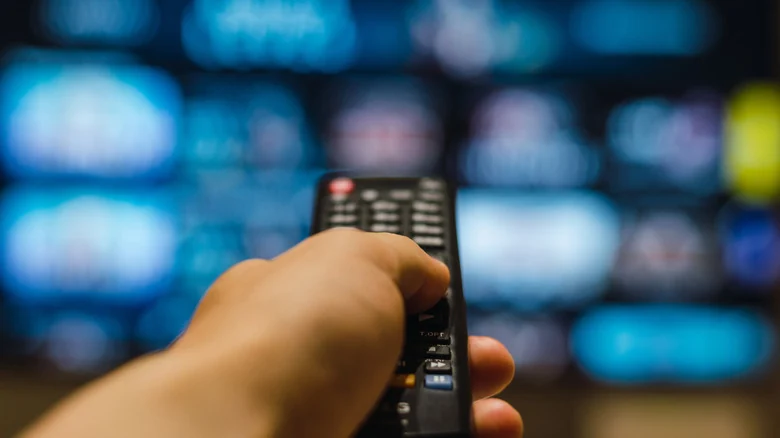
Televisions typically come with multiple bundled presets such as vivid, gaming, and sports modes. While gaming mode focuses on low latency and vivid mode cranks up brightness, saturation, and contrast, your first choice for movies and television shows should usually be movie or Filmmaker Mode.
Filmmaker Mode serves as an official specification endorsed by major directors, though Filmmaker Mode is not available on all TVs. Standard movie modes aim for a similarly natural look by disabling obnoxious visual settings like motion smoothing and sharp post-processing features that can create strange visual artifacts.
If your TV's movie mode leaves features like motion smoothing enabled, you should turn them off manually. Motion smoothing injects fake video frames to force low frame rate content to play at higher rates, destroying the cinematic feel of movies filmed at 24 frames per second. This issue has drawn widespread criticism from cinephiles, prompting figures like Tom Cruise once filmed a PSA to urge viewers to disable these settings.
Additionally, remember to check your connected consoles or streaming boxes to make sure they're playing in 4K and delivering the highest possible output quality.
Fine-Tuning Sliders and Advanced Formats
Once you clear out heavy post-processing, you can work through individual picture settings like brightness, contrast, and sharpness. Because panel manufacturing involves minor variations, tuning can vary even between identical TV models. Without a dedicated tool, your own eyesight works well enough for the task.
When making these adjustments, look at parameters such as black levels, white levels, color temperature, color gamut, tint, and gamma. Utilizing objective resources like this YouTube playlist of professional calibration patterns can help guide your adjustments accurately.
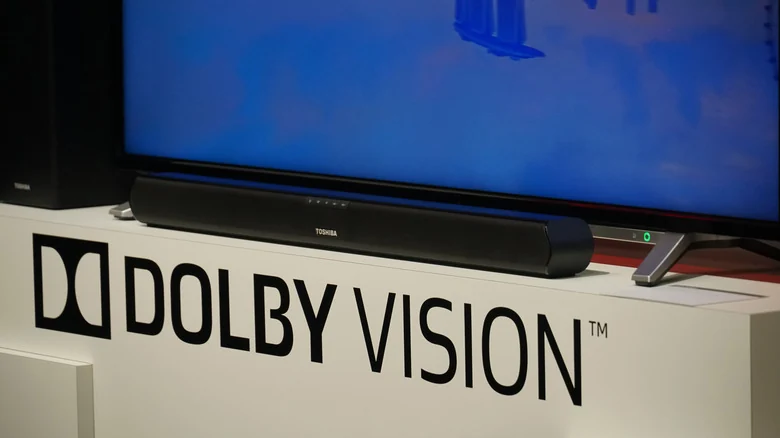
It is also recommended to turn off eco mode settings, aside from the inactivity timer, because they generally reduce brightness and degrade picture quality for minimal energy savings. For advanced formats, Dolby Vision offers specialized HDR handling by deepening contrasts while preserving color. While Dolby Vision 2 is now available on some Hisense TVs, users should note that standard Dolby Vision or Dolby Cinema modes generally offer the most balanced viewing experience.
Optimizing Room Lighting and Placement
Even a well-calibrated display can suffer if the surrounding room lighting and TV placement are neglected. A television should never directly face a window because direct light creates reflections and glare, nor should it be placed directly in front of a window where outside brightness makes the screen look dim.
Placing the TV perpendicular to windows and equipping them with blinds or curtains helps control daytime light. Furthermore, to prevent eye strain caused by viewing a bright display against a dark wall, implementing bias lighting using affordable accessories like this Power Practical listing can cast a soft glow behind the television.
Sources
- EngadgetSimple tweaks to improve your 4K TV's picture quality
Continue chronologically


Related stories
Valve Launches Steam Frame VR Headset Starting at $1,059
Valve has officially released its Steam Frame VR headset. Discover the latest tech news including new RPG titles and compact digital cameras.

How to Add Dolby Atmos to Your TV on a Budget
Discover how budget-friendly soundbars and streaming devices can add immersive Dolby Atmos audio to your home setup without breaking the bank.
LG MRGB95B Review: RGB LED TV Falls Short of OLED
An evaluation of LG's 75-inch Micro RGB evo MRGB95B reveals high brightness but falls short against competitors and OLED alternatives.
Choosing the Best Roku Streaming Stick for Picture Quality
Discover how to choose the right Roku streaming device based on your picture quality needs, 4K support, Wi-Fi range, and audio preferences.