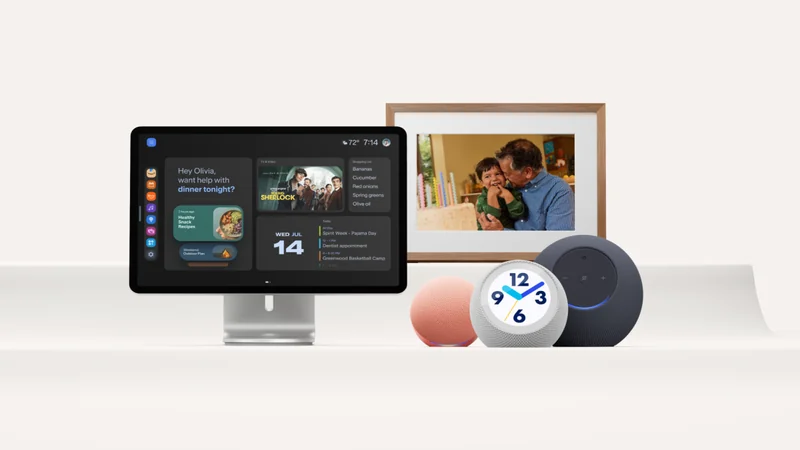
Common Amazon Alexa Problems and Simple Ways to Fix Them
While Amazon Alexa powers smart homes through various devices, everyday glitches can disrupt routines. Fortunately, simple software tweaks and adjustments can resolve these common issues.
 Radwan AbdulhadiEditor and technology writer
The Growth of Alexa and Common Smart Home Hurdles
Utilizing Alexa has become increasingly accessible since its release, with heaps of different Echo Dots and Shows to choose from alongside accessories like the Echo Auto and Echo Buds. According to a recent report by Engadget, you don't even need a physical device to access the service anymore with the new rollout of Alexa+ .
With so much proliferation, however, comes more and more room for things to go wrong. At this point, it's entirely possible to design an entire smart home built on the back of Alexa. You can control your lights, sound systems, television, and security system all in one place, and set Routines to make them all work day-to-day with minimal effort. Of course, this doesn't come without downsides — aside from concerns surrounding the fact that Alexa is technically always listening, if you're reliant on Alexa, small common problems can have a big impact. Thankfully, they've also got easy solutions.
Fixing Voice Recognition and False Wake Word Activations
If your Alexa doesn't seem to understand your voice, try setting up a Voice ID. Users can select Account Management and select their profile, or simply say, "Alexa, learn my voice" to the same effect.
If normal conversation keeps activating your Alexa, try changing your Wake Word to something less common. You can also say, "Alexa, change your Wake Word." Unfortunately, the Wake Word can't be customized and must be chosen from a list.
Managing Long-Winded Responses and Speaker Groups
If your Alexa's long-winded responses have become a bother, there are a couple of different methods you can try: Brief Mode and changing her personality type to Brief. The latter is one of several Alexa personality settings and will edit out things like filler statements while still speaking to you. The former is even more concise, often changing what would typically be a verbal response into a short sound cue to let you know you've been heard.
To enable these features, users can select Alexa's Personality Style and choose Brief, or enable them verbally by saying, "Alexa, enable Brief Mode" or "Alexa, change your personality style to Brief."
If you have multiple Alexas and it's playing music or other sounds through the wrong one, it's worth placing your devices into Groups based on the room they're in. Then, you can say things like, "Alexa, play music in the bedroom," to ensure the right speaker. To set up Groups, find the top menu, select New Group, then tap Create a room or device group and follow the prompts to customize the Group.
Troubleshooting Unresponsive Devices, Lag, and Connection Issues
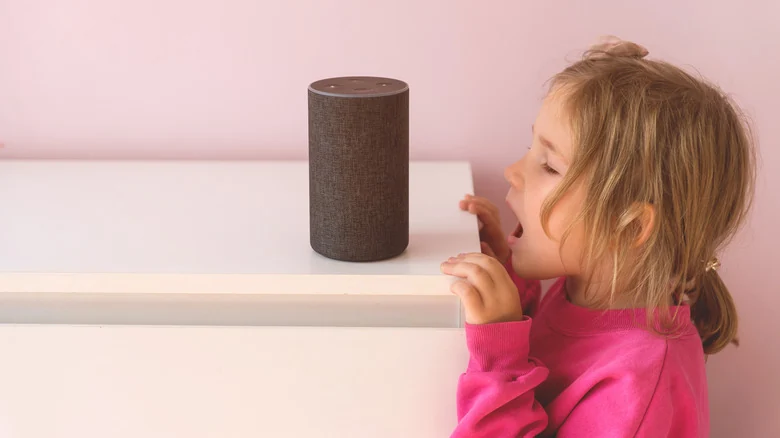
Sometimes, an Alexa can just be completely unresponsive. If your Alexa can't seem to hear you, it's first worthwhile to try to eliminate other loud noises that might be causing interference. If that doesn't work, make sure that your Alexa isn't muted by checking for a solid red light (a ring of light on speaker devices or a red bar with a mute icon on screen devices).
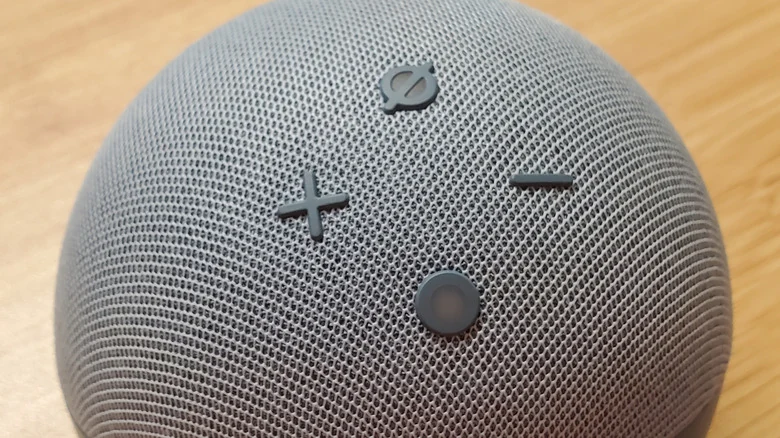
To unmute the device, find the mute button, which is typically on the top or side of the device, and press it to unmute. If muting wasn't the cause, the next best course of action is a simple restart, which can be done by unplugging the device for a few seconds, then plugging it back in — this solution applies to other issues like general lag or freezing, too.
It's also possible the problem is related to a poor Wi-Fi connection, which could be solved by restarting your router via the same unplug method. Sometimes, though, bugginess is something that has a software root cause. It's always worth checking for a software update by saying, "Alexa, check for software updates." If there is one, the device will automatically update, hopefully solving the issue.
Sources
- EngadgetCommon problems with Amazon Alexa and how to fix them
Continue chronologically

Related stories
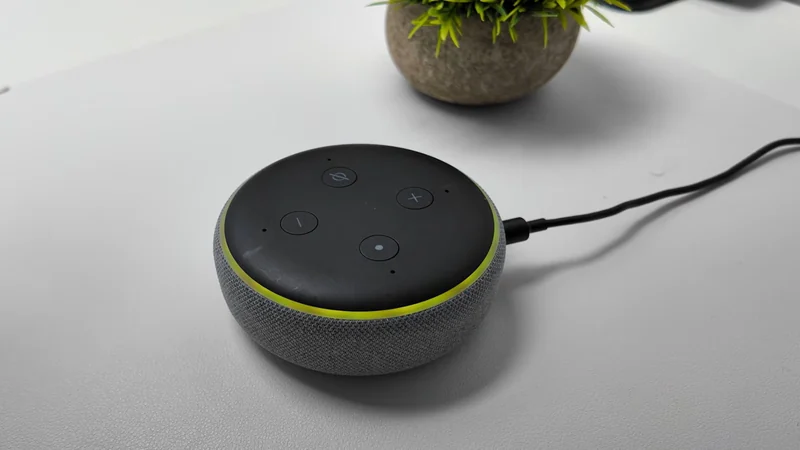
What Does the Yellow Light on Your Alexa Device Mean?
Learn what a flashing yellow light on your Amazon Echo means, how to clear your notifications, and how to customize your settings in the Alexa app.
Why Amazon Alexa Devices Listen and How to Control Data
Explore how Amazon Alexa devices listen for wake words, what data is stored, and how users can adjust privacy settings and mute microphones.
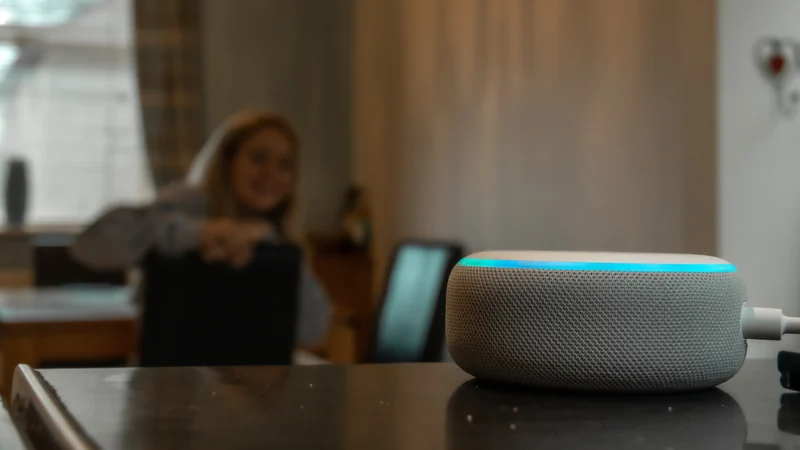
Amazon Disables AUX Voice Commands on Older Echo Speakers
Amazon has quietly removed Alexa voice commands for the AUX input on four older Echo models, requiring users to switch wired sources through the app.
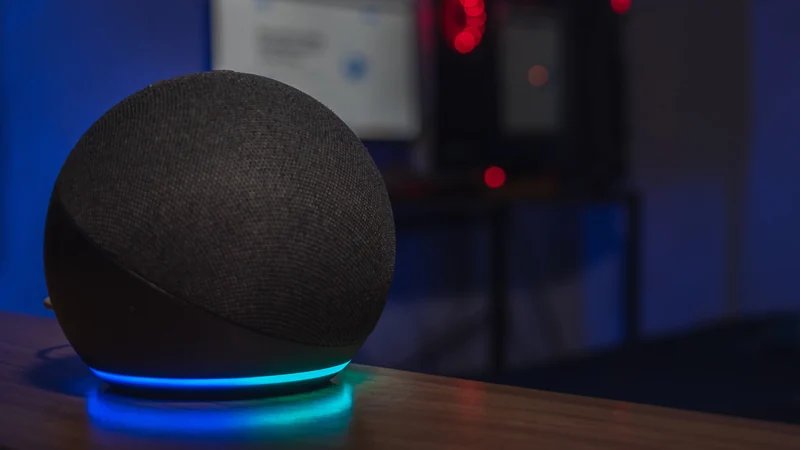
Amazon Debuts Alexa Photo Frame and Echo Time Smart Clock
Amazon has unveiled five new Alexa devices, featuring the new Alexa Photo Frame and Echo Time smart clock alongside upgraded Echo hardware.