Why Your AirPods Keep Disconnecting and How to Fix It
Bothered by unexpected AirPods disconnections or unwanted device swapping? Adjusting a few built-in settings can help stabilize your audio experience.
 Radwan AbdulhadiEditor and technology writer
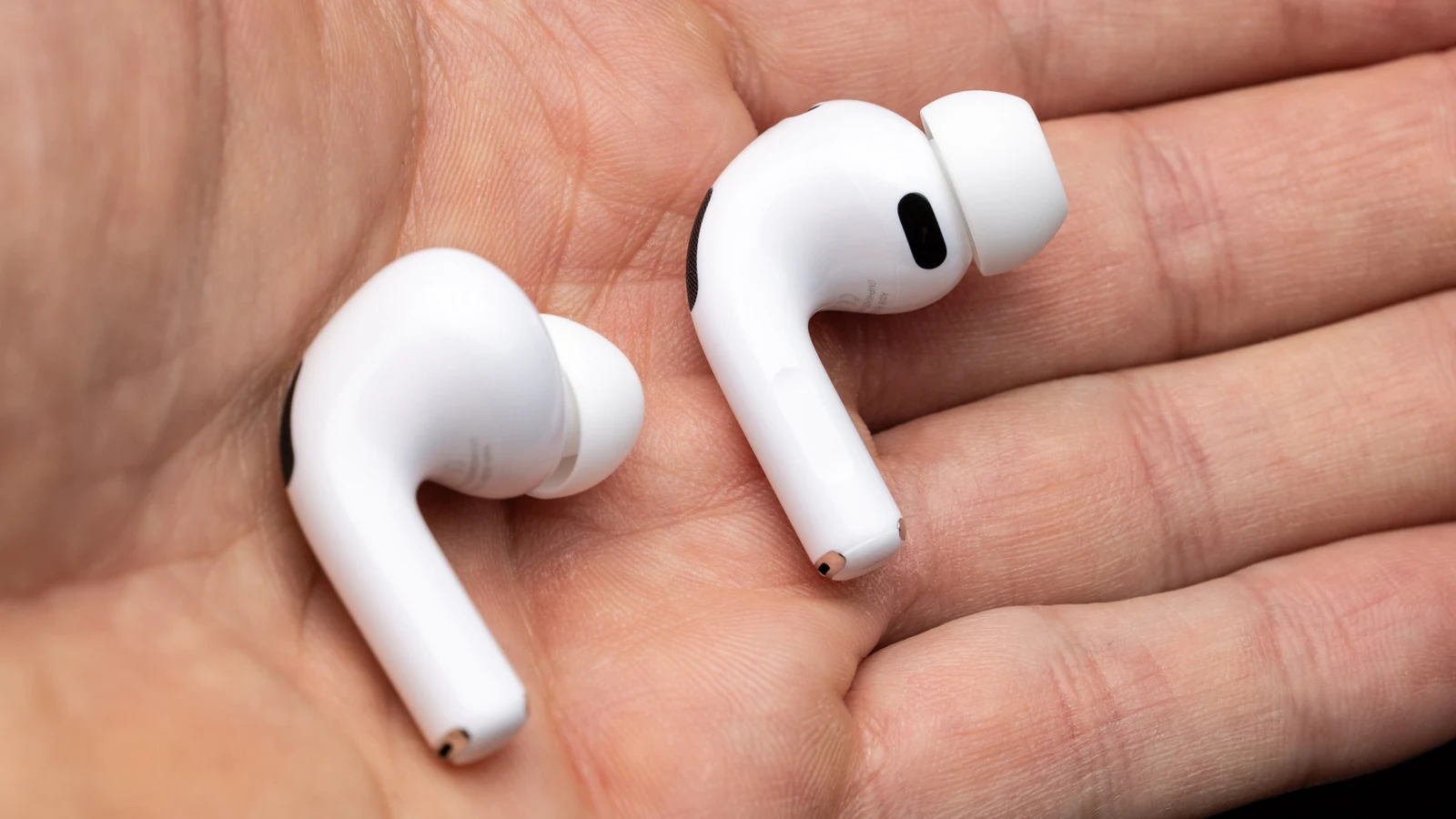
Fixing Unwanted Automatic Device Switching
If your AirPods keep disconnecting, the problem might not be a broken Bluetooth connection. Instead, handy features like automatic switching can become overly aggressive when you use multiple devices. Available on AirPods Pro, AirPods Max, and AirPods 2 or later, automatic switching allows your earbuds to jump between an iPhone, iPad, and Mac.
However, this feature can lead to frustrating moments where your AirPods constantly try to bounce back and forth among your devices. To stop this behavior, you need to make changes across your devices. You can follow guides on how to connect to your other devices to better understand how your hardware pairs and interacts.
To change this, put your AirPods in your ears and navigate to Settings on your iPhone or iPad. Select your AirPods, go to Audio & Routing, choose Connect to this iPhone/iPad, and set it to When Last Connected to This iPhone/iPad. Alternatively, you can open System Settings on a Mac, go to Bluetooth, and click the 'i' icon next to your AirPods to modify similar settings.
Managing Your Primary and Secondary Devices
If you primarily use your AirPods with a single device, leave the setting on Automatic for that specific hardware, but switch it to When Last Connected on all your other Apple devices. This ensures your earbuds will automatically link to your most-used device when you put them on, while refusing to connect to your secondary devices unless you manually select them.
For hardware you never use with your earbuds, you can completely remove them by choosing the Forget This Device option in the Bluetooth menu. This eliminates extra devices from vying for control of your audio stream.
Addressing Automatic Ear Detection and Fit Issues
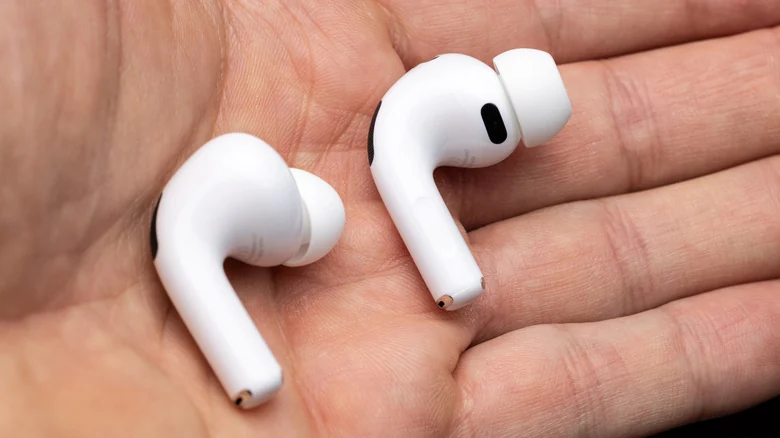
Another culprit behind unexpected pauses is Automatic Ear Detection, a default feature that halts playback when you remove an earbud. If your earbud sensors misbehave, they might interrupt your music without warning. Before disabling this function entirely, verify that your earbuds fit properly by running the Ear Tip Fit Test in your AirPods settings.
If your tips are the wrong size or dirty, they are more likely to slip out and trigger the sensor. Users should regularly clean your AirPods and consider upgrading your earbud tips to ensure they stay comfortable and secure during extended listening sessions.
Accumulated earwax or lint in the charging case can also block electrical contact points, causing charging anomalies. If only one of your earbuds gives you trouble, unique troubleshooting steps apply. If you choose to turn off the sensor feature, go to Settings > AirPods > Audio & Routing and disable Automatic Ear Detection.
Resolving Mac-Specific Connection Failures
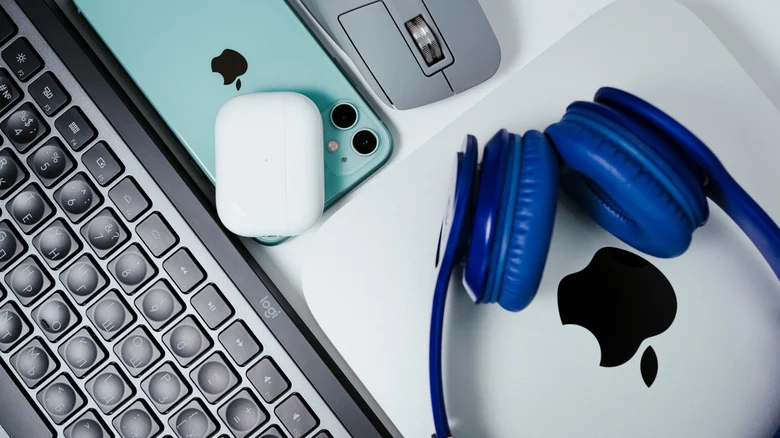
Mac users experiencing frequent disconnections should first eliminate automatic switching on other secondary devices. When multiple devices remain powered on, a conflict can arise over which gadget started playing audio most recently.
To check your Mac configuration, open the Control Center at the top-right of the screen, select Sound, and confirm that your AirPods are designated as the active output. Quit any competing apps vying for control, verify that your macOS software is up to date, and let your AirPods run any pending firmware updates by keeping them in their powered case near a connected Apple device for at least 30 minutes.
Final Troubleshooting and Resets
If connection failures persist on your Mac or other hardware, unpair the AirPods, restart the device, and pair the earbuds again from scratch. As a final resort, users may need to perform a complete hardware reset.
Because the exact sequence required to clear your earbuds depends heavily on the specific hardware model you own, you should carefully follow Apple's AirPods reset guidance to complete the process properly.
Sources
- EngadgetWhy your AirPods keep disconnecting without warning: These settings can fix it
Continue chronologically


Related entity coverage
Related stories
How to Identify Your Apple AirPods Model and Generation
Learn how to check your Apple AirPods model number or serial number using software settings, physical markings, or official warranty pages.
How to Fix Apple AirPods When They Won't Connect to iPhone
Learn why your Apple AirPods fail to connect to your iPhone and discover quick troubleshooting steps, from checking batteries to resetting devices.
What to Do When Only One of Your AirPods Stops Working
Learn how to troubleshoot and fix your AirPods when only one earbud produces sound, from cleaning charging ports to resetting your device.

How to Improve Your iPhone Call Quality and Fix Issues
Discover actionable steps to improve your iPhone call quality, from utilizing Voice Isolation and toggling Airplane Mode to checking your hardware.