How to Fix Apple AirPods When They Won't Connect to iPhone
Encountering connection issues with your Apple AirPods can be frustrating, but most problems can be resolved quickly by checking a few settings, updating software, or performing a reset.
 Radwan AbdulhadiEditor and technology writer
Common Causes of AirPods Connection Issues
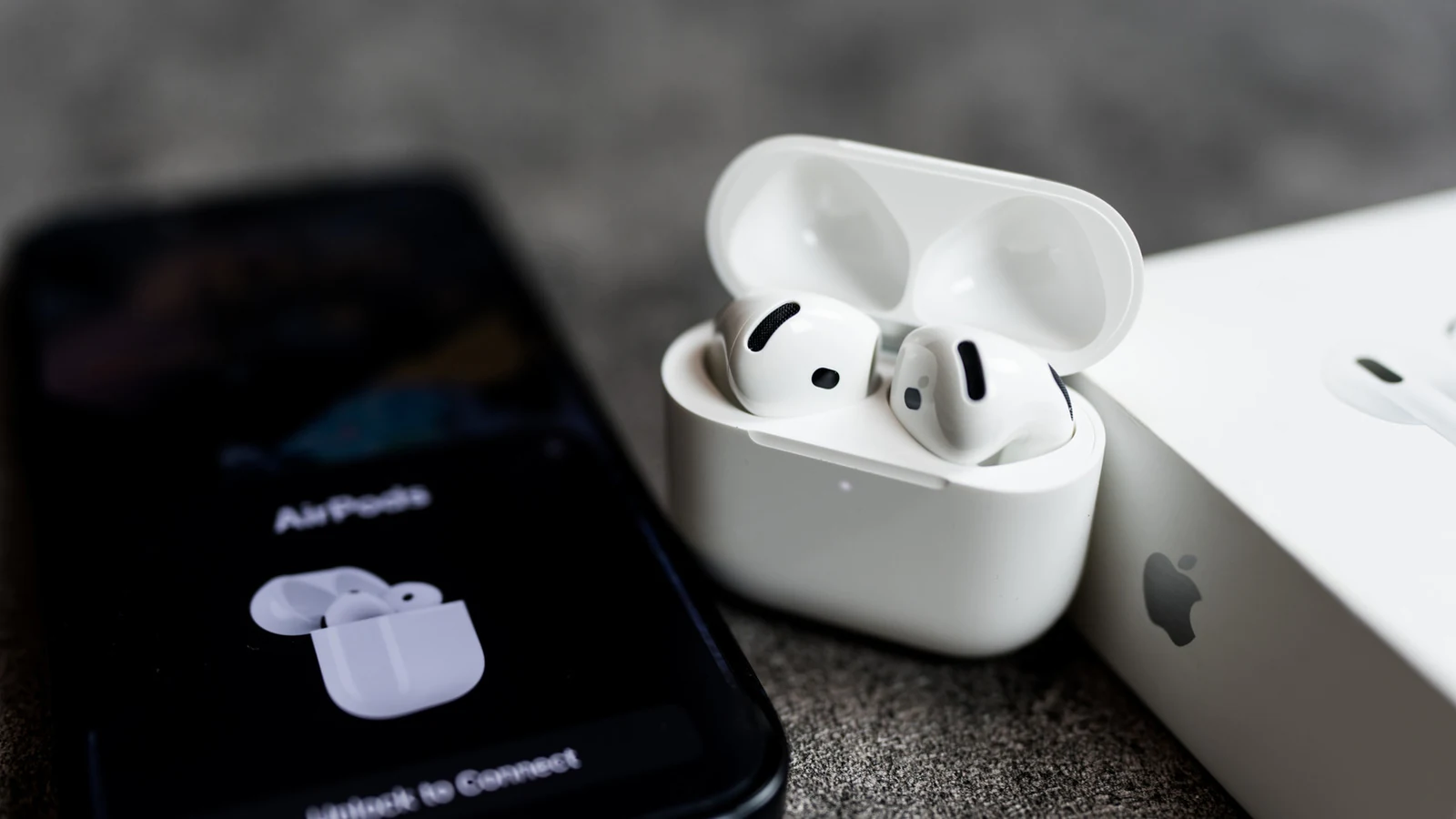
Apple AirPods are typically very easy to pair with an iPhone thanks to quick pairing and auto-switch features. However, users frequently encounter scenarios where their earbuds fail to play sound or refuse to connect entirely. According to guidance outlined by Engadget, most connection and pairing problems can be resolved by adjusting a few basic settings and trying again.
Whether you are dealing with audio dropouts or a situation where only one AirPod is working, understanding the root cause is the fastest way to restore functionality. Problems can stem from drained power supplies, software discrepancies, or automated device switching errors.
Battery Power and Charging Contact Maintenance
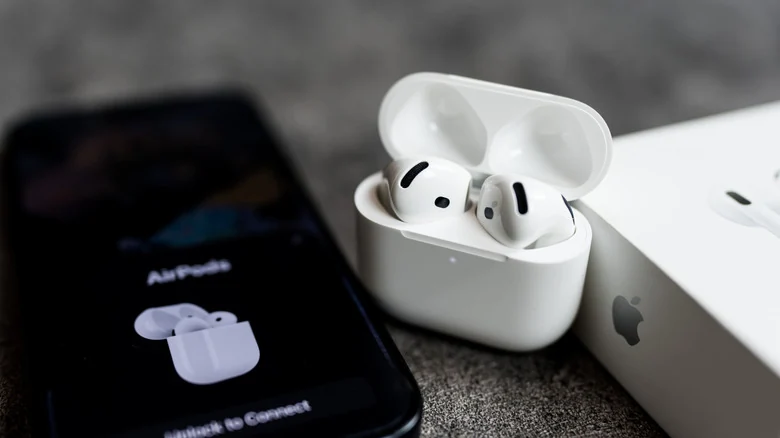
One of the most frequent reasons AirPods fail to connect to an iPhone is a completely drained battery. If both the earbuds and the charging case have no power remaining, the AirPods will not appear on your iPhone interface, nor will they display a low battery warning.
To troubleshoot this, place the earbuds inside the charging case and connect it to a power source for a few minutes to check for indicator lights. Additionally, accumulation of dirt and earwax on the internal charging contacts can block power delivery, even inside the case. Cleaning these contacts gently with a soft cotton swab often resolves charging failures.
Managing Automatic Switching and Bluetooth Settings
AirPods linked to an Apple Account are designed to seamlessly switch between an iPhone, iPad, and Mac depending on active audio playback. While convenient, this feature can lead to the earbuds unintentionally connecting to the wrong hardware, such as responding to an email notification on a Mac. Selecting the play button on your iPhone will usually redirect them back.
Connectivity also requires active Bluetooth settings. Users should open the Settings app, verify that Bluetooth is enabled, and check if the earbuds appear in the active device list. If they do not populate automatically, users can proceed with re-pairing your AirPods to establish a fresh connection.
Software Updates and Firmware Verification
Outdated operating systems or old firmware versions can disrupt device pairing. iPhone software can be verified by navigating to Settings, General, and Software Update. AirPods firmware can likewise be checked against official documentation.
To verify current versions, users can check this Apple webpage to see if their firmware matches the latest release. If an update is pending, connecting the AirPods to a charger for approximately 30 minutes allows them to update automatically.
Resetting Your AirPods and Seeking Hardware Support
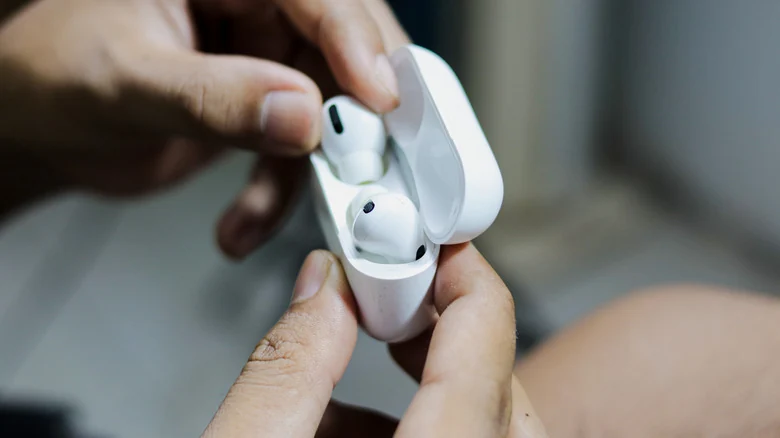
If basic adjustments fail, resetting the hardware is a reliable next step. For AirPods 4, AirPods 5, and AirPods Pro 3, users must place the earbuds in the case, open the lid, and double-tap the front of the case until a white light appears, repeating the double-tap and triple-tap sequence as the flash patterns change. Older models require pressing and holding the rear case button for 15 seconds, while AirPods Max require holding the Digital Crown and ANC button simultaneously for 15 seconds.
When software troubleshooting and resets fail to yield results, the underlying issue may be a hardware defect. In such cases, users should reach out to Apple Support to request hardware diagnostics or a replacement.
Replacements may be provided at no additional cost if the device remains protected under the standard one-year warranty or through an active AppleCare+ plan.
Sources
- EngadgetWhy your Apple AirPods won't connect to your iPhone and how can you fix it
Continue chronologically

Related entity coverage
Related stories
How to Improve Your iPhone Call Quality and Fix Issues
Discover actionable steps to improve your iPhone call quality, from utilizing Voice Isolation and toggling Airplane Mode to checking your hardware.

Why Your AirPods Keep Disconnecting and How to Fix It
Discover why your AirPods keep disconnecting or swapping devices without warning, and learn how to adjust your settings to fix the issue.
Why Your Apple AirPods' Battery Drains So Fast
Discover why your Apple AirPods battery drains quickly, how to check for charging issues, and practical steps to make them last longer.
What to Do When Only One of Your AirPods Stops Working
Learn how to troubleshoot and fix your AirPods when only one earbud produces sound, from cleaning charging ports to resetting your device.