What to Do When Only One of Your AirPods Stops Working
When one AirPod suddenly stops producing audio while the other works normally, a few targeted troubleshooting steps can help get your device back to normal.
 Radwan AbdulhadiEditor and technology writer

Understanding the Issue
While having one AirPod fail to produce sound is a strange problem compared to both earbuds malfunctioning, it remains a fixable issue for users. Apple's wireless earbuds have achieved widespread popularity due to their simplified connection with other Apple products and the decreasing prevalence of the traditional headphone jack. Newer hardware iterations, such as the recent AirPods 5, continue to impress consumers in the audio space.
Modern Apple earbuds come with a higher price floor than traditional wired options, with current units starting at $129. Because users expect such hardware to last, running into unexpected audio glitches can be frustrating. Thankfully, even the best AirPods occasionally encounter technical hiccups where a single earbud stops working, but these problems can usually be resolved at home.
Checking Charging and Connections
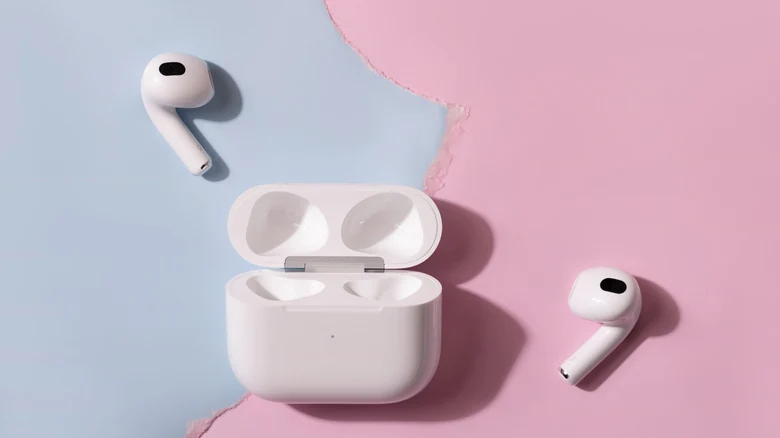
If only one of your AirPods is producing sound, the culprit is likely a charging issue. To begin troubleshooting, clean out the charging port of the AirPods case and ensure the case itself holds a full charge. Because grime frequently builds up inside the case, especially around the bottom where the earbuds make contact to charge, cleaning these areas is essential.
Next, charge both AirPods for 30 seconds before opening the case near your iPhone to view the popup status indicator. You can monitor this more quickly by adding a Batteries widget to your iPhone home screen. Test the malfunctioning AirPod while keeping the working one inside the closed case. If it functions correctly, charge both earbuds for another 30 seconds and test them again.
Resetting Your AirPods
If charging steps do not resolve the issue, performing a reset will restore your AirPods settings back to their defaults. For users with AirPods 3, AirPods Pro 2, or older models of either version, place the earbuds in the case with the lid closed, wait 30 seconds, and navigate to Settings > Bluetooth on your iPhone. Tap the information icon next to your AirPods and select Forget This Device. If they do not appear, open the lid, press and hold the circular setup button on the back for 15 seconds until the front status light flashes amber and white, and follow the onscreen instructions.
If you are using either model of the AirPods 5, any AirPods 4, or AirPods Pro 3, the reset process follows a similar path but requires different physical inputs. Instead of holding the button, you must double-tap the front of the case while the status light is active, double-tap again when the light flashes white, and repeat a third time when the light flashes faster. Once the amber-to-white pattern finishes, follow the prompts appearing on your device screen.
Cleaning and Maintenance
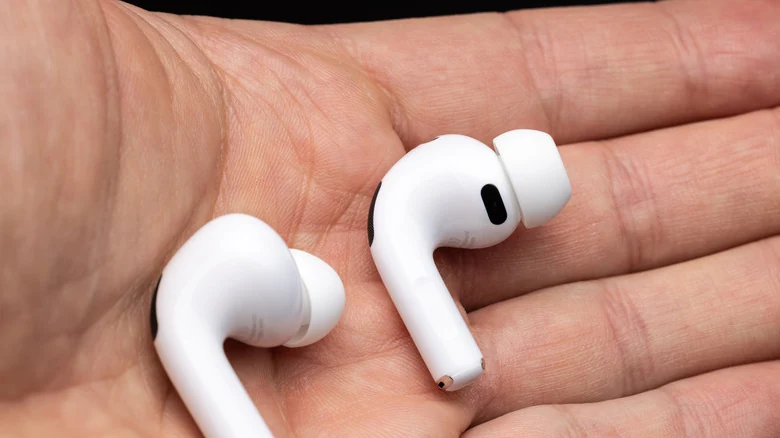
Should the earbud continue to malfunction, closely inspect the non-working unit and compare it to the functional one. Performing a thorough cleaning of the individual AirPods can clear away hidden issues, such as inspecting the speaker mesh for accumulated debris and wiping it down gently with a soft cloth. Additionally, consider replacing the ear tips if they appear torn or fail to create a proper acoustic seal.
Allow your AirPods to receive a full charge after completing any cleaning steps. Finally, restart your iPhone to rule out a software bug on the host device, and test the earbuds with another audio source to confirm whether the problem originates from the audio file or player.
Checking Audio Balance Settings
If you are experiencing unbalanced audio rather than a complete failure in one bud, the fix may simply lie within your iPhone settings. Navigate to Settings > Accessibility > Audio & Visual on your device, and verify that the Balance slider sits squarely in the middle to prevent audio from improperly favoring one ear over the other.
Sources
- EngadgetHere's what you should do if only one of your AirPods is working
Continue chronologically


Related entity coverage
Related stories
How to Customize iPhone Camera Control Settings
Learn how to customize the Camera Control button on your iPhone 16, 17, and 18 series to streamline your mobile photography workflow.
How to Use the iPhone Voice Memos App for Audio Recording
Learn how to capture high-quality audio on your iPhone using the built-in Voice Memos app, featuring tips on transcription, editing, and multitrack recording.
Apple Opens Claims Process for $250 Million Siri AI Settlement
Eligible US iPhone owners can now file claims for the $250 million settlement regarding delayed AI features. Find out if you qualify for a payout.
Why the iPhone Does Not Support Wired Printer Connections
Explore why iPhones lack native wired printing support, how Apple's design decisions affect older hardware, and what wireless workarounds exist.