How to Fix an Unresponsive Phone Screen
An unresponsive touchscreen can stem from simple software glitches or severe hardware damage. Here is a step-by-step guide on how to troubleshoot and fix your device.
 Radwan AbdulhadiEditor and technology writer
Initial Physical and Environmental Checks
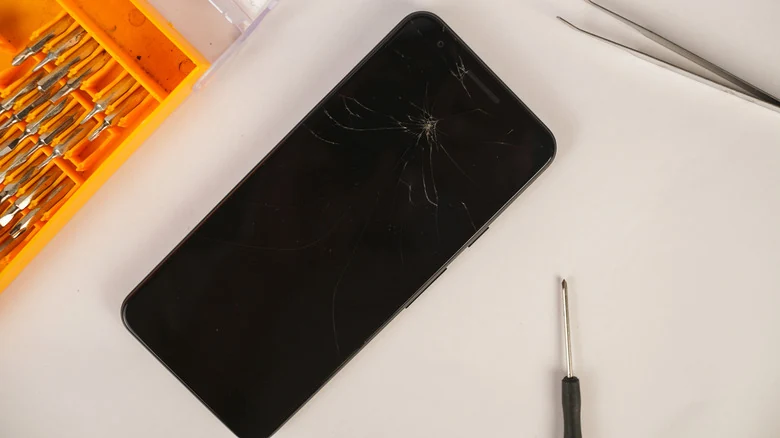
When a smartphone screen stops responding to touch, the root cause can range from minor application freezes to significant hardware damage. According to details shared by Engadget, users should begin troubleshooting by thoroughly examining the glass for cracks or structural failures. If visible damage is absent, external factors could be at play.
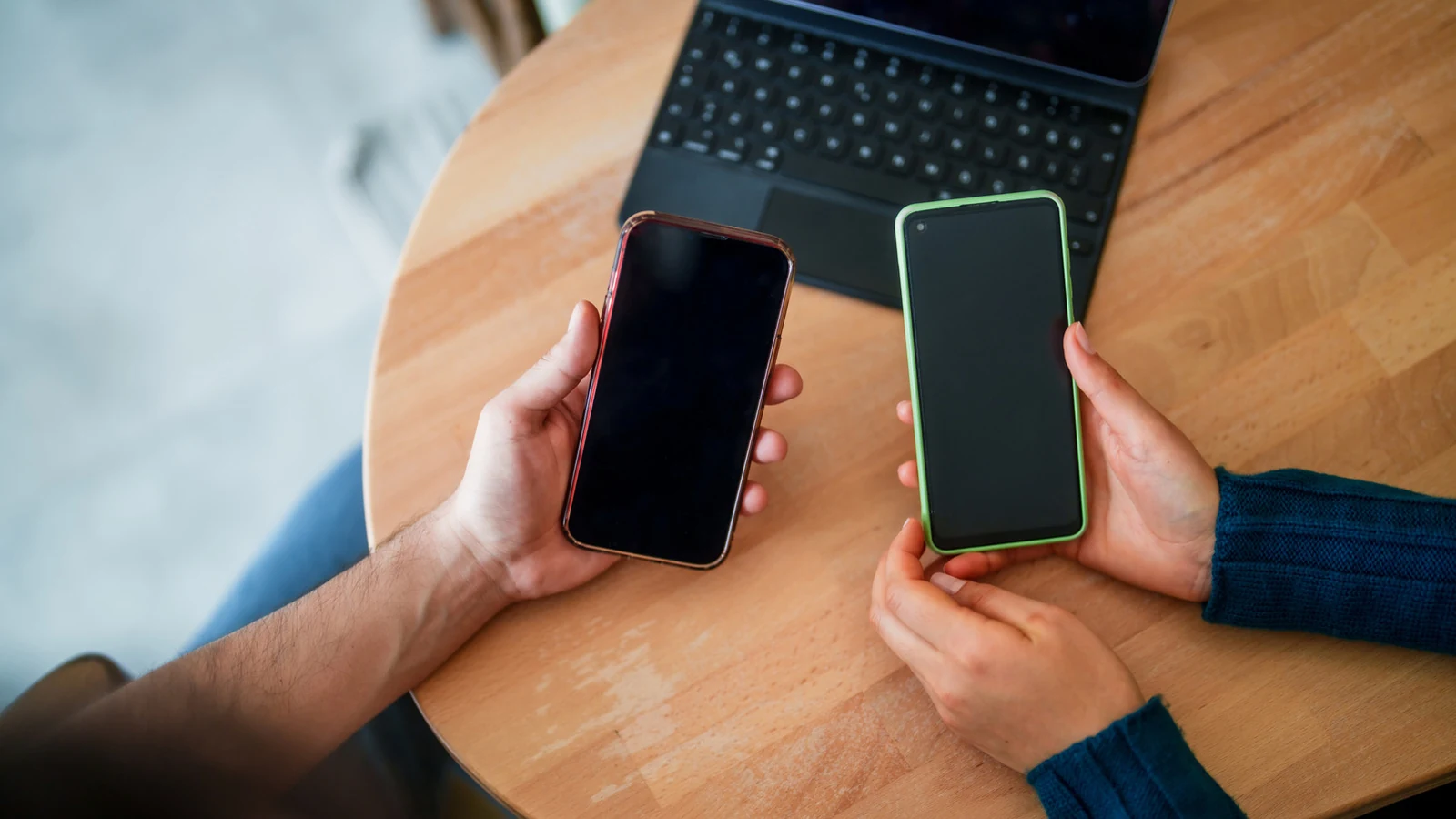
Physical accessories often interfere with capacitive touch inputs. Remove any thick screen protectors that might hide underlying damage, take off gloves, and clear away cases, stickers, or connected USB-C and Lightning accessories. Furthermore, users should properly clean your screen using a slightly damp microfiber cloth to remove accumulated dirt or liquid residue without letting moisture enter device ports.
Executing a Force Restart
If cleaning the device and removing external accessories does not restore functionality, a software glitch or frozen application may be responsible. Because standard reboot menus require touch interaction, users must perform a force restart. For modern iPhones with Face ID, this involves quickly pressing and releasing the volume up button, doing the same for the volume down button, and then holding the side button until the Apple logo appears.
Older iPhone variants utilize different button combinations, such as holding the side and volume down buttons simultaneously on an iPhone 7. Meanwhile, Android manufacturers typically require holding the device power button for approximately 30 seconds until the system reboots. If minor software errors caused the freeze, these hard reset procedures should restore standard operation.
Diagnosing Software via Safe Mode and Resets
Persistent touch unresponsiveness on Android devices can be evaluated by booting into safe mode, which temporarily disables third-party applications. If the screen responds normally in safe mode, an installed app is likely causing the conflict. Users can also attempt troubleshooting steps such as disabling Developer options or returning parameters to default states. For iOS devices, owners can resolve lingering configurations by choosing to reset your iPhone's settings through the main system menus.
If adjusting software configurations and safe mode diagnostics fail, a factory reset serves as a final software-based troubleshooting measure. Because a factory wipe erases all personal data, experts strongly recommend backing up files beforehand or consulting an authorized manufacturer service center for professional hardware evaluation.
Navigating via Screen Mirroring and OTG Tools
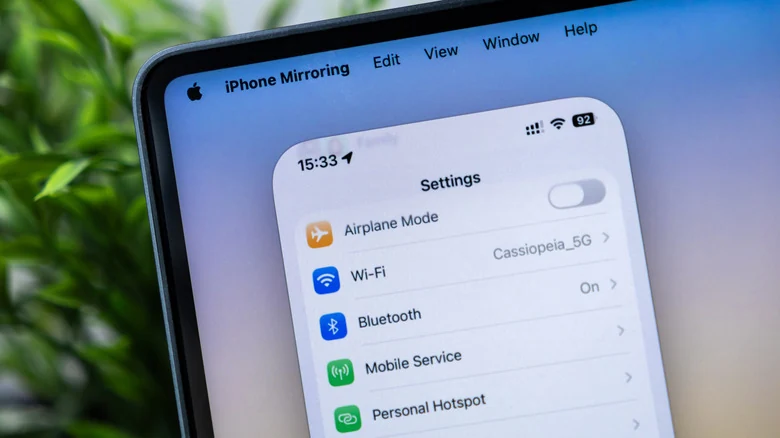
When touch inputs fail entirely and none of the preliminary fixes work, accessing system menus requires alternative solutions like screen mirroring. For users operating within the Apple ecosystem, mirroring your iPhone to a compatible Mac running macOS Sequoia or later provides full remote control capabilities over Bluetooth and Wi-Fi.
Android users working across different platforms have access to alternative cross-device tools. Individuals looking to bridge workflows can benefit from innovations developed for iPhone users who rock Windows, while Android users can leverage the Phone Link application or open-source utilities like Scrcpy to operate impaired mobile hardware using an external computer keyboard and mouse.
Sources
- EngadgetHow to fix your phone screen when it's unresponsive to touch
Continue chronologically


Related entity coverage
Related stories
What to Look For When Buying a Cheap Android Phone
Discover the essential non-negotiable features you need to look for when shopping for a budget Android phone priced at $300 or less.
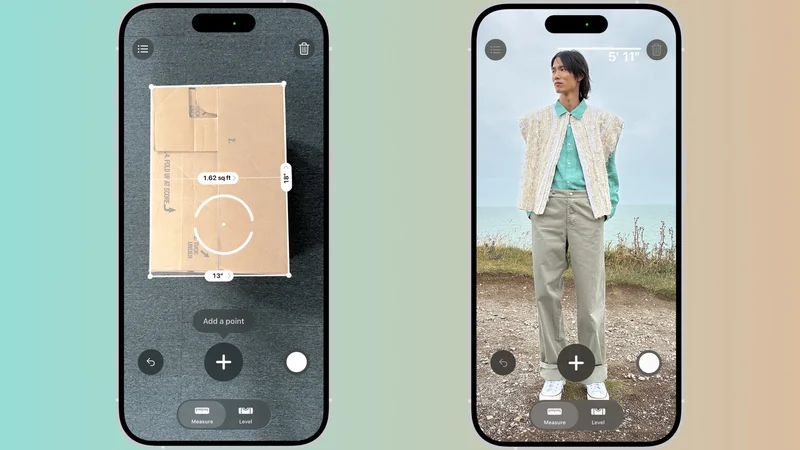
Apple's Hidden iPhone Measure Tool: How It Works
Discover Apple's built-in iPhone Measure app, using cameras and LiDAR to size up everyday objects when a physical tape measure is out of reach.
What Does the Shield Icon Mean on Your Samsung Galaxy?
Discover why the shield icon appears next to your Samsung Galaxy battery indicator, and learn how Battery Protection manages smartphone battery degradation.

How to Improve Audio Quality on Your Android Phone
Learn how to optimize your Android phone's audio settings, choose between wired and Bluetooth headphones, and achieve better sound quality.