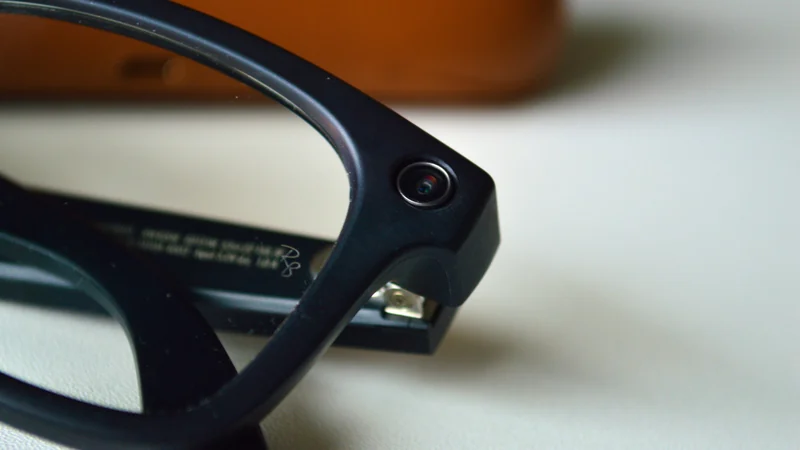
4 Ray-Ban Meta Privacy Settings to Change Now
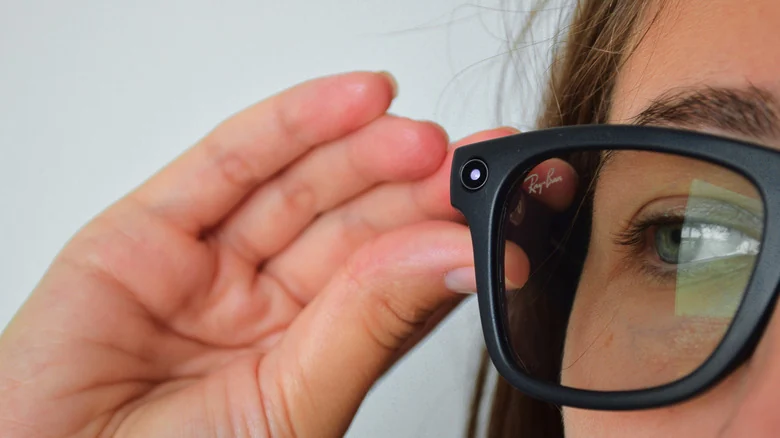
Ray-Ban Meta smart glasses offer various ways to capture the world, but adjusting the privacy menu can help reduce the amount of data collected, uploaded, or stored.
 Radwan AbdulhadiEditor and technology writer
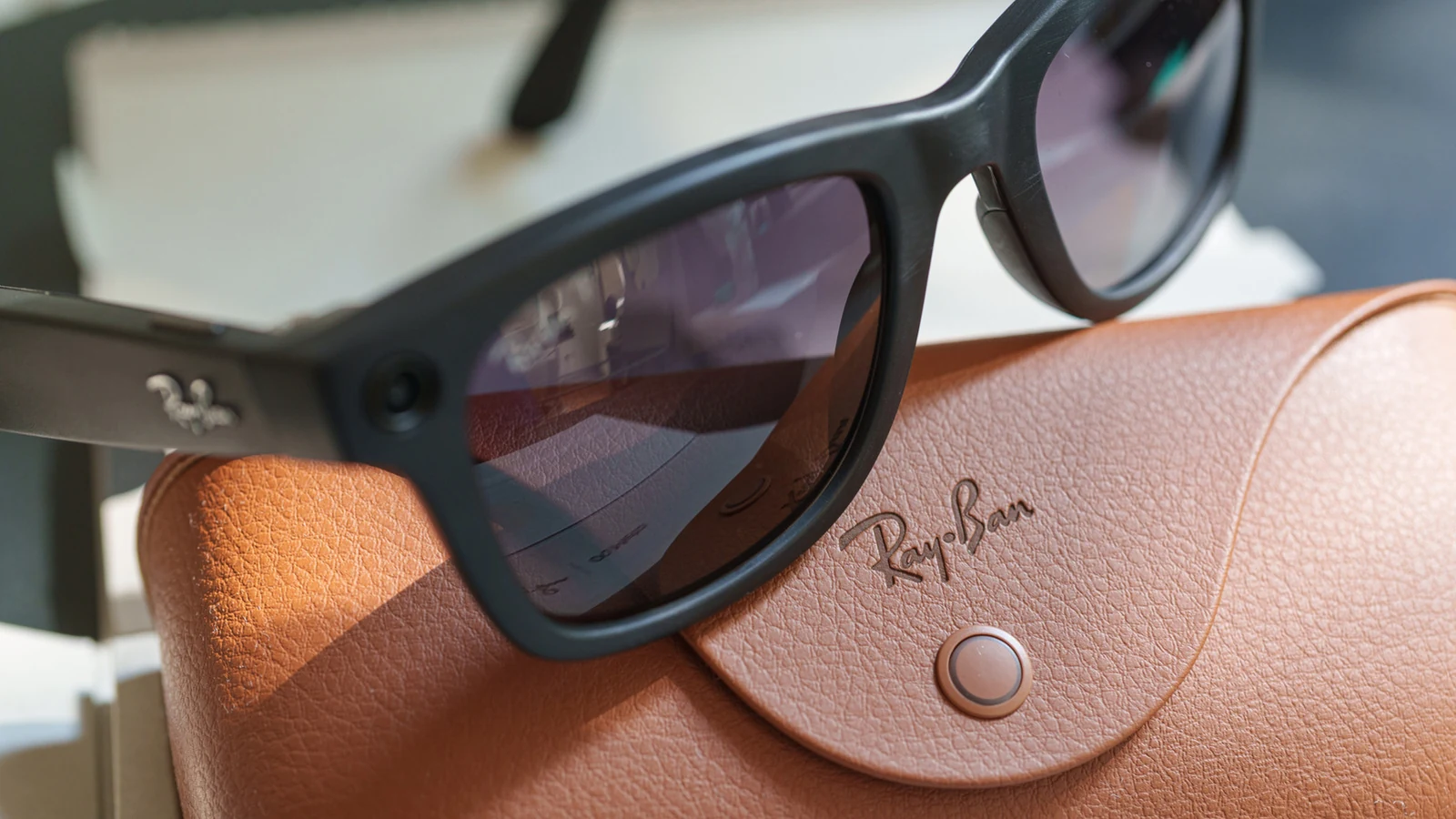
Understanding Ray-Ban Meta Privacy Options
Ray-Ban Meta smart glasses have drawn significant scrutiny regarding privacy concerns. While the hardware lets users snap a photo with a quick tap, understanding exactly what happens to captured images and data sent to Meta AI requires a careful look through the device's privacy menu. According to Engadget reporting detailed by [Husain Parvez](https://www.engadget.com/author/husainparvez/), users can exercise some control over what the [Wearables](https://www.engadget.com/category/wearables/) collect and store, provided they know where to find the settings.
The platform provides several configuration options that balance convenience against data collection. Gallery captures, voice assistant triggers, and AI features follow distinct operational rules. Reviewing these configurations allows owners to proactively limit the sharing of personal information with the company's servers.
Turn Off 'Hey Meta' to Avoid Accidental Activations
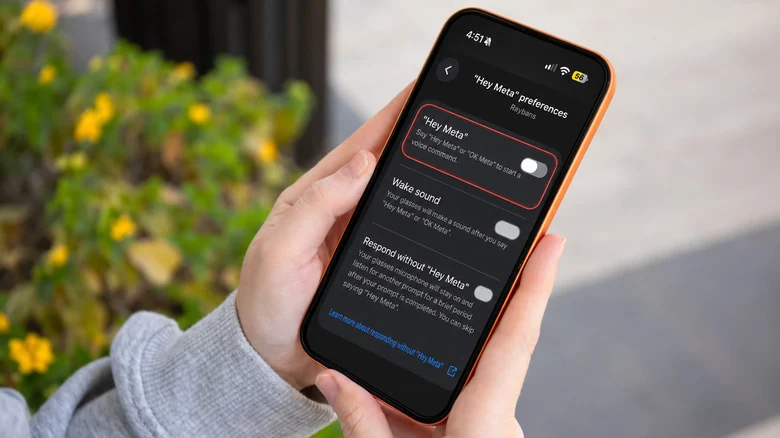
The built-in assistant responds to the voice wake phrase "Hey Meta," which remains active by default. However, casual conversations can sometimes sound enough like the wake phrase to trigger an accidental activation while the microphones continuously listen for the command. In the United States, users [can no longer prevent Meta from storing recordings](https://www.engadget.com/wearables/ray-ban-meta-2nd-gen-review-smart-glasses-are-finally-getting-useful-124720393.html) of AI voice interactions in the cloud, though saved recordings can be deleted manually.
To disable voice activation, users can connect their glasses to a phone, open the Meta AI app, select the glasses, navigate to Meta AI > "Hey Meta" preferences, and deactivate the toggle. The touchpad on the right temple remains functional for summoning the assistant, and microphones can still be used for phone calls and videos.
Disable Cloud Media Storage for Gallery Captures
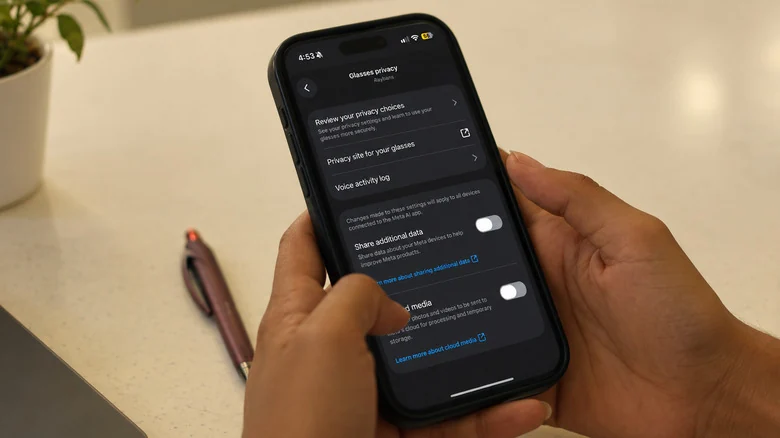
Photos and videos captured for your personal gallery normally remain on the device until imported to a phone. Enabling Cloud media permits Meta to store copies on its servers for up to 30 days. To change this behavior, navigate to Glasses privacy > Cloud media within the settings of the Meta AI app. Disabling the feature removes cloud-based utilities like voice-controlled photo sharing and autocapture, while still allowing standard local photo and video imports.
Meta notes that standard gallery captures are not utilized to train AI models or serve advertisements. However, turning off Cloud media does not stop images from being transmitted to Meta when a user asks the assistant a direct visual question. Additionally, automatic backups configured on personal cloud services like iCloud or Google Photos may still upload imported pictures to separate cloud servers.
Opt Out of Visual Data AI Training
Visual data submitted during AI queries—such as asking the assistant to identify a plant or translate a menu—is processed on Meta's servers. Historically, that information [visual data from smart glasses interactions](https://www.engadget.com/2267227/meta-will-stop-training-its-ai-on-visual-data-from-its-smart-glasses-if-you-opt-out/) could be saved for AI training purposes, including evaluation by human contractors. Meta introduced an option enabling owners to stop this specific data processing flow.
To opt out, open the glasses settings in the Meta AI app, select Meta AI, and disable the option to store visual data from AI experiences. While Meta still processes images to answer immediate requests, the company states it will not keep the data for training or make it available to human reviewers. This adjustment may affect visual reminder features, and users with multiple devices, including [first-generation Ray-Ban Meta glasses](https://www.engadget.com/ray-ban-meta-smart-glasses-review-instagram-worthy-shades-070010365.html), must update the setting on each pair separately.
Turn Off Additional Data Sharing
Beyond photos and voice logs, Meta collects usage analytics detailing feature utilization and frequency to help understand product habits. Users can halt this transmission by opening the Meta AI app, selecting the connected glasses, navigating to Glasses privacy > Share additional data, and turning the toggle off. This action does not disrupt media playback, phone calls, or photo capturing, though foundational safety and operational data collection continues.
For further insights into handling media files processed through these systems, users can review additional guidance on [Gallery photos and images processed by Meta AI](https://www.engadget.com/2232153/are-ray-ban-meta-glasses-a-privacy-risk-here-s-what-you-should-know/) to better understand the device's privacy profile before all-day wear.
Sources
- Engadget4 Ray-Ban Meta privacy settings you should change before wearing them
Continue chronologically
Related entity coverage
Related stories
Engadget Review Recap Highlights iPhone Duo and Rivian R2
Engadget shares a new roundup of recent device reviews, featuring the foldable iPhone Duo, the mid-sized Rivian R2 electric SUV, and more.
Meta Glasses Nova Gen 3 Review: Iterative Upgrades
Read our comprehensive review of the new Meta Glasses Nova (Gen 3). Discover the latest design changes, battery improvements, and AI features.
What Happens to Google and Apple Accounts After You Die
Explore how Google and Apple handle user data, legacy contacts, and account deletion after a person passes away in the digital age.
Can AI Glasses Replace Your Daily Prescription Eyewear?
Explore the pros and cons of replacing your regular prescription glasses with AI smart glasses, including weight, battery life, and privacy concerns.