Why iPhone Photos Turn Blurry and How to Fix Them
A blurry photo on an iPhone often stems from more than just a dirty lens, involving lighting conditions, shutter speeds, and specific device settings.
 Radwan AbdulhadiEditor and technology writer
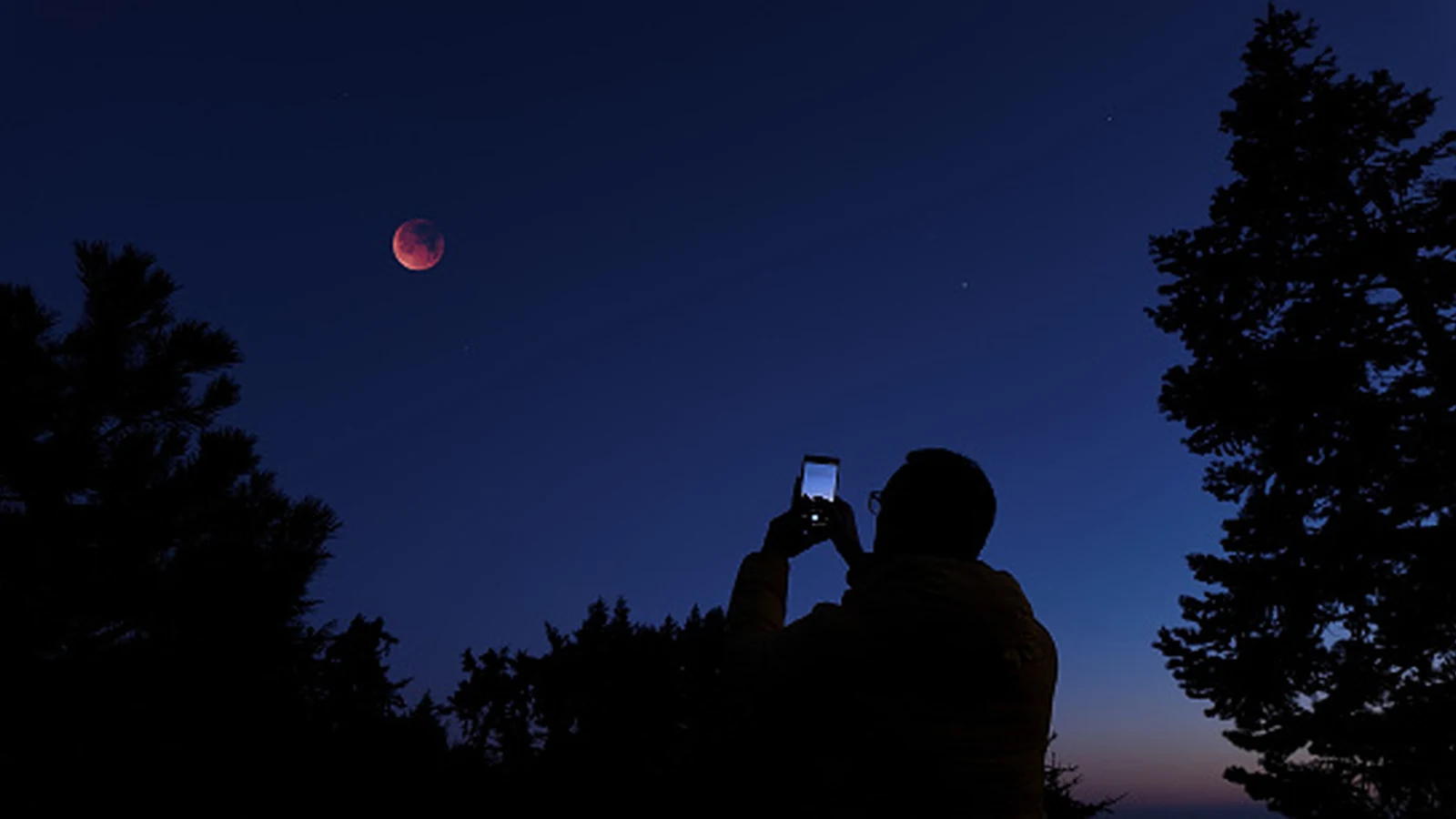
Understanding Blurry iPhone Photos
While smartphone cameras provide a convenient and lightweight way to capture casual moments, they can occasionally produce frustratingly blurry images. Although any mobile device can run into this issue, the widespread popularity of Apple products has led many users to closely examine why their shots lack sharpness. Fortunately, addressing the problem often goes beyond relying on features like the AI Clean Up tools from iOS 27, requiring a closer look at physical maintenance and environmental factors.
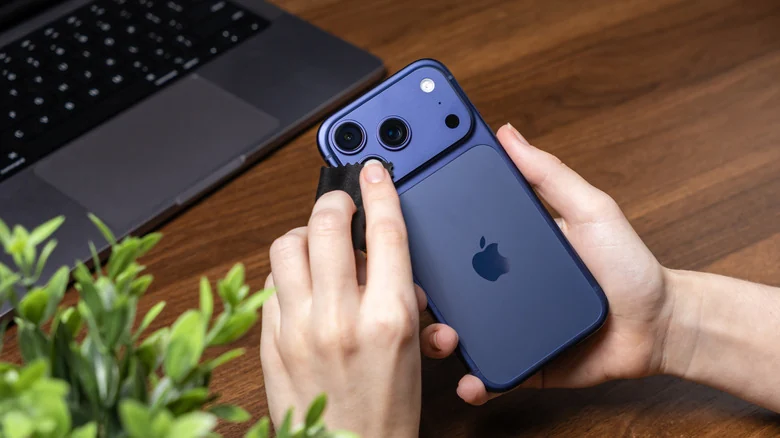
The first step in troubleshooting is inspecting the physical camera lens. Simply wiping a smudged lens with a tissue or the edge of a shirt can sometimes worsen the smudge. Instead, users should remove the phone case, take a microfiber cloth, and gently wipe down the lens. For persistent marks, a very light dab of distilled water applied directly to the cloth—rather than straight onto the lens—can help clear away residue without causing damage.
The Impact of Lighting Conditions
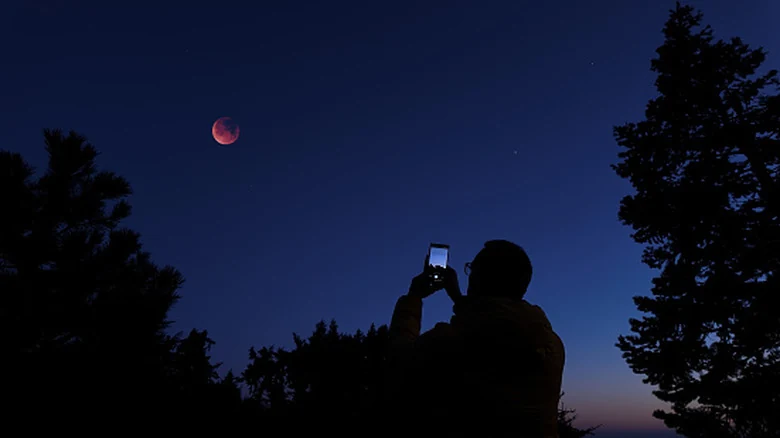
Beyond physical cleanliness, lighting plays a massive role in overall image quality. Low light levels remain a primary culprit behind blurry, grainy, or blocky photographs. When ambient light drops, cameras struggle to focus reliably, often forcing slower shutter speeds and introducing digital noise that becomes prominent after compression. Anyone looking to improve your smartphone photography must take these challenging lighting environments into account.
Adjusting Built-In Camera Settings
Modifying internal configurations can significantly reduce blur. Users can navigate to the camera settings on your iPhone under the main settings menu to adjust the capture resolution. Selecting any frame rate or resolution setting above 720p generally produces crisper results.
In addition to menu adjustments, direct interactions within the camera interface offer immediate improvements. Rather than allowing the camera to constantly shift focus, users can tap and hold an area of the image until an 'AE/AF LOCK' prompt appears on the screen. Furthermore, on iPhone 11 models and newer, Night Mode activates automatically in low light, indicated by a small moon icon at the top of the interface, to brighten scenes and capture greater detail.
Advanced Tools and Stabilization
When built-in configurations are not enough, third-party applications provide deeper control. Apps like Camera+ allow photographers to manually adjust shutter speeds and ISO settings. Managing these elements is crucial since slower shutter speeds can introduce motion blur, while higher ISO values increase visible noise and degrade overall clarity.
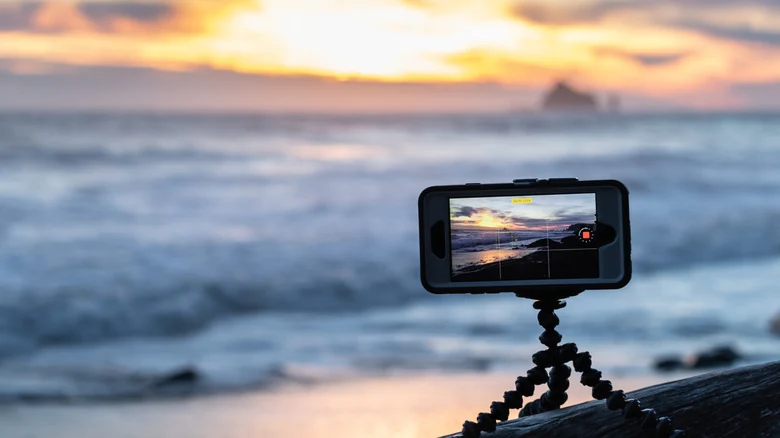
Hardware accessories also play an essential role in eliminating blur. For serious mobile photography, utilizing a tripod keeps the device completely stationary during longer exposures. This stabilization prevents minor hand movements from turning into noticeable blur, particularly when shooting in dim environments where longer shutter times are required.
Sources
- EngadgetWhy are your iPhone photos so blurry (and how to improve it)
Continue chronologically

Related entity coverage
Related stories
How to Fix Apple AirPods When They Won't Connect to iPhone
Learn why your Apple AirPods fail to connect to your iPhone and discover quick troubleshooting steps, from checking batteries to resetting devices.
How to Improve Your iPhone Call Quality and Fix Issues
Discover actionable steps to improve your iPhone call quality, from utilizing Voice Isolation and toggling Airplane Mode to checking your hardware.

iPhone 18e Leaks Point to 2nm A20 Chip and 60Hz Screen
New leaks regarding the upcoming iPhone 18e suggest Apple's entry-level smartphone will feature a 2nm A20 chip, 60Hz display, and front camera boost.
iPhone Duo vs Pixel 11 Pro Fold: Foldable Flagship Comparison
Compare Apple's iPhone Duo and the Google Pixel 11 Pro Fold across screens, cameras, design, and performance to see how these foldables differ.