Why Monitoring Your PC's Background Processes Matters
Keeping an eye on what your PC runs behind the scenes helps prevent resource exhaustion and keeps your system performing smoothly.
 Radwan AbdulhadiEditor and technology writer
Understanding Background Processes
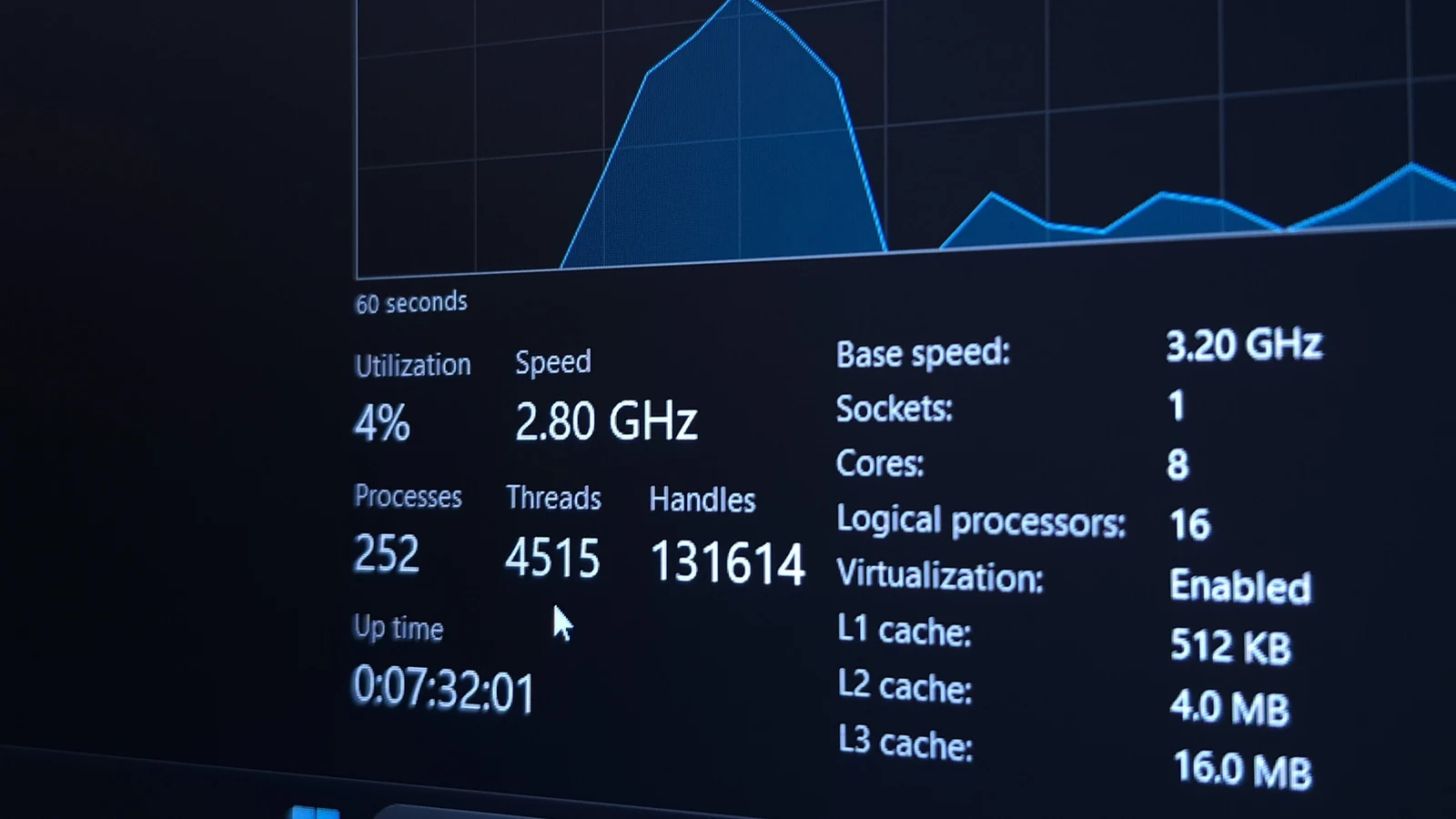
Your PC is always performing tasks even after you close every active app window from your desktop. Windows regularly checks for updates and handles maintenance under the hood while various applications run quietly in the background. While these operations often serve a useful purpose, certain programs consume more processing power or memory than expected, taking up resources that could otherwise be available for applications you actively use.
Regularly checking your computer's background tasks helps you recognize normal operations and quickly spot the unusual. This habit does not require constant observation of numbers, but rather enables you to identify specific processes that are actively sucking up resources on your PC when your machine begins to feel slow.
Navigating the Task Manager
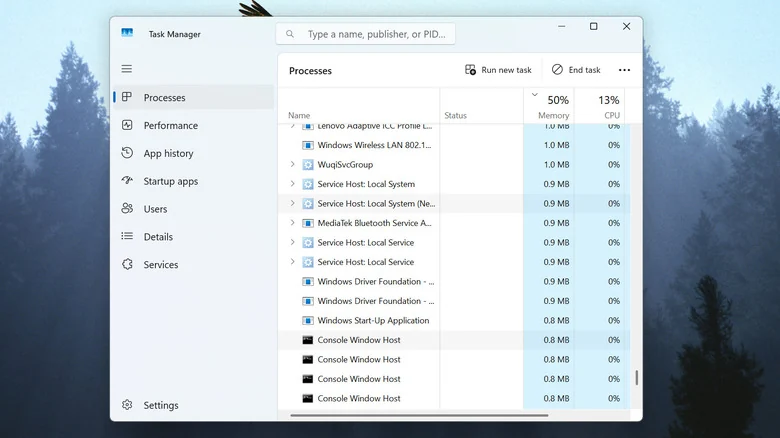
When you want to see what is running on your system, the Windows Task Manager is the primary tool to consult. Alongside your open applications, the utility displays running background processes, system-level tasks, and metrics detailing CPU power, memory, disk activity, and network bandwidth usage.
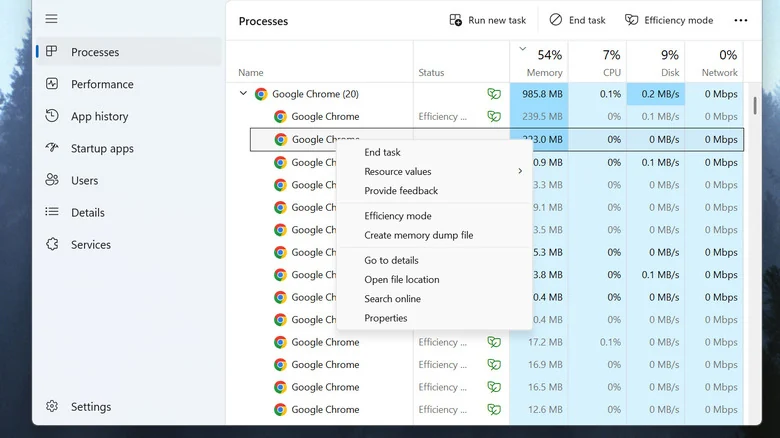
Users can launch Task Manager quickly using keyboard shortcuts such as Ctrl + Shift + Esc, or by pressing Ctrl + Alt + Delete. You can also right-click the Start button or an empty taskbar area to open the interface. Within the Processes tab, clicking the Name header groups running processes by active apps, background tasks, and Windows processes, allowing you to identify heavy resource users easily.

Managing Resource Usage and Ending Tasks
While you might spot a process consuming substantial RAM or maxing out your CPU, it is wise to avoid using the kill switch as an immediate first choice. An application might appear to consume resources for a valid reason, such as a game launcher downloading background updates. Whenever possible, users should exit applications cleanly using normal interface controls or system tray icons.
If an application crashes or refuses to close normally, you can use Task Manager to kill running processes by right-clicking the entry and selecting End task. Because this action is forcible, the app does not have a chance to save your work, making it a measure best reserved for unresponsive software.
Checking for Security Threats
Performance management is not the only reason to examine running services. If a stubborn process persists despite your attempts to close it, or if you suspect unauthorized activity, it is prudent to check for any viruses or malware using the built-in Microsoft Defender security tools found within Windows Security settings.
Optimizing Your System for Gaming
Gamers have a strong incentive to reduce background activity to maximize system resources and improve in-game performance. Halting multiple active game launchers and network downloads helps prevent unnecessary network, disk, and CPU utilization while playing.
Features like Xbox mode and the Game Bar offer built-in recording options, but users can disable them within settings if they interfere with gameplay. Additionally, you can prevent unnecessary programs from opening automatically when you start up your PC by navigating to the Startup apps tab in Task Manager and disabling items you do not need immediately upon logging in.
Sources
- EngadgetWhy it's important to monitor your PC's background processes
Continue chronologically

Related entity coverage
Related stories
Why Windows 11 Always Uses So Much RAM
Discover why Windows 11 uses a high percentage of your RAM, how memory management works, and when high usage actually signals a real computer issue.
New Microsoft Defender Zero-Day Blocks Antivirus Updates
Security researcher Abdelhamid Naceri has released a new zero-day exploit dubbed BigDiskBuster that prevents Microsoft Defender from updating.

Microsoft Gives Copilot More Control Over Windows and Files
Microsoft has announced major upgrades to Copilot at its Windows and Surface event, introducing Hybrid Intelligence to manage local files and OS actions.
Microsoft Offers Voluntary Exit Buyouts to 60,000 Employees
Microsoft is offering voluntary buyouts to approximately 60,000 employees across multiple countries in an effort to cut costs and rework its workforce.