Why Windows 11 Always Uses So Much RAM
Seeing high memory usage on a Windows 11 computer can cause panic, but modern operating systems are specifically designed to keep RAM occupied for better performance.
 Radwan AbdulhadiEditor and technology writer
Understanding Modern RAM Management
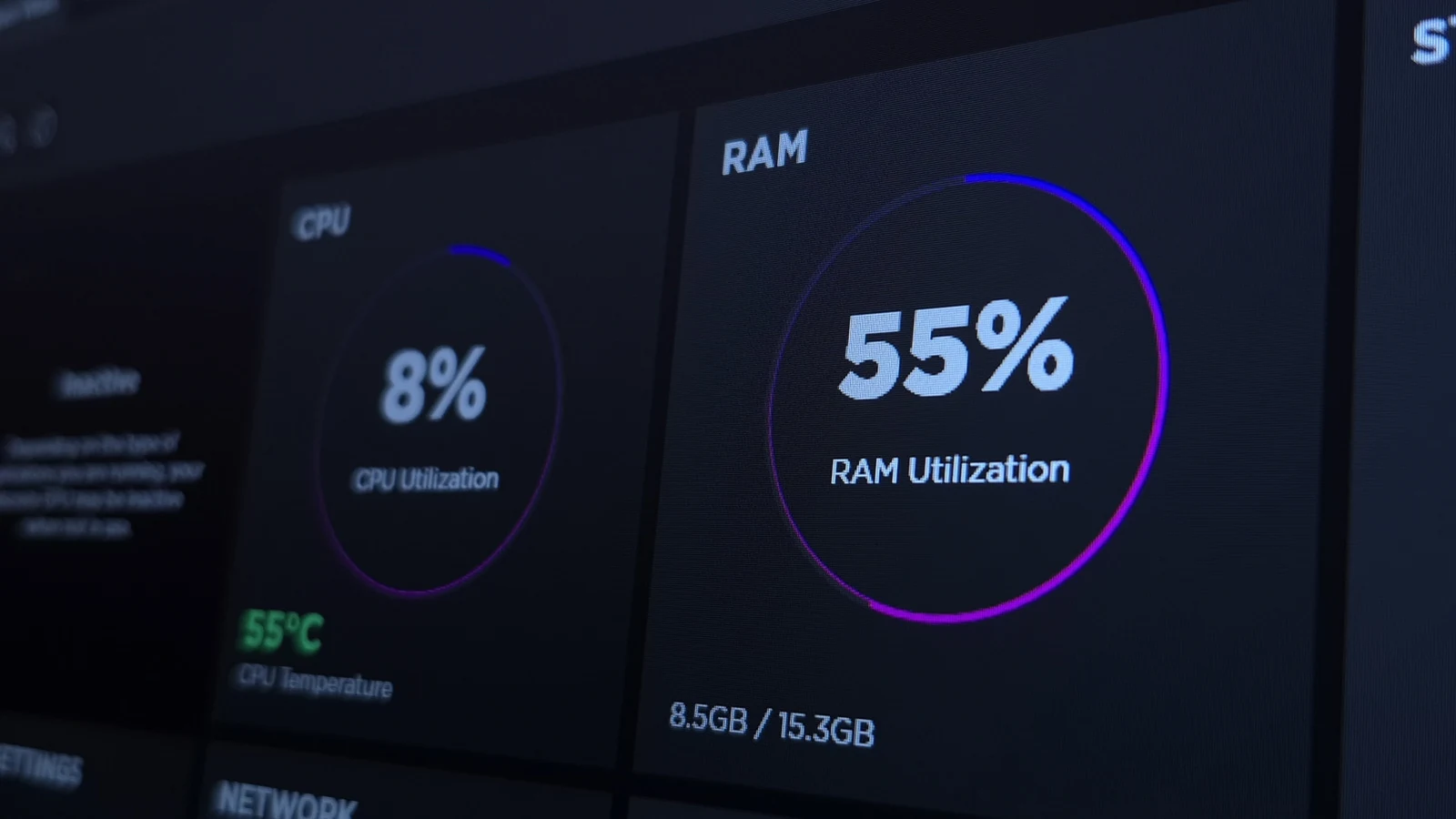
When opening the Task Manager on a Windows 11 computer, it is common to feel a sense of alarm. Even with very few applications open, the computer will often display memory usage exceeding 50 percent. While this high percentage looks like a critical problem, it is usually completely normal. Although 16GB of RAM serves as the modern standard for personal computers, utilizing almost all of it does not mean the system lacks sufficient memory. This behavior relates directly to how modern operating systems handle hardware resources.
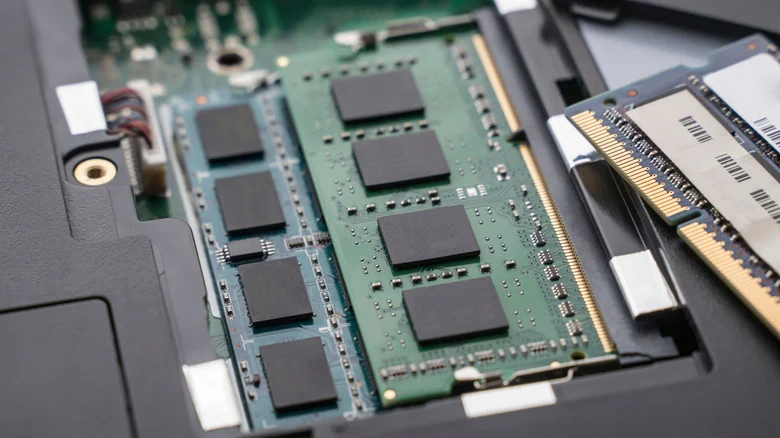
To understand this dynamic, it helps to examine what RAM is used for. Computer memory temporarily stores data that the processor needs to run applications and open files. Because memory offers significantly faster speeds than a hard drive or solid-state drive, accessing data from it happens almost instantly. Having more memory allows a computer to keep multiple items open and ready for quick switching, which greatly enhances multitasking performance.
The Role of SysMain and Standby Memory
Rather than trying to conserve memory, the latest versions of Windows treat RAM as a resource meant to be fully utilized. In older computing eras, operating systems only used the memory strictly required for currently active programs. However, leaving RAM completely unused wastes valuable system resources. Instead, modern Windows builds try to anticipate what the user might need next and keep those items preloaded.
This functionality operates under a background process known as SysMain, previously called SuperFetch in older software iterations. SysMain observes computer usage patterns to keep important files and components cached in standby memory. For example, if a user opens a web browser every morning, Windows will likely keep it preloaded in RAM. Loading an application from preloaded memory takes significantly less time than fetching it from a storage drive, making the overall computer experience feel much faster. Consequently, Task Manager might report memory usage above 50 percent or close to 100 percent.
Checking Available Memory Properly
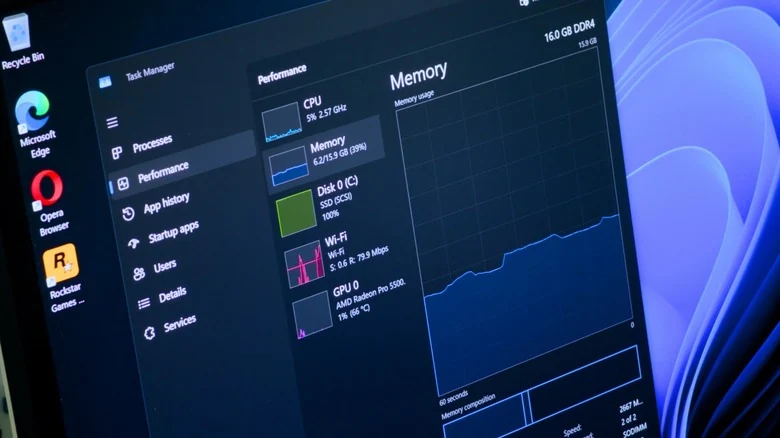
Users wanting to verify their true memory status can press the keyboard shortcut to open the Task Manager. Navigating to the Performance tab on the left side and selecting Memory reveals the true picture. Experts advise ignoring the In use metric and focusing instead on Available memory. Cached data counts as available because the operating system can instantly reclaim it whenever an active application demands more resources.
Because larger amounts of installed RAM allow Windows to cache more files and applications smoothly, seeing high standby memory utilization is completely normal and should not cause worry. The system is simply putting the hardware to work to deliver a more responsive user experience.
When High RAM Usage Indicates a Real Problem
Despite smart memory management features, excessive RAM usage can occasionally signal an actual underlying issue. If a computer begins running noticeably slowly, experiences frequent application crashes, or displays alerts warning that the system is low on memory, something else may be wrong with the software environment.
When troubleshooting performance issues, users should inspect the Processes tab inside the Task Manager to identify which programs consume the most memory and close any unnecessary items. Restarting the computer after a long period of uptime can also resolve memory leaks, which happen when software programs fail to return used memory back to the available pool. Furthermore, users should disable startup apps that they do not actively use so those programs do not hog resources in the background.
Third-Party Cleaners and Advanced Tweaks
Some third-party utility applications claim to help reduce memory usage, but these tools are generally not worth installing. Although they might temporarily lower the percentage of active memory, forcing applications to rely on the page file—a portion of the storage drive used as backup memory—makes the computer run much slower. These third-party cleaners also fail to provide a lasting fix because the operating system will eventually reload the data.
Advanced users running older hardware with mechanical hard drives sometimes choose to disable SysMain entirely to revert to older management behavior, as constant preloading can overwhelm a slow disk and cause sluggishness. This can be done by opening the Services manager, locating the SysMain service, stopping it, and setting its startup type to disabled. However, this adjustment is discouraged unless a system is severely constrained by an old storage drive and lacks adequate memory.
For users stuck with 8GB of RAM or less, the ideal solution remains upgrading the hardware to 16GB or more, even though RAM prices fluctuate and can present an added expense. In the meantime, users can try changing a few settings to improve their overall experience on Windows 11 PCs.
Sources
- EngadgetWhy Windows 11 is always using so much RAM
Continue chronologically

Related entity coverage
Related stories
Microsoft Quietly Drops Copilot+ PC Branding on New Laptops
Microsoft has quietly stepped away from using Copilot+ PC branding on its latest laptops, despite the new hardware meeting previous requirements.

How to Set Up and Use Xbox Mode on Your Windows 11 PC
Learn how to activate and navigate Xbox mode on Windows 11 to create a controller-friendly, gaming-focused interface for your PC library.

Microsoft Steps Back From Copilot+ PC Branding
Microsoft and its hardware partners are quietly dropping the Copilot+ PC brand, omitting the AI marketing label from new Surface devices.

Microsoft Prepares for Windows, Surface, and AI Event
Microsoft is holding a major event in San Francisco to discuss local AI, the Surface Laptop Ultra, and upcoming agentic AI software integrations.