How to Use Windows PC to Make and Receive Phone Calls
Windows 11 includes a built-in Phone Link app that lets users manage phone calls directly from a desktop or laptop computer, streamlining multitasking for everyday communication.
 Radwan AbdulhadiEditor and technology writer
Streamlining Desktop Communication with Phone Link
When you need to make an old-fashioned call, Windows can help you avoid reaching for your phone. It is easy to go days or even weeks without using a mobile device for an actual voice conversation, but calling an organization or person who does not use alternative chat platforms often requires a standard phone connection.
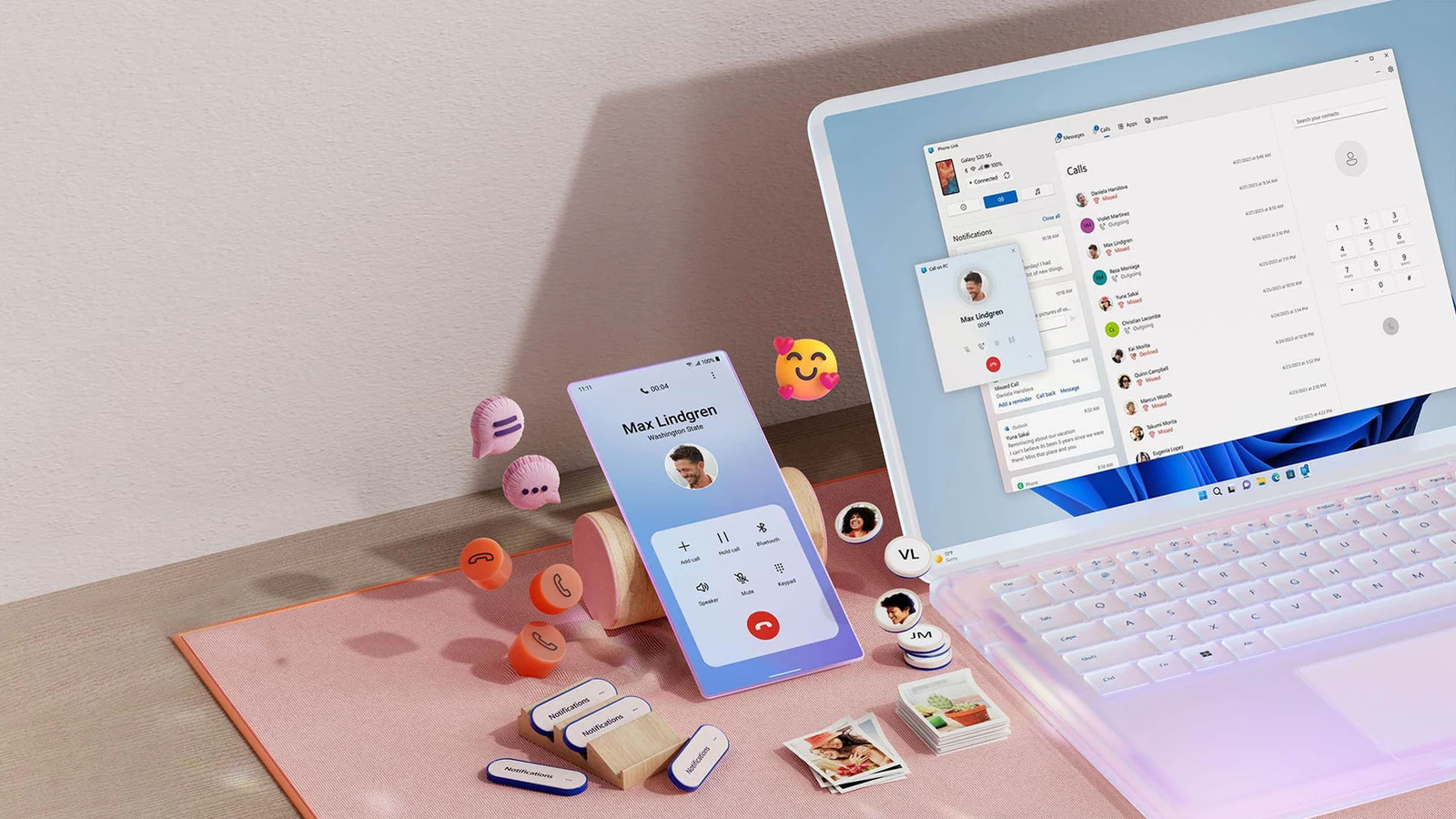
Rather than picking up a mobile phone, users can choose to talk directly on their computer. This approach allows for easier multitasking, particularly for individuals who wear headphones at their desks throughout the day. According to details shared by Engadget, the Phone Link app built into Windows 11 serves as the primary solution for running phone calls through a desktop or laptop computer.
Beyond handling voice calls, the application can streamline a user's setup by enabling text messaging and notification synchronization. While setting up the feature requires navigating a few initial hurdles and iPhone functionality remains more restricted compared to Android, the tool offers practical utility for desktop users. There are other choices available, such as desktop versions of chat apps like WhatsApp for voice calls or Google Voice for secondary numbers, but Phone Link remains the best choice for standard calls using an existing phone number.
Preparing and Updating Your Windows 11 System
Phone Link is included natively in recent versions of Windows 11. Before initiating the pairing process, users should open the Microsoft Store application, click the Downloads tab on the left-hand menu, and select Check for updates. From there, updating Phone Link to the latest release ensures compatibility.
Additionally, users may want to navigate to the system settings and check for general operating system patches if the computer has not been updated recently. Ensuring both the operating system and the application are up to date helps prevent connectivity issues during the initial device pairing phase.
Pairing Your iPhone with Windows 11
To get started with pairing an iPhone, users can open the Phone Link application on their computer by searching for it via the Start menu, and then selecting the iPhone option. The software prompts the user to scan a QR code with their mobile device, which guides them through installing the appropriate mobile software and establishing a Bluetooth connection.
To complete this setup successfully, Bluetooth must be enabled on both the mobile phone and the personal computer. Once the pairing code appears on the PC screen, users must confirm the action by clicking pair. On the iPhone, navigating to the Bluetooth settings and tapping the information icon next to the computer's name allows users to manage options such as contact syncing.
Connecting Android Devices to Your Computer
The pairing process for Android devices follows a similar structure. While Android devices typically pair to Windows over Wi-Fi or cellular connections, an active Bluetooth connection remains strictly required to route and execute phone calls.
Users can begin the configuration process directly within the mobile application if they prefer, though the final setup results are consistent. Granting all requested permissions during the setup is necessary to ensure proper functionality across supported features.
Making and Receiving Calls via Phone Link
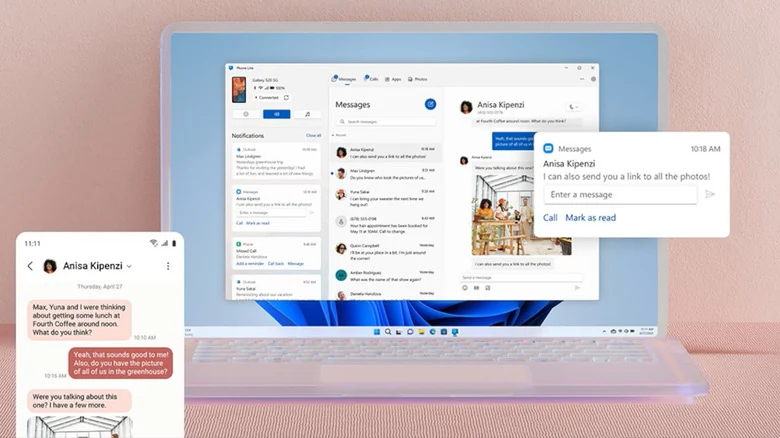
Once the initial configuration is complete, executing phone calls through the Phone Link application's Calls tab is straightforward. Users can search for a synced contact to dial quickly or utilize the on-screen dial pad for one-off telephone numbers.
Receiving incoming calls on the computer requires no additional user action, provided the mobile phone is kept nearby to maintain a clean signal strength. For individuals who plan to take calls frequently on their desktop, grabbing a gaming headset or a similar audio peripheral can prevent surrounding individuals from overhearing conversations while ensuring a dedicated microphone is always ready.
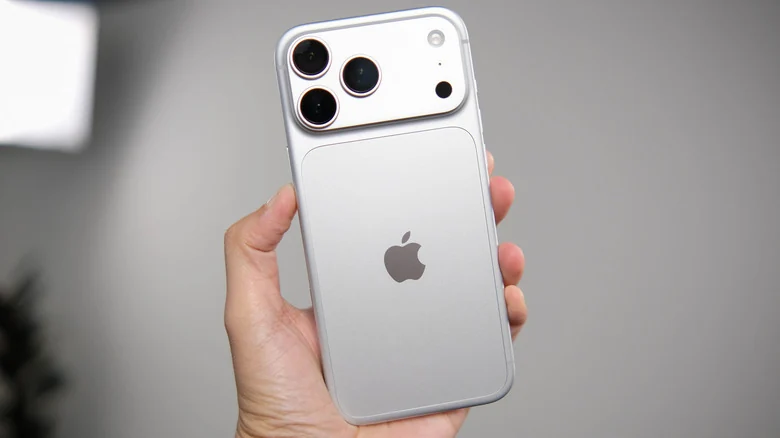
Feature Variations Between iOS and Android
Significant functional differences exist between the iOS and Android implementations of Phone Link. For iPhone users, application capabilities are largely restricted to placing calls, sending text messages, and viewing or dismissing phone notifications. Users can adjust these specific functions by opening Phone Link on their PC, clicking the settings gear icon, and navigating to the features menu.
In contrast, Android users receive additional system integration capabilities, including the ability to view and copy up to the last 2,000 photos stored in their camera roll. This capability provides a simpler method for copying a single image directly into a document or personal file storage without requiring a direct cloud library sync.
Other Android-exclusive controls include activating Do Not Disturb modes, muting device audio when media is playing, and managing music playback controls. These additional options make the Android integration a more comprehensive cross-device solution compared to the more basic implementation provided for iOS.
Managing General Settings and Notifications
Regardless of the mobile operating system being used, users can fine-tune their experience by exploring the general options under the application settings. This menu permits adjustments regarding the amount of private data displayed in notification banners, as well as whether numbered badges appear for unread messages.
Because Phone Link flags items as unread until manually checked or dismissed, adjusting these settings can help prevent repetitive visual notifications for material that has already been addressed on a mobile lock screen. Additionally, users dealing with disruptive communications can take steps to fight back against spam calls while working.
Sources
- EngadgetHow to use your Windows PC to make and receive phone calls
Continue chronologically


Related entity coverage
Related stories
Microsoft Updates Windows 11 with Memory and Performance Boosts
Microsoft has rolled out Windows 11 updates designed to improve responsiveness and memory efficiency, especially benefiting PCs with lower RAM.
Microsoft Issues OOB Windows Updates to Untrust eMudhra
Microsoft releases out-of-band Windows updates to remove trust in certificates tied to compromised eMudhra keys for offline and restricted systems.
How to Fix an Unresponsive Phone Screen
Learn practical troubleshooting steps to fix an unresponsive phone screen, from cleaning and force-restarting to screen mirroring and safe mode checks.
NTDEV Runs Windows 11 26H2 on 128MB RAM, 3.1% of Minimum Requirement
Developer NTDEV demonstrates Windows 11 26H2 on just 128MB RAM, a tiny fraction of Microsoft’s 4GB minimum, showcasing extreme hardware stripping while retaining basic desktop functions.