
How to Use Your iPad as a Second Screen for Mac or Windows
Your iPad can serve as a highly effective external monitor, helping you boost productivity whether you are working from a coffee shop or traveling. While the device was not originally designed for this specific purpose, several methods allow it to act as a seamless second display.
 Radwan AbdulhadiEditor and technology writer
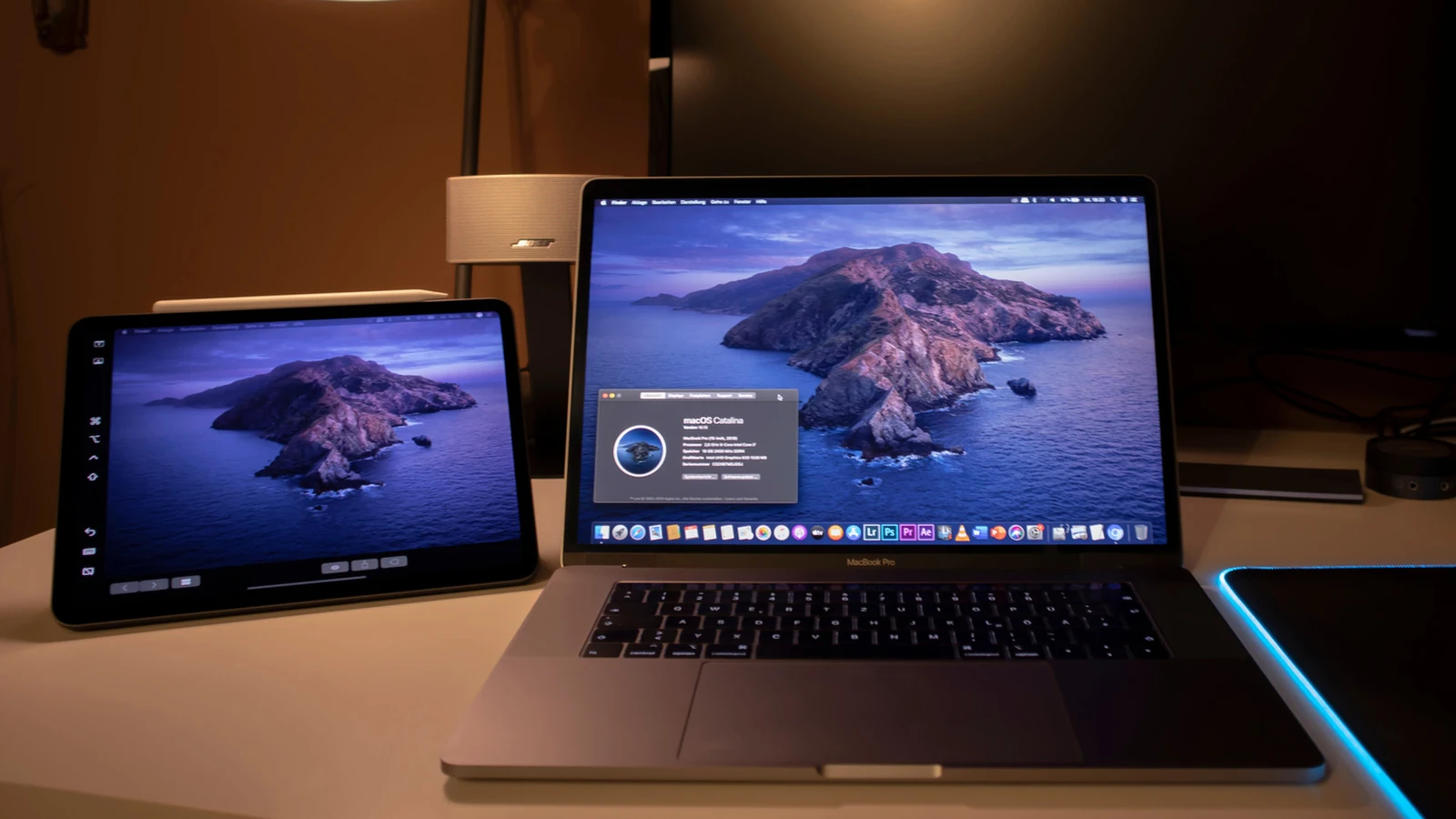
Maximizing Productivity with an iPad Monitor
Portable displays can be quite useful for mobile professionals, and your iPad is more than capable of pulling double duty as a secondary monitor. By repurposing your tablet, you can easily expand your digital workspace without the need to purchase dedicated hardware. Depending on your current setup and specific needs, there are various ways to turn your iPad into a functional screen that even supports advanced features like Apple Pencil input on your Mac.
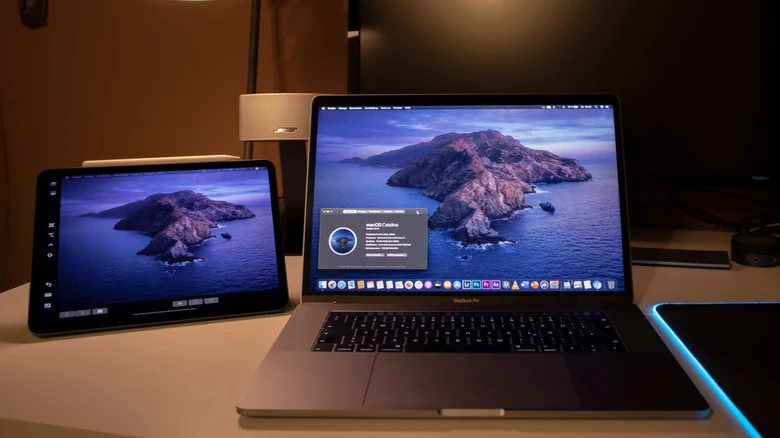
Using Apple Sidecar and Universal Control
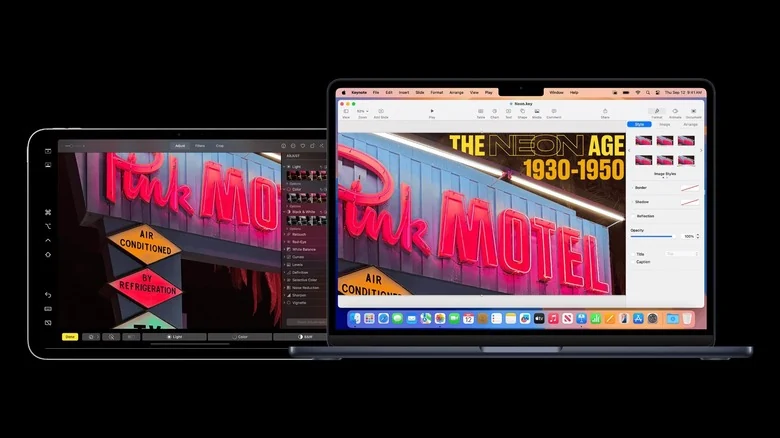
For those already in the Apple ecosystem, Sidecar is the most straightforward method. To begin, ensure both your Mac and iPad are signed in to the same iCloud account. From the Mac’s Control Center, select Screen Mirroring and choose your iPad. This transforms the tablet into a high-resolution secondary display that you can arrange via your System Settings. If you prefer to keep the devices as separate entities while sharing input, iPad and Mac users also have access to Universal Control, which allows you to move your cursor across screens or drag and drop files between devices seamlessly.
Solutions for Windows and Cross-Platform Users
While native features like Sidecar are restricted to Apple hardware, Windows users can utilize third-party applications to achieve a similar experience. Duet Display is a prominent choice that requires software installation on both the computer and the iPad. It serves as a versatile alternative that functions on both Windows and Mac environments, particularly when a user's devices are not linked via the same Apple ID. While Sidecar is free to use, Duet Display typically requires a paid license for its full suite of features.
Hardware-Based Connectivity with Luna Display
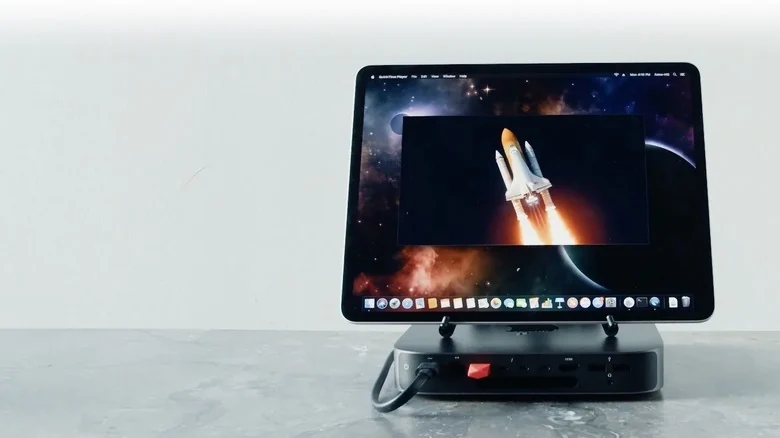
For users seeking a more hardware-centric approach, Luna Display offers a unique solution. Unlike software-only apps, this method relies on a physical companion dongle that handles wireless transmission, often resulting in a more reliable connection. The device is priced at $79 and avoids recurring subscription costs. Furthermore, it features a 'headless mode,' which is ideal for power users who need to connect to a Mac mini without a traditional monitor attached. This provides a robust alternative to software-based solutions for both Mac and Windows users.
Optimizing Your Dual-Screen Workflow
Regardless of the method chosen, many of these solutions support touchscreen interaction and Apple Pencil integration, effectively turning your iPad into a temporary graphics tablet. To ensure a smooth experience, consider utilizing a wired connection to minimize potential glitches or lag. Additionally, having the right iPad accessories—such as a dedicated tablet stand—can significantly improve your ergonomic setup, making the secondary display feel like a permanent part of your professional workstation.
Sources
- EngadgetHow to use an iPad as a second screen for your Mac or Windows PC