How to fix smart speaker voice recognition issues
Smart speakers offer everyday convenience, but background noise, distance, and incorrect settings can easily disrupt voice commands.
 Radwan AbdulhadiEditor and technology writer
Understanding Smart Speaker Misunderstandings
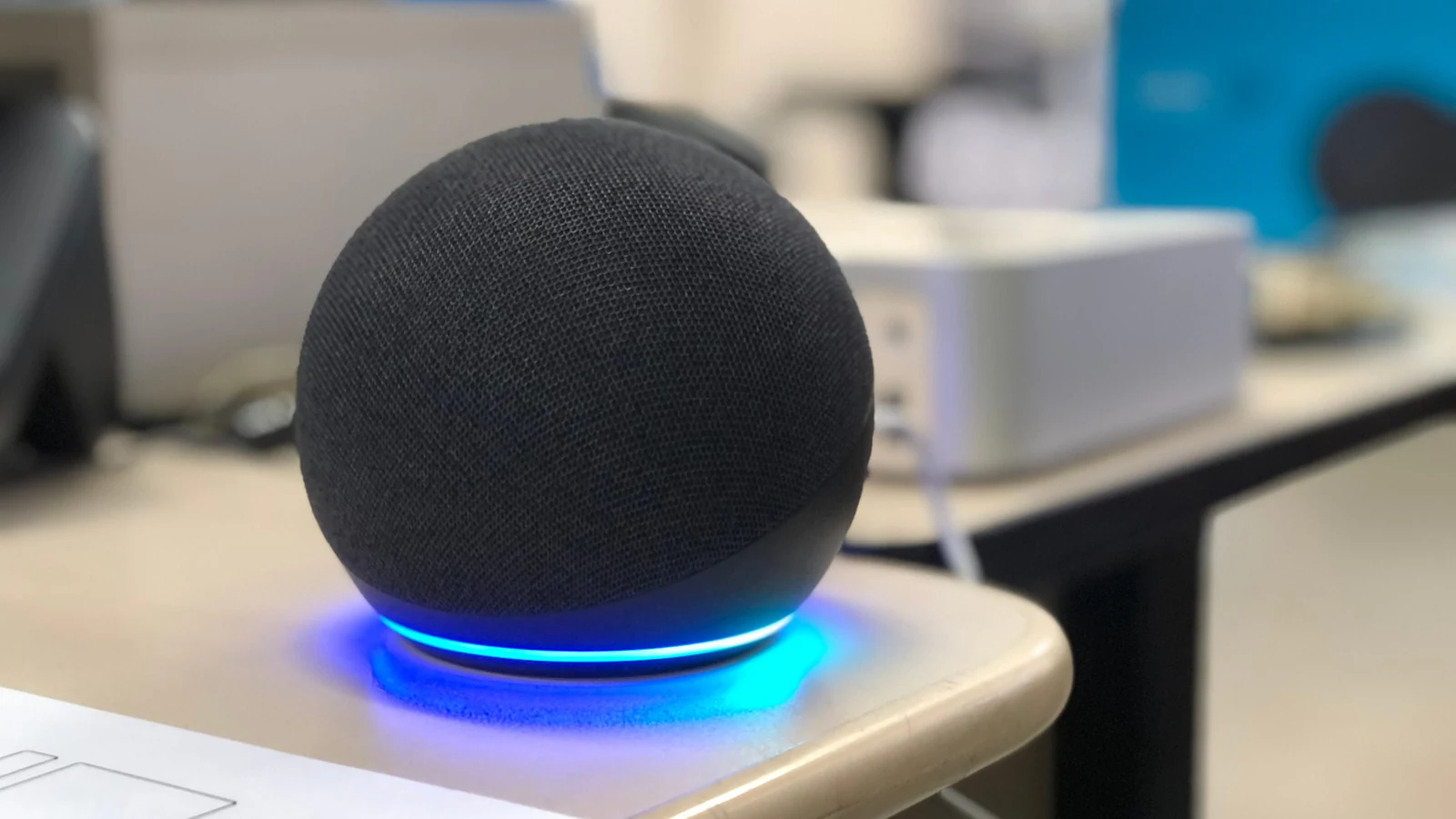
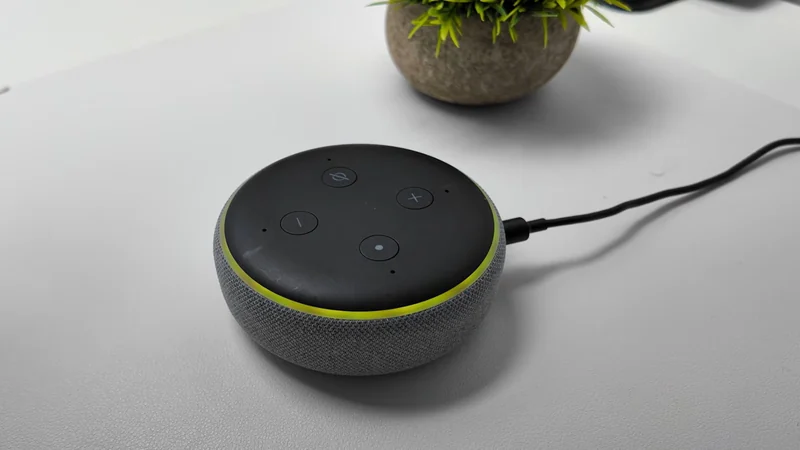
Smart speakers have generally grown much better at comprehending human speech, yet they still fail to interpret commands correctly on occasion. Because these gadgets are integrated into daily routines for maximum convenience, users immediately notice minor annoyances when they stop working smoothly. A particularly common problem involves the speaker misunderstanding requests due to factors like user proximity or ambient household noise. Fortunately, according to [Engadget](https://www.engadget.com/2279051/smart-speaker-misunderstands-you-how-to-fix/), these frequent hiccups are often quite simple to troubleshoot and resolve.
While many troubleshooting approaches apply universally across top smart speaker models, the major platform ecosystems also require specific configurations. Addressing these issues systematically can drastically improve how well your household assistant processes voice requests.
Universal Physical Adjustments
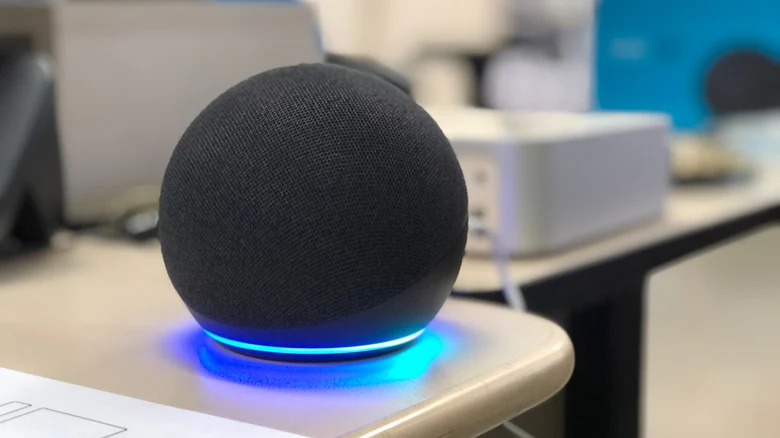
The first step in fixing recognition issues is physical maintenance. Users should inspect the hardware and gently wipe down the unit using a dry cloth if there is any visible dust or gunk buildup. If the device continues to struggle, relocating the speaker to another spot or an entirely different room can yield immediate improvements.
Background noise, persistent echoes, and improper distance from the speaker can dramatically interfere with voice processing. Experts recommend keeping smart speakers away from regular noise sources such as oscillating fans or surround sound speakers. Ideally, owners should position the unit at least one foot away from any walls to minimize acoustic interference.
Having multiple speaker units in close proximity can also create conflicts if the wrong unit intercepts a request. If the companion mobile app permits, users can try lowering the sensitivity of the problematic speaker. For Amazon Echo hardware, changing the wake word per-device helps prevent accidental activations. If these adjustments fall short, keeping devices physically separated as much as possible is recommended.
Command Clarity and Smart Home Naming
After shifting hardware around, users should test several voice commands to verify whether comprehension has visibly improved. It is equally important to ensure that the issued command is something the speaker is technically capable of executing. Naturally, users must also remember to speak clearly and concisely during every interaction.
When smart speakers interface with other automated home goods, configuration errors can lead to misunderstandings. Users must make sure that all linked smart home devices have completely unique names. Assistants can easily mistake one appliance for another if multiple items share similar titles. Incorporating a few distinct words into each device name ensures maximum clarity, while assigning clear labels to every room in the home app further reduces confusion.
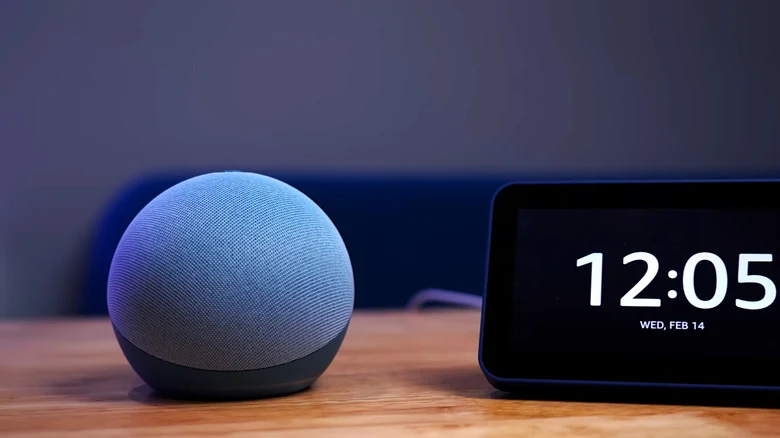
Configuring Voice Recognition for Alexa, Google, and Apple
If a speaker continues to misinterpret commands after physical adjustments, fine-tuning software settings is the next logical step. Setting up dedicated voice recognition profile features helps the digital assistant easily learn individual speech patterns.
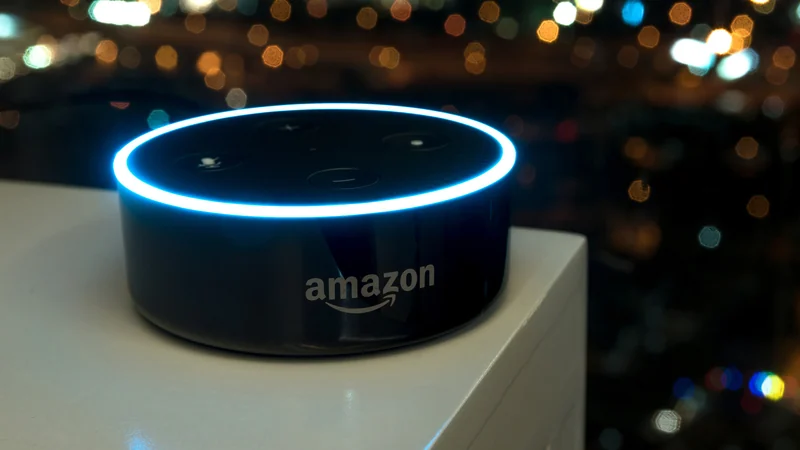
For Amazon Echo owners, opening the Alexa app and navigating to More, Settings, Account Management, Your Profile, and finally Voice ID allows the system to prompt users for various voice commands, establishing a profile recognized across compatible platforms.
Google-powered speaker users can open the Google Home app and navigate to Settings, Google Assistant, and Voice Match to configure voice recognition for all connected household devices. This feature supports up to six distinct user voices per home.
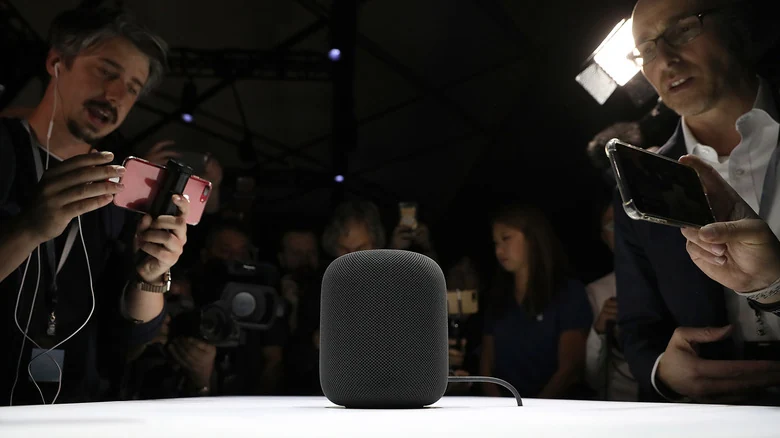
Apple HomePod users can open the Home app, tap the More button marked by three dots to access Home Settings, select their user profile, and toggle on Recognize My Voice. For an optimized cross-device experience, users should also open their phone settings, tap their name, go to iCloud, tap See All next to Saved to iCloud, and enable Siri.
Rebooting and Resetting Your Device
When software tweaks and physical repositioning fail to resolve comprehension issues, a simple system reboot is often effective. Users can restart their smart speaker by unplugging the power cord for approximately one minute and then plugging it back in.
If major software corruption or persistent hardware issues are suspected, a factory reset may be required. Because a factory reset erases all custom user settings and preferences, it should only be utilized as an absolute last resort when every other troubleshooting method has failed.
Sources
- EngadgetWhy your smart speaker keeps misunderstanding you (and how to fix it)
Continue chronologically
Related entity coverage
Related stories
Common Amazon Alexa Problems and Simple Ways to Fix Them
Discover simple troubleshooting steps for common Amazon Alexa issues, from voice recognition problems and long responses to unresponsive devices.
What Does the Yellow Light on Your Alexa Device Mean?
Learn what a flashing yellow light on your Amazon Echo means, how to clear your notifications, and how to customize your settings in the Alexa app.
Amazon’s Bee Launches Two New Personal AI Hardware Devices
Amazon-owned Bee has introduced the Bee Frontier and Bee Eclipse personal AI hardware devices, featuring conversation summaries and assistant integrations.

Google TV Streamer Sequel Highlights Smart Home Strategy Challenges
Google is reportedly preparing a next-generation TV Streamer, but the hardware lineup faces mounting competition and calls for ecosystem updates.