Understanding Netgear Router Lights and Indicators
Deciphering the array of lights and symbols on a Netgear router is essential for monitoring your network health, power status, and overall connectivity.
 Radwan AbdulhadiEditor and technology writer
Introduction to Netgear Router Indicators
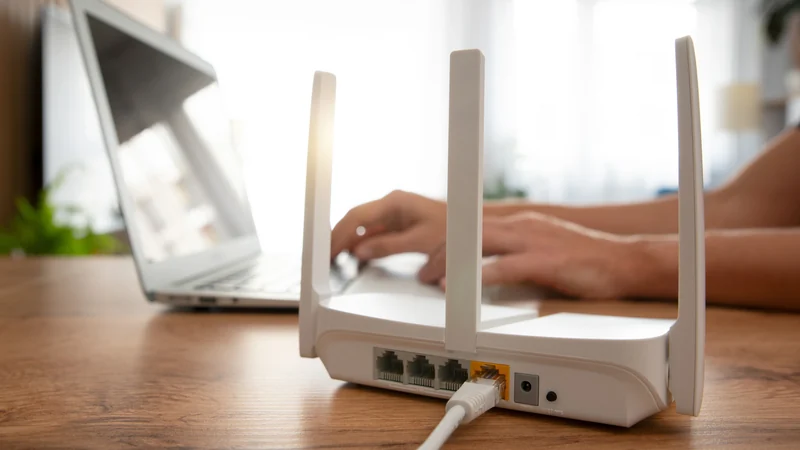
The front of a Netgear router is typically dotted with a wide array of lights and symbols. While some indicators like the power symbol are straightforward, the lights themselves can be much less clear. They often vary in color, sometimes blinking and other times remaining solid. Without checking the manual, understanding what each light signifies can be challenging.
Knowing how to interpret these indicators is important for troubleshooting and making sure your network operates correctly. Whether you utilize a traditional setup or one of the company's mesh Wi-Fi systems, understanding what your Netgear device is communicating helps maintain optimal performance.
The Most Important Router Lights
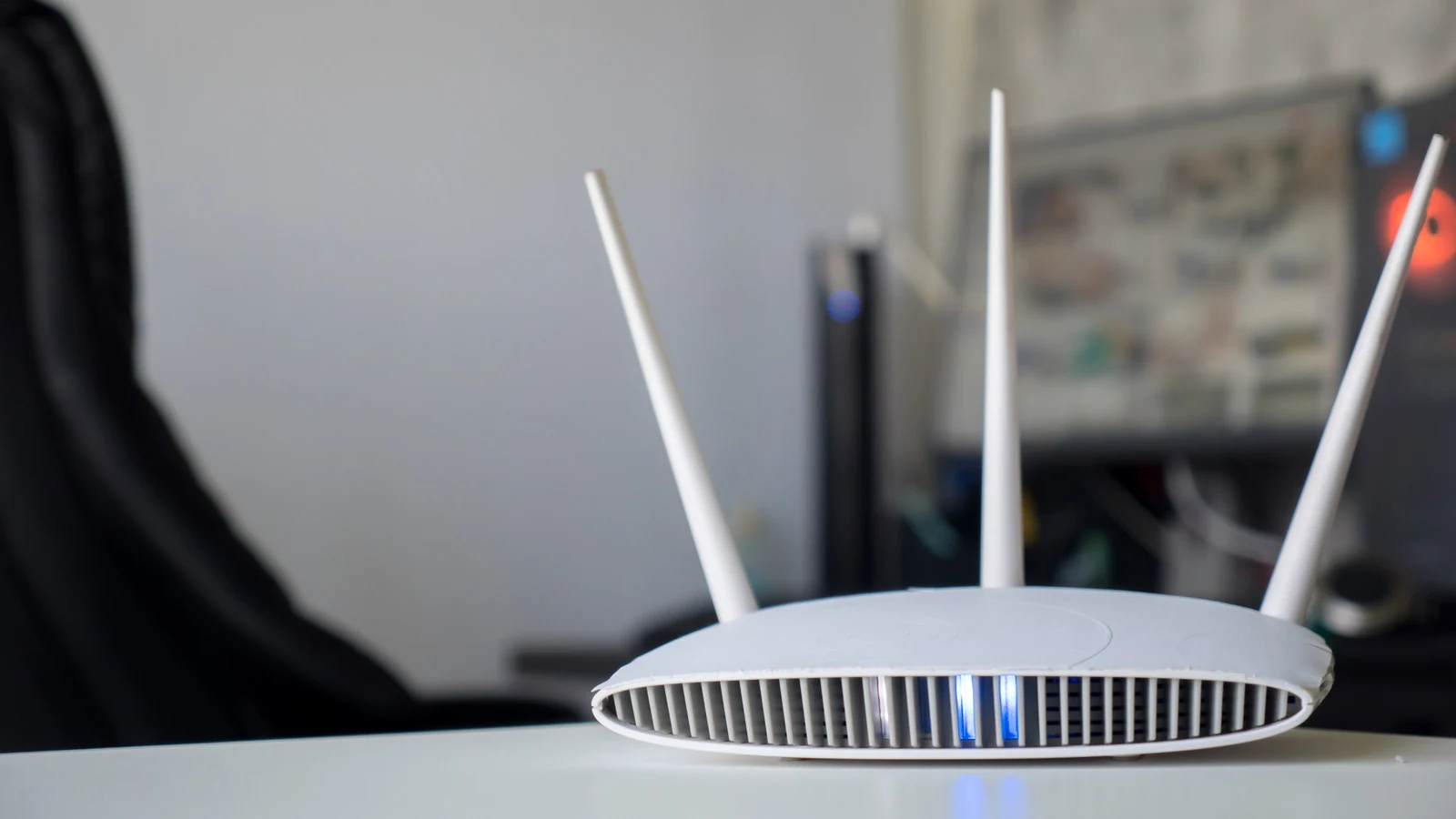
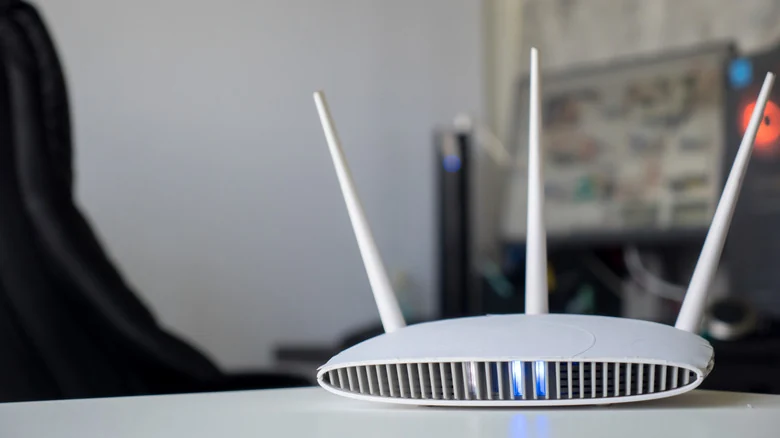
Certain lights on a router demand the most attention because they reflect impactful operational stats, including power and internet connection status. The power indicator communicates information about the device's firmware and power status, turning off completely if the router lacks power.
A solid green or white power light indicates the router is on and ready. A blinking amber light signals that a firmware upgrade is underway or that the reset button was pressed. Meanwhile, a blinking white light points to corrupted firmware, and alternating white and amber blinking means the router is operating in access point mode.
When running in access point mode, the router acts as a connection point for other devices rather than handling normal routing functions, which disables certain features like remote management and VPNs. If a router malfunctions, restarting it is the primary step, followed by a factory reset if it remains completely unresponsive.
Another crucial light shows general connection status through an icon with a small circle orbiting a larger one. If it is off, the router is disconnected from the modem, meaning users should check if the Ethernet cable is fully inserted and undamaged. Solid green or white indicates a ready internet connection, solid amber detects an Ethernet cable connection to the modem, and blinking white signifies that the port is actively sending or receiving traffic.
Additionally, a light represented by a small dot with two curves on each side displays general Wi-Fi traffic. Solid white means the Wi-Fi radios are operating, while blinking white indicates the transmission or reception of Wi-Fi traffic.
Band, USB, and Port Indicators
Beyond the primary status indicators, further lights on a Netgear router assist with specific troubleshooting tasks or when plugging additional devices into the router. Modern routers feature dedicated lights for the standard 2.4GHz and 5GHz bands, alongside a 6GHz light on Wi-Fi 6E models and newer. These band lights operate consistently: solid white means the radio is active, and blinking white shows traffic activity.
USB port activity is represented by the trident USB symbol or the text 'USB 3.0'. When the light is off, no USB device is connected, or the Safely Remove Hardware button was successfully pressed. A solid green or white light indicates an attached USB device is ready for use.
Numbered indicators represent each Ethernet port on the router, with colors communicating connection speeds. White or green points to 1 Gbps connections, whereas amber denotes slower 100 Mbps or 10 Mbps connections. A solid light means a powered-on device is connected, and a blinking light indicates active traffic.
Finally, a light shaped like a router with signals coming out of it indicates the success of a Wi-Fi Protected Setup (WPS) connection. While WPS allows users to add devices without manually typing network credentials, experts advise that users should disable this feature for the best router security.

Reading Netgear Orbi Mesh System Lights
Netgear's Orbi Wi-Fi mesh system adopts a more minimalist lighting approach compared to traditional routers. Orbi devices incorporate an indicator light on the bottom-front and another located at the back. The front light communicates connection status, while the back light ties directly to power and firmware operations.
For connection status, a solid blue light means the link between the router and satellite is strong. A solid amber light indicates an adequate but suboptimal connection, and a solid magenta light shows a complete lack of a backhaul or internet connection.
Regarding system operation, a solid green light confirms both the router and satellite are powered on. A pulsing amber light signifies that the device is updating its firmware or undergoing a factory reset, and a pulsing red light warns of potential hardware issues or connectivity failure.
Sources
- EngadgetWhat do all the lights on your Netgear router mean, and which ones actually matter?
Continue chronologically


Related stories
FCC Restrictions on Foreign-Made Consumer Routers Explained
The FCC has implemented a ban on new foreign-manufactured routers and mobile hotspots. Learn what this means for your home network and future hardware.

Do Gaming Routers Really Make a Difference for Network Lag?
An analysis of gaming routers explores whether premium hardware, traffic management, and specialized designs truly improve network performance.
Why Your Home Network Needs Both Ethernet and Wi-Fi
Discover how combining Ethernet and Wi-Fi creates a balanced, reliable home network that balances maximum speed with wireless convenience.

Why Your Wi-Fi Band Selection Might Be Slowing Down Devices
Learn how your router's Wi-Fi band settings, band steering, and channel congestion could be impacting your actual internet speed and device performance.