
How to Create Custom Stickers for iMessage and WhatsApp with ChatGPT
OpenAI has introduced a new, streamlined workflow within ChatGPT that allows users to transform photos into personalized stickers for popular messaging platforms.
 Radwan AbdulhadiEditor and technology writer
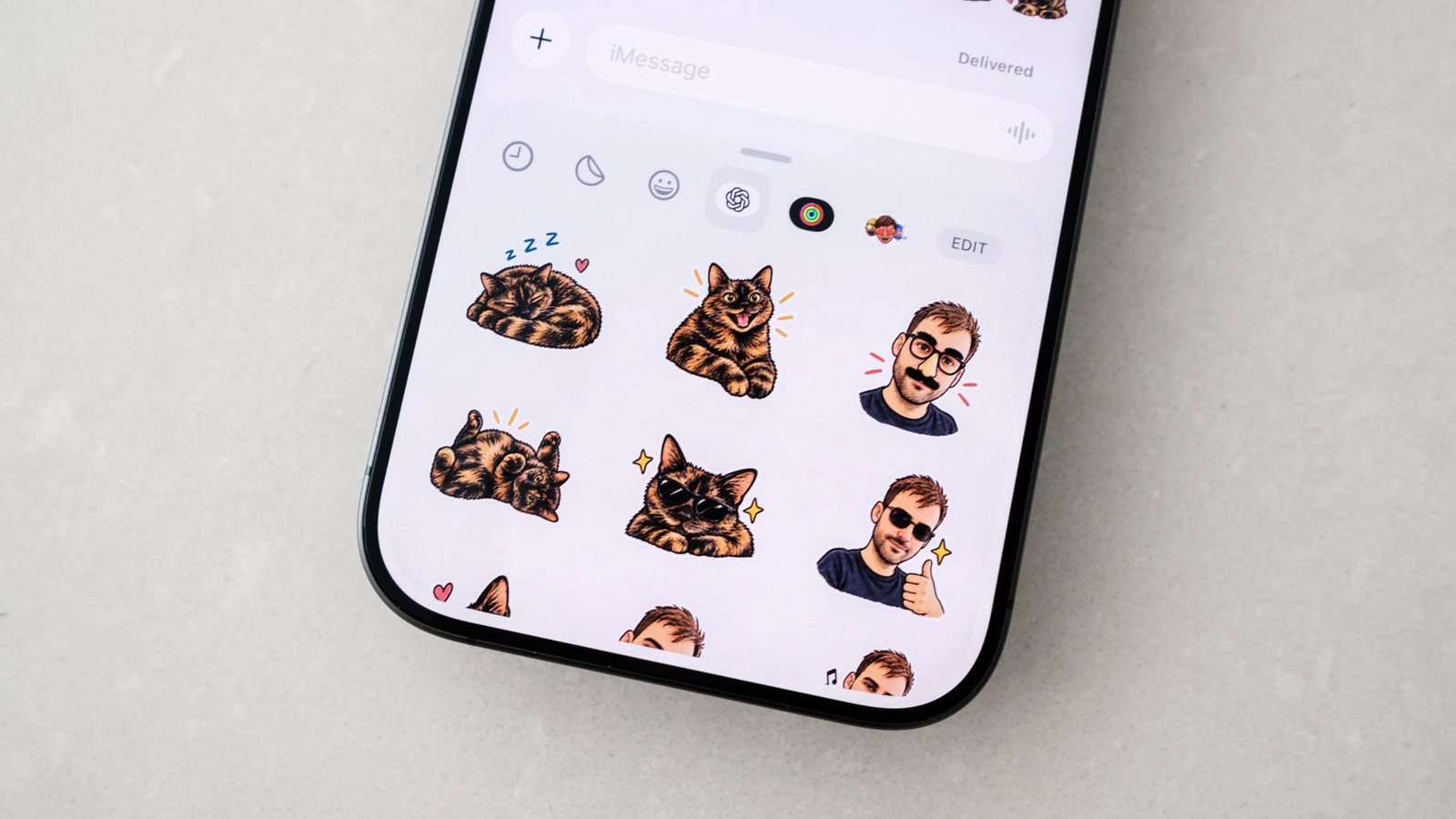
Enhancing Your Messaging Experience
For years, mobile messaging platforms have offered built-in tools to help users express themselves beyond standard text. While Apple has long permitted [iOS](https://apps.apple.com/us/app/chatgpt/id6448311069) users to [turn their photos into stickers](https://support.apple.com/en-ca/guide/iphone/iph9b4106303/ios) for use in iMessage, these tools are often restricted in terms of creativity and customization options. Recognizing a demand for more expressive content, OpenAI has [added a sticker-specific workflow](https://x.com/ChatGPT/status/2091996384954069032) to its platform, enabling users to generate unique graphics that go far beyond basic photo cropping.
This new feature, detailed in reports from [Engadget](https://www.engadget.com/2255727/how-to-use-chatgpt-make-stickers-imessage-whatsapp/), simplifies the process of creating digital assets that can be sent to friends and family. By leveraging the updated capabilities of [ChatGPT Images](https://www.engadget.com/ai/chatgpt-image-generation-is-now-faster-and-better-at-following-tweaks-180000750.html), users can now synthesize high-quality stickers that add nuance and personality to everyday digital conversations.
Navigating the Generation Workflow
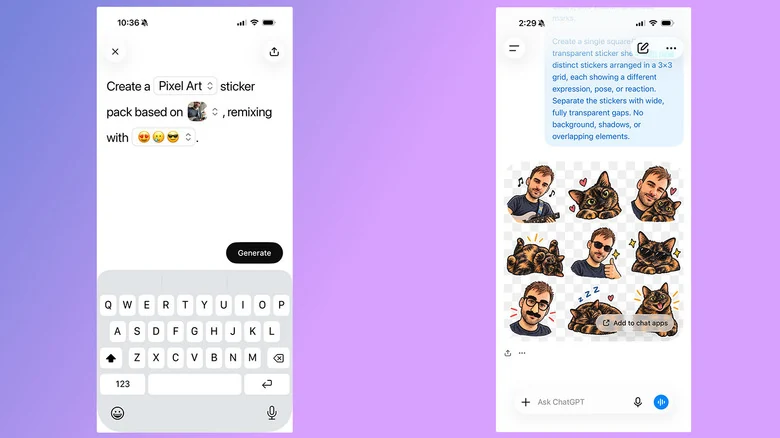
The generation process is designed to be user-friendly, optimized primarily for mobile devices. Whether you are using an [Android](https://play.google.com/store/apps/details?id=com.openai.chatgpt&hl=en_CA) device or an iPhone, the first step involves accessing the menu icon at the top left of the interface to open the sidebar. From there, the application prompts you to provide specific inputs to guide the AI, such as a chosen visual style, a reference image, and relevant emojis.
Once these parameters are set, ChatGPT will generate a collection of nine unique stickers. This set can then be exported to your messaging apps. If you choose to export to WhatsApp, the system will prompt you to name your sticker pack, facilitating organization within the app. For iMessage users, the process is seamless, though it remains exclusive to users on Apple hardware.
Refining and Modifying Your Designs
OpenAI has built flexibility into the workflow, allowing for post-generation adjustments. If the initial set of nine stickers does not align with your vision, you can use the prompt bar to describe specific changes. Simply state what you would like to modify, and the AI will adjust the output accordingly. This iterative process is particularly useful for users who prefer to maintain a consistent style or want their generated stickers to remain closely aligned with the original source photograph.
Furthermore, if you find that the AI has fundamentally misunderstood your initial intent, you can select the three-dots icon to initiate a 'Retry' command. This allows the model to attempt the request again from scratch, providing a fresh set of images that may better capture the nuance you are looking for in your messaging.
Usage Limits and Account Considerations
While the tool is powerful, users should be aware that all sticker generation requests contribute toward their daily and weekly usage quotas. This is particularly relevant for those utilizing a [free account](https://www.engadget.com/2234173/chatgpt-free-features-2026/), as hitting these limits will prevent further generations until the quota refreshes. It is advisable to manage your requests efficiently to ensure you do not experience a service interruption while designing your custom packs.
Integration Into Messaging Platforms
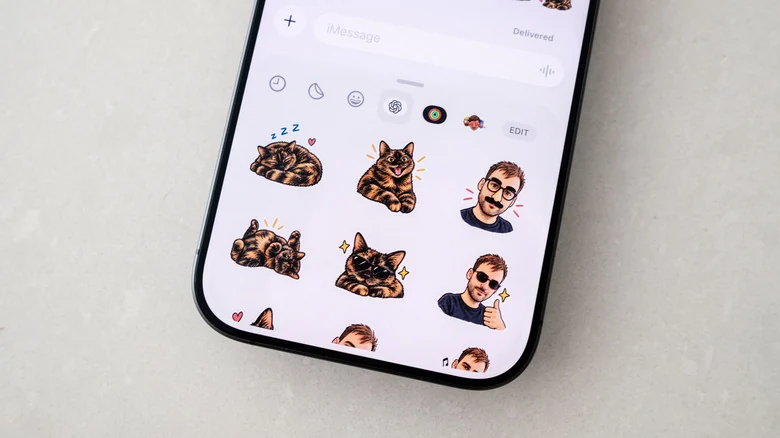
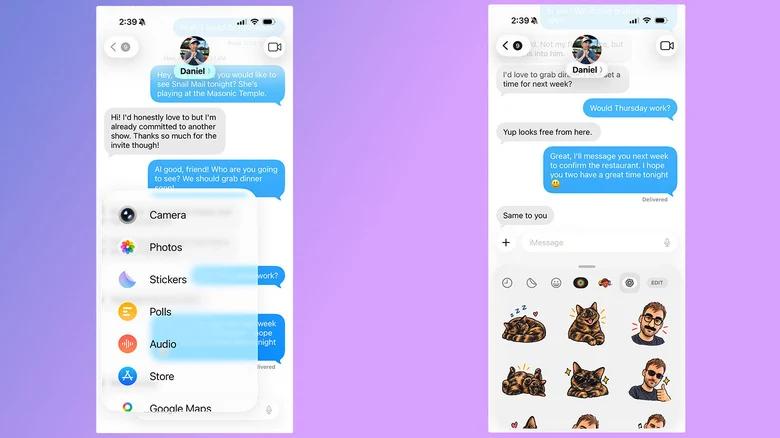
Once you have successfully exported your sticker pack to either iMessage or WhatsApp, sending them is identical to the standard process for any other sticker. In your respective app, tap the OpenAI logo near the compose window to view your recently created assets. Selecting the sticker icon will allow you to browse through your custom collection and incorporate them into your chats. If you are viewing a selection of GIFs, you may need to navigate to the specific sticker tab to locate your imported packs by their assigned names.
Sources
- EngadgetHow to use ChatGPT to make stickers for iMessage and WhatsApp