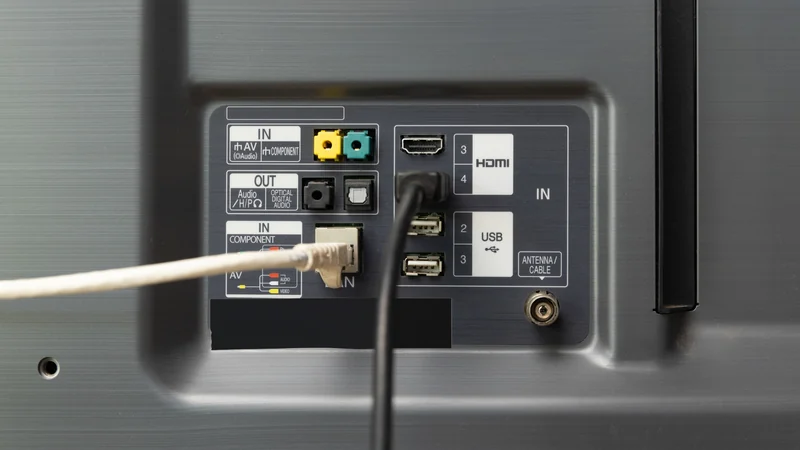
How to Add and Rearrange Apps on Your Samsung Smart TV
Samsung smart TVs come pre-loaded with popular streaming options, but adding and reorganizing new applications is a straightforward process.
 Radwan AbdulhadiEditor and technology writer
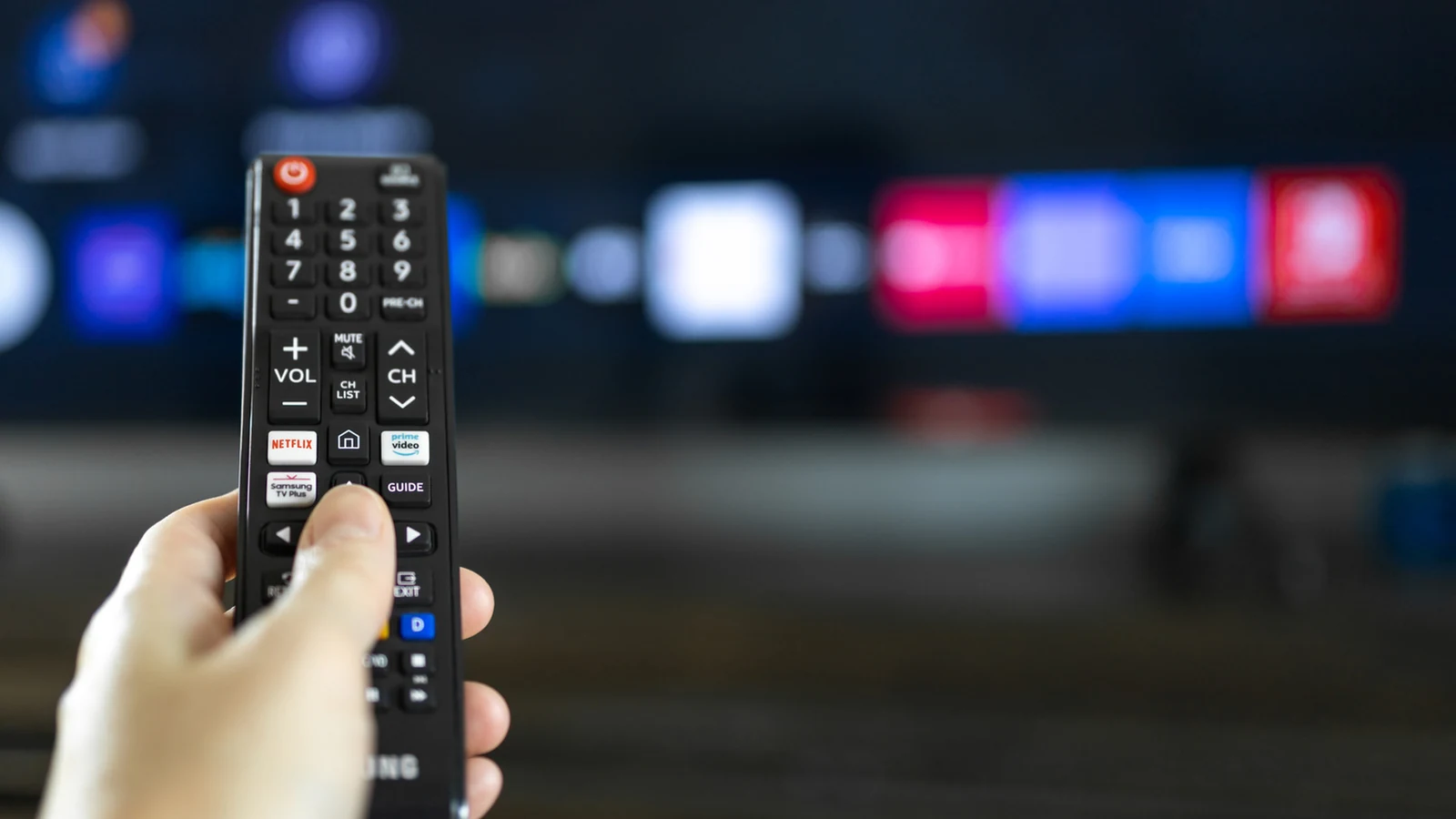
Getting Started With Your Samsung Smart TV
Smart TVs allow users to access streaming services and self-hosted media servers, such as Plex, directly without needing to purchase an extra device like a streaming stick, though there are other reasons to buy a streaming device when you have a smart TV.
Even though smart TVs come equipped with standard features, users might not be taking full advantage of what their displays can offer. Fortunately, adding new applications to a Samsung smart TV is a simple process if the desired software is not included during the initial setup.
Default Applications and Finding More Content
If households only require the most popular streaming services, they may not need to perform any extra installation steps. Samsung smart TVs typically arrive pre-loaded with applications such as Netflix, YouTube, Disney+, Prime Video, and Apple TV. However, that lineup can vary depending on which apps are available in a specific region.
For anything beyond the standard software, including like these free channels for your smart TV, users must download new applications using the built-in search functionality found directly on the television interface.
How to Install New Applications
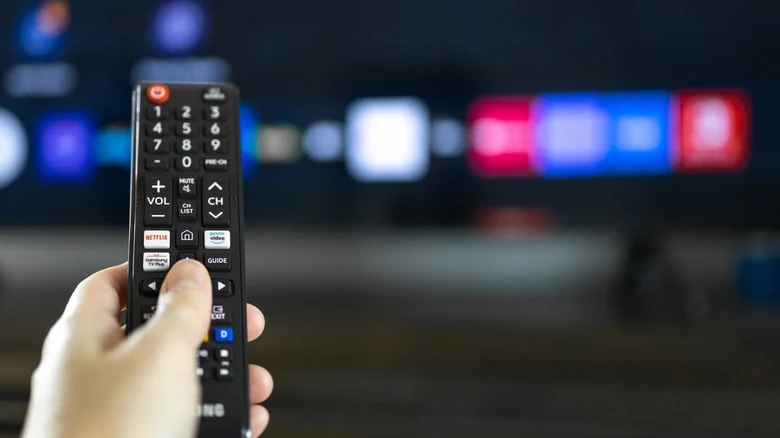
To begin installing new programs, bring up the TV home screen using your remote control. Select the search bar located at the top of the display and type in the name of the app you wish to download.
If a searched application does not appear in the results, it may be unavailable in your geographic region or unsupported by Samsung altogether. In fact, Samsung has even publicly banned some smart TV apps that do not meet its platform guidelines. If the app is available, simply select its icon with your remote to initiate installation.
Users who do not have a specific service in mind can also browse selections sorted by category within the dedicated apps menu on the television.
Pinning Applications to the Home Screen
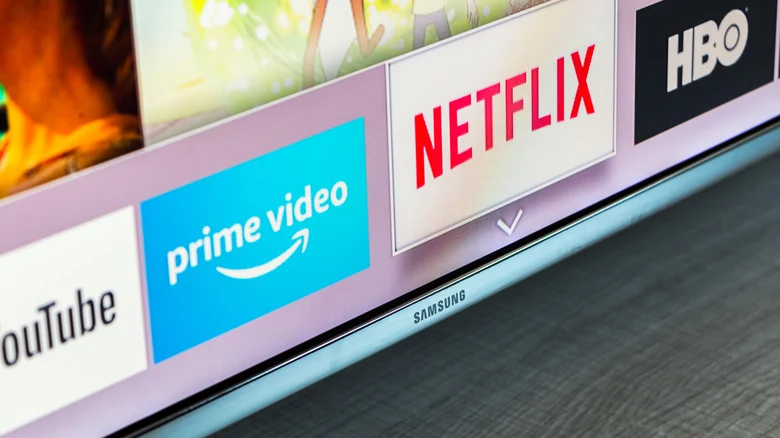
When an application finishes installing, a prompt should automatically appear offering to add it directly to the home screen.
If a user navigates away from that prompt and wishes to pin the app later, all downloaded software remains accessible inside the home screen apps menu. By pressing and holding the selection button on the desired app icon, an option to add it to the home screen will pop up.
Rearranging and Organizing Your Apps
Once applications are successfully placed on the home screen, they can be rearranged into any order that fits the user's preferences. To move an app, navigate to it on the home screen using the remote and press and hold the select button to open the management menu.
Owners of older television models may need to use an alternative command to trigger this menu, such as pressing the down navigation key. From there, choosing the move setting allows individuals to slide individual apps to the left or right across the screen.
The same management menu also provides options to remove an app from the home screen layout or delete the software entirely from the device storage if it is no longer needed.
Sources
- EngadgetHow to add and rearrange apps on your Samsung smart TV
Continue chronologically
Related stories
Instagram quietly launches a new Apple TV app for Reels and video
Instagram has officially expanded to Apple TV, bringing short-form video, live streams, and upcoming longer-form content to the living room.

Why You Should Add a Streaming Device to Your Smart TV
While many televisions come with built-in apps, adding a standalone streaming device can improve performance, extend hardware life, and reduce ads.
Emmys Move From Broadcast TV to Prime Video in 2027
Amazon's Prime Video secures a six-year global deal to stream the Emmy Awards for free starting in 2027, ending traditional network rotation.
Smart TV Wi-Fi vs Ethernet: Speed, Stability, and Streaming
While smart TV Wi-Fi is often faster than its Ethernet port, wired connections offer stability benefits for streaming and reliability.