How to Use Google Gemini Spark to Automate Tasks
Google's agentic personal assistant allows users to delegate repetitive to-do items and run background tasks across Workspace apps.
 Radwan AbdulhadiEditor and technology writer
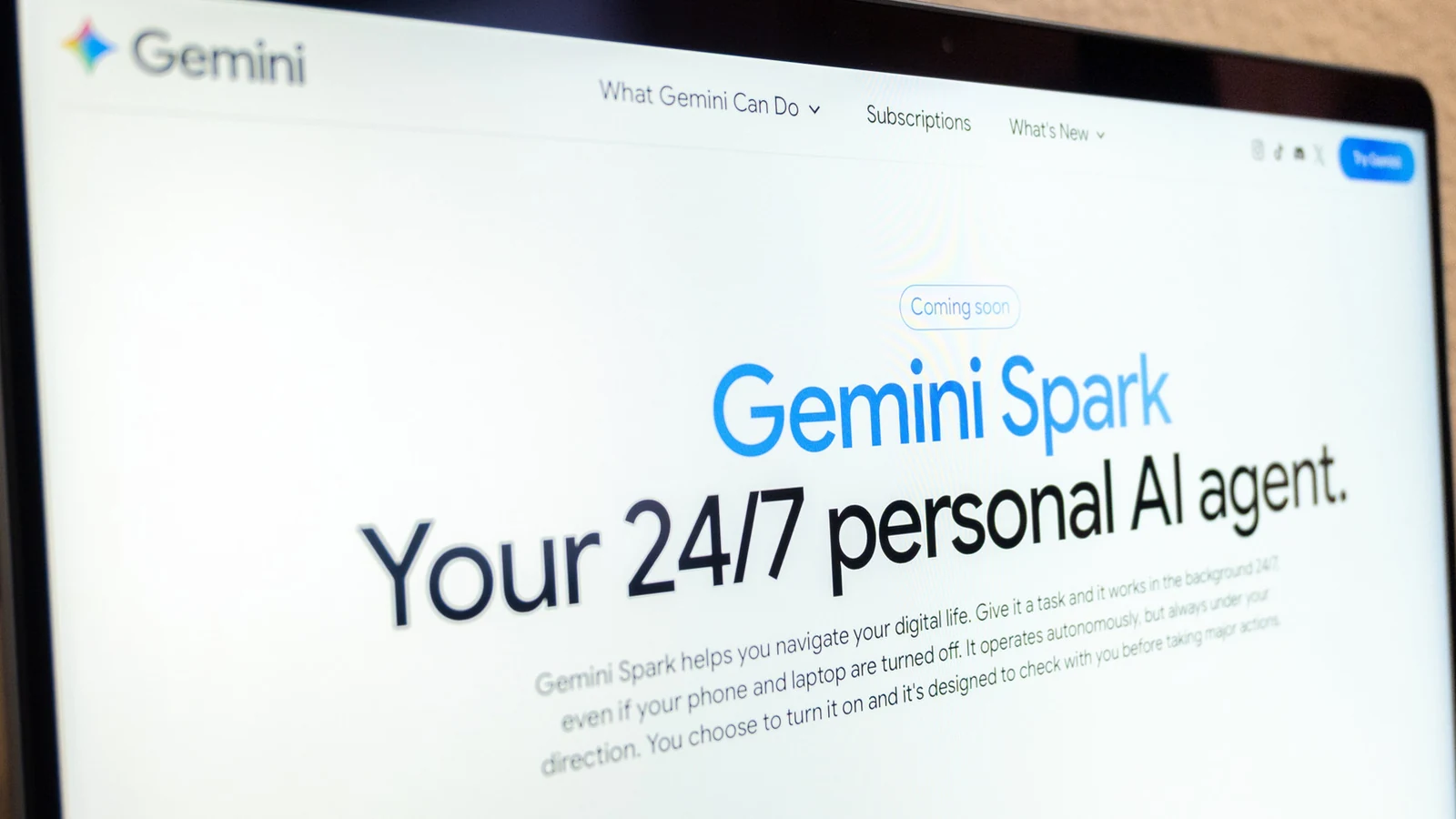
Introduction to Google Gemini Spark
One of AI's promises, on the less "humanity-destroying" end of the spectrum , is to make everyday life a smoother experience by handling routine chores. Instead of tackling every individual item on a daily to-do list, reliable AI tools can potentially cross entries off for users.
For users committed to the Google ecosystem, Spark provides a method to automate tasks that people might prefer to delegate. Spark is an agentic personal assistant announced during Google's annual I/O developer conference .
The tool can run in the background, executing what Google describes as proactive action while adhering strictly to user instructions. More details about its features can be found on the Gemini Spark website .
System Requirements and Access
To gain access to the feature, users must be a Google AI Pro or Ultra subscriber . Certain business subscribers may also qualify for access, though regional restrictions exclude users located in the European Economic Area, Switzerland, the UK, and Nigeria.
Additionally, users must switch on the "Keep activity" setting, which allows chats to continue where they left off. The assistant is available through the Gemini mobile app, the Mac app, and the web app, as well as working within Chrome using auto browse capabilities for tasks like booking reservations.
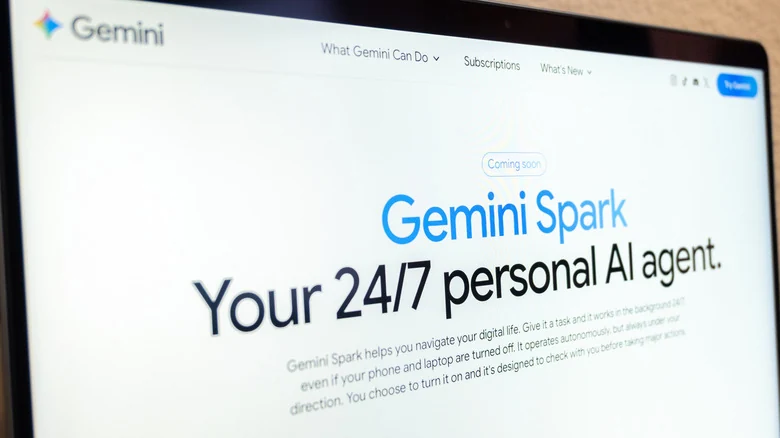
Step-by-Step Task Automation
To begin automating, users can open either the mobile or web application, select Menu, and then choose Spark. From there, instructions are entered directly into the textbox.
Examples of use cases include turning past email responses into a custom style guide or setting up tracking sheets for recruitment leads. Users can also upload relevant files or documents from Google Drive and Notebooks before submitting the prompt.
Monitoring and Skills
Because artificial intelligence can still produce errors, Google cautions users to monitor their automated tasks and avoid inputting sensitive information like login or payment credentials directly into the prompt thread.
Users can check ongoing processes by navigating to Menu, selecting Spark, and then opening Tasks to view the associated thread. The progress chip at the top of the thread opens a work panel displaying completed, current, and planned steps.
Furthermore, Google updated its instruction framework by replacing Gemini Gems with skills, allowing individuals to use skills to automate repetitive tasks by simply typing a forward slash followed by the skill name.
Sources
- EngadgetHow to use Google Gemini to automate tasks
Continue chronologically


Related entity coverage
Related stories
Google Brings Agentic AI to Gemini, Starting With Businesses
Google is transforming its Gemini AI into a unified agentic system capable of planning and executing tasks across workplace applications.
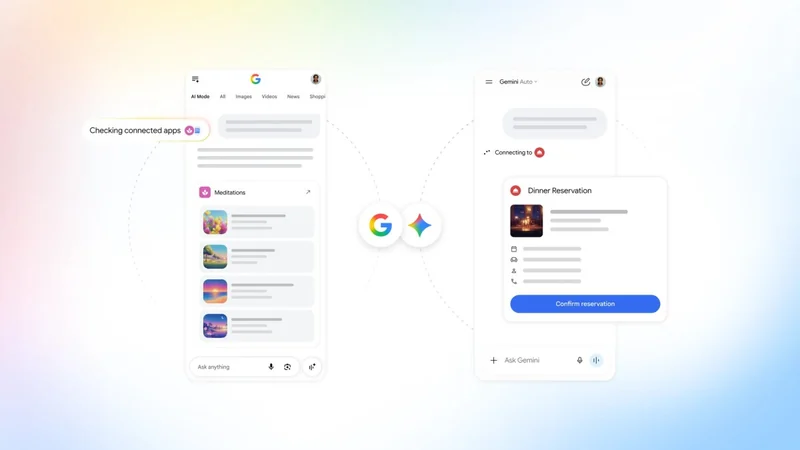
Google Opens Gemini and Search to More Apps With Connected Platform
Google debuts a new developer platform allowing businesses to connect their third-party apps directly to Gemini and Google Search.
Google Connects In-Car Gemini to Gmail and Calendar with Opt-In Personal Intelligence
Google is updating its in-car Gemini AI assistant with a personal intelligence feature to connect data across multiple services while driving.
Google Brings Gemini Personal Intelligence to Android Auto
Google is rolling out Personal Intelligence to Android Auto, bringing context-aware Gemini AI features and Google Workspace integration to vehicles.