How to Enable Developer Mode on Your Chromebook
Enabling Developer Mode on a Chromebook unlocks advanced system capabilities, full root access, and alternative software options by relaxing standard ChromeOS security protections.
 Radwan AbdulhadiEditor and technology writer

Understanding Chromebook Developer Mode
Chromebooks have earned a reputation as affordable, secure, and simple machines. While most owners never venture past the Play Store, power users can unlock a completely different experience by turning on Developer Mode, which strips away built-in protections to give users full control over the system.
According to reporting by Engadget, Developer Mode is a system setting that relaxes ChromeOS 'verified boot' protections. Normally, the operating system runs on a locked-down system that double-checks itself on every boot and sandboxes every app and webpage. Developer Mode tears down most of those defenses to provide root access, kernel modifications, and the ability to install software outside the Play Store.

Security Trade-Offs and Warnings
Once Developer Mode is enabled, users gain full system access to change the ChromeOS kernel and core files. The primary trade-off is security, as the device loses default defenses against malicious tampering.
To remind users that the system is running without a safety net, a visual warning screen appears on startup reading "OS Verification is OFF" or "You are in Developer Mode." The warning times out after 30 seconds with a warning beep.
When Do You Actually Need Developer Mode?
For average tasks like checking email, browsing, streaming, and editing documents, stock ChromeOS provides all necessary safety brackets. However, deeper system-level modifications require Developer Mode.
Users looking into using a Chromebook as your everyday computer may need Developer Mode for full root shell access, loading custom Linux kernels, running alternative operating systems, or executing advanced system tweaks like firmware modifications and boot flag changes.
Additionally, Developer Mode is required to quickly double-click and install APK files directly through the native ChromeOS Files app without using the command line. Users who simply want to sideload APKs securely without Developer Mode can alternatively enable Android Debug Bridge inside the official Linux environment.
Steps to Turn On Developer Mode
Before proceeding, it is important to note that switching between Normal and Developer Mode wipes all local user data. Furthermore, school- or work-managed devices typically block Developer Mode through system administrators.
To begin the process, boot the system into Recovery Mode by pressing and holding Esc + Refresh + Power simultaneously on a standard Chromebook laptop. From the Recovery screen, press Ctrl + D and confirm the prompt to turn OS Verification off, which causes the system to reboot.
After rebooting, a notification will appear stating "You are in Developer Mode" or "OS Verification is OFF." Press Ctrl + D to start the transition immediately, or wait 30 seconds for the automated beep. This data-wipe process can take up to 15 minutes and should not be interrupted.
Evaluating the Shift in ChromeOS
While Google continues to shape the future of ChromeOS software support, Developer Mode remains a specialized feature geared toward developers and Linux enthusiasts rather than casual users.
Anyone deciding to enable Developer Mode should back up their personal files first, keep the device plugged into a power source, and carefully follow all on-screen instructions to avoid interrupting the system transition.
Sources
- EngadgetHow to turn on Developer Mode on your Chromebook
Continue chronologically

Related entity coverage
Related stories
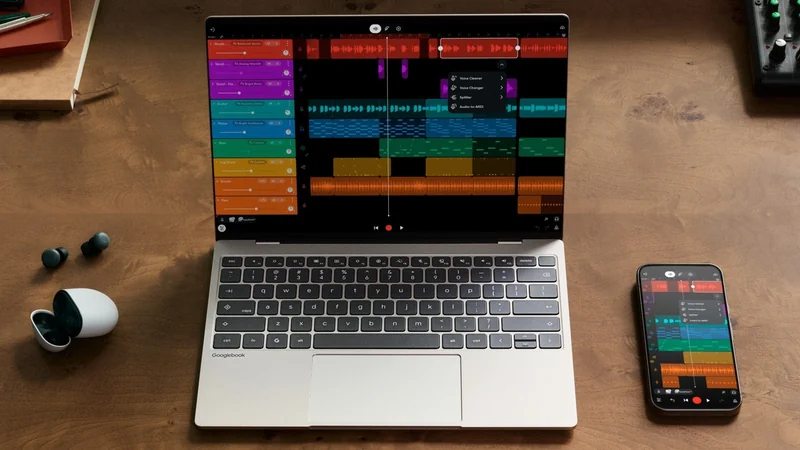
Google's Googlebooks Aim to Bridge Android Phones and Laptops
Google's first Googlebooks go on pre-order October 4, promising deeper Android phone integration, AI tools, and a new Android-based foundation.
Google Freezes Open-Source Bug Bounty Amid AI Slop
Google suspends product vulnerability submissions for its OSS VRP bug bounty program until 2027 following an influx of invalid AI reports.
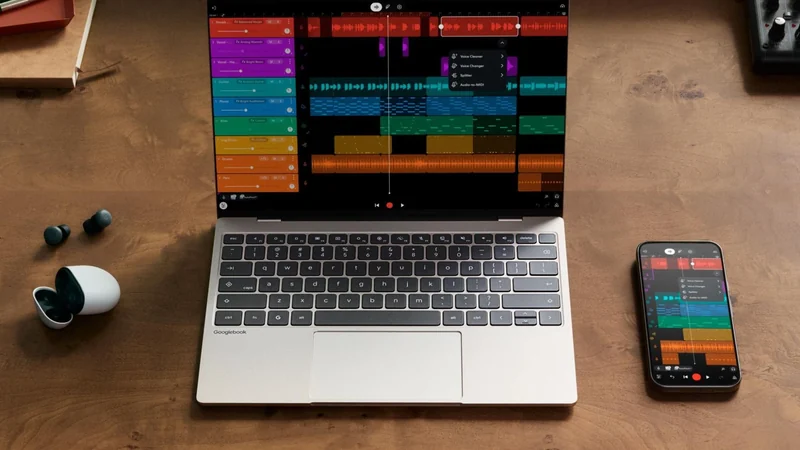
Google Unveils New Googlebook Laptop Lineup
Google launches a new series of premium laptops featuring a hybrid OS, deep Android integration, and advanced Gemini AI capabilities to rival Mac hardware.
Google Pay vs. Google Wallet: Understanding the Differences
Explore the history and differences between Google Pay and Google Wallet, and learn how these digital payment tools function together on devices.