How to Clean Up Storage Space on Your Android Phone
Running out of storage on an Android phone is a common issue, but users can efficiently find and delete old files, manage applications, and utilize cloud backups to recover precious device space.
 Radwan AbdulhadiEditor and technology writer
Managing and Archiving Apps
Apps, images, videos, and downloaded files typically consume the vast majority of device capacity, especially when data has been transferred across multiple phones over the years. One of the most effective ways to free up space is to uninstall applications. To review app sizes, users can navigate to Settings, select Device Care, choose Storage, and then tap on Apps to identify which programs take up the most room.
Instead of permanently removing an application, users can choose to archive it. Archiving deletes core software files and temporary data while retaining login information and personal settings, allowing for a quick restoration after redownloading. Android also features an auto-archive option that targets rarely used applications when storage runs low. According to Google, auto-archiving says that nearly 60 percent of an app's storage space can be freed without removing its presence or user data.
Handling Media and Cloud Backups
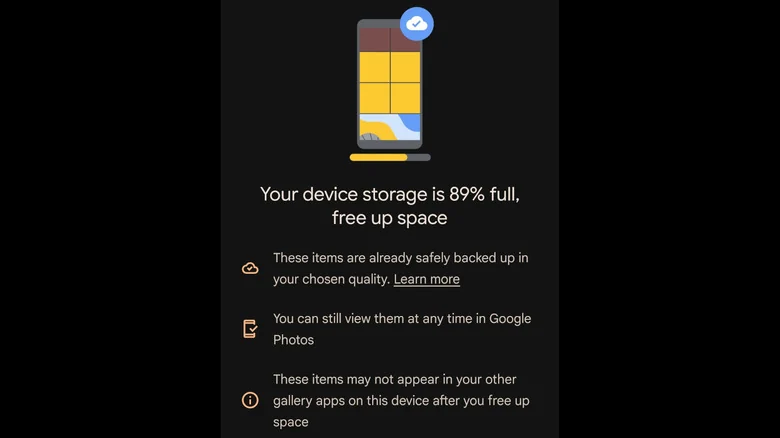
Media files like photos and videos take up substantial space, and users can manually delete them through the phone gallery or by navigating through Storage in device settings. For those who want to preserve their memories without exhausting local capacity, Google Photos offers an effective alternative by saving cloud backups to a Google account.
All Google accounts include up to 15GB of free cloud storage shared across services like Drive and Gmail. Because this allocation can fill up quickly, users may opt for a Google One subscription, priced at $2 a month for 100GB or $3 a month for 200GB. Once items are backed up in the quality you choose, users can utilize the Free up space feature in the Photos app to remove local duplicates while keeping them viewable in the cloud.
Devices may also support Smart Storage, which can be enabled by heading to device settings, selecting storage, and activating the function via the menu options to automatically clear out media that has already been safely backed up.
Tracking Down Hidden Files
Beyond obvious applications and images, various hidden files can occupy a significant footprint on a device. Users experiencing low capacity issues can find comprehensive guidance on reclaiming storage on your Android phone through dedicated platform resources.
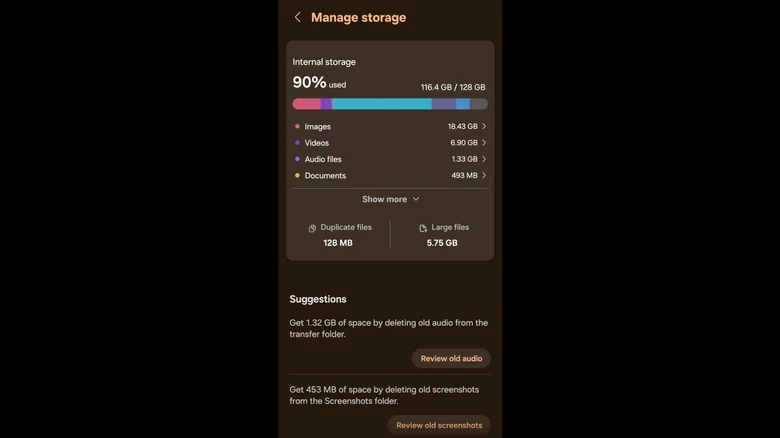
To locate less obvious space-eaters, users should return to the storage menu under device care settings. Here, dedicated sections highlight duplicate files and large files that are eligible for removal. Scrolling down may reveal additional suggestions such as old media files, outdated downloads, pre-edit image backups, and forgotten items nestled within the Other files directory.
Clearing Caches and Emptying Trash
Streaming platforms and social media applications frequently accumulate extensive temporary data. Clearing the application cache for these services should not be underestimated, as it has the potential to recover gigabytes of storage space.
Finally, users should make it a routine habit to empty their digital wastebaskets. By navigating to the device care storage menu and locating the trash or recycle bin folder, individuals can permanently delete discarded items and finalize their cleanup process.
Sources
- EngadgetWhat's actually eating all the storage space on your Android Phone?
Continue chronologically

Related entity coverage
Related stories
Google Photos Rolls Out Customizable Collections Tab Redesign
Google Photos for Android is rolling out a major redesign of the Collections tab with customizable features, new carousels, and reordering options.
Google Photos Fixes Bug That Hid Edited Images From Android Apps
Google has rolled out a fix for a frustrating bug in Google Photos that made edited pictures invisible to other Android apps since over the summer.
Google Fixes Annoying Photos Bug Hiding Edited Images
Google resolves a frustrating bug in its Android image gallery app that caused edited photos to disappear from other applications' image pickers.
How to Improve Location Accuracy on Your Android Phone
Learn how to troubleshoot and improve location accuracy on your Android phone using built-in settings, calibration, and network signals.