How to Quickly Check Your Samsung Galaxy Warranty Status
Samsung offers multiple ways to confirm how much coverage is left on your Galaxy device's warranty before planning for future repairs or service.
 Radwan AbdulhadiEditor and technology writer
Checking Warranty Status on One UI 9
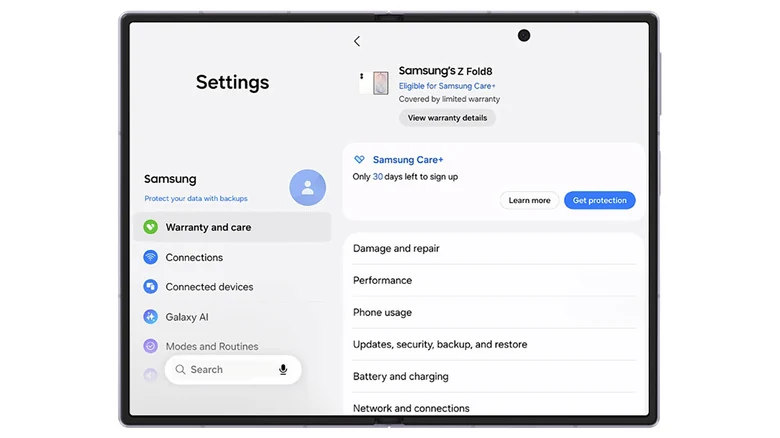
If something goes wrong with your Samsung Galaxy phone or tablet, determining whether it remains under warranty is a smart first step. For [newer devices running One UI 9], Samsung has simplified this tracking process by introducing a dedicated warranty menu directly within the Settings application.
To access this feature, users can head to Settings followed by Warranty and care. This centralized hub conveniently gathers warranty information, device diagnostics, direct repair options, and Samsung Care+ coverage or enrollment details all in one location.
At the top of the menu, you will find your device's specific warranty details, including its coverage type and expiration date. Furthermore, if you have other Galaxy devices linked to your Samsung account, their individual information will be listed there as well.
Built-In Diagnostics and Repair Tools
The new One UI 9 settings menu does more than just show expiration dates. It also [includes built-in diagnostics for hardware] components such as the battery, charging system, screen, camera, and internal sensors.
If the diagnostic tool flags any technical problems, users can immediately jump to available repair options within the exact same menu. Additionally, there is an integrated feature to ask Bixby for troubleshooting assistance if a chatbot can help resolve the issue.
Using the Samsung Members App
For users who are not yet running One UI 9, or whose devices are too old to receive the software update, the Samsung Members app provides an alternative method to register devices and access technical support.
The application usually comes pre-installed on Galaxy devices. However, if it is missing from your app drawer, you can download it directly from the [Galaxy Store] or the [Google Play Store].
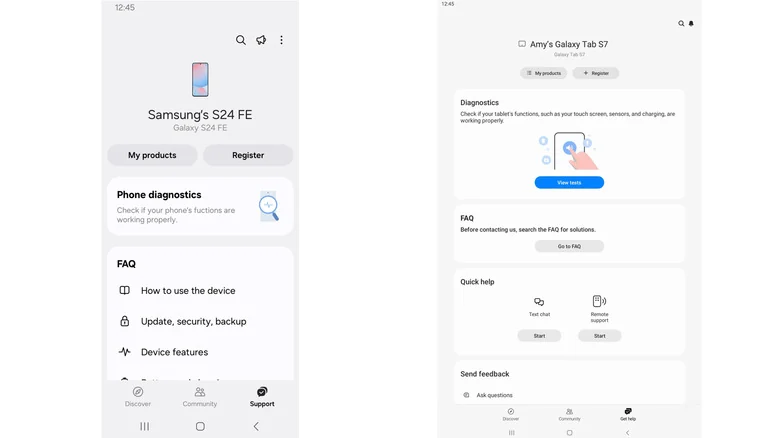
To check your warranty status through the app, open Samsung Members, sign in to your account, and tap the Support option located in the bottom menu. Note that older versions of the application may label this tab as Get help instead.
From this section, you can register your device if it did not do so automatically during initial setup, check its current operational status, and access various support tools. Depending on your specific hardware, app version, and region, the software might also display complete product and warranty details.
Checking via Samsung's Online Portal
If the mobile application does not show your warranty information, [Samsung's online devices portal] serves as a reliable fallback option for customers.
To use the website, open the portal and sign in using your Samsung account credentials. If the device is already registered to your profile, you can view its warranty status by navigating to the My Products section.
If the device is not yet registered, you will need to input its unique serial number or IMEI during the registration process. These identification numbers can be located directly on your physical hardware by navigating to Settings > About phone or About tablet.
Resolving Incorrect Warranty Dates
In situations where Samsung displays an incorrect warranty expiration date for your device, you should look for the Review Warranty option, sometimes referred to as submitting a warranty dispute.
By utilizing this feature, customers can submit valid proof of purchase documentation to ensure their hardware reflects the correct coverage timeline.
Sources
- EngadgetHow to quickly check your Samsung Galaxy's warranty info
Continue chronologically
Related stories
What Does the Shield Icon Mean on Your Samsung Galaxy?
Discover why the shield icon appears next to your Samsung Galaxy battery indicator, and learn how Battery Protection manages smartphone battery degradation.

How to Customize the Side Button on Your Samsung Galaxy Phone
Learn how to personalize your Samsung Galaxy side button for quick access to your favorite apps, voice assistants, and productivity shortcuts.
Samsung Rolls Out Android 17-Based One UI 9 Update
Samsung has started rolling out its Android 17-based One UI 9 update to supported Galaxy devices, bringing new AI features, tweaks, and enhancements.
Samsung Releases One UI 9 With Advanced Galaxy Customization
Samsung rolls out One UI 9, introducing new customization features for the Quick Panel, Edge Panel, and Good Lock suite on Galaxy devices.