
How to Customize the Side Button on Your Samsung Galaxy Phone
Samsung users can move beyond default settings by remapping the physical side button to launch specific apps or trigger custom actions. This simple adjustment turns a standard power key into a versatile shortcut tool.
 Radwan AbdulhadiEditor and technology writer
The Evolution of the Side Button
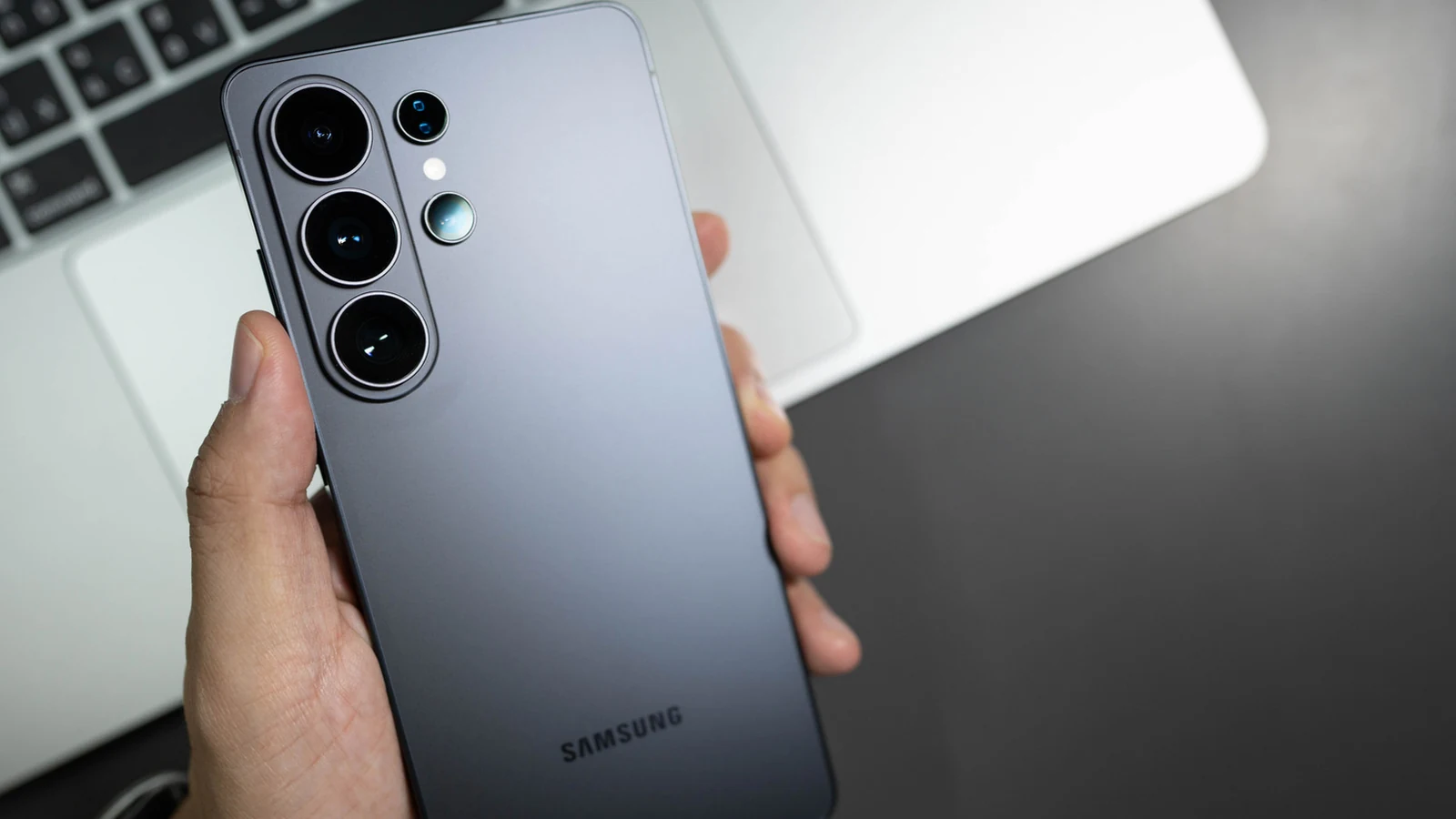
For years, the physical buttons on mobile devices have served standard functions, but Samsung has consistently refined its hardware layout. If you have used a [Samsung flagship phone](https://www.engadget.com/mobile/smartphones/samsung-galaxy-s26-ultra-review-the-stealth-upgrade-140000629.html) from the S8 to the S10, you likely recall the dedicated, and often controversial, Bixby button. Since the [Note 10 series](https://www.engadget.com/2019-08-07-samsung-galaxy-note-10-no-headphone-jack-bixby-button.html), Samsung has moved away from a standalone key for its assistant, choosing instead to integrate those capabilities into the multifunction side button located beneath the volume rocker.
By default, this button handles screen locking, screenshots, and powering down the device. However, as noted in recent [Engadget](https://www.engadget.com/2259632/how-to-customize-samsung-side-button/) reporting, these factory settings do not have to be the limit of the hardware's utility. Whether you are annoyed by accidental triggers or simply want a more efficient way to open your most-used apps, the operating system provides a native way to reclaim control over the button's behavior.
Remapping for Daily Productivity
Customizing your hardware is a straightforward process accessible through the main settings menu. By navigating to Settings > Advanced features > Side button, you can modify what happens when the button is pressed twice. The options are extensive, ranging from launching the Camera or Flashlight to opening specific productivity apps like Samsung Notes or Voice Recorder. Note that for owners of folding devices like the Galaxy Z Flip, the button's behavior may shift depending on the current state of the hinge.
While short-press and double-press actions offer significant flexibility, the long-press action is more restricted. Users can generally choose between the standard power-off menu or triggering [Samsung's Bixby assistant](https://www.engadget.com/mobile/smartphones/samsung-updates-bixby-to-become-more-conversational-112649179.html). In many regions, this long-press capability can also be mapped to other AI-driven assistants, such as Google Gemini, ChatGPT, or Claude, ensuring the button remains a primary gateway to your preferred digital helper.
Advanced Automation with Modes and Routines
One of the most effective ways to utilize the side button is by pairing it with Samsung’s Modes and Routines feature. Rather than just opening an app, you can program the button to trigger a complex sequence of tasks. For example, if you frequently drive, you can map the button to launch 'Driving Mode.' Once activated, the phone can automatically handle hands-free calling, route mapping, and even read incoming text messages aloud to ensure you stay focused on the road.
This functionality is also highly effective for those who need to capture information quickly. If you are in a meeting, you can assign the voice recorder to a double press. This allows you to begin capturing audio instantly, even without unlocking your device, preventing the loss of important thoughts. Because these settings are integrated directly into the system, no third-party software or hidden command codes are required to set up these custom workflows.
Legacy Device Support
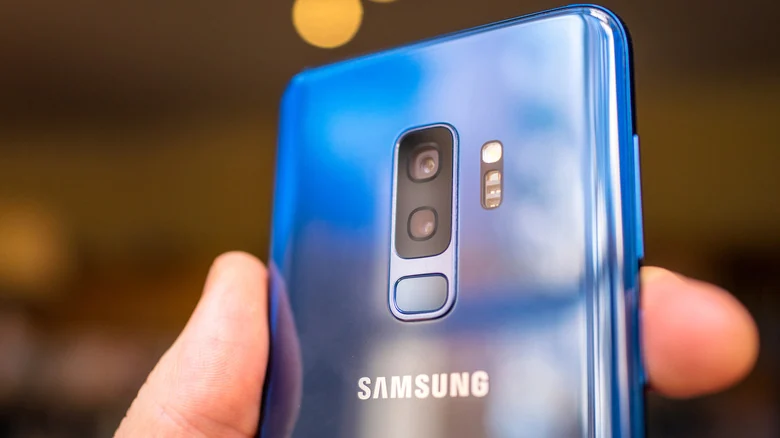
For users who still utilize older Samsung hardware that features a separate, dedicated physical Bixby button—such as the S8, S9, S10, or Note 8/9 series—customization options are slightly different. On these devices, you can navigate to Settings > Advanced features > Bixby Key to modify its behavior. While the long-press function is generally tied to Bixby Voice on these older models, the single and double-press functions can be remapped to launch your choice of application or execute a specific system command, providing a way to modernize the utility of these older flagship models.
Sources
- EngadgetHow to customize the side button on your Samsung Galaxy phone