How to Block Spam Calls on iPhone and Android Devices
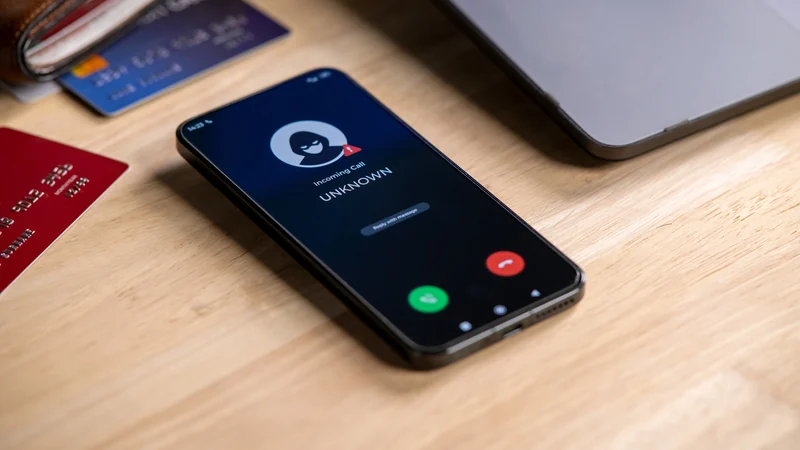
Mobile operating systems offer powerful built-in tools to help users silence and block unwanted spam calls without relying on costly third-party subscriptions.
 Radwan AbdulhadiEditor and technology writer
Understanding Built-In Spam Protection
Spam calls continue to be a persistent nuisance for mobile users, but operating systems now feature robust tools to fight back. While services like Truecaller have traditionally helped with caller identification and spam filtering for years, modern Android and iOS versions handle unwanted calls independently. Users no longer need to rely on third-party apps or pay expensive subscription fees to avoid unwanted callers.
In addition to native operating system functions, mobile carriers often provide their own spam protection features. Depending on the carrier, these options might be enabled by default. Users can check their online carrier account or the official mobile application to locate and activate the spam protection toggle if it is not already turned on.
Managing Call Filtering on iPhone
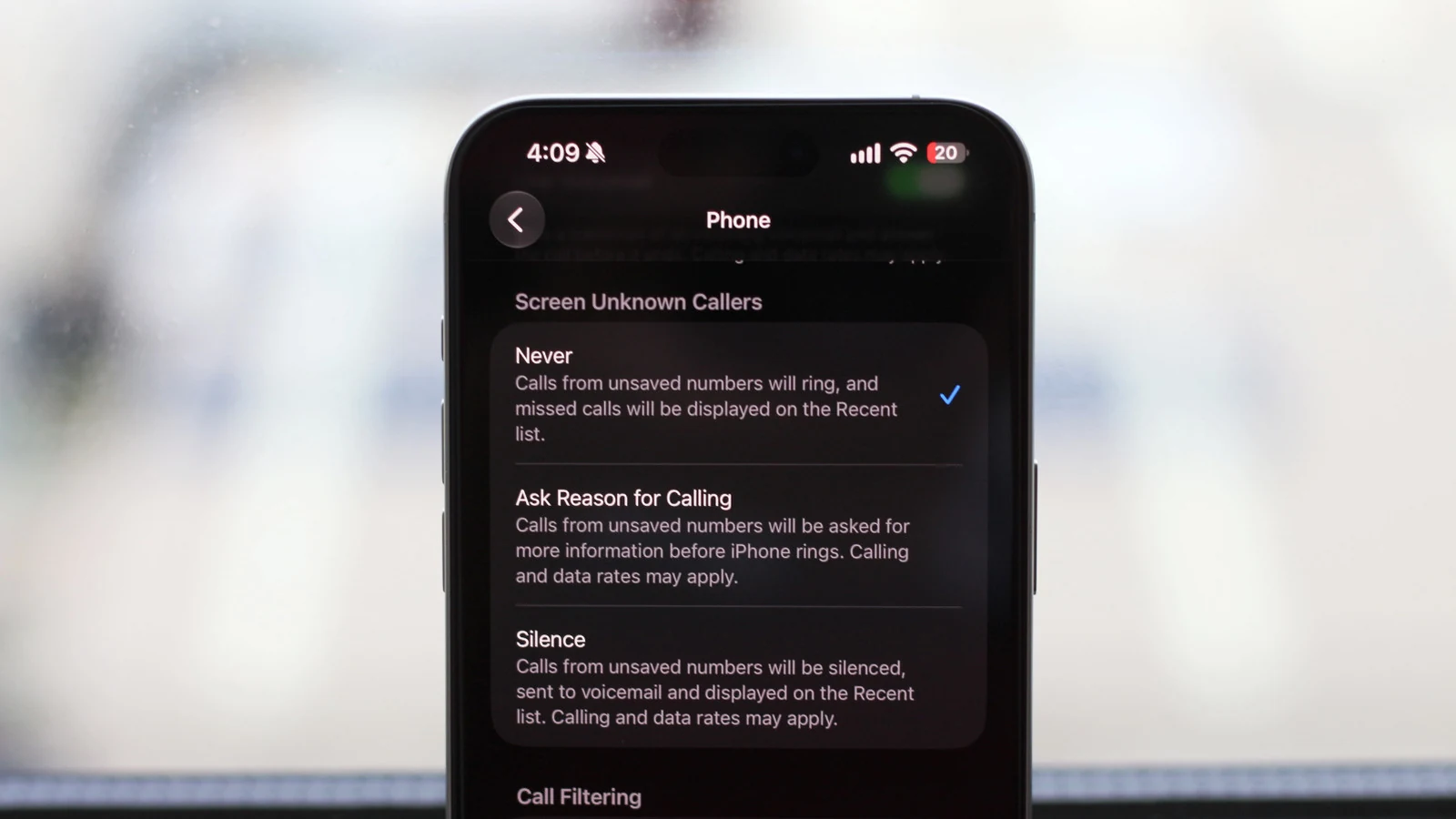
iPhone owners can manage incoming interruptions by navigating to Settings, selecting Apps, and opening the Phone menu. The primary option sits under the Call Filtering section, where enabling spam settings ensures that calls identified as junk by the carrier will not ring. Instead, they are automatically sent straight to voicemail, and they appear under the designated Spam section within the Phone app's Calls tab.
To maintain a clean call log, users can also enable the Unknown Callers option located in the same settings menu. This organizes recent calls from non-contacts into an Unknown Callers section accessible via the Phone app. If needed, users can tap Mark as Known to remove any specific number from that section.
Screening Unknown Callers on iOS
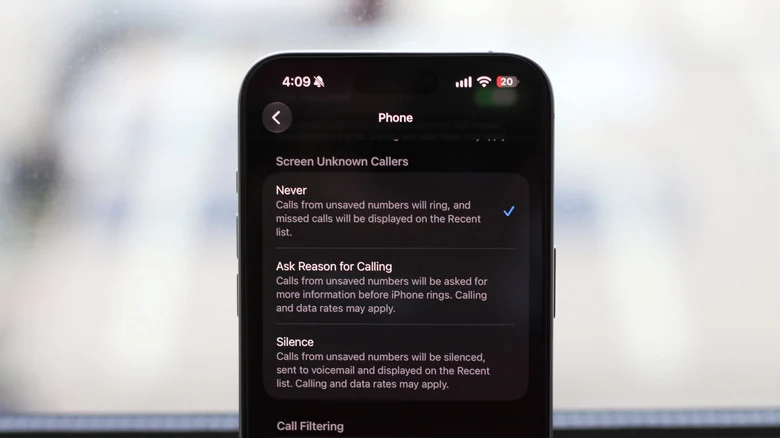
The Screen Unknown Callers section on iOS provides three distinct configuration choices. The default setting is Never, which allows all incoming calls to ring normally. Alternatively, users can choose the Silence option to mute all incoming calls from numbers not saved in contacts, sending them directly to voicemail where they can be reviewed later in the Calls tab.
A balanced alternative is the Ask Reason for Calling setting, which allows your iPhone will screen unknown callers by prompting them for the purpose of their call. This gives users a live transcript of the response on their screen to decide whether the conversation is worth answering. However, call screening is limited to select countries on iPhones running iOS 26 or newer.
Enabling Spam Detection on Android
Most Android devices offer native spam detection, though exact capabilities and availability vary based on the hardware model, Android version, and default dialer app. The official Phone app by Google comes pre-installed on many Android devices and includes built-in caller ID and spam detection capabilities. Users with alternative dialers can check their app settings or download Google's dialer application.
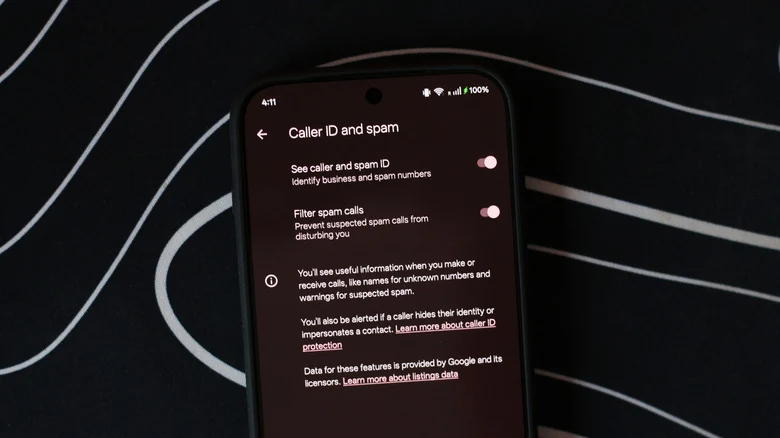
To activate these features, open the Phone app, tap the hamburger menu at the top-left, and select Settings. Under the Call Assist section, tap Caller ID and spam, then enable the option to see caller and spam identification. Users can also enable Filter spam calls to automatically silence suspected junk calls while retaining access to missed call logs and voicemails.
Advanced Call Screening on Android
Certain Android smartphones, including devices manufactured by Google and Samsung, offer advanced call screening functions comparable to the iOS screening tools. Owners of a Pixel 6 or newer model can configure this by opening the Phone app and navigating through Settings, Spam and Call Screen, and Call Screen.
For supported Samsung smartphones, users can open the Phone app, tap the three-dot icon in the top-right corner, and access Settings followed by Call screening. While these automated tools significantly reduce unwanted interruptions, users must remain slightly more vigilant to avoid missing legitimate phone calls from unsaved numbers such as medical offices or professional contacts.
Sources
- EngadgetHow to help stop spam calls on iPhone and Android
Continue chronologically

Related entity coverage
Related stories
How to Block and Unblock Numbers on Your Android Phone
Tired of spam? Learn how to effectively manage your block list on Android phones, including specific steps for Samsung and Google Pixel devices.
The Pros and Cons of Enabling Wi-Fi Calling on Your Phone
Explore the advantages and drawbacks of Wi-Fi calling, including how it handles weak cellular signals, call quality, security risks, and setup requirements.
Google Launches Android Motion Assist to Combat Motion Sickness
Google has officially launched Motion Assist for Android, bringing moving shapes to screens to help passengers combat motion sickness while riding in cars.

Googlebook "Better Together" Features Miss Samsung at Launch
Google's new Googlebook laptops require Android 17 and currently lack support for Samsung phones, leaving users waiting for an update.