Keeping Your PC Healthy: Testing Windows Cleanup Tools
While physical maintenance like clearing out dust is important, cleaning internal digital junk is often neglected. We examine built-in Windows features and alternative utilities to see how effectively they free up storage space.
 Radwan AbdulhadiEditor and technology writer
The Internal Chores of PC Maintenance
Most users understand that a desktop computer requires physical maintenance from time to time, such as opening the case, clearing out accumulated dust, and checking the fans. These steps are detailed further in our guide to cleaning and organizing your Windows PC.
However, a second major chore often receives far less attention: the digital junk that piles up inside the Windows operating system over time. Microsoft supplies a few built-in tools designed to tackle this problem, but their effectiveness can vary dramatically.
Putting Windows Storage Tools to the Test
To evaluate how well different utilities perform, a scan-only test was conducted on a single 1-terabyte C: drive that had only about 4 percent free space remaining. Nothing was deleted or cleaned during this evaluation; the test simply recorded what each tool offered to remove.
Disk Cleanup, the oldest option included with every version of Windows since Windows 98, remains largely unchanged. Users select a drive, wait through a brief scan, check boxes for temporary files, thumbnail caches, and the Recycle Bin, and press OK. Meanwhile, Storage Sense resides in the system settings and is designed to run automatically in the background on a schedule. Finally, Microsoft PC Manager is a separate, free installation that bundles a one-click boost, a storage cleaner, and additional extras.
Comparing Results and Finding Real Junk
When tested on the nearly full drive, Disk Cleanup and Storage Sense each offered to free a meager 1.66 gigabytes of junk. In contrast, Microsoft PC Manager listed 26 gigabytes, though that figure included about 15.5 gigabytes of items left unticked, meaning its raw total was somewhat overstated.
Manual measurements of the drive revealed roughly 20 gigabytes of actual junk files. Disk Cleanup and Storage Sense managed to locate only about 8 percent of that total, whereas PC Manager's list covered roughly 90 percent of the real junk files. Major space hogs missed entirely by the native Windows tools included a 9.25GB NVIDIA shader cache, roughly 5GB of Chrome cache distributed across four profiles, and 2.2GB of application crash dumps. PC Manager detected all of these, alongside hidden caches left behind by developer tools like Python and Node.js.

Optimizing Storage Sense and PC Manager
Disk Cleanup has become largely redundant because its temporary files list matches Storage Sense category for category. However, Storage Sense is built to run quietly in the background and often remains dormant unless free space drops below a specific threshold, which meant it did nothing on the test drive.
Users can easily fix this by navigating to system storage settings and changing Storage Sense to run every day, week, or month rather than waiting for low disk space. Additionally, Microsoft PC Manager offers a thorough approach by preticking safe items like browser caches and crash dumps while leaving larger caches unticked so the user retains final control.
App Uninstalls and Third-Party Utilities
When users try to free up space by visiting installed apps and removing unused programs, many applications leave behind folders, caches, and registry entries. Revo Uninstaller Free addresses this by running the program's native uninstaller first and then scanning for leftover files, folders, and registry entries to ensure a complete removal.
By contrast, older utilities like CCleaner should generally be skipped. CCleaner has transformed into bloatware and has faced documented trust issues, such as an incident where usage data collection exceeded user expectations.

Managing Large Files on Full Drives
Removing every byte of digital junk on a nearly full drive will only shift free space by a small margin. To achieve meaningful storage recovery, users must address large culprits such as video games, media files, and photo libraries.
For those unsure where storage has gone, our guide to seeing what's taking up space on your Windows PC provides additional steps to help identify and manage large files using built-in or utility options.
Sources
- EngadgetYou might be neglecting the one thing that keeps your PC healthy
Continue chronologically
Related entity coverage
Related stories
Optimizing Windows for Nvidia’s New RTX Spark Laptops
Discover how Microsoft and Nvidia are optimizing Windows on Arm for the new RTX Spark platform, focusing on local AI, gaming, and memory management.
Microsoft Windows and Surface Event Kicks Off in San Francisco
Microsoft hosts its first laptop-centric event in two years in San Francisco, featuring CEO Satya Nadella and NVIDIA CEO Jensen Huang.
Microsoft Gives Copilot More Control Over Windows and Files
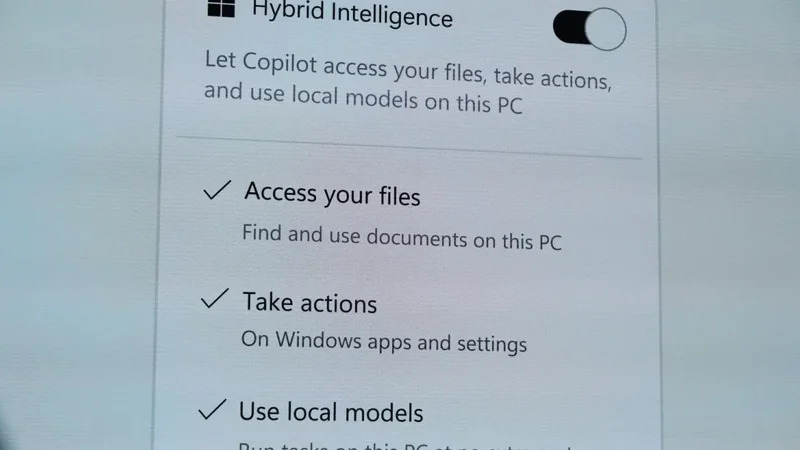
Microsoft has announced major upgrades to Copilot at its Windows and Surface event, introducing Hybrid Intelligence to manage local files and OS actions.
Microsoft and NVIDIA Showcase Local AI and New Windows Features
Microsoft hosts an event in San Francisco featuring CEO Satya Nadella and NVIDIA CEO Jensen Huang to highlight local AI and new Windows capabilities.